Address Imports: A Step-By-Step Guide
What Is An Address Import?
CrowdFiber automatically provides you with comprehensive address information based on the unique service areas on your platform. However, address imports provide you with the ability to update your existing CrowdFiber address records and even add additional or new address records to CrowdFiber from your internal database.
An address import, via a CSV, can help you bring the following data into your CrowdFiber Platform: street address, zip code, service active status, latitude & longitude coordinates. You can import data into any field/attribute that exists within a standard address record, as well as upload custom attributes by using Dynamic Fields . Custom Attributes/Dynamic fields can be uploaded to your CrowdFiber Database simply by adding additional columns to your CSV.
Why Import Addresses?
- Provide your CSRs with additional, proprietary address attributes to improve the way they manage orders.
- Provide more comprehensive address details to technicians and operational systems via exports and integrations.
- Provide additional address attributes that enhance the targeting of your direct mail campaigns sent through CrowdFiber.
- Mark Addresses to resolve to a certain zone.
- Import service status and drop information.
- Track the node of an address.
- Assign PSAP data.
- Add addresses that do not exist in address databases to your platform, such as:
- Extremely rural that have not been kept up to date in address databases.
- New housing development addresses that have not yet been added to address databases.
How to Perform an Address Import
Step 1: Prepare Your CSV
Please review all of the details in this step to avoid receiving upload errors.
The first step is to format the columns of your CSV so it can be successfully imported into CrowdFiber. Click here to download our Address Import Template.
Two Required Columns:
1) Street Address (Including Unit Numbers)
Note
Make sure all of your street addresses are in the same format (e.g. 123 Main Street NE Apt. 1).
2) ZIP-Code (five-digit ZIP code)
Do not include a city and/or state in the Street Address Column.
Importing Units?
All unit numbers for any address must be included in the Street Address column.
Do not include a separate column for units.
If you're uploading multi-dwelling unit addresses to CrowdFiber, you can choose only to upload the root address (e.g. "123 Main Street" rather than 123 Main Street Apt. 1)
As your customers and pre-registrants complete orders and pre-registrations, they will be able to add their unit number to the root address in their initial address search (at the beginning of the process).
Once the customer or pre-registrant enters a unit number into their address search, a new address with an apartment number will instantly be created in your platform; this process WILL NOT create duplicate addresses.
Optional Columns:
Tag
This field allows you to create a unique identifier for all address records associated with a specific import.
Best Practices:
- No spaces can be used in the name of a tag; spaces will create import errors. Use underscores or dashes to create space between words.
- Include the date of your import in the tag column to make data associated with every address import easy to find in the future.
- You can use the same tag for multiple imports to keep your past and present data organized.
Service Active
An active status for an address indicates that the location is currently "in-service" or fully eligible for immediate service activation.
If your CSV file does not contain latitude and longitude columns, CrowdFiber will automatically geocode each address for you.
Latitude & Longitude
If your CSV file contains latitude and longitude columns, your import will overwrite existing coordinates/ coordinates sourced by CrowdFiber with the Lat/longs provided in your import.
Best Practices:
It's best to include geocoordinates for rural addresses and new development areas.
- Rural Addresses: Search for an address' precise geo-coordinates and add these values to your CSV.
- New Housing Developments: Where construction is active/incomplete, include geo-coordinates that exist in the center of the new neighborhood.
In the first step of your registration process, on the Address Verification page, your registrants can have the opportunity to drag and drop a map pin to a more precise location of their home; this action of dragging and dropping the map pin will update an address record's geo-coordinates in real-time.
Custom Attributes
If you're looking to upload columns/attributes that do not currently exist as attributes/fields in your CrowdFiber records, it is critical that you create Dynamic Fields for each of the custom columns/attributes/fields in your CSV before you import your CSV.
Once a custom attribute exists within your CrowdFiber platform as a Dynamic Field, custom attributes can be uploaded to CrowdFiber by adding an additional, unique column to your CSV for each piece of custom data.
Prevent Duplicate Records
To prevent duplicate address records, the address in your Street Address Column and the zip code in your Zip Code column of your imported CSV must exactly match the Street Address and the Zip Code of the existing CrowdFiber address record. An imported address that has the identical street address and zip code values as an existing CrowdFiber address record will not create a new address record; the imported data associated with this address will add new data or overwrite existing data in the pre-existing address record.
Step 2: Upload Your CSV
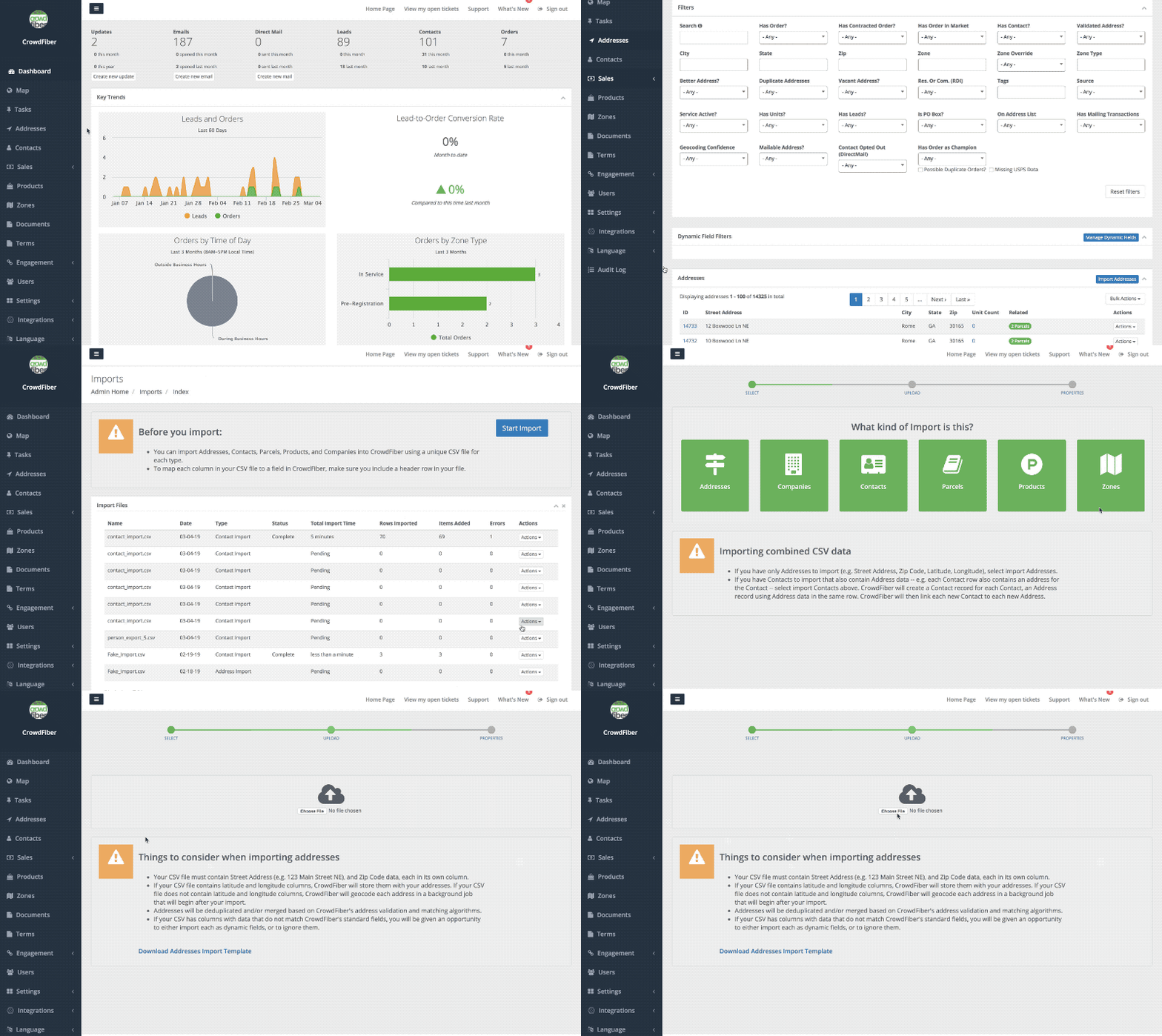
- Click the Address link located in the left-hand rail of your Admin Dashboard.
- On the following page, click the blue Import Addresses button located above the upper right-hand corner of your table of addresses. You will be taken to the Imports page which displays a list of all of the files you have imported to your CrowdFiber platform.
- On the Imports page, click the blue Start Import button located in the upper right-hand corner of the screen.
- Next, you'll be asked, "What kind of import is this?" Make sure to select the green Address button.
- The last step is to choose and upload your CSV.
Step 3: Map Your CSV Columns to Address Record Fields
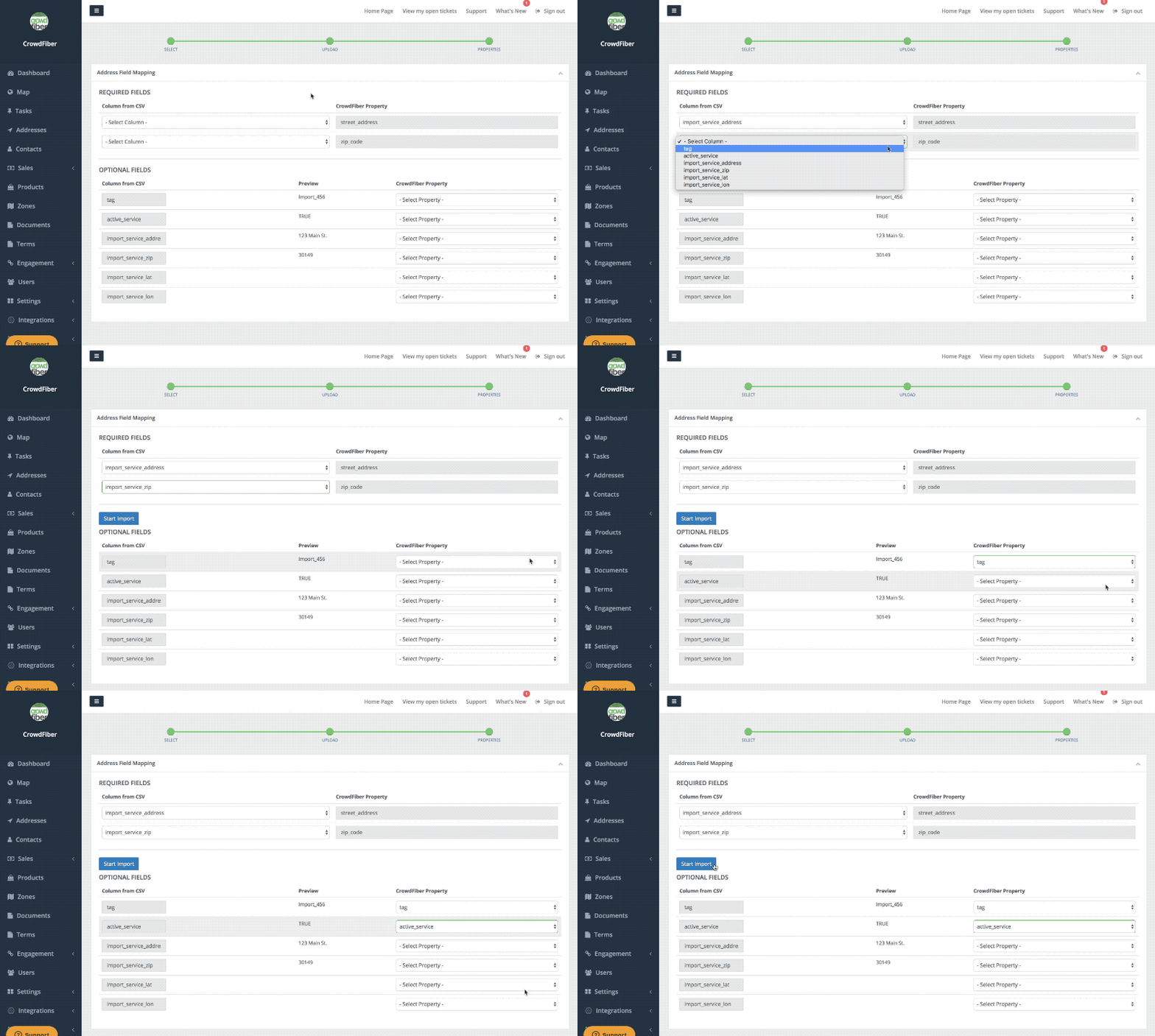
Once your CSV has been uploaded to the platform, you will need to "map your fields." This is how you'll get the data in each column of your CSV into the correct attributes of your address records.
To do this, simply use the drop-down menus to select the CrowdFiber property/address attribute that you'd like to assign to each column in your CSV.
How Mapping Affects Existing Data
If no CSV column is mapped/passed in the import, the value of that attribute in your platform will remain unchanged.
If data is re-imported and data is mapped to any attribute (like "zone_override_id"), that data will overwrite the existing value of the current attribute.
To remove data from an optional field please be sure your import contains
Do NOT map the values in the Required Fields a second time in the Optional Fields section.
Step 4: Start Your Import
After your fields have been mapped, click the blue Start Import button.
Step 5: Import Processing & Completion
The time it takes to import your addresses will vary based on the number of addresses and the number of address attributes that are being imported. Larger files will naturally take longer to process and complete.
You'll be able to monitor your import's progress from Pending, to Processing, to Completion by watching the Status Column on your Imports page.
Once your import is complete your data will be readily accessible in your address index.