Address Lists: Create a Targeted List of Addresses
Why Address Lists?
Lists allow you to create groups of users for tailored communications. With Address Lists, you can create targeted, relevant messaging that resonates with your individual customers at scale. With a single message, you can also guide entire groups of your customers who have specific products, order statuses, and service areas toward taking the specific actions you need these customers to take in order to move your company forward.
TIP
Address Lists can be used to communicate to an entire zone of in-service users about a newly available upgrade or communicating with users in pre-registration zones about steps that can or will be taken to bring service to their area.
How to Build an Address List:
- Click the Engagement link located in the left-hand rail of your Admin Dashboard
- Select the Address List link within the Engagement drop-down menu.
- On the following Address List Page click the green New List button in the upper right-hand corner of the page.
Describe Your List’s Purpose
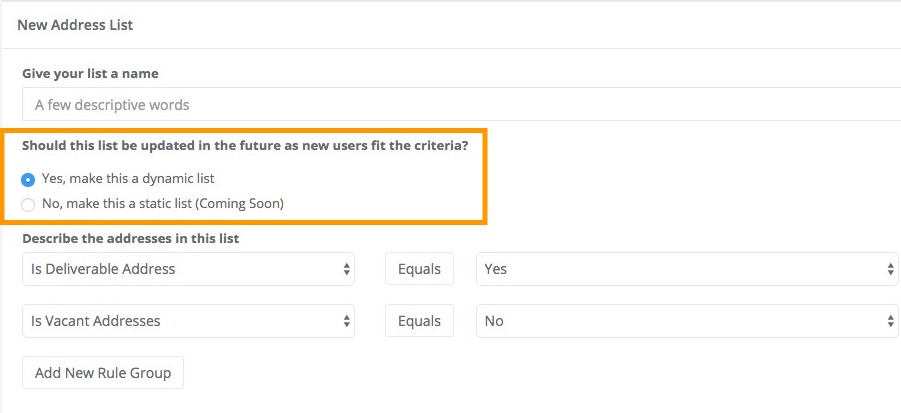
Now, it’s time to give your list a title that describes the customers it's targeting and choose whether you’d like to make this list a Static List or a Dynamic List.
- Static list: a snapshot in time of current address. Once this list is created it does not change or update as the addresses in your database expand or update on the list (this is a deprecated feature).
- Dynamic List: a real-time view of current addresses. These lists are constantly adding and removing addresses as soon as an address' details meet or do not meet all of the criteria/rules applied to your list.
Target Your Customers
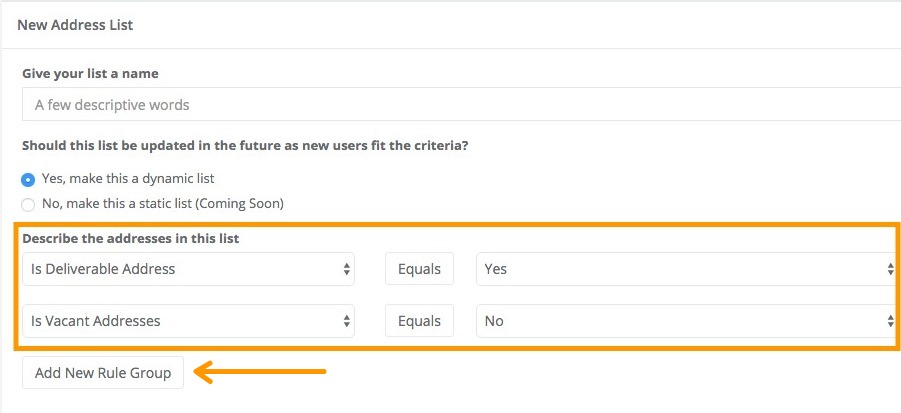
The next step is to define the customers who you’d like to target by creating the Rules that define who can become a part of this list.
How to Create Your Rules:
TIP
Rules are helpful in hyper-targeting a specific list of subscribers to receive your messaging.
- Click the Add New Rule Button.
-
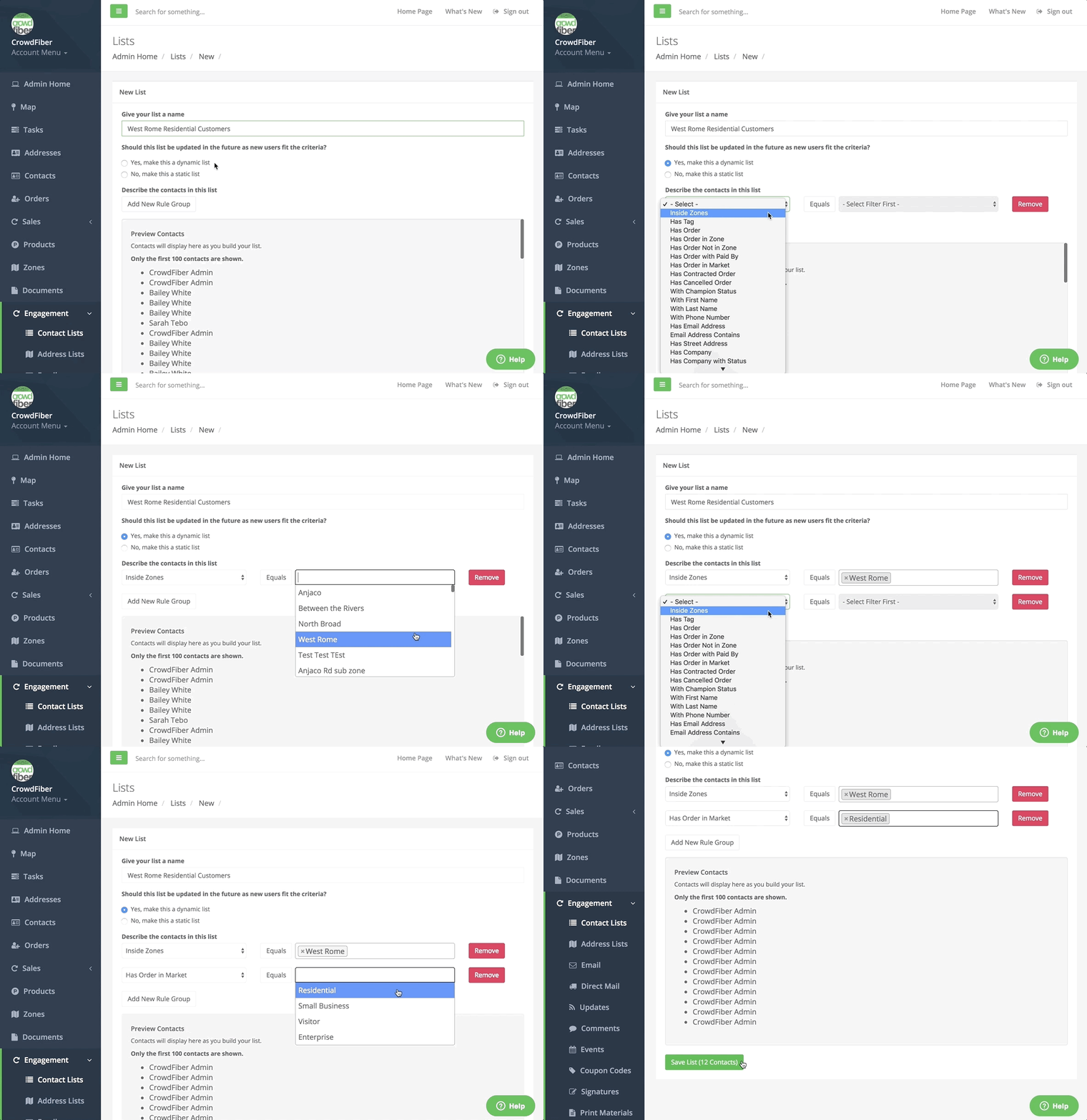
Open the drop-down menu on the left and select a specific attribute that describes the customers you’d like to have on the list.
-
In the drop-down menu on the right, type or select the exact attribute that you’d like every customer on this list to have.
Example
Inside Zone(s) Equals “West Rome” will immediately give you a list of all your customers inside the “West Rome” Zone.
Continue to click Add Rule to add the attributes that refine your list to create and include only the specific customer you’re targeting.
Example
Adding the rule “Has Order in Market” Equals “Business” will immediately show you a list of all your Business subscribers that have an order in the West Rome.
Don’t forget to save your list: Scroll to the bottom of the page and click the green Save List button.