Address Lists: Export an Address List
Exporting an address list to a CSV file is a simple process in the CrowdFiber platform. All you have to do is:
Step 1) Filter your Addresses
- Select the Address List link within the Engagement drop-down located in the left-hand rail of your Admin Dashboard
- On the following Address List page click the blue New List button in the upper right-hand corner of the page. Create and save your list.
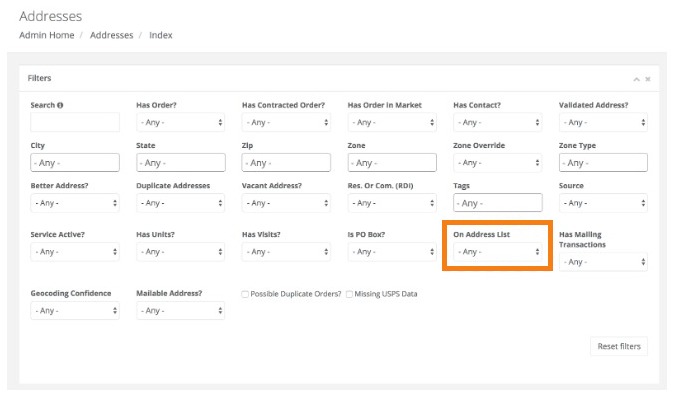
- Navigate to the Addresses index (from the left-hand rail menu) and click the On Address List filter located at in the Filters section at the top of the page. Clicking this filter will cause a drop-down menu of all of your existing address lists to display.
- Select the name of your address list from the On Address List drop-down menu.
Step 2) Export your Addresses
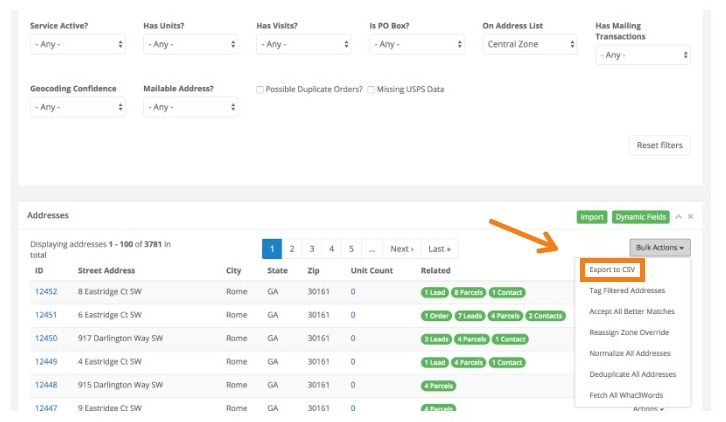
- Click the Bulk Actions button located above the right-most column of your Address Table.
-
Select Export to CSV from the Bulk Actions drop-down menu.
(Note: You'll automatically be taken to an Exports page where your export will immediately start running.)
Step 3) Download your CSV
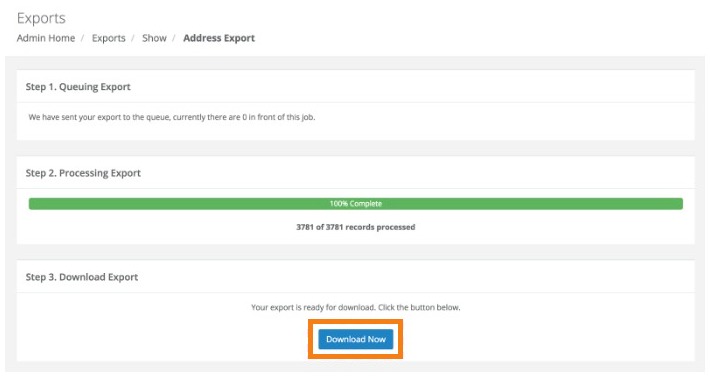
The export process will begin instantly and automatically perform three steps:
- Queueing Export: The platform processes one export at a time. If there are any other exports or address fetches that have been requested by you or other users that remain incomplete, the other export jobs will need to complete before your export can move to processing.
- Processing Export: The platform is executing your request and creating your CSV. The amount of time this step takes will vary depending on the amount of data included in the export.
- Download Export: The export is now complete and is ready for download. To download your Address List CSV, just click the blue Download Now button.