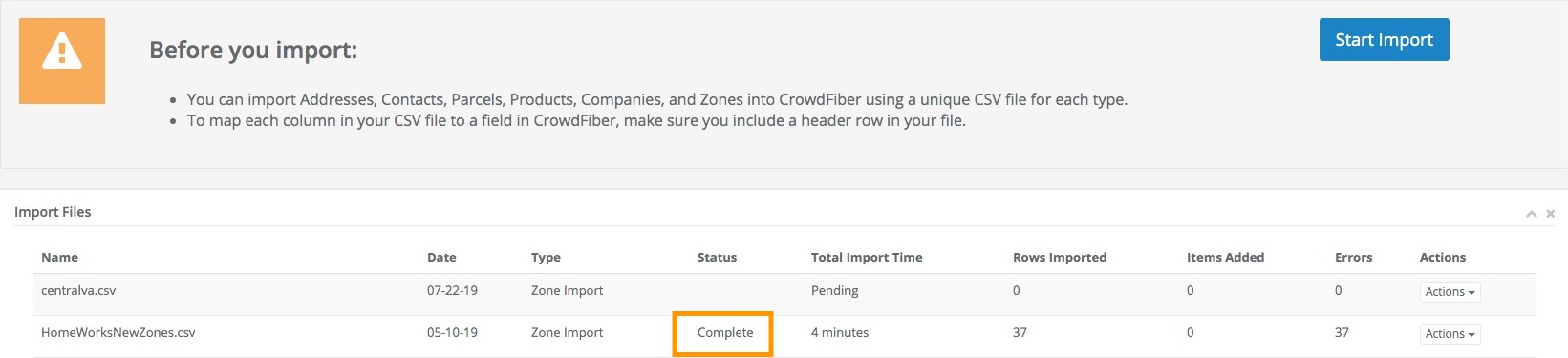
Contact Imports: A Step-By-Step Guide
What is a Contact Import?
Contact Imports allow you to include a list of contacts into your CrowdFiber database. Uploading a single CSV file to your platform can create a unique contact record for every person on your list, and simultaneously update the contact information within your address records.
IMPORTANT NOTE
Contact imports are exclusively for people. Do not use companies as first and last names; there is a separate import option for companies.
A contact import can help you bring the following data into your CrowdFiber Platform: full names, email addresses, physical addresses, and phone numbers. You can import data into any field that exists within a standard contact record as well as upload custom fields/attributes by using Dynamic Fields. Custom Attributes/Dynamic fields can be uploaded to your CrowdFiber Database simply by adding additional columns to your CSV.
Why Import Contacts?
- Provide your CSRs and with additional, proprietary contact and account details to improve the way they manage customer accounts.
- Provide more comprehensive address details to technicians and operational systems via exports and integrations.
- Provide additional address attributes that enhance the targeting of your email campaigns sent through CrowdFiber.
Step 1: Prepare your CSV
The first step starts by downloading our Contact Import Template
- Every contact in a CSV uploaded to CrowdFiber requires five columns:
- First Name
- Last Name
- Email Address
- Email Opt-out Column
- Tag
Importing a Contact's Address
You can include a service address and/or billing address in your contact's record by adding two additional columns for each type of address to your CSV.
-
Service Street Address
- All apartment and building numbers must be included within a single Street Address Cell (e.g. 123 Main Street NE, Apt. 1).
- Do not include a city and/or state in the Street Address Column.
-
Service Zip Code
-
Billing Street Address
- All apartment and building numbers must be included within a single Street Address Cell (e.g. 123 Main Street NE, Apt. 1).
- Do not include a city and/or state in the Billing Address Column.
-
Billing Zip Code
Importing Custom Attributes
If you are uploading attributes that do not currently exist in your CrowdFiber database, it is critical that you create Dynamic Fields for each custom attribute before uploading your CSV.
Once an attribute exists within your platform custom attributes can be uploaded by simply adding an additional, unique column to your CSV for each piece of custom data.
Best Practices
Email Address Column
Each contact must have a unique email address to avoid import errors. If you have contact records without email addresses, you will need to add a dummy email address to each of those contacts (the email address does not have to be valid for the data to be correctly imported, there simply needs to be a unique email address for each contact record).
-
Example dummy email addresses:
- 1st Contact: 1@example.com
- 2nd Contact: 2@example.com
- 3rd Contact: 3@example.com
Email Opt-out Column
This column helps you respect your prospects' and your customers' contact preferences by entering the value of "true" or "false" into each cell within this column.
- Enter the value “true” to automatically exclude your dummy email addresses and any contacts who have previously opted out of your email communication from your CrowdFiber email campaigns.
- Enter the value “false” for all contacts you would like to be able to contact via your CrowdFiber email campaigns.
Tag
While not required, this column creates a unique identifier for all contact records associated with a specific import. After your addresses are uploaded, you'll be able to view all contact records brought into your system by a specific import simply by entering its tag in the Tags filter located in the Filter section of your Contacts Page.
- To utilize a Tag column simply add the same set of characters into each row of the Tag column in your CSV.
Best Practices
- No spaces can be used in the name of a tag; spaces will create import errors. Use underscores or dashes to create space between words.
- Include the date of your import in the tag column to make data associated with every contact import easy to find in the future.
- You can use the same tag for multiple imports to keep your past and present data organized.
Preventing Duplicate Records
Correctly imported contact data will not create a new contact record when a pre-existing record is identified. A contact import will simply update your current records by adding the new data and updating the existing attributes within a contact record.
To facilitate the update of contact records rather than the creation of new records, your uploaded contacts must match three values within a contact's existing record:
-
First name
-
Last name
-
Email address
Step 2: Upload your CSV
-
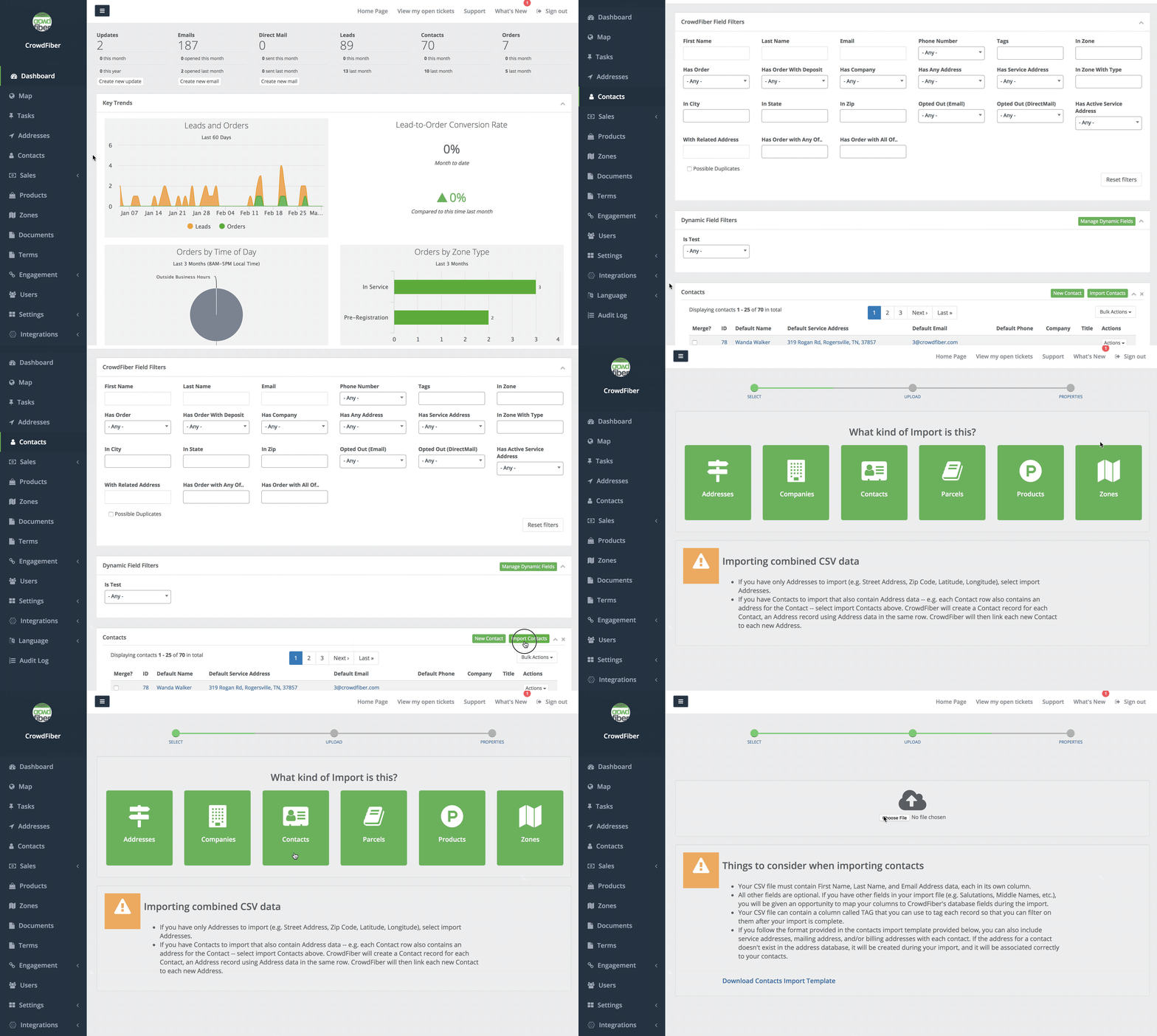
Click the Contacts link located in the left-hand rail of your Admin Dashboard.
-
On the following page, click the green Import Contacts button located above the upper right-hand corner of your table of addresses. You will be taken to the Imports Page which displays a list of all of the files you have imported to your CrowdFiber platform.
-
On the Imports Page, click the blue Start Import button located in the upper right-hand corner of the screen.
-
Next, you'll be asked, "What kind of import is this?" Make sure to select the green Contact button.
-
The last step is to choose and upload your CSV.
Step 3: Map Your CSV Columns to Contact Record Fields
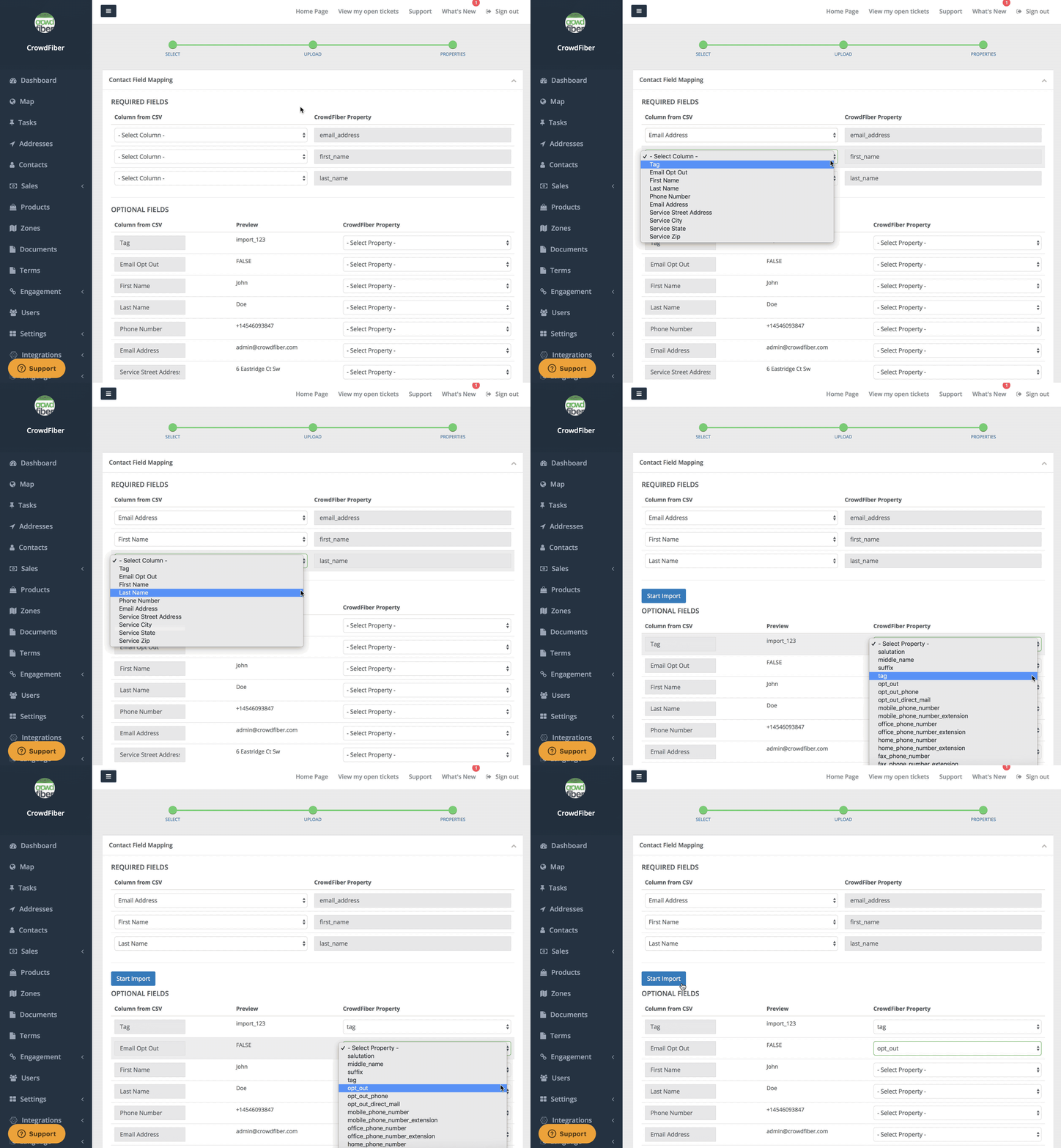
Once your CSV has been uploaded to the platform, you will need to map your fields. This process will place the data in each column of your CSV into the correct attributes of your contact records.
To do this, simply use the drop-down menus to select the CrowdFiber property/contact attribute that you'd like to assign to each column in your CSV.
How Mapping Affects Existing Data
- If no CSV column is mapped/passed in the re-import, the value of that attribute in your platform will remain unchanged.
- If data is re-imported and data is mapped/passed for any attribute (like zone_override_id), that will override the value of whatever is in that attribute.
-
If you map an empty column in your import to an existing attribute within CrowdFiber, the blank column is still going to update the mapped attribute with an empty field (it will appear as if the attribute's data has been erased).
Do not map the values in the Required Fields a second time in the Optional Fields section.
Step 4: Start Your Import
After your fields have been mapped, click the blue Start Import Button.
Step 5: Import Processing & Completion
The time it takes to import your contacts will vary based on the number of contacts and the number of contact attributes that are being imported. Larger files will naturally take longer to process and complete.
You'll be able to monitor your import's progress from Pending, to Processing, to Completion by watching the Status Column on your Imports Page.
Once your import is complete your data will be readily accessible in your contact records.