Merge/Combine Contact Records
Merge Rather Than Delete Your Duplicate Contact Records
If you have duplicate contacts in your CrowdFiber database, rather than delete a contact record (and risk losing valuable contact information), you can combine all of the individual/duplicate contact records into one comprehensive contact record - this feature is known as Merge Contacts.
When merging contact records, all duplicate data (identical data that exists in multiple contact records) will exist as one attribute in your contact record. All unique information that exists in one contact record but not the others will be added as new attributes within the merged contact record.
There are two ways to merge contact records:
- Merge two contact records into one combined contact record.
- Merge a group of contacts into one comprehensive contact record.
How to Merge Two Contacts Records into One Combined Contact Record
Step 1)
In the left-hand rail of your Admin Dashboard click Contacts.
Step 2)
On the following Contacts page, use the filters located at the top of the page to locate the duplicate contact record that you would like to merge.
Step 3)
From the Contact index located below the Filter section on this page, locate the row containing the contact record that you would like to merge.
Step 4)
Click the Actions button located in the far right-hand column of this row.

Step 5)
Select the Merge link located in the Actions button drop-down menu.

Step 6)
On the following page, click the Merge Contact [name] into drop-down menu, and within this drop-down menu type in the name of the contact record into which you'd like to merge this contact record.
Step 7)
Select the contact in the Merge Contact [name] into drop-down menu that has the correct name and Contact ID associated with the contact record you would like to merge.

Step 8)
Click the red Merge Contact button located on the right-hand side of the Merge Contact [name] into drop-down menu text box.

Your duplicate records will now display as one combined/comprehensive record throughout your platform. All of the information in these two contact records is combined into one record - no contact record data is deleted.
How to Merge a Group of Contacts into One Comprehensive Contact Record
Step 1)
In the left-hand rail of your Admin Dashboard click Contacts.
Step 2)
On the following Contacts page, use the filters located at the top of the page to locate the duplicate contact records that you would like to merge.
Step 3)
From the Contact index located below the Filter section on this page, locate the rows containing the contact records that you would like to merge.
Step 4)
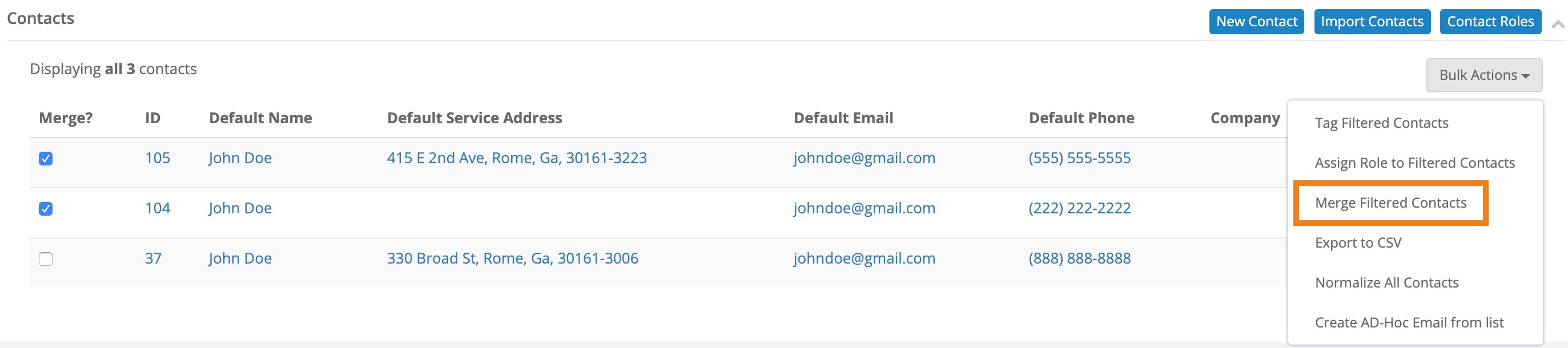
Click the checkbox in the Merge? column (the left-most column on the Contacts Page) next to each contact that you would like to merge into a single contact record.
Tip
Leave the Merge? checkbox in the row containing the contact you would like to merge all of these contact records into unchecked.
Note
You’ll need to remember the ID of the contact record you’d like to merge all of your duplicates into in order to complete your merge.*

Step 5)
Click the Bulk Actions button located above the upper right-hand corner of the Contacts Index.

Step 6)
Select the Merge Filtered Contacts link located in the Bulk Actions drop-down menu.
Step 7)
On the following page, click the Merge Contact [name] into drop-down menu, and within this drop-down menu type in the name of the contact record into which you'd like to merge these contact records.
Step 8)
Select the contact in the Merge Contact [name] into drop-down menu that has the correct name and Contact ID associated with the contact record that you identified in Step 2.

Step 9)
Click the red Merge Contact button located on the right-hand side of the Merge Contact [name] into drop-down menu text box.

All of the duplicate records will now display as one combined/comprehensive record throughout your platform. All of the information in these contact records is combined into one record - no contact record data is deleted.