CrowdControl
What is CrowdControl?
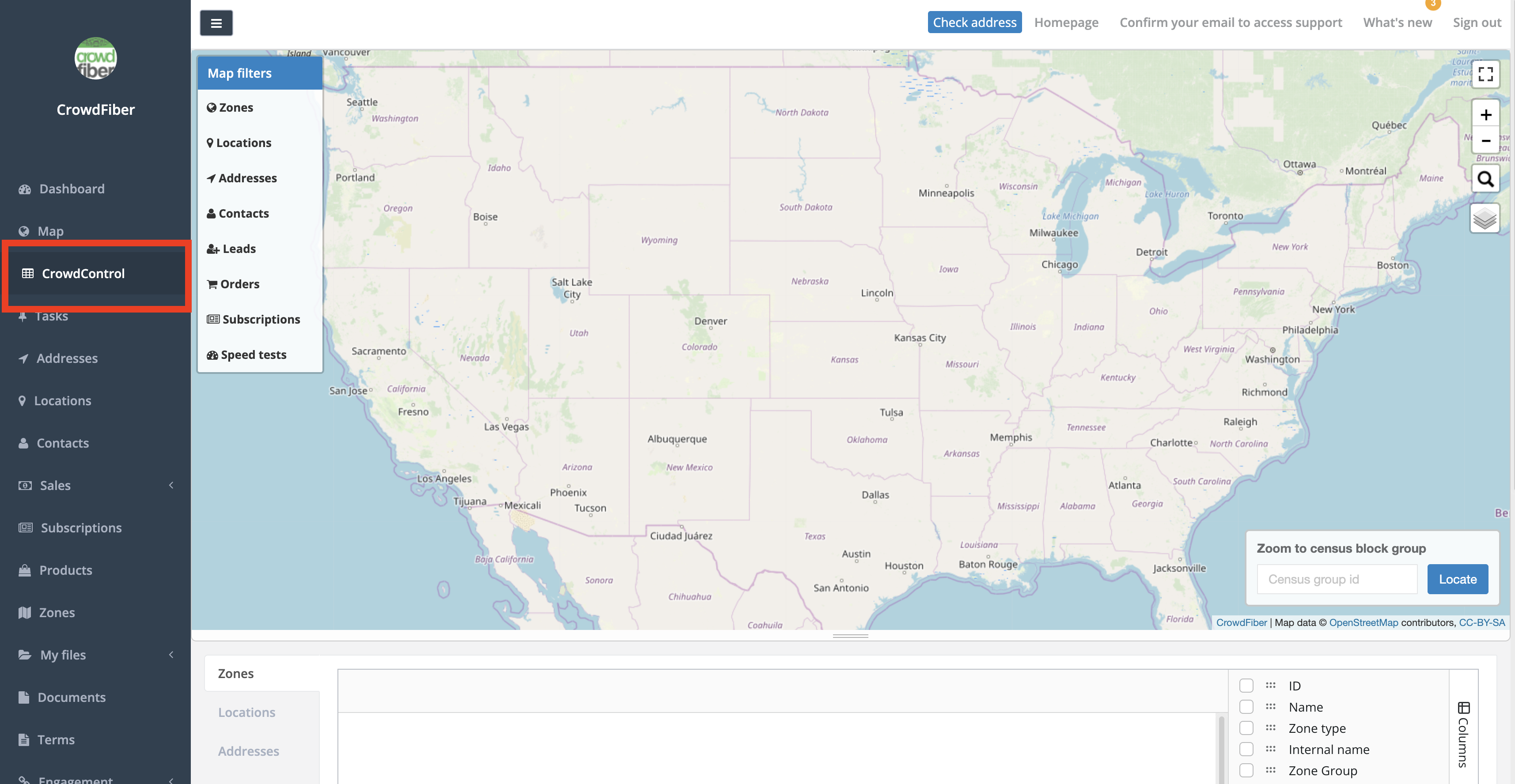
This feature is a data management tool that combines an interactive map with a versatile data table, allowing you to visualize and/or edit information related to Zones, Locations, Addresses, Contacts, Leads, Orders, and Subscriptions. The map offers filters to display specific data, while the table provides a detailed and editable view of various data stored throughout CrowdFiber. CrowdControl is ultimately designed to streamline workflows and improve data accuracy.
Map Filters
The map filters located on the left-hand side of the map provide an intuitive way to customize and refine the data displayed within the map view.
Zones
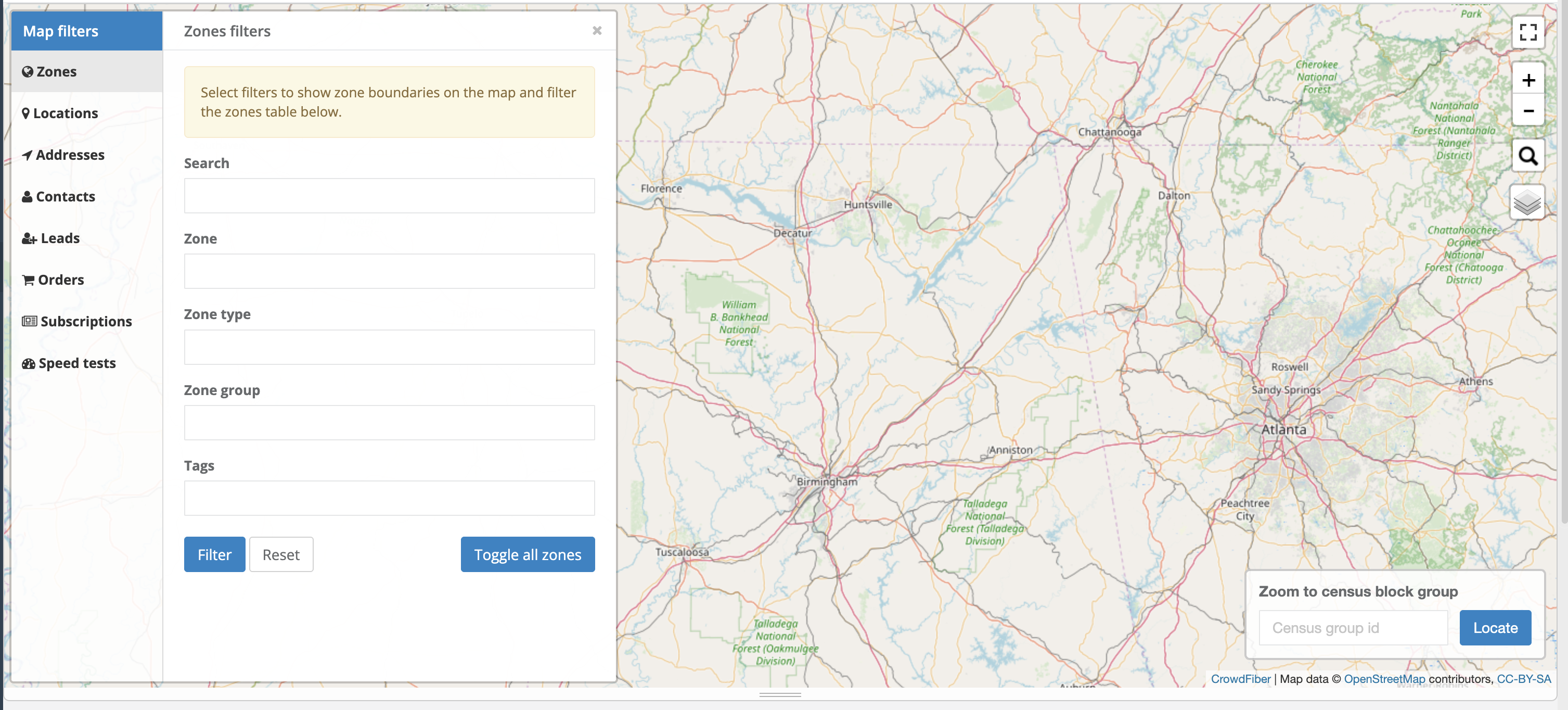
Search: Allows for a global search for any word, phrase, letter, or other text found within the Name or Internal Name fields of zone records.
Zones: A drop-down selector and search field allowing you to choose from any zones available within CrowdFiber. Includes all zone types, subzones, and even retired zones. Multiple zones can be applied to this filter.
Zone Type: A drop-down selector allowing you to filter between Remote, In-Service, Pre-Registration, Reference, and Private. Multiple zone types can be applied to this filter. More information on Zone Types .
- Zone Group
- A drop-down selector allowing you to filter by one or more zone groups. More information on Zone Groups .
- Tags
- A drop-down selector allowing you to filter by existing tags in your zone index along with Highway tags (under business case settings within zone records. More information on Highway Tags can be found HERE. )
Locations
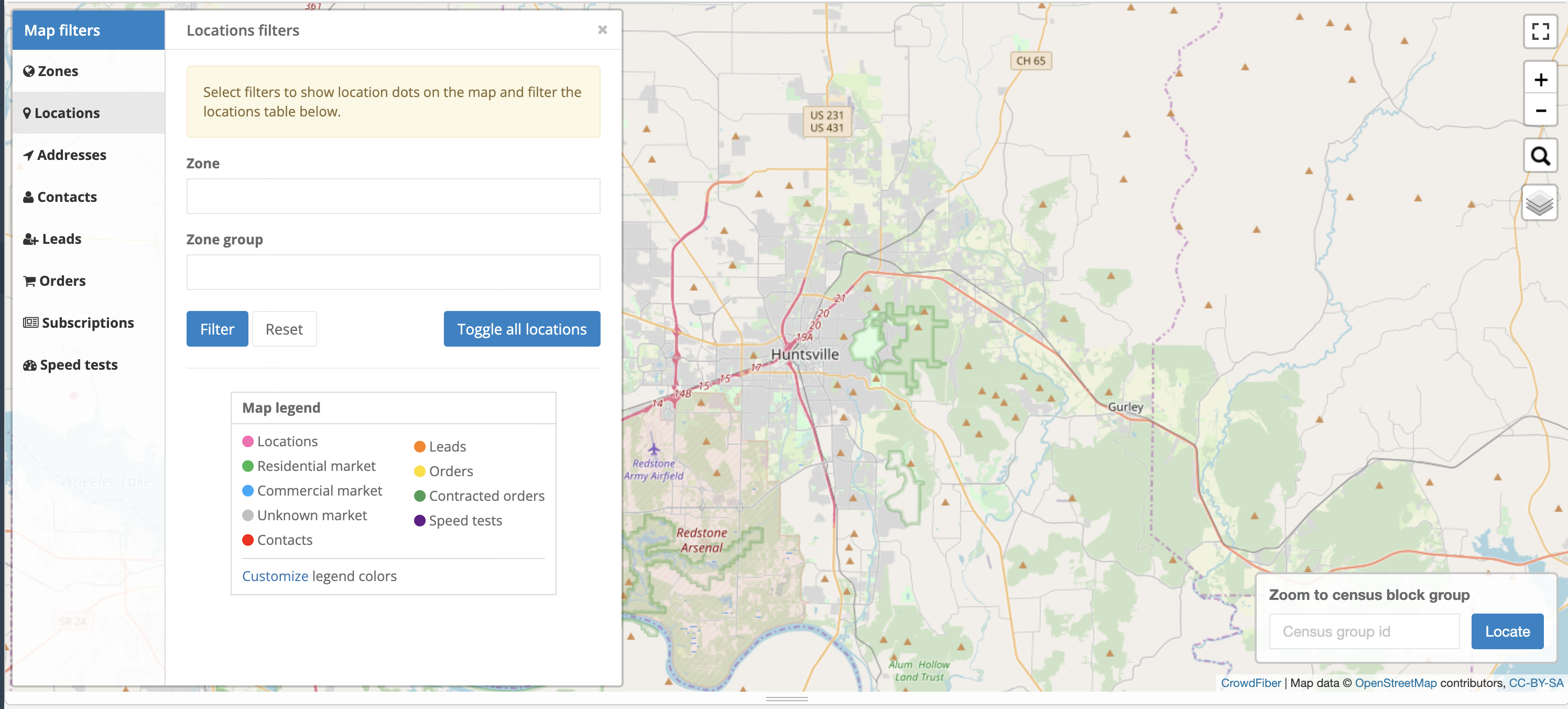
Zone: A drop-down selector allowing you to filter all locations by zone(s) the location resolves to.
Zone Group: A drop-down selector allowing you to filter by one or more zone groups the location resolves to.
Addresses
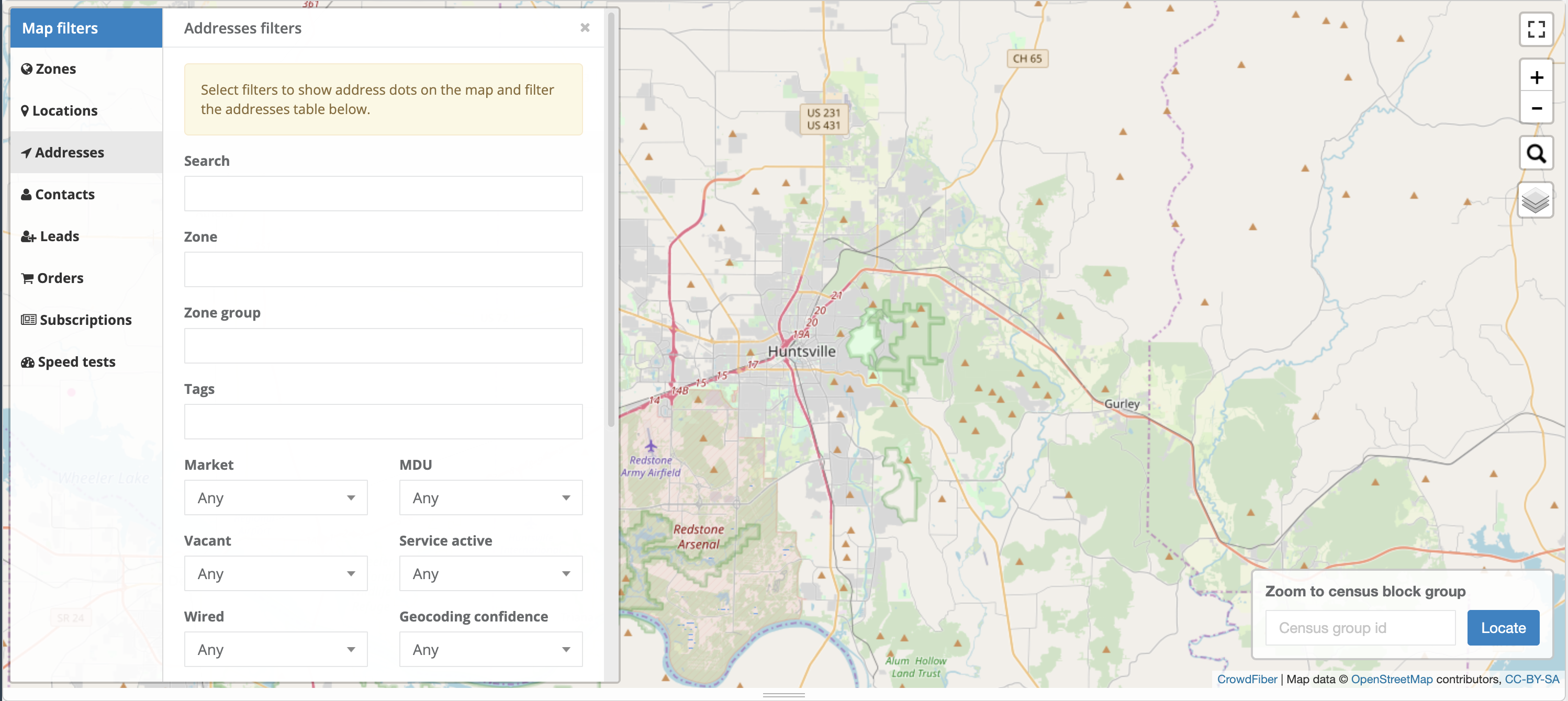
- Search
- Allows for a global search for any numerics, word, phrase, letter, or other text found within the street name of addresses.
Zone: A drop-down selector allowing you to filter all addresses by zone(s) the address resolves to.
Zone Group: A drop-down selector allowing you to filter addresses by one or more zone group(s) the address resolves to.
Tags: A drop-down selector allowing you to filter by existing tags in your address index.
Market: A drop-down selector that relies on the residential delivery indicator obtained from USPS data.
MDU: A drop-down selector that utilizes the Delivery point validation (DPV) footnotes obtained from USPS data to confirm if the address is valid and if the address is categorized as a Multi-Dwelling Unit (MDU). You may notice a footnote code "AAN1" within the DPV footnotes field of an address displaying when the filter 'MDU - yes' is applied. This indicates that while the primary address (street, city, zip code, and primary number) is valid, but the secondary address information such as the apartment or suite number is missing and needs to be added for complete address verification.
Vacant: A drop-down selector that relies on 'address vacant' field obtained from USPS.
Service Active: A drop-down selector allowing you to filter all addresses by the network field 'service active'; applied in the address record.
Wired: A drop-down selector allowing you to filter all addresses by the network field 'wired'; applied in the address record.
Geocoding confidence: A drop-down selector allowing you to filter addresses by the level of geocoding confidence.
Source: A drop-down selector allowing you to filter addresses by how they were introduced (any, fetched, imported, or searched).
Contacts
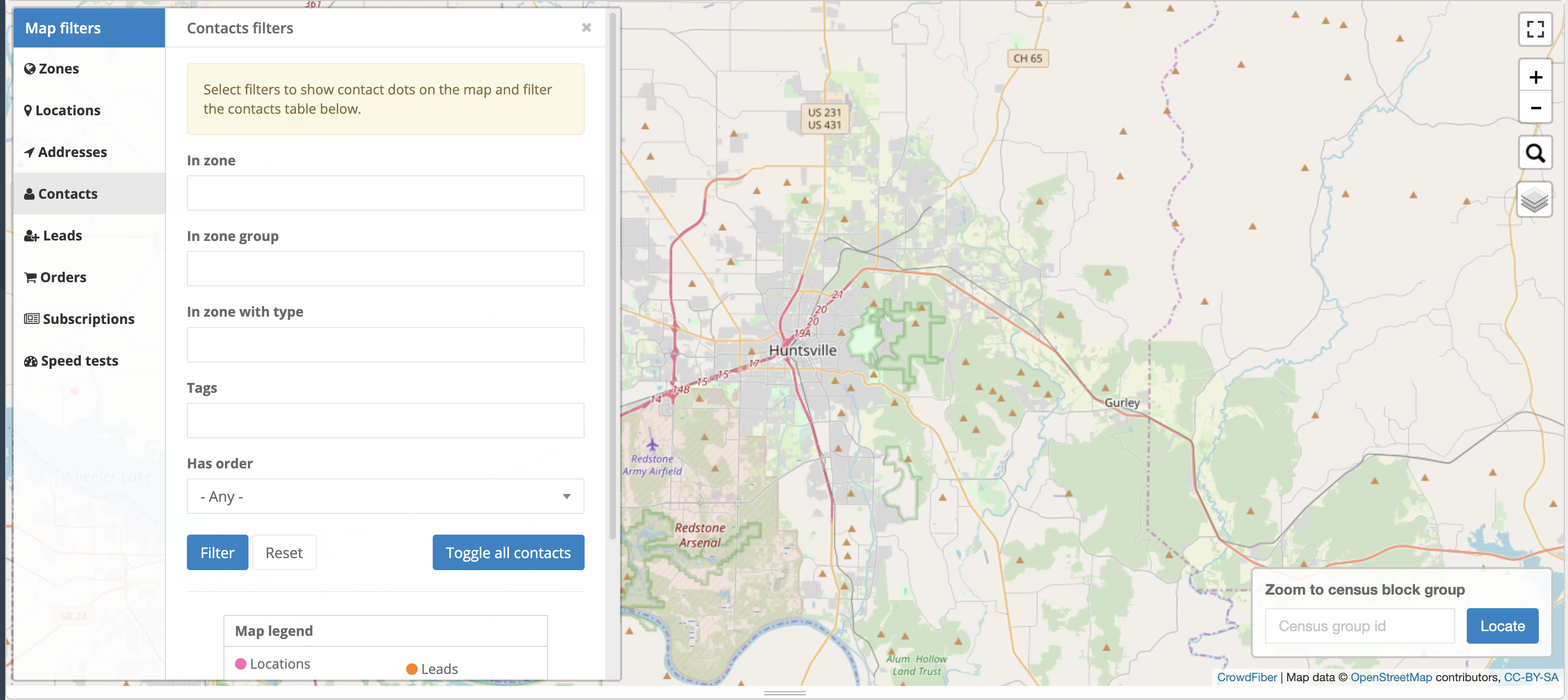
In Zone: A drop-down selector allowing you to filter all contacts by the zone(s) the address associated with the contact falls within.
In Zone Group: A drop-down selector allowing you to filter contacts by one or more zone group(s) the address associated with the contact falls within.
In Zone with Type: A drop-down selector allowing you to filter all contacts by the zone type the address associated with the contact falls within.
Tags: A drop-down selector allowing you to filter by existing tags in your contact index.
Has Order: A drop-down selector allowing you to filter all contacts by whether they have an existing order within CrowdFiber.
Leads
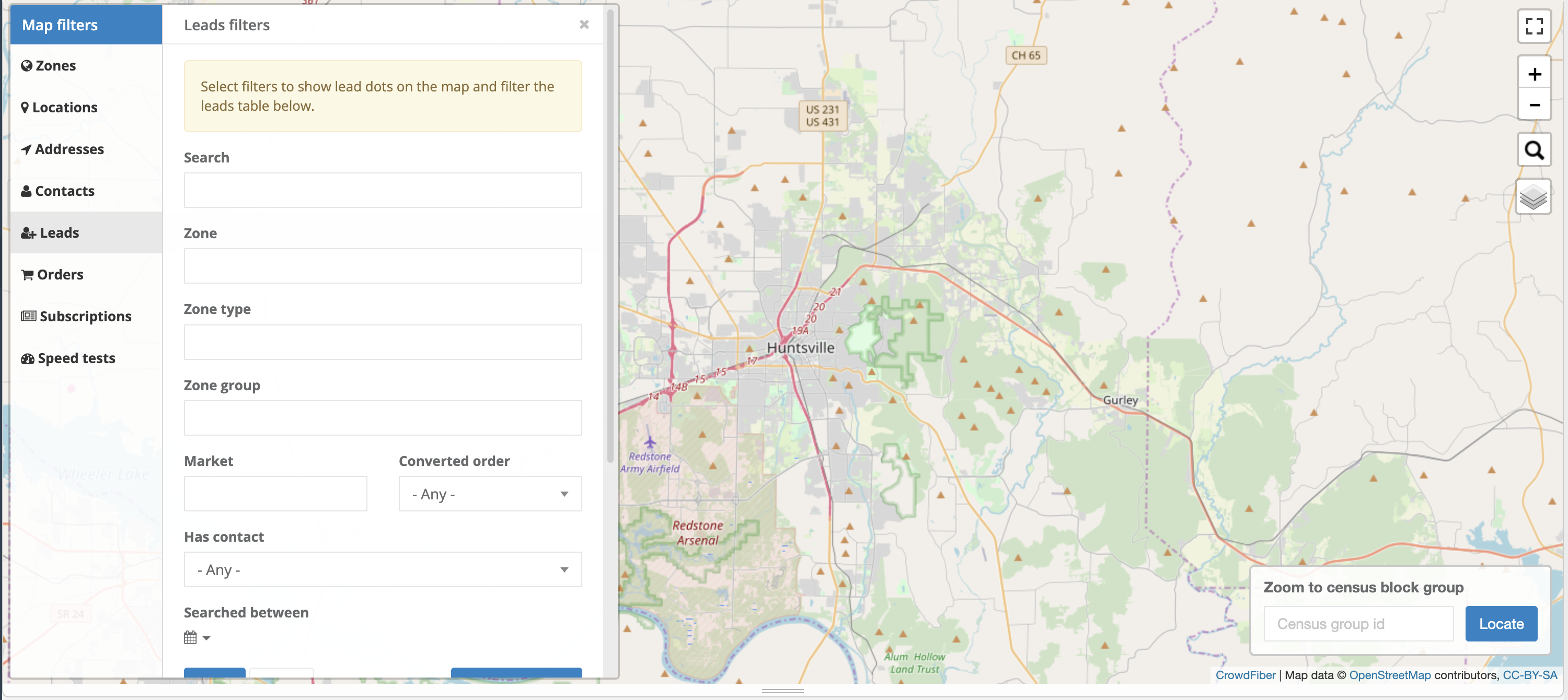
- Search
- Allows for a global search for any numerics, word, phrase, letter, or other text found within any lead data captured within the registration.
Zone: Allowing you to filter all leads by zone(s) the lead resolved to.
Zone Type: Allowing you to filter between Remote, In-Service, Pre-Registration, Reference, and Private. Multiple zone types can be applied to this filter.
Zone Group: Selector allowing you to filter contacts by one or more zone group(s) the address associated with the contact falls within.
Market: selector that relies on the residential delivery indicator obtained from USPS data.
Converted Order: Selector that relies on the conversion of orders.
Has Contact: Allows filtering by records that contain a contact.
Searched between: Allows for filtering based upon a date range.
Orders
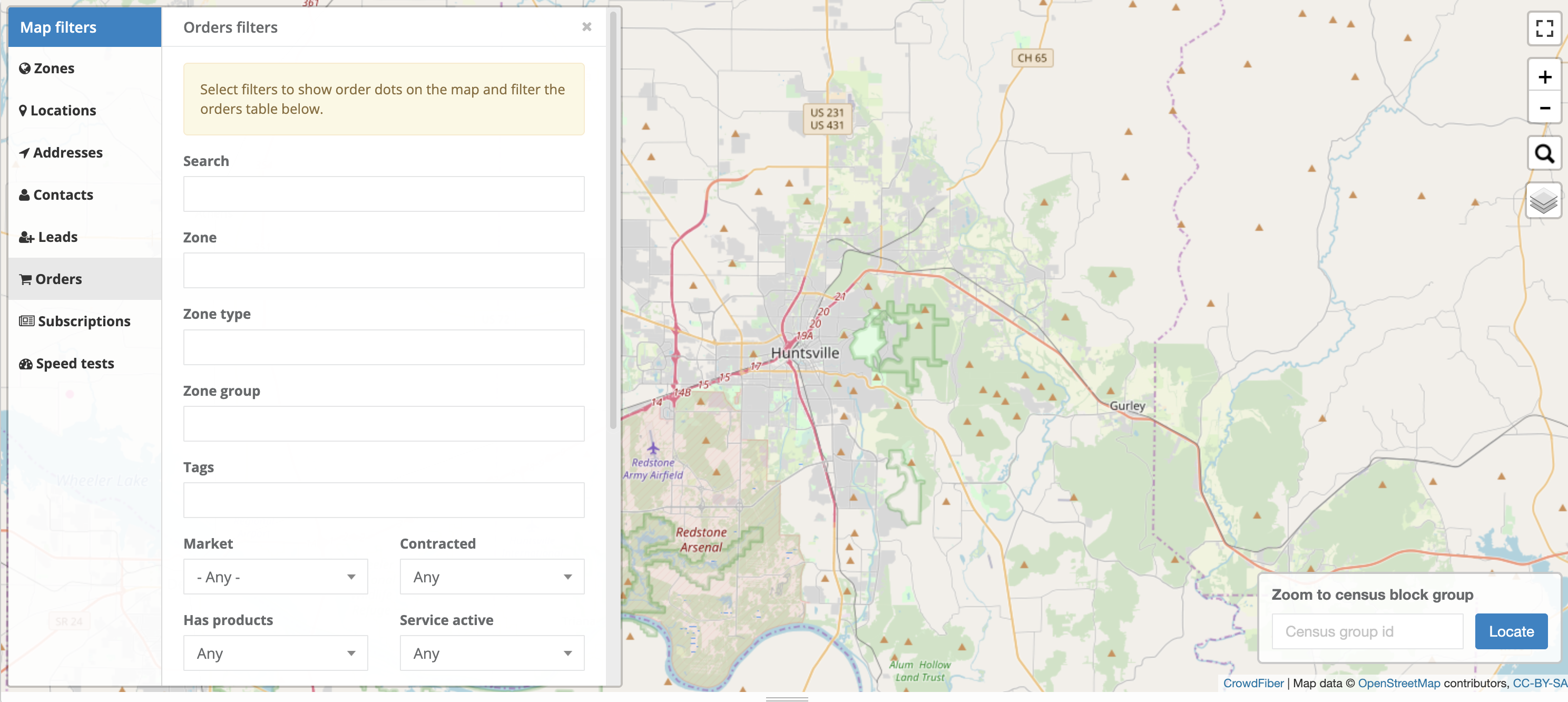
Search: Allows for a global search for any numerics, word, phrase, letter, or other text found within the order data captured.
Zone: A drop-down selector allowing you to filter all orders by zone(s) the order resolves to.
Zone type: Allowing you to filter between Remote, In-Service, Pre-Registration, Reference, and Private. Multiple zone types can be applied to this filter.
Zone group: Selector allowing you to filter contacts by one or more zone group(s) the address associated with the contact falls within.
Tags: A drop-down selector allowing you to filter by existing tags in your order index.
Market: Selector that relies on the residential delivery indicator obtained from USPS data.
Contracted: Selector that relies on the contracted status.
Has products: Selector that relies on the availability of products.
Service active: Selector that relies on the active status.
Subscriptions
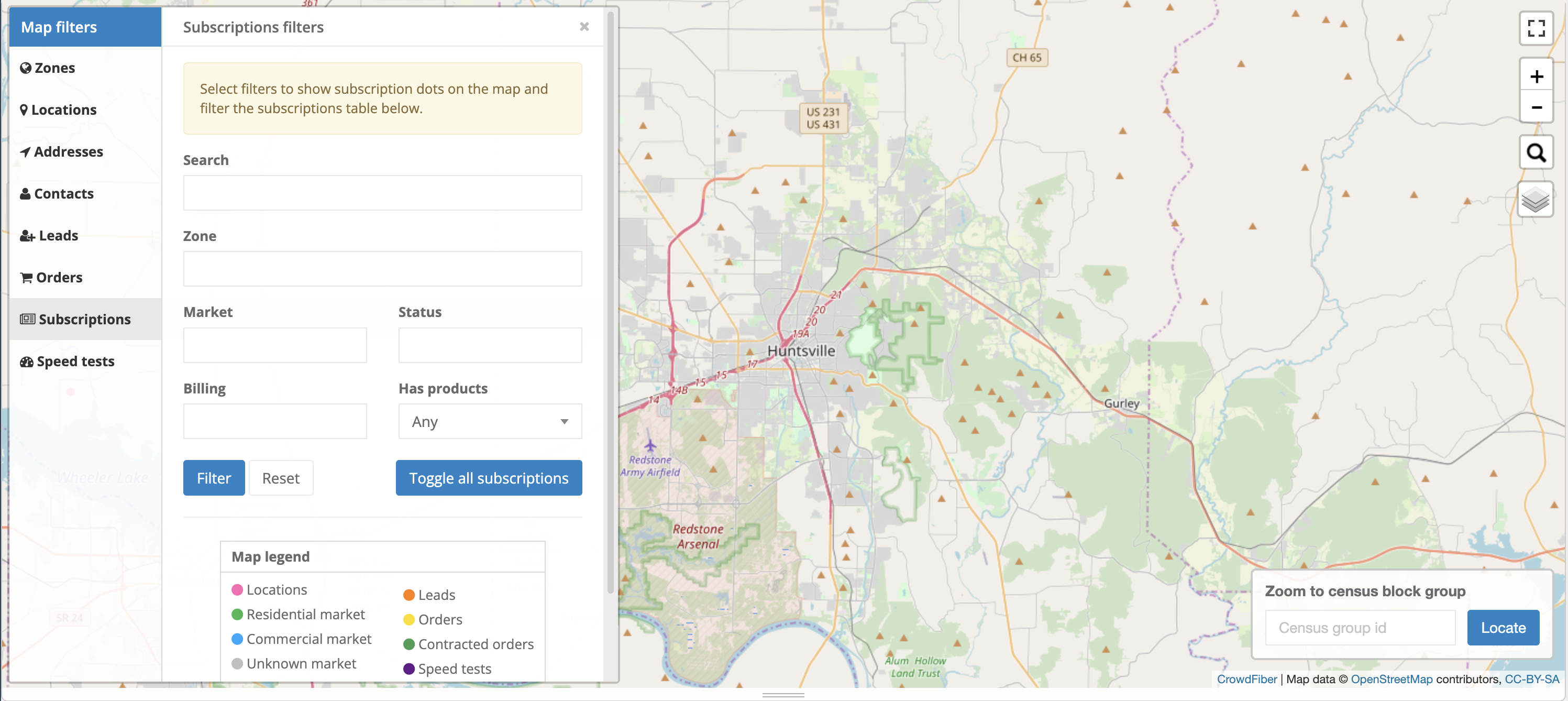
Search: Allows for a global search for any numerics, word, phrase, letter, or other text found within subscription record(s)
Zone: A drop-down selector allowing you to filter all subscriptions by zone(s) the subscription resolves to.
Market: Selector that relies on the residential delivery indicator obtained from USPS data.
Status: A drop-down selector that allows filtering based upon the status of the subscription.
Billing: A drop-down selector that allows filtering based upon the billing frequency.
Has products: Selector that relies on the availability of products.
Speed tests
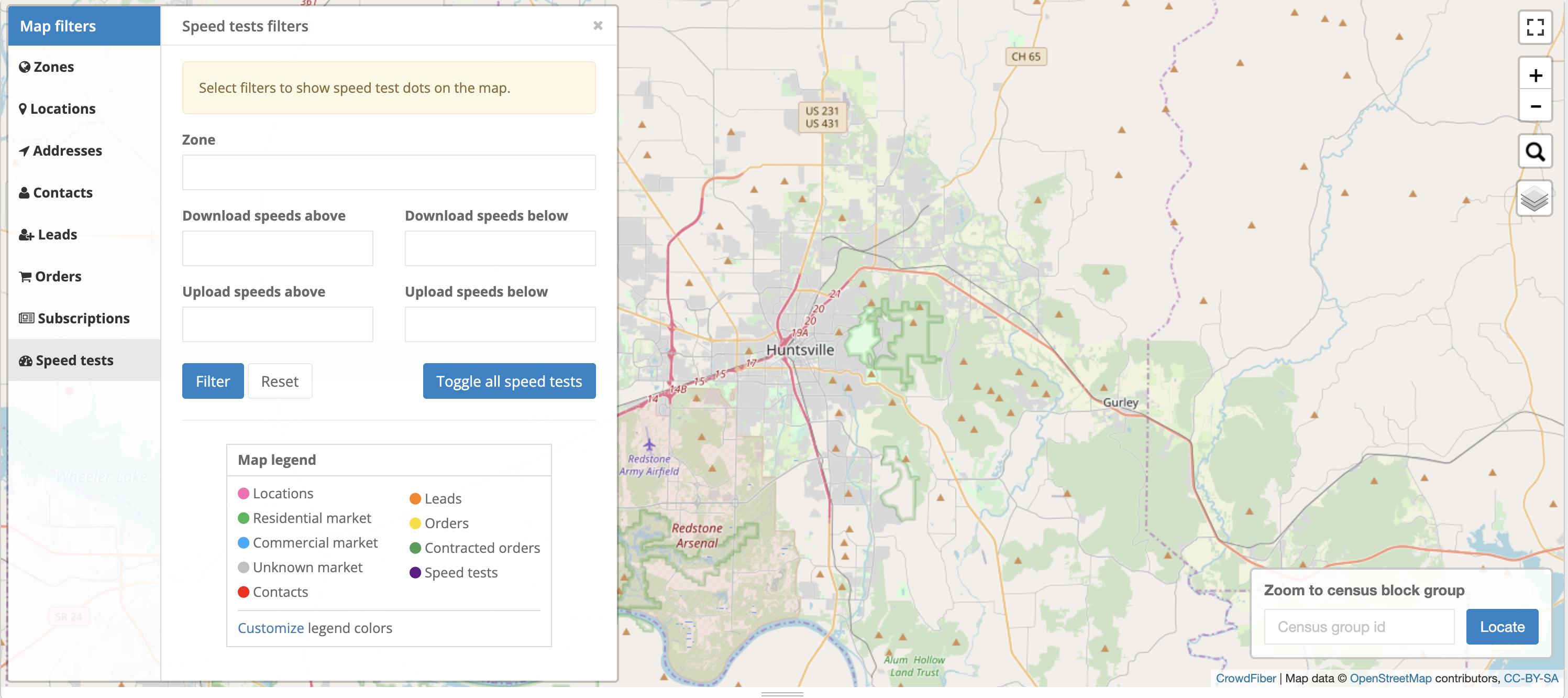
Zone: A drop-down selector allowing you to filter all speed tests by zone(s) the speed test was conducted within.
Download speeds above: Allows for filtering based upon numeral entered.
Download speeds below: Allows for filtering based upon numeral entered.
Upload speeds above: Allows for filtering based upon numeral entered.
Upload speeds below: Allows for filtering based upon numeral entered.
Note: Multiple map filters can be applied. Once you have selected the filters you want to enable for an index, you must select
 prior to moving on to the next map filter.
 allows you to reset all filters for a specific index.
 allows you to view all {index} items without having to apply all filters available. To disable this view, you will need to click this button a second time.
Table
The table displayed beneath the map offers a comprehensive and editable view of various data elements stored within CrowdFiber. This interactive table enables access, organize, and modify information related to Zones, Locations, Addresses, Contacts, Leads, Orders, and Subscriptions.
Each column of each index has
 that allows you access to more configuration settings, such as
sort ascending/ descending
:
that allows you access to more configuration settings, such as
sort ascending/ descending
:
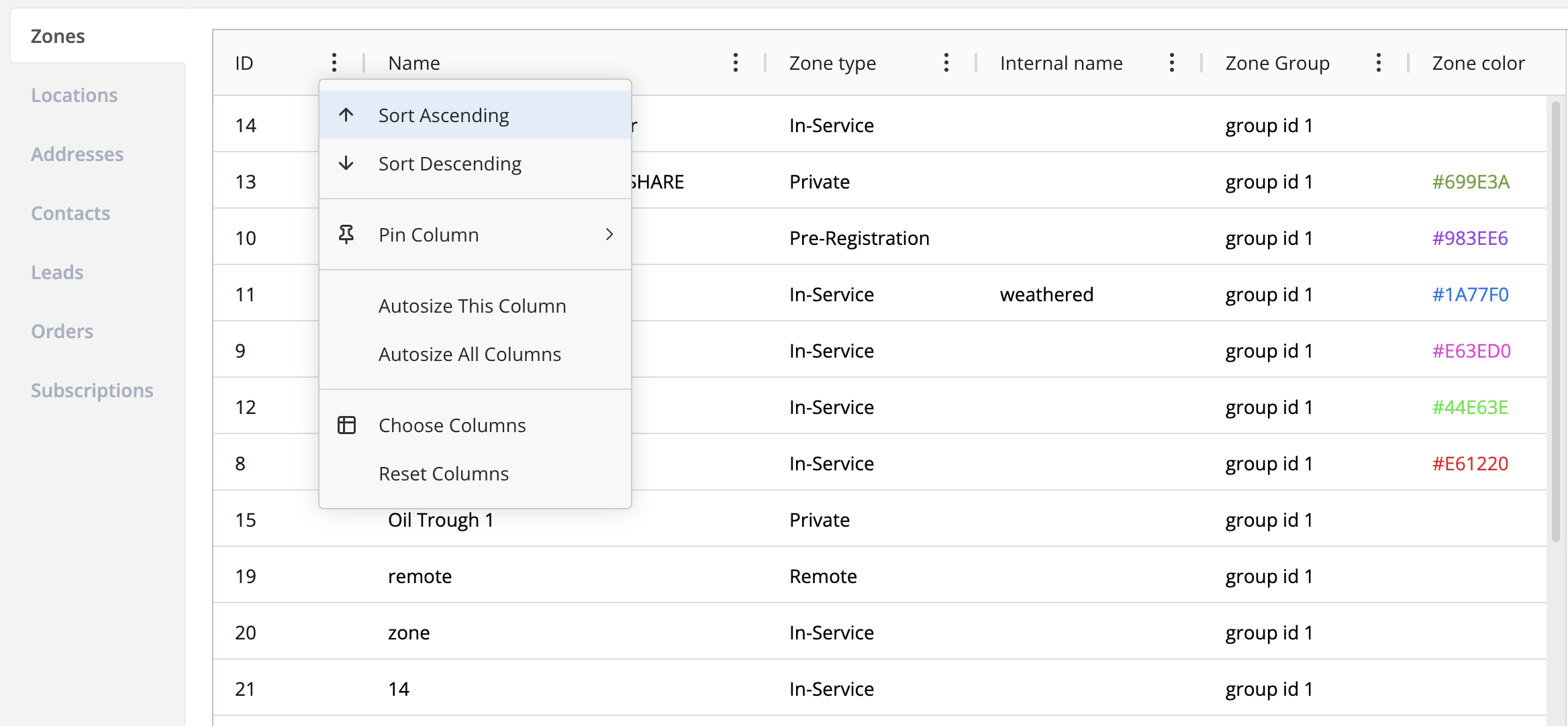
Pin columns to the left or right of the table:
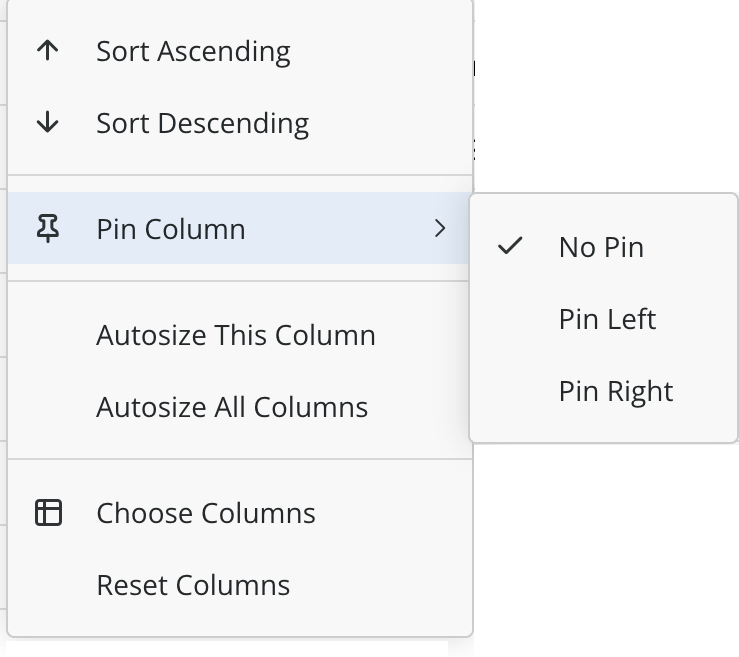
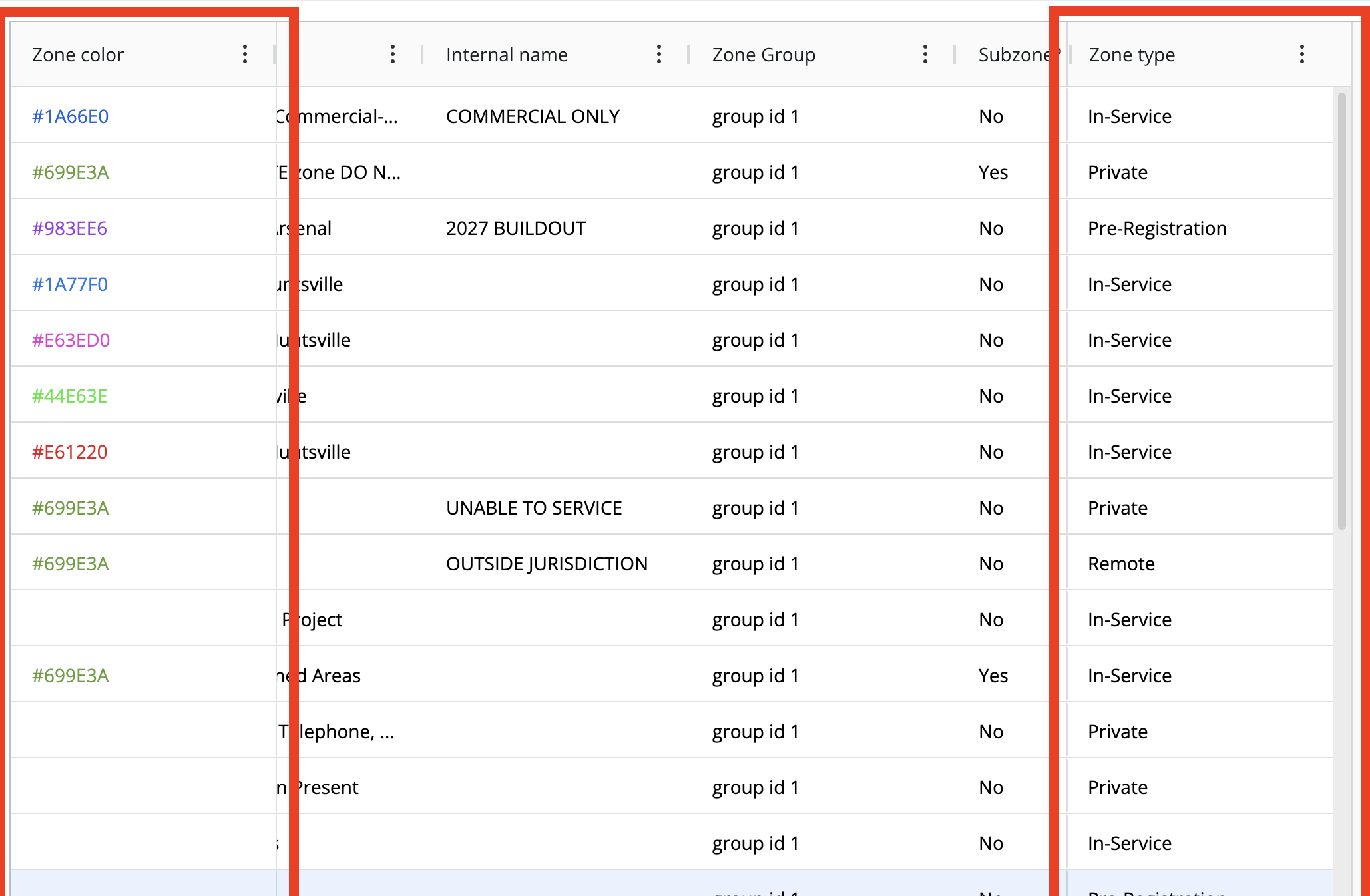
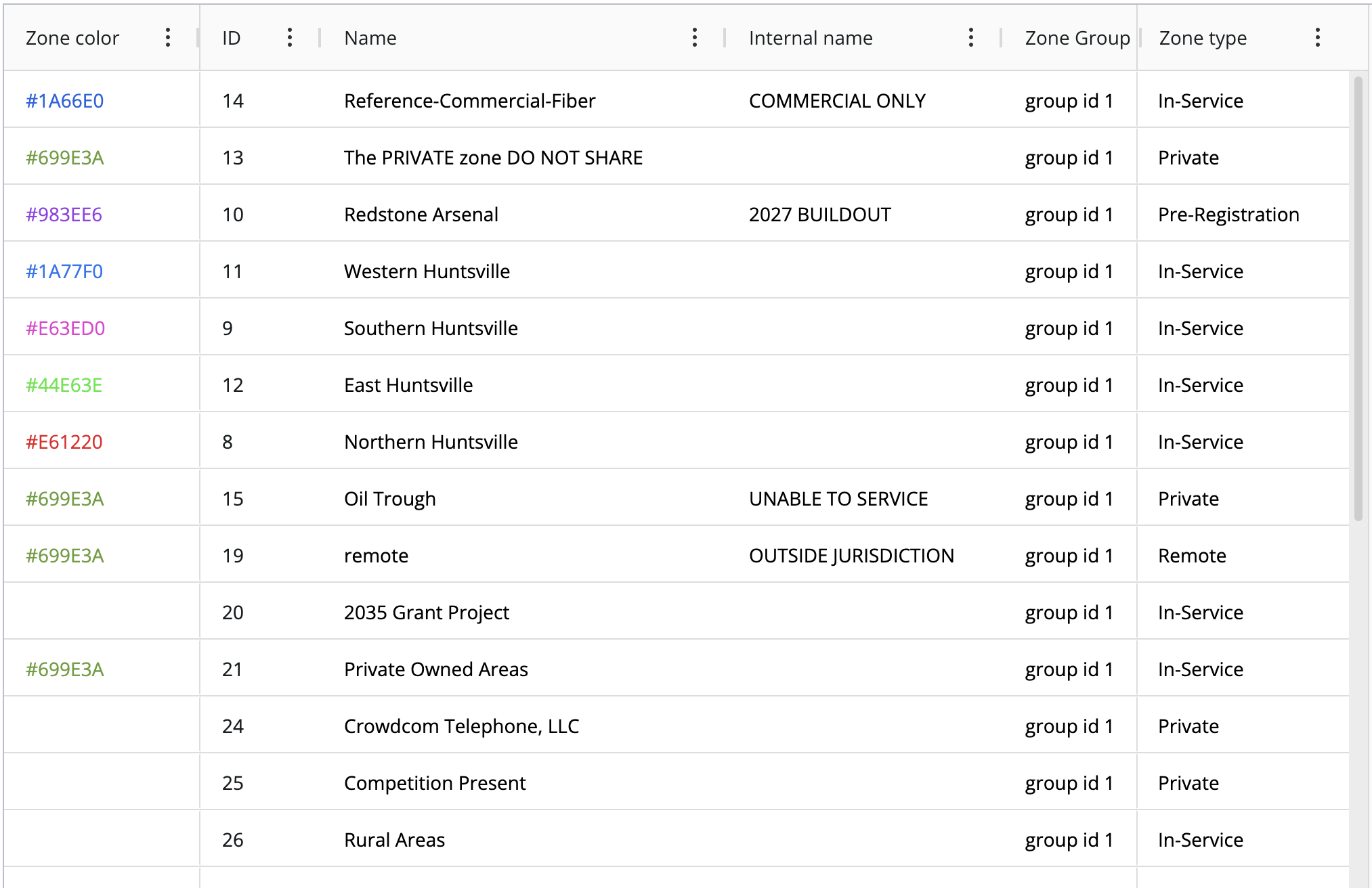
Auto sizing column (s) ensures that column widths are dynamically adjusted to fit their content. This provides an optimized viewing experience by reducing the need for horizontal scrolling and ensuring that data is easily readable without manual resizing.
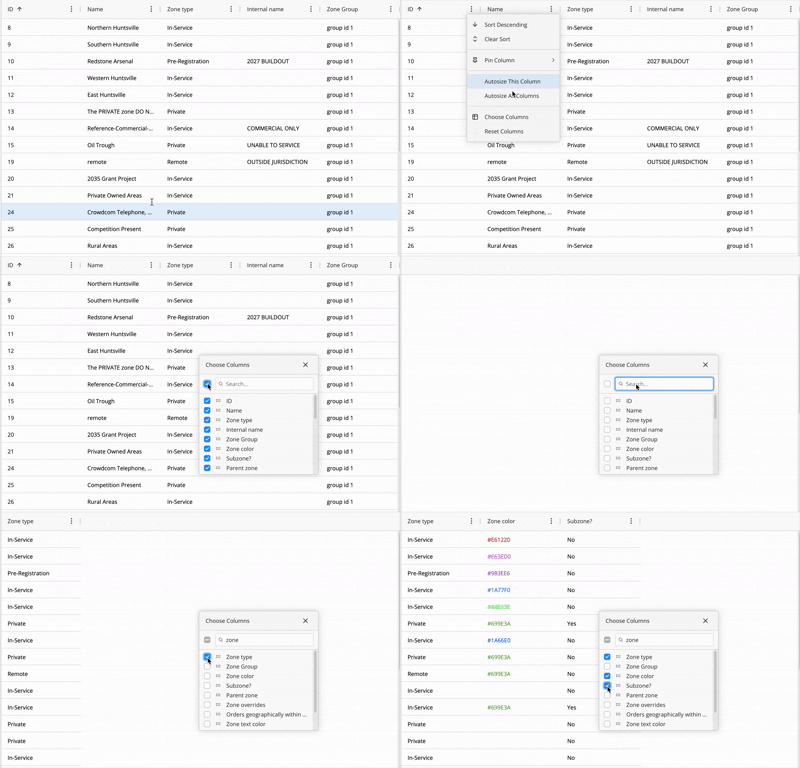
You can also select the columns to display for an index by selecting " Choose Column ". This option also allows for bulk selection of 'all' or 'none' and searching for individual columns to enable/disable:
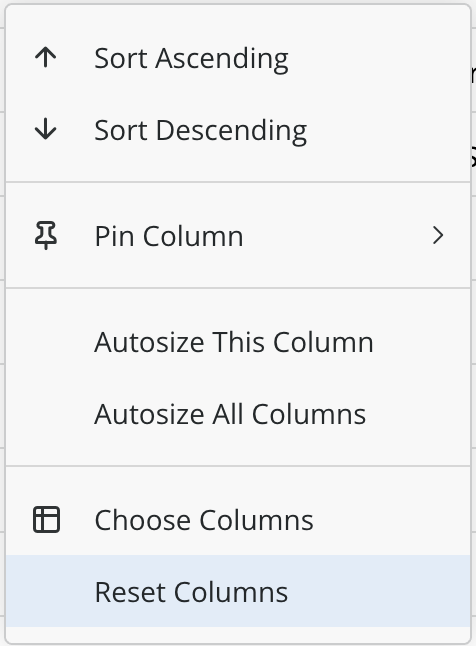
Finally, there's " reset columns " to undo all configurations applied to your columns:
Once you have your columns configured to your liking, you can get started editing the data within them.
Columns
Each column of each index (excluding the address index entirely and all columns containing IDs supplied by Crowdfiber) are click to edit fields.
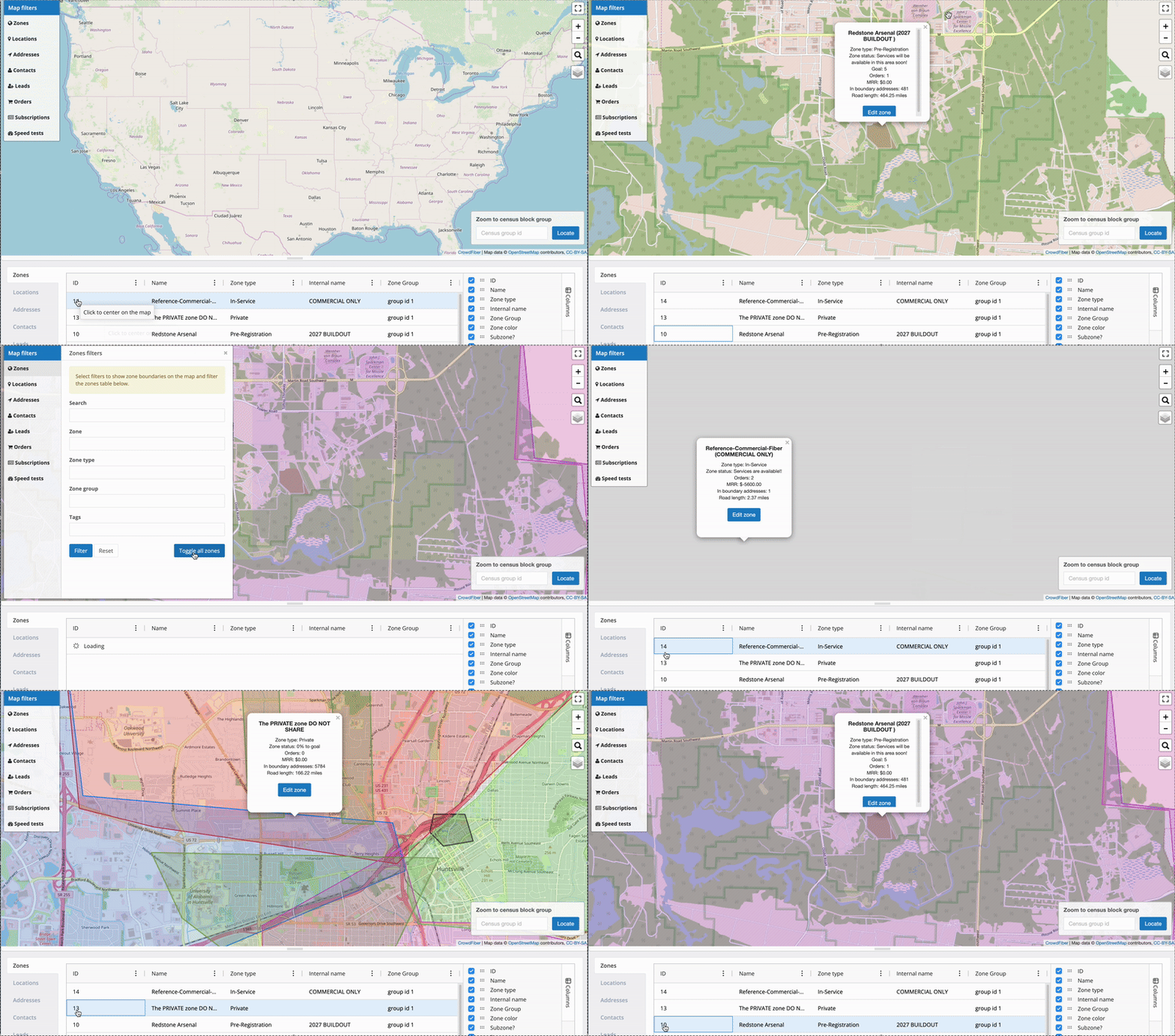
Selecting any IDs within the table will center the coordinates displayed on the map. If the map filter for that index is not applied, then the map will not display any indicators for the data you are viewing.
You'll notice that the zone color column contains a series of numbers and letters, this is the color of the zone in hexadecimal. Here's a site you can navigate to when deciding on new colors for your zones when there is not a color wheel present https://htmlcolorcodes.com/ . This site allows you to pick any color and provides the hexadecimal characters for the color you have chosen.