CSV Import Basics
What is a CSV?
Comma-separated values is a text file format that uses commas to separate values. A CSV file stores tabular data in plain text, where each line of the file typically represents one data record.
CSVs can be used to import or export data inside of CrowdFiber - below is a general path to importing data via CSV.
Importing a CSV
-
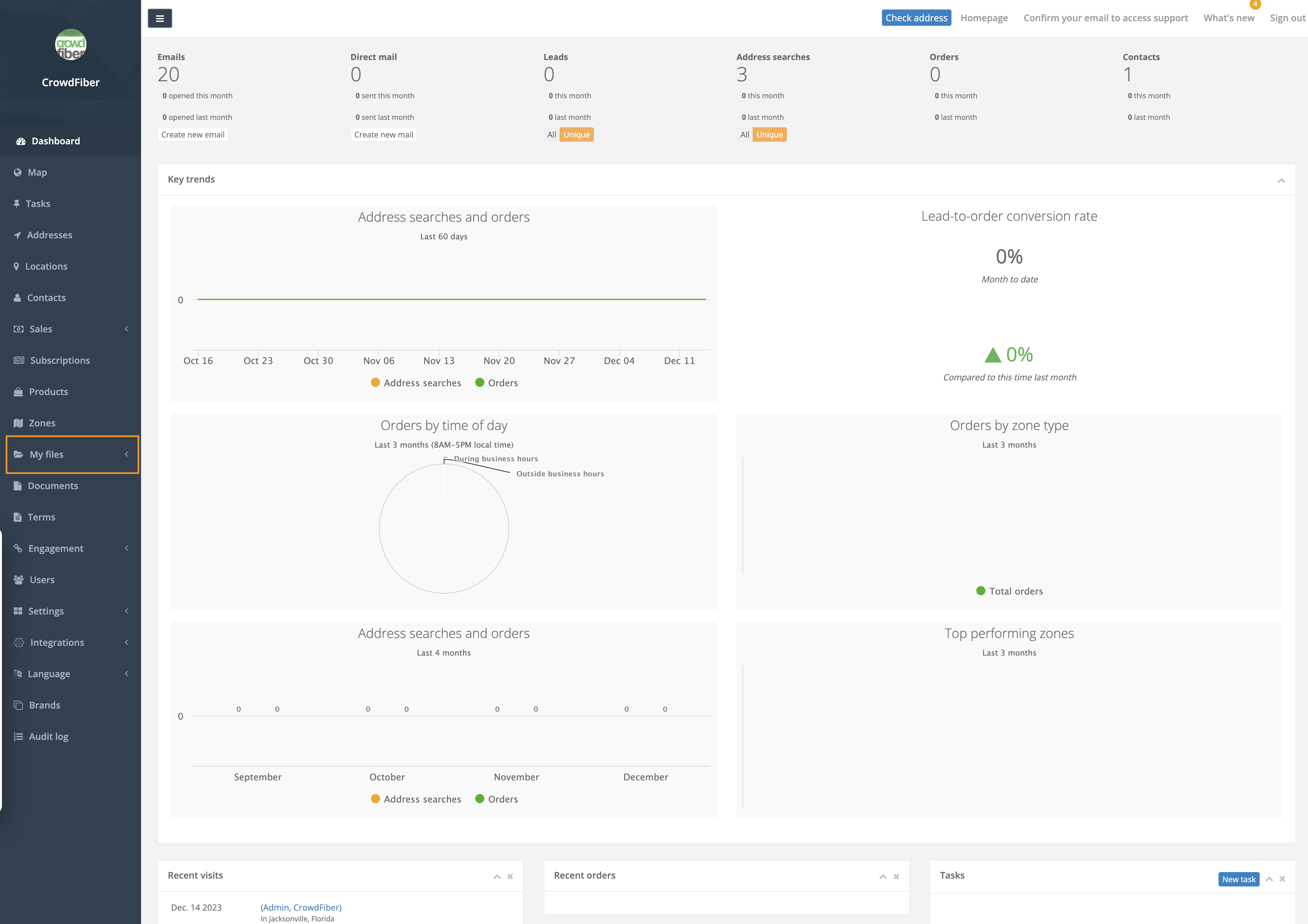
In the left-hand rail of your Admin Dashboard, click My Files.
-
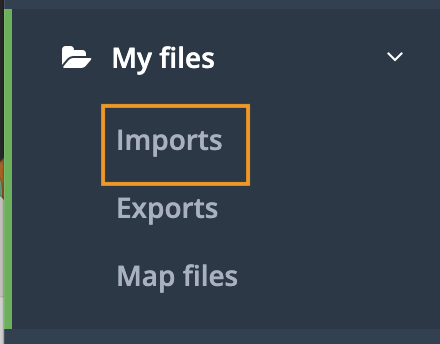
Once My files has expanded, click Imports. This will lead you to your Import index.
-
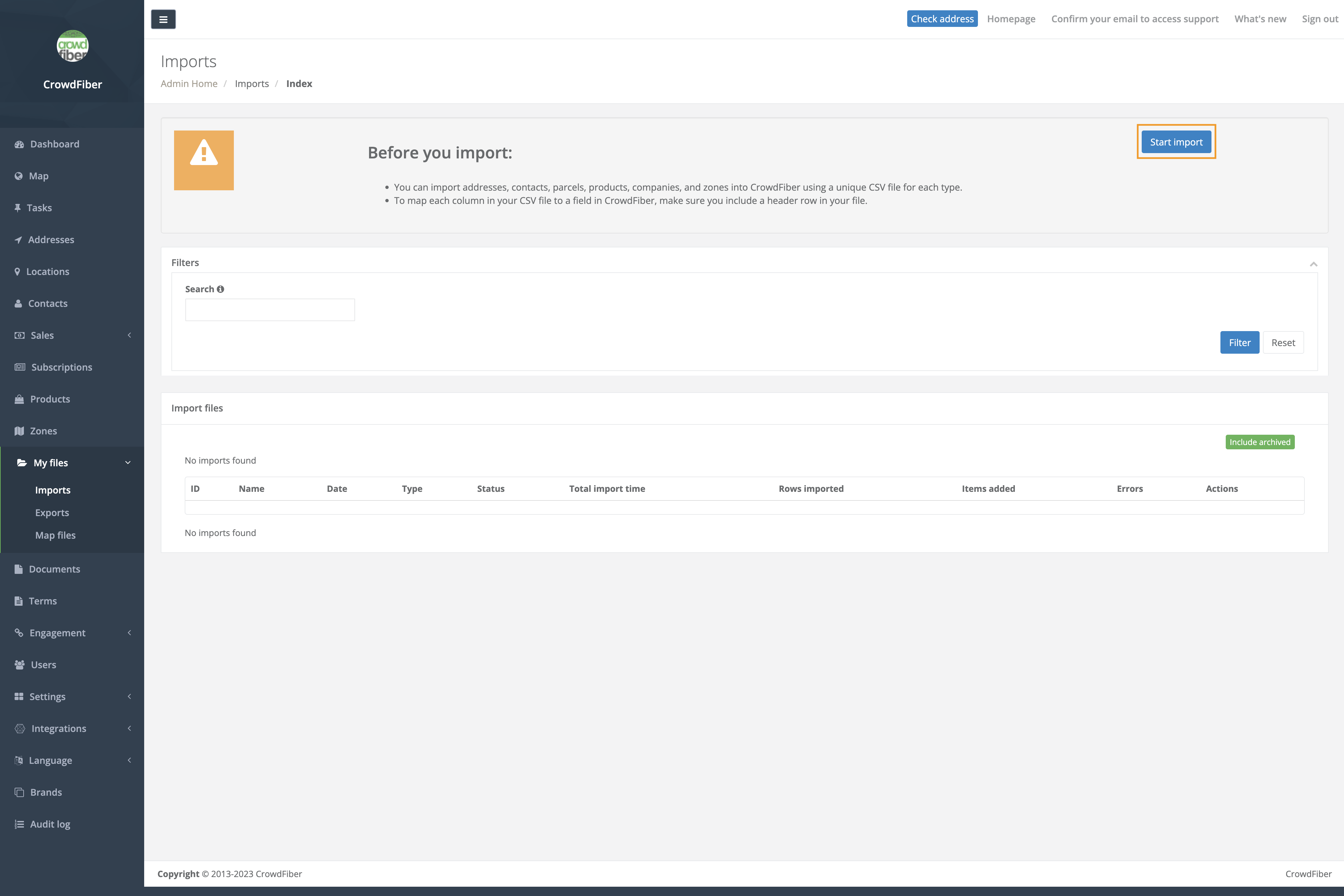
Within your import index click Start Import at the top of the screen.
-
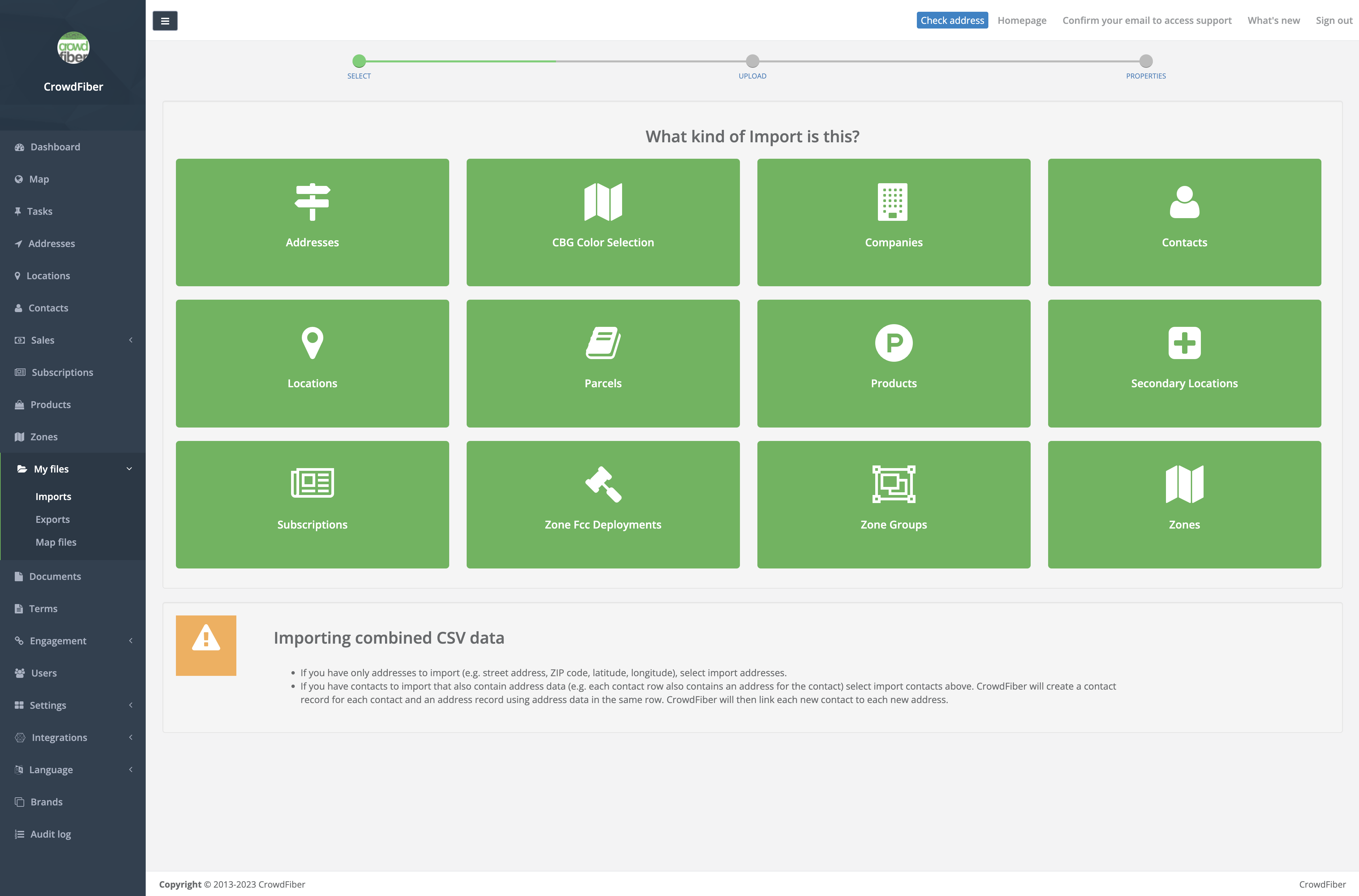
Choose the type of record you are importing into CrowdFiber. For our example, we will choose "addresses". Once your record has been chosen you will be taken to the upload screen.
-
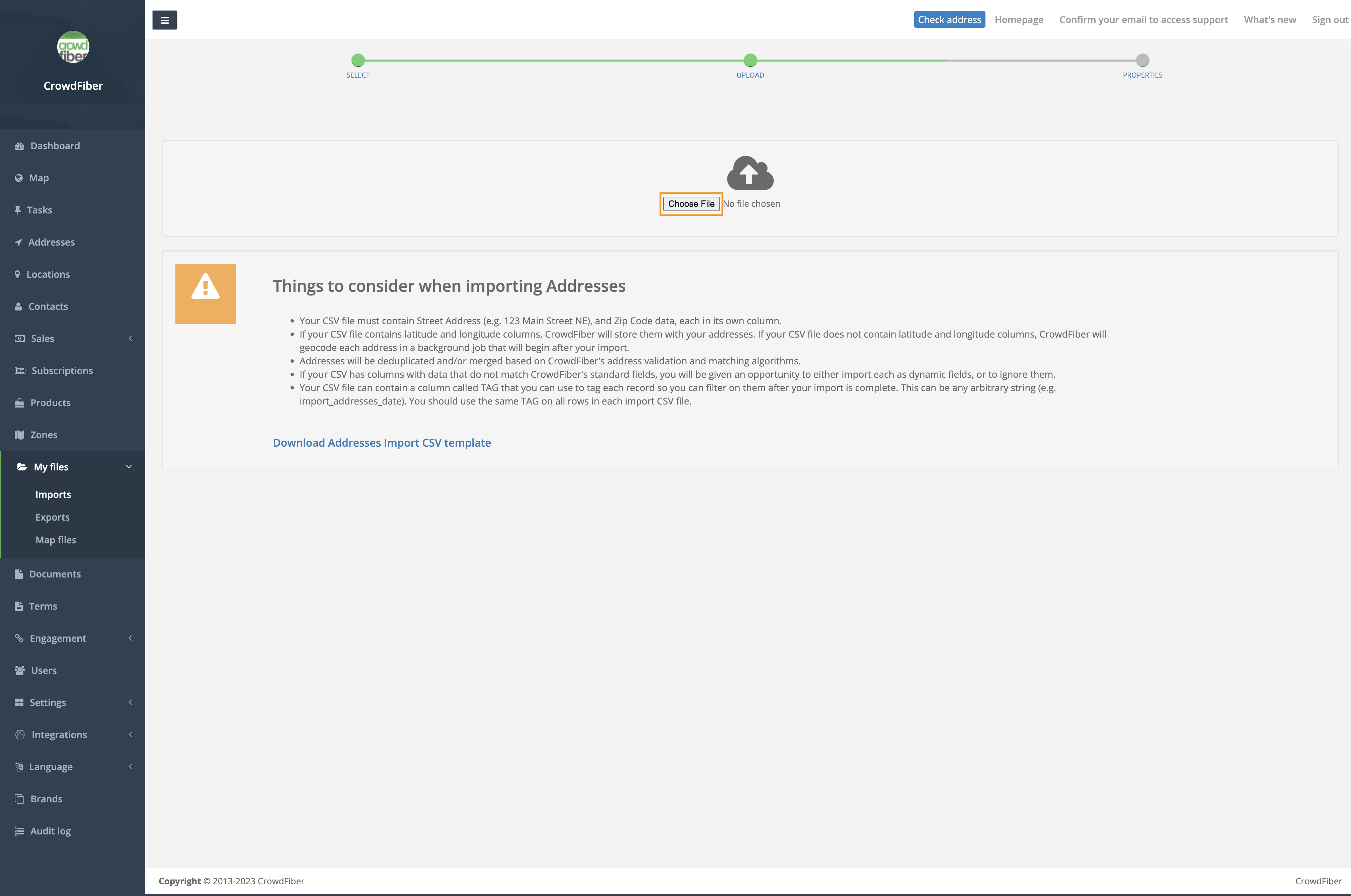
On the upload screen click Choose File and choose the CSV you would like to import from your computer.
-
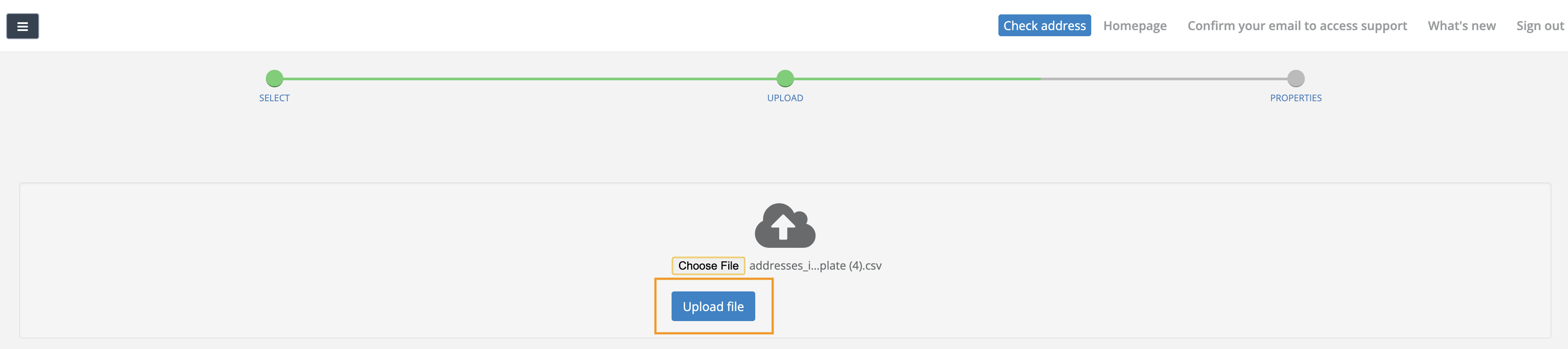
Once you have chosen the CSV file you would like to upload and you have verified that it resembles the CSV template, click the blue Upload file button.
-
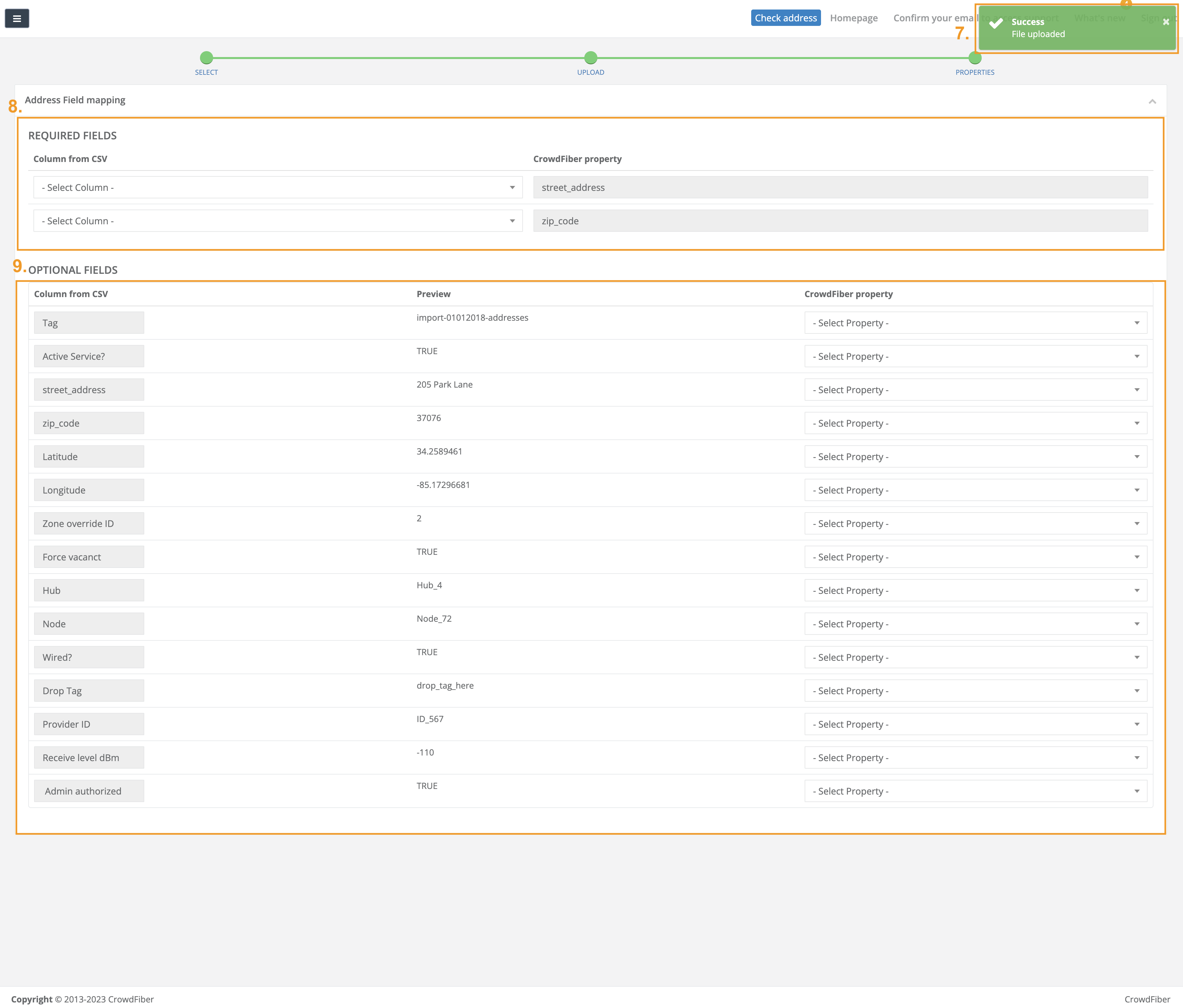
You will be guided to the targeting page of CrowdFibers importing process. Check the top right-hand corner for a message in a green box stating Sucess, File uploaded.
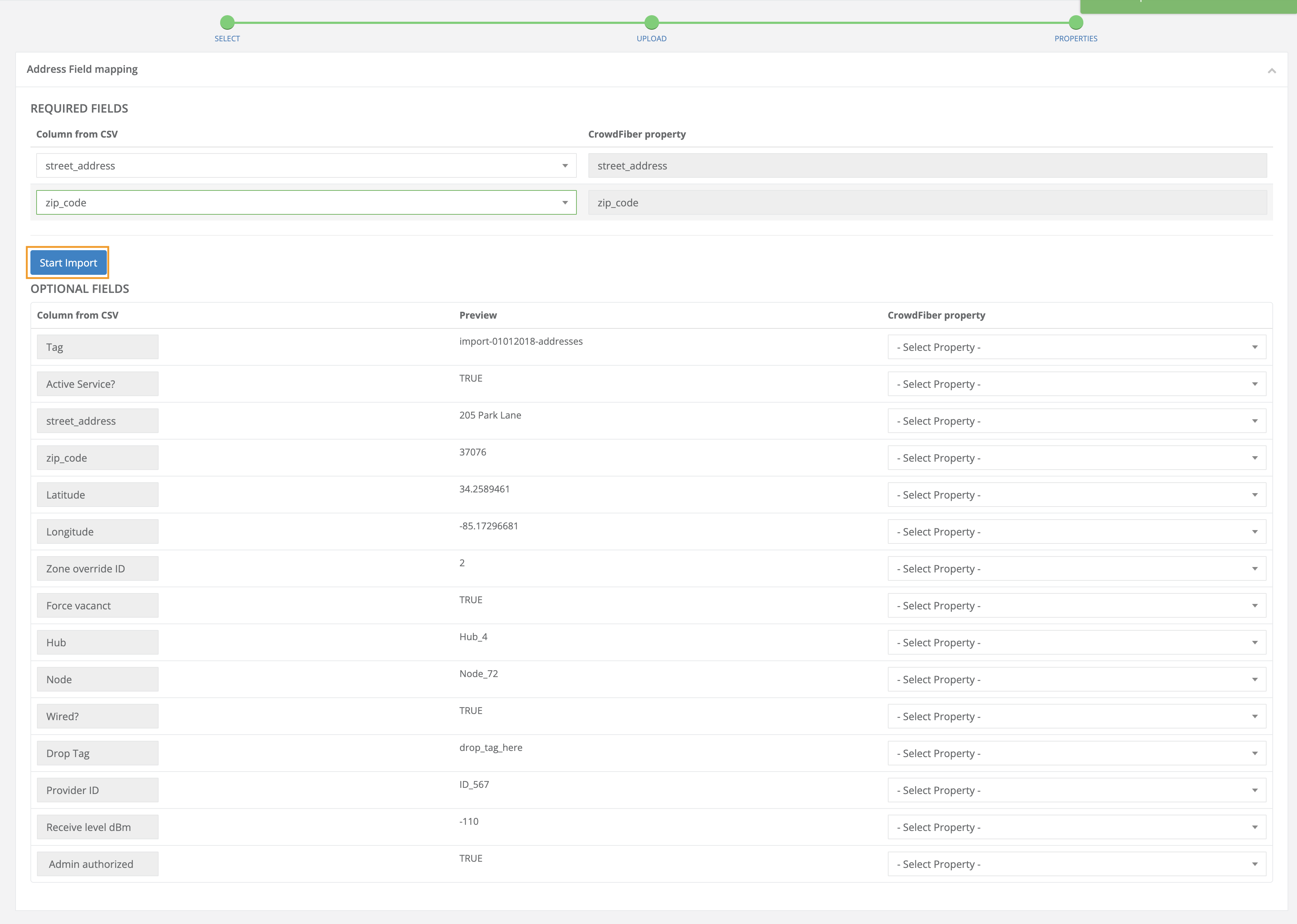
- The top of this page will state your required fields for the import. In our example of addresses, our required fields are "Street Address" and "Zip Code". These fields do not need to be reassigned twice.
-
The second part of this page will be your opportunity to match any other attribute of the record to the corresponding CrowdFiber property.
-
Once you have matched the required fields a blue button labeled Start Import will appear. Once all fields are matched that you want to import click this button.
-
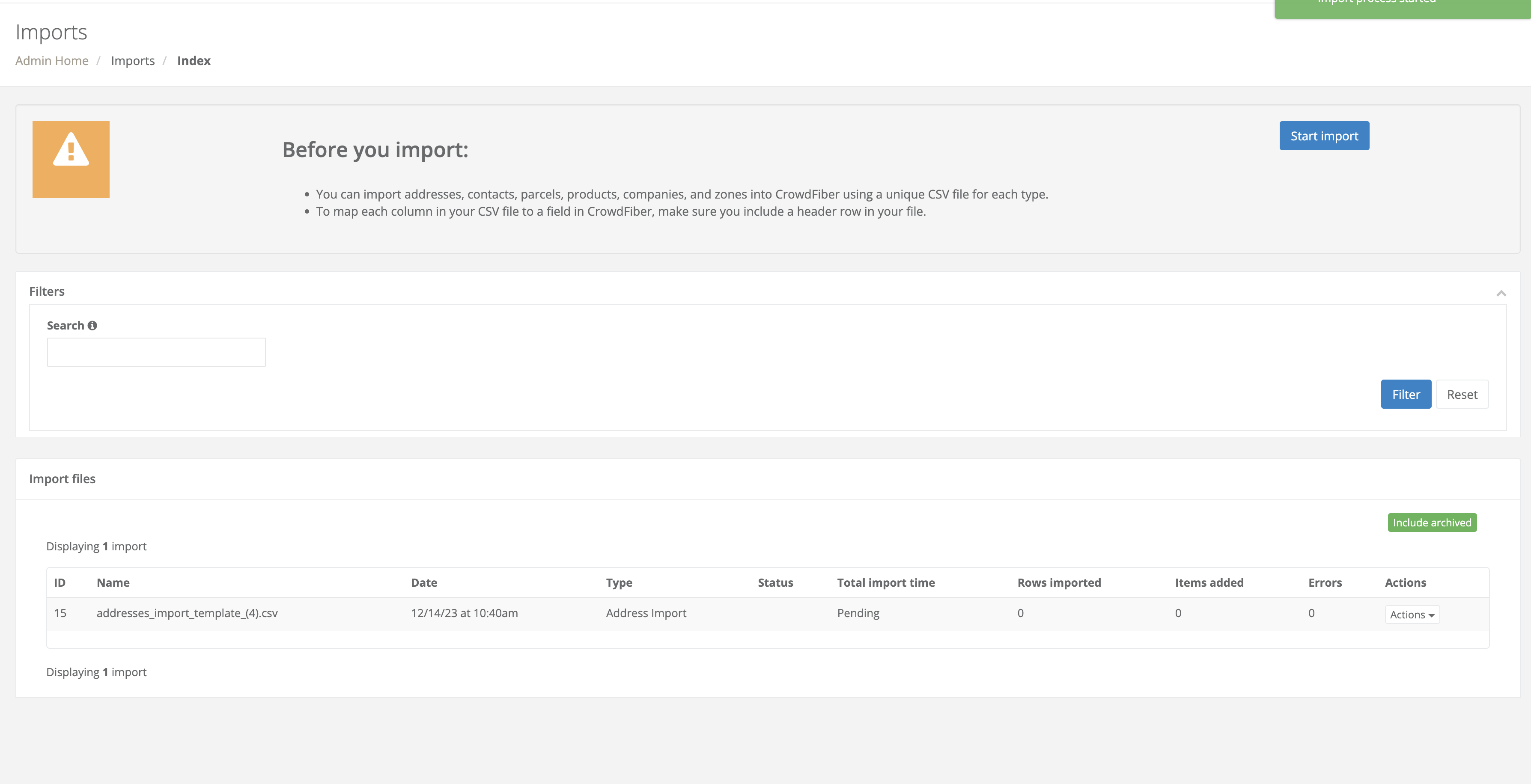
Start import will lead you back to your Imports index where you can monitor the status of the import. You may need to refresh the page to get updated stats.