Webhooks: Feature Overview
CrowdFiber's selection of pre-configured webhooks provides you with an easy way to send CrowdFiber data to your other operational applications after a trigger.
How to Create a Webhook
- Click the Integrations link located in the left-hand rail of your Admin Dashboard.
- Select the Webhooks link located within the Integrations drop-down menu.
-
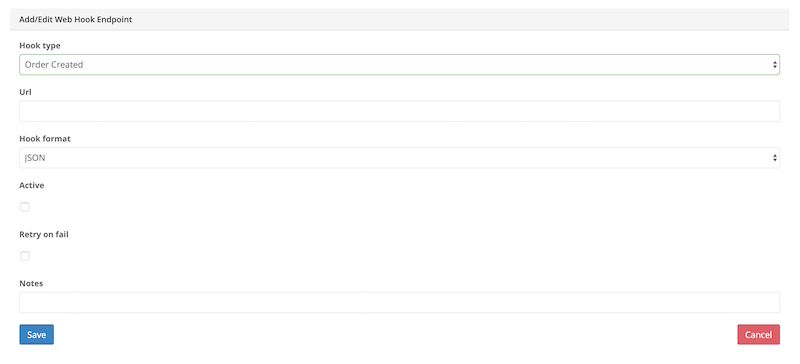
On the following Integrations page, click the blue New Webhook button to establish your webhook settings:
- Hook type: select the data that you would like to transmit from the Hook type drop-down menu.
- URL: copy and paste the web address where you'll be sending the hook-type information.
- Hook format: choose the language for transmitting your data (JSON or XML).
- Active: click this checkbox to make your webhook live.
- Retry on fail (optional): when this checkbox is filled if there is a network or server error during the transmission of your data the webhook will attempt to transmit your data again.
- Notes (optional): include any additional webhook descriptions, info, or details for internal organization.
- Secret (optional): this additional security setting allows you to automatically include a key/passcode with each webhook. When using the Secret key, you can configure your third-party platform to reject any webhook that does not contain your secret key.
- Target by zone: the webhook will only trigger when data is associated with a targeted zone.
- Click the Save button:
to make your webhook available for use.
What Data Can Be Transmitted Via a CrowdFiber Webhook?
Here is what can be communicated through each of CrowdFiber's pre-configured hook types:
Enhanced Order Created
Address Information
- Full street address
- City
- State
- Zipcode
- Latitude
- Longitude
Contact Information
- First Name
- Last Name
- Email Address
- Phone Number
- Company name (if applicable)
Order Information
- Order ID
- Market: Residential, Commercial, etc.
- Product Selection (itemized)
- Individual product names
- Internal product IDs
- Individual product prices
- Shopping Cart Totals
- Total monthly price
- Total installation cost
- Total discounts
- Deposit Information: total amount and payment method
Speedtest Results
- Download
- Upload
- Latency
- IP address
- Server
- Test performed service location (True or False)
- CPU Bench
- Survey responses (itemized)
Zone Information
- Zone (including Zone ID)
- Zone type (In-Service Pre-Registration, Remote)
Customer, Created Location Only
- Order ID
- Address Latitude
- Address Longitude
Zone Created
- Zone Name
- Zone ID
- Zone Type
- Zone Color
- Zone Notes
- Subzone -- True or False
- Parent Zone Name
- Dynamic Fields
- Created At Date
- FCC 477 Settings
Zone Updated
- Polygon Coordinates
- Zone Name
- Zone ID
- Zone Type
- Zone Color
- Zone Notes
- Subzone -- True or False
- Parent Zone Name
- Dynamic Fields
- Created At Date
- Updated At Date
- FCC 477 Settings
Zone Deleted
- Zone Name
- Zone ID
- Action: Deleted