Availability Data for BDC Report
Fabric locations represent individual addresses or geographic coordinates identified as serviceable locations and/or places where fixed broadband service can be or is already provided; this is also known as availability data. More information on BDC Locations/ Availability data can be found HERE.
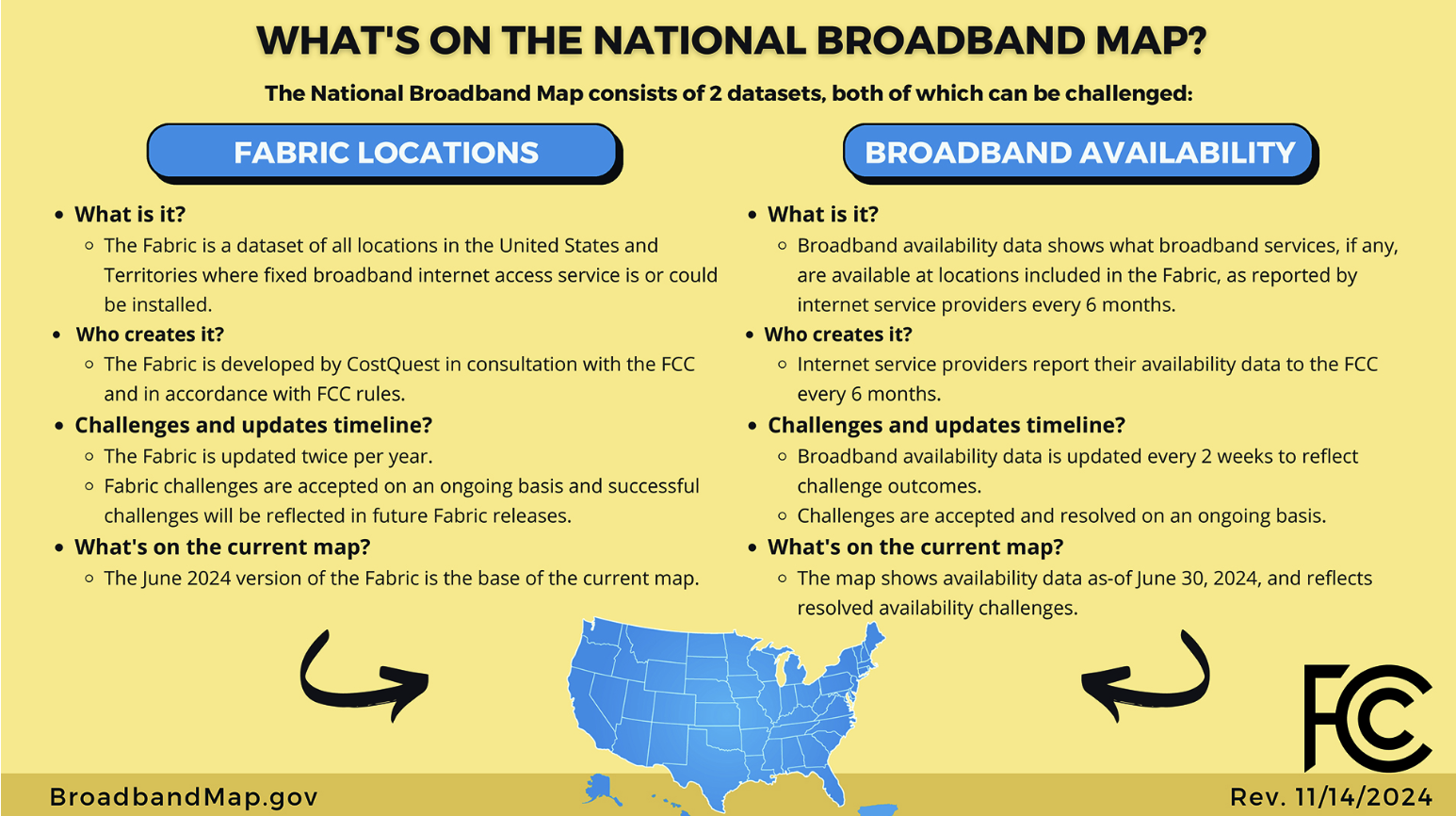
Reviewing your file(s) before getting started
You'll need to obtain your Active BSL .csv file from the FCC / CostQuest and review the columns before you can get started with your Locations Import.
Please be sure your file contains:
- Location ID or unique identifier for the location served. The Location ID is included for each location in the Broadband Serviceable Location Fabric provided by the FCC when the Fabric is made available to filers.
- Latitude and Longitude coordinates in WGS84/EPSG:4326
- The "fcc_rel" column, commonly referred to as the FCC Release Date, must be formatted as either 12312023 or 06302024. This column should reflect the most recent release date available. Please note that Fabric data is typically released around June 30 and December 31 of each year . More information on determining which fabric you should use can be found HERE
Please be mindful of spaces on either side of the date, as they will be considered an invalid character and can cause an error during upload.
Step 1: Erase Your Prior Fabric
If you have an earlier version of the fabric, we have found the easiest thing to do is erase it from your Locations data before you import the new fabric. It's easy to do this from Locations -> Bulk Actions -> Delete Filtered Locations.
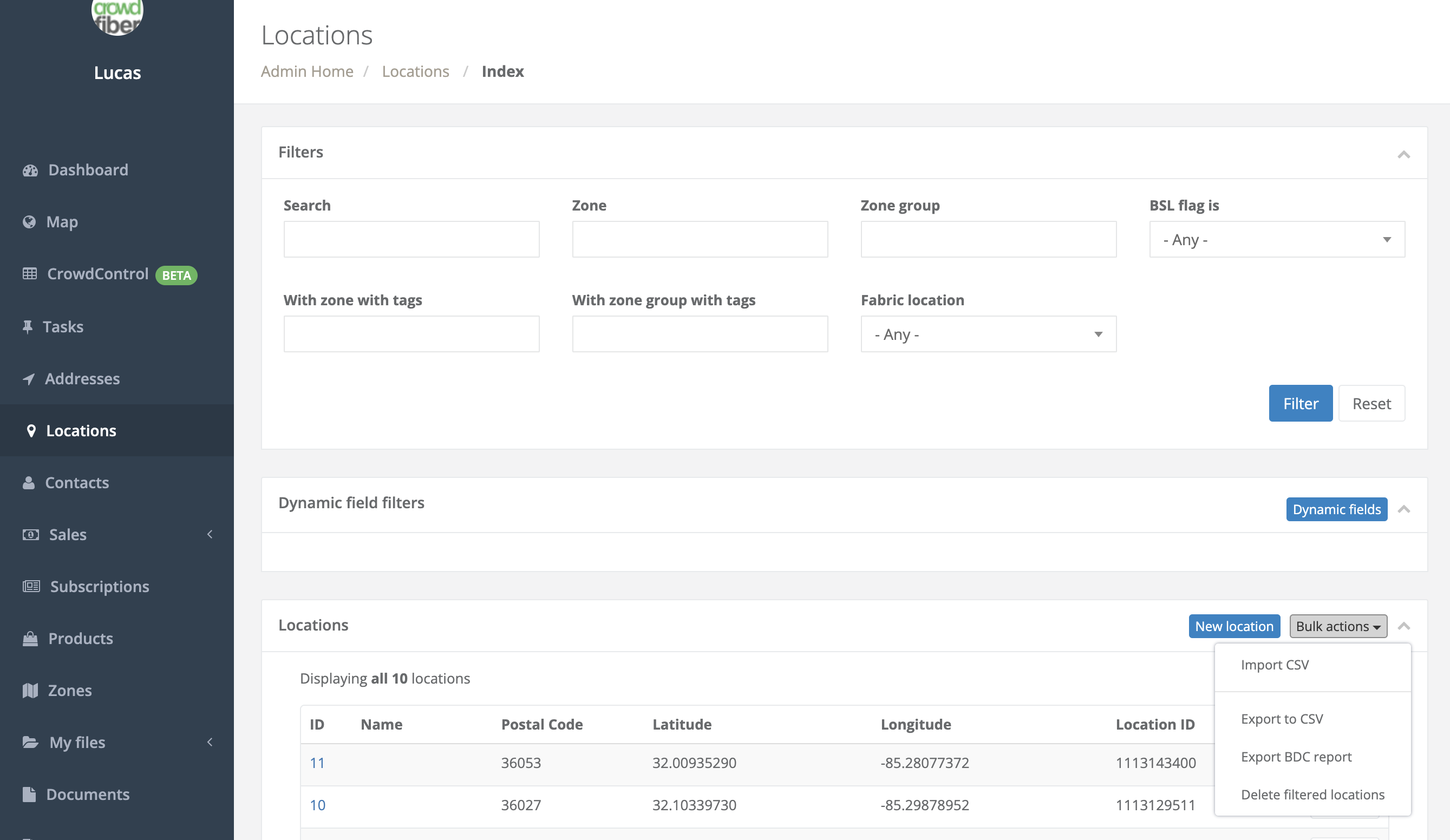
Step 2: The Import Process
Once your old fabric has been deleted, you are ready to import data. The easiest way to do this is to now click back on Bulk Actions -> Import CSV.
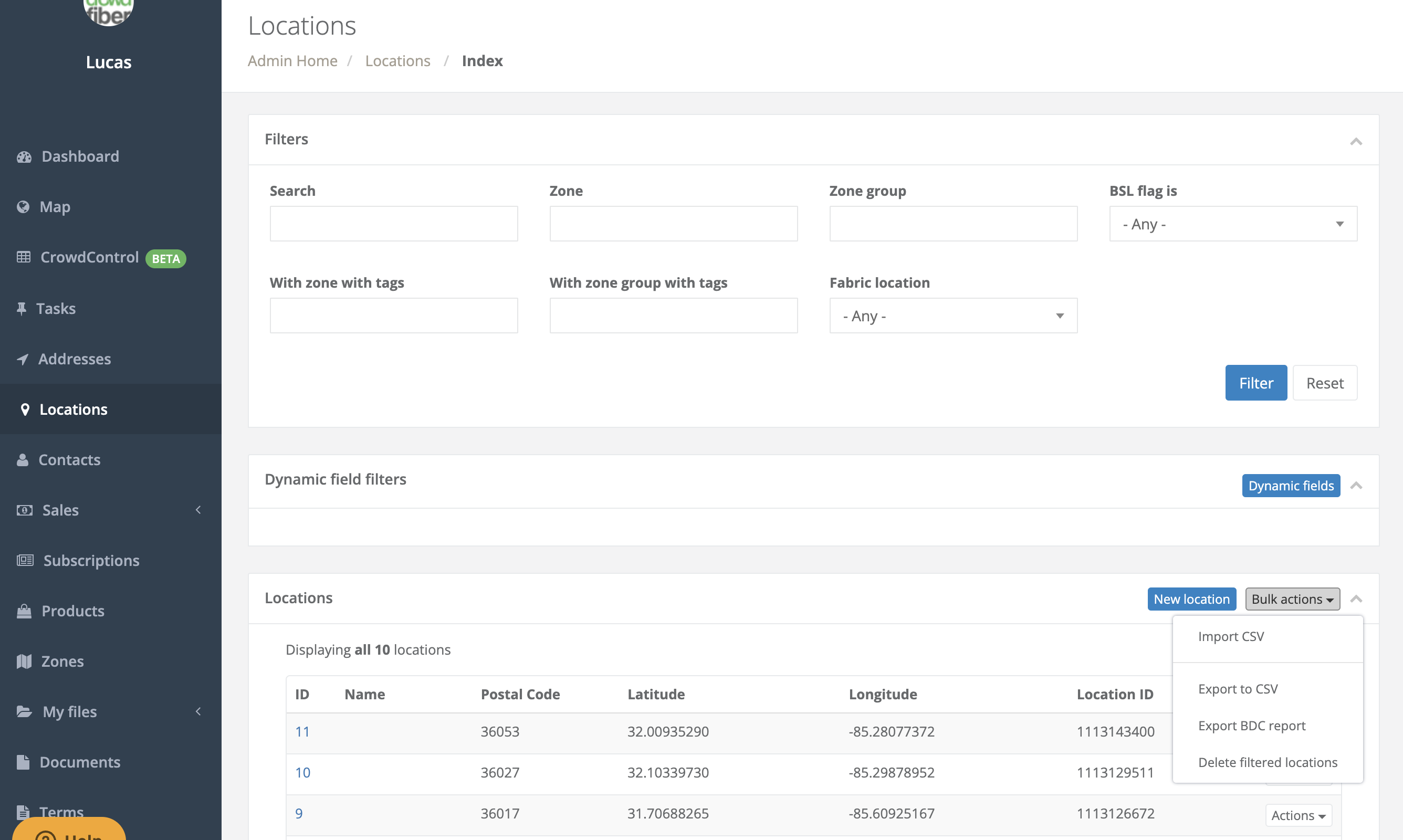
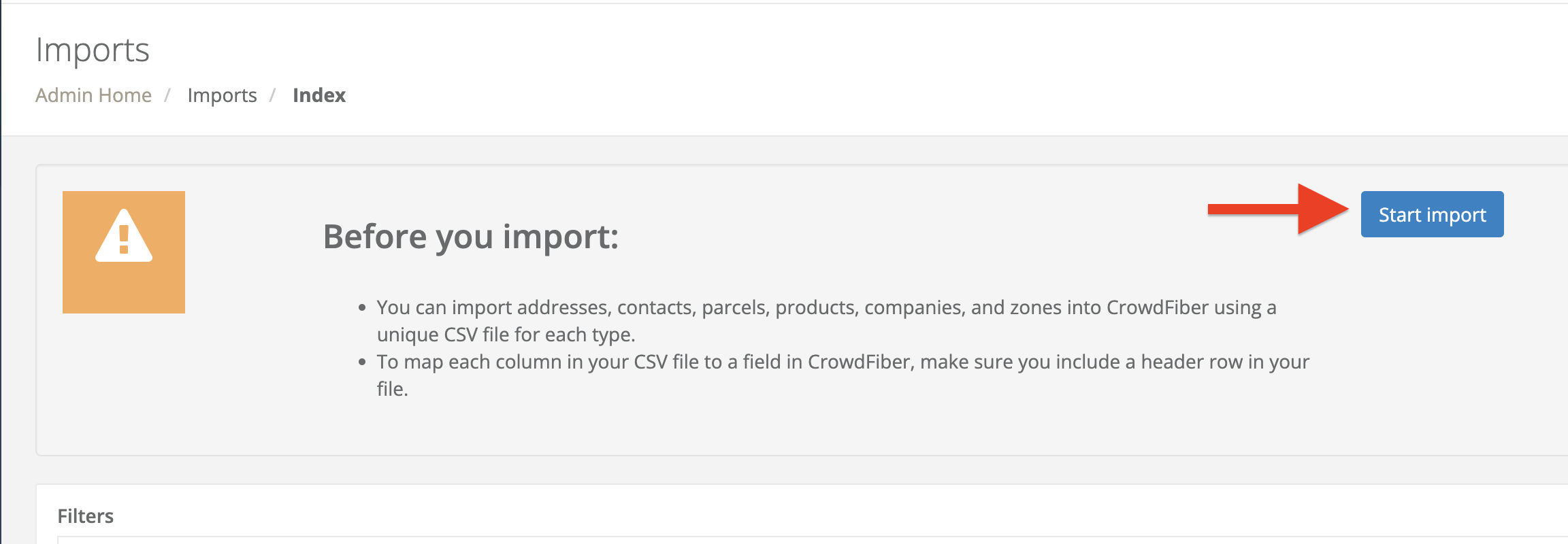
Alternatively, you can go to Imports and go that route as another option by navigating to "My files" on the left handrail and select Imports.
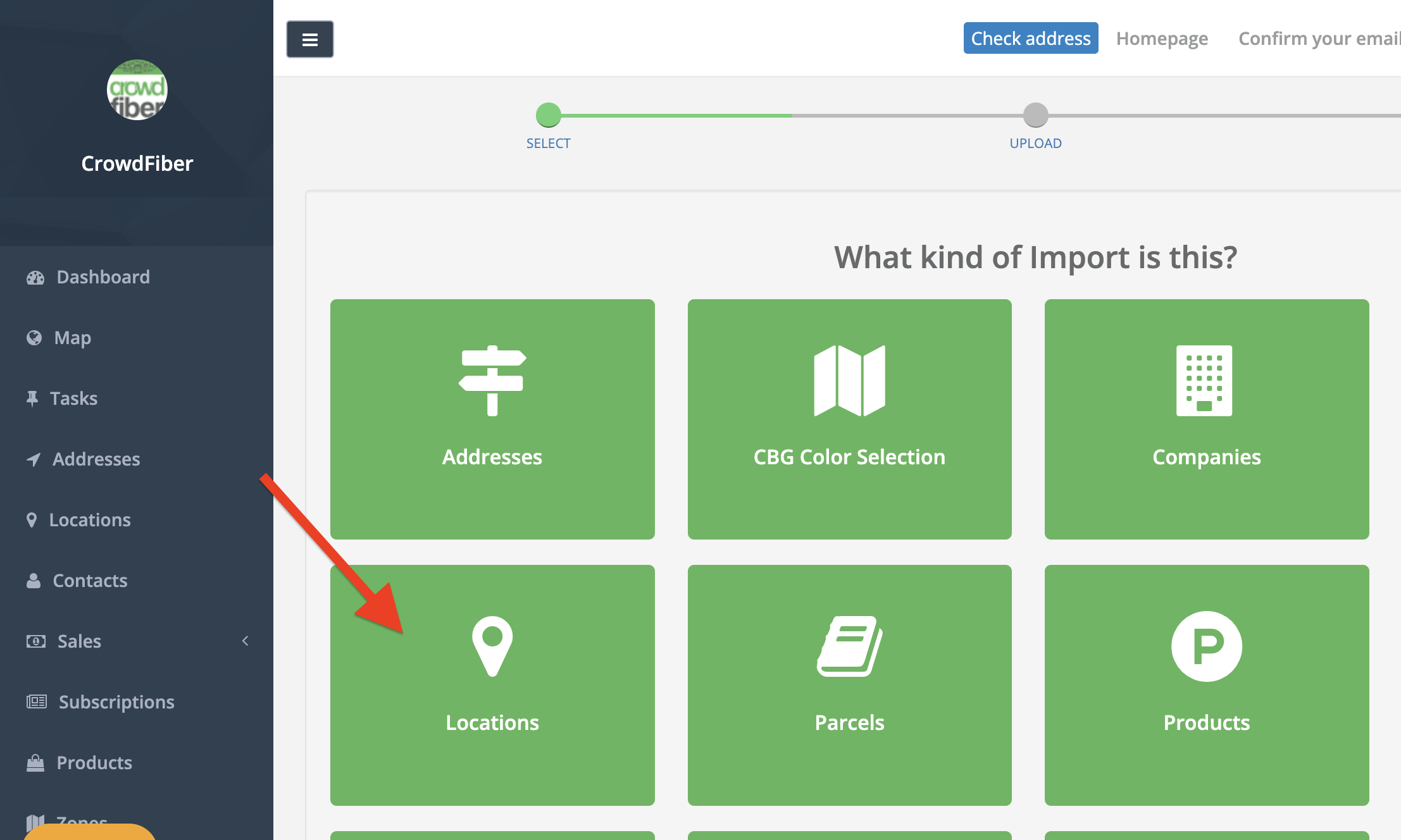
Select Start import:
Select Locations:
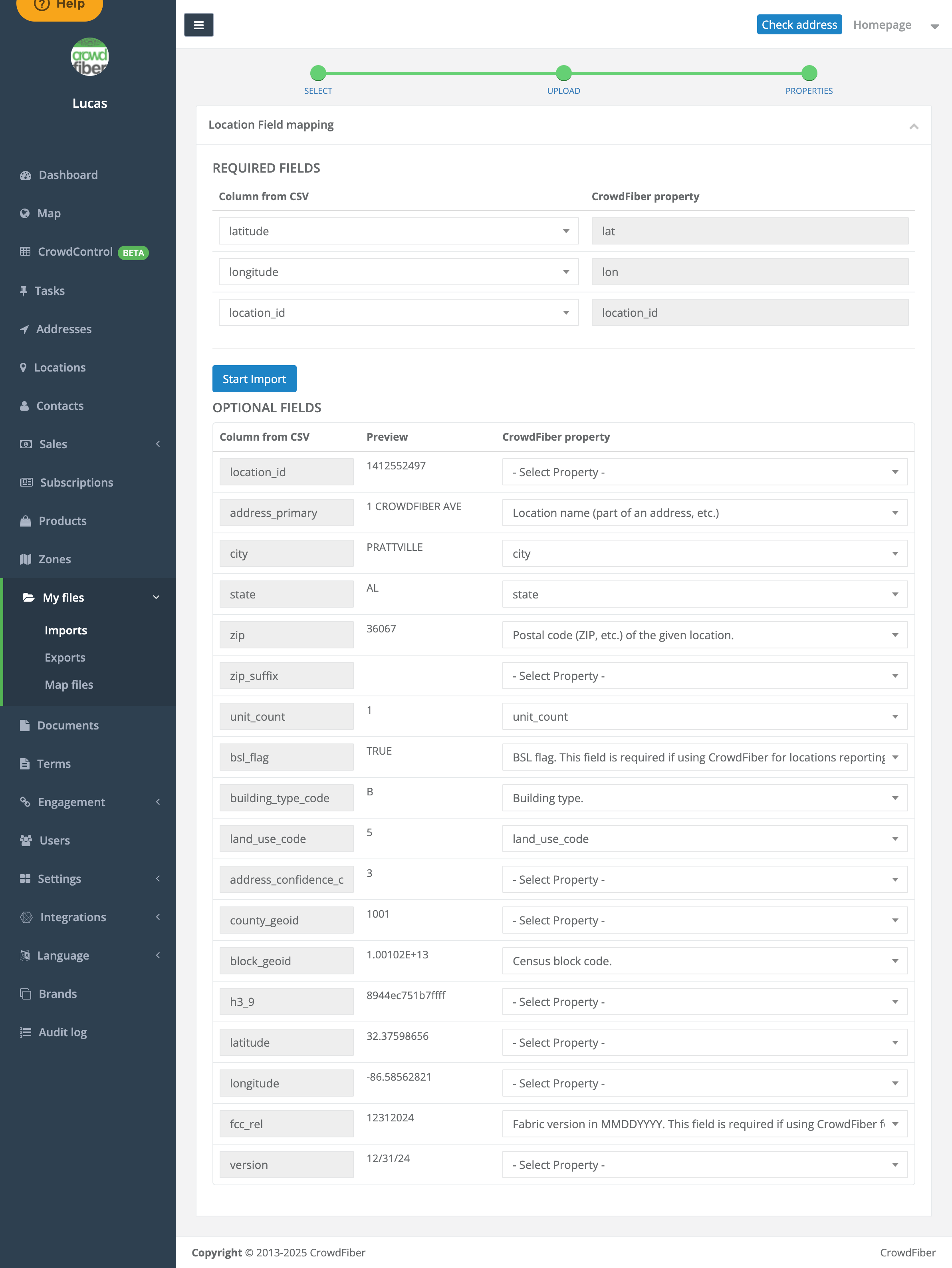
Either way, you'll need to assign these fields to the correct CrowdFiber Properties and click

Here is an example for you. You don't have to import all the CSV fields but this example gives you the option of almost all of it:
Step 3: Inspecting Your Work
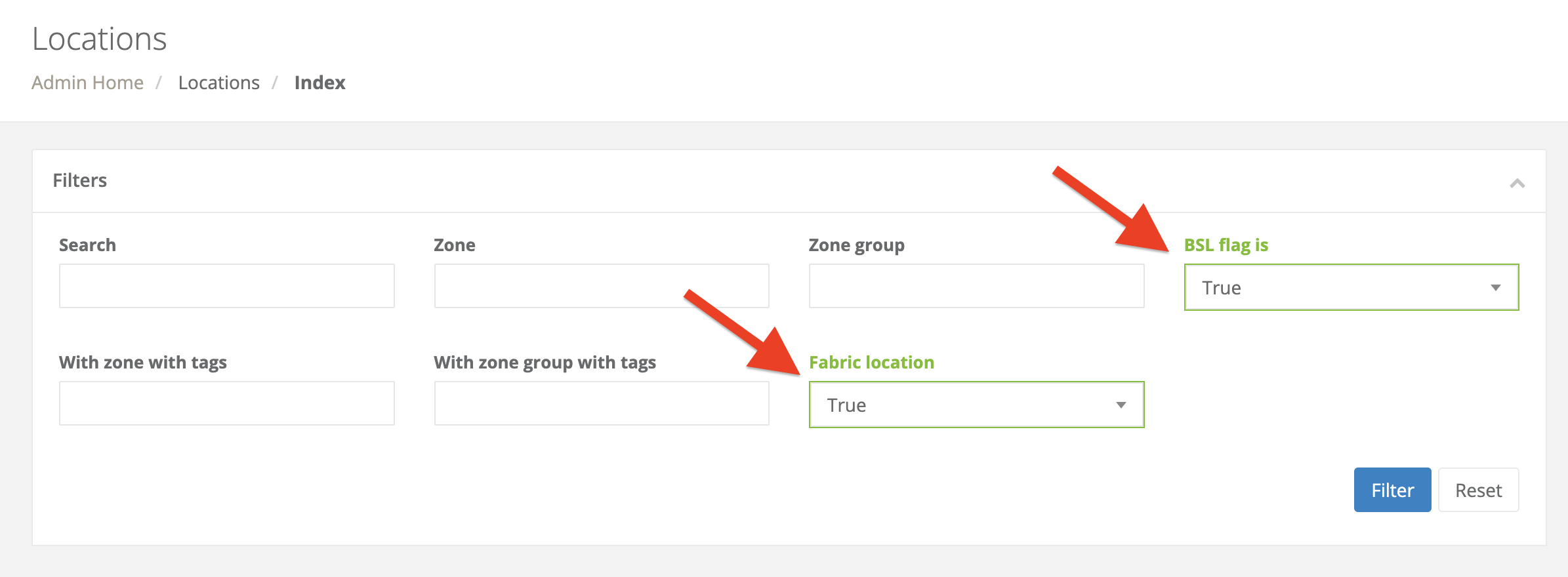
CrowdFiber allows you to take a look at your import in detail in the Locations Index. Here you'll want to review your locations by applying True to both the Fabric location and the BSL flag fields:
Please be sure to review a few individual locations to confirm the correct information is present in the Deployment report tab. If the values within the Deployment report are incorrect you will need to edit the BDC Reporting criteria for the Zone record or Zone Group.
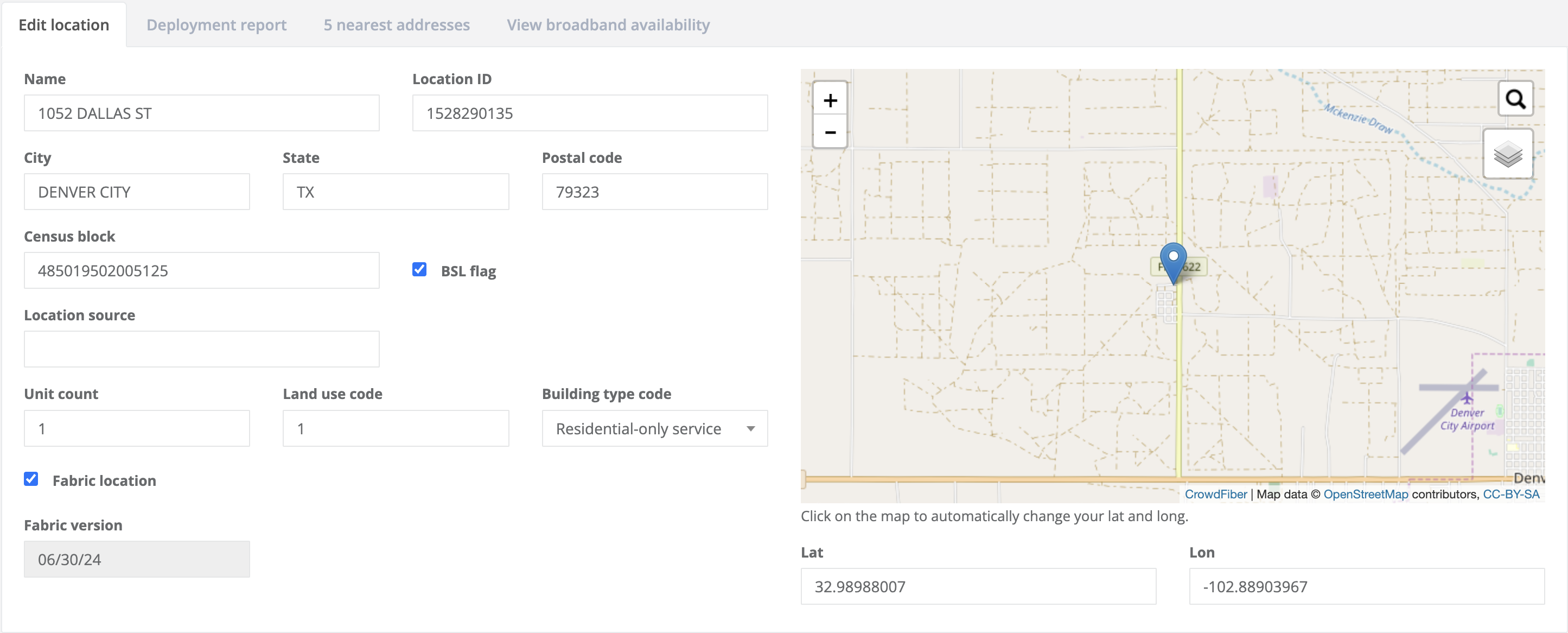
Below is a location that has been properly imported:
Below is a deployment report for this Location:
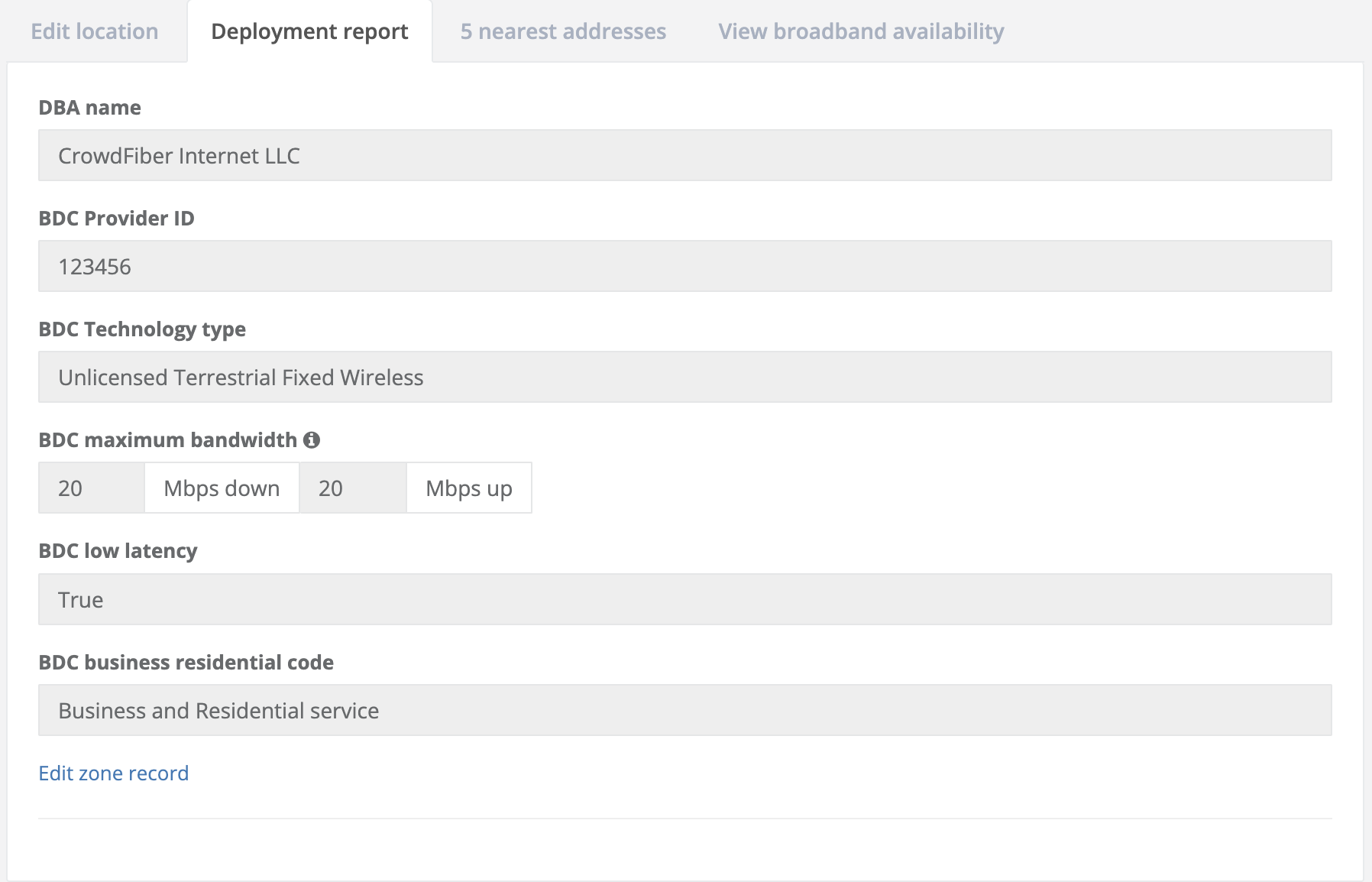
If you are unable to locate the Deployment Report tab above, please be sure to confirm your locations exist within a zone's boundaries and the BDC Reporting Criteria for that zone or zone group is filled out. Otherwise, your BDC report export will remain empty.
Here's how you can access and edit the BDC reporting criteria for a Zone Group or Zone record:
-
- Check if the zone group BDC Reporting has been filled out correctly:
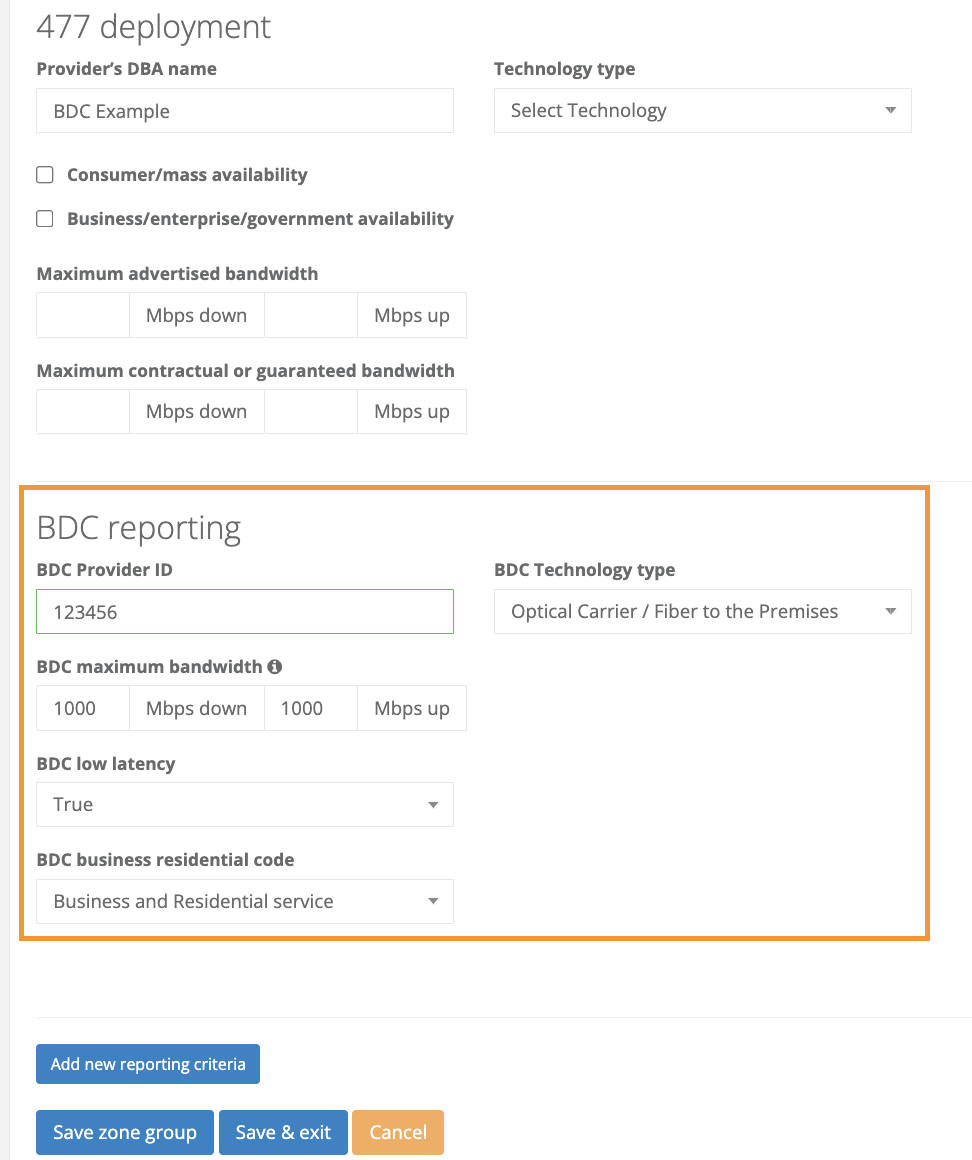
-
- Under the FCC Settings tab, check if the the BDC reporting criteria is filled out only if the zone does not belong to a zone group:
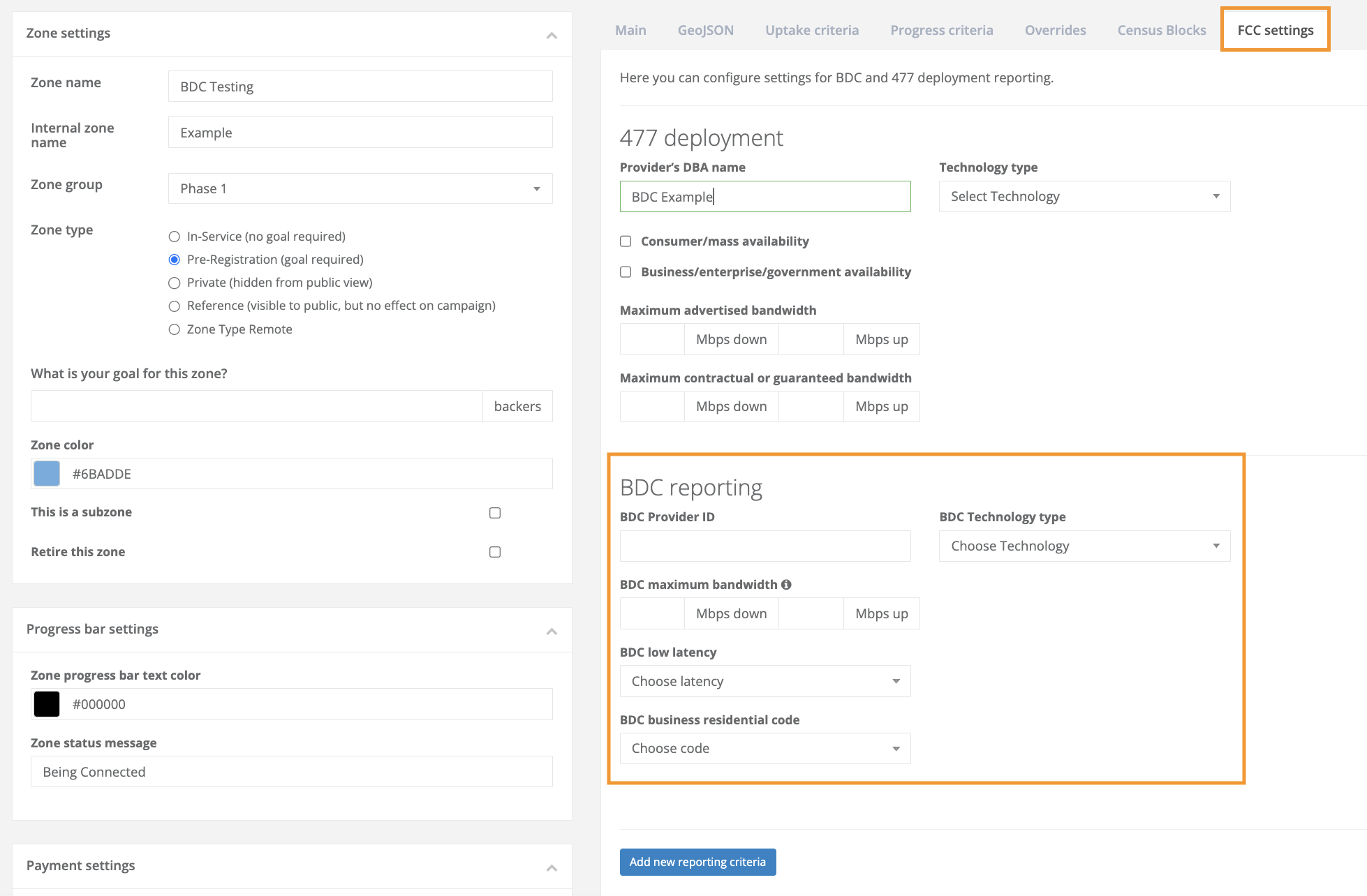
You will also notice CrowdFiber can display other nearby locations within the Location record. This data allows you to zoom in on the map and compare geolocations:
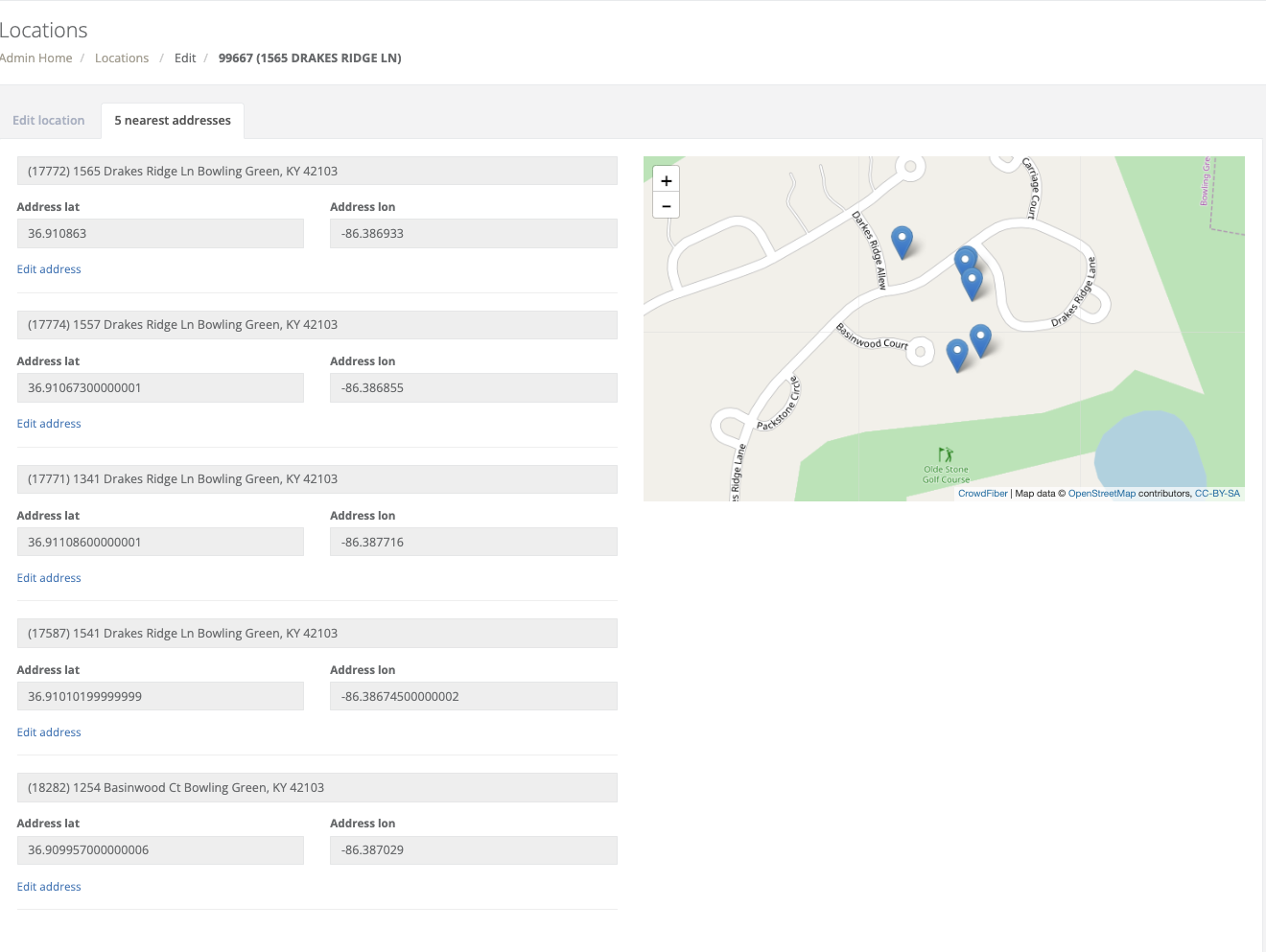
Step 4: Generating the BDC Locations Report
After you have reviewed your import and confirmed the data is accurate, you'll need to navigate to the Bulk Actions menu and select Export BDC report:

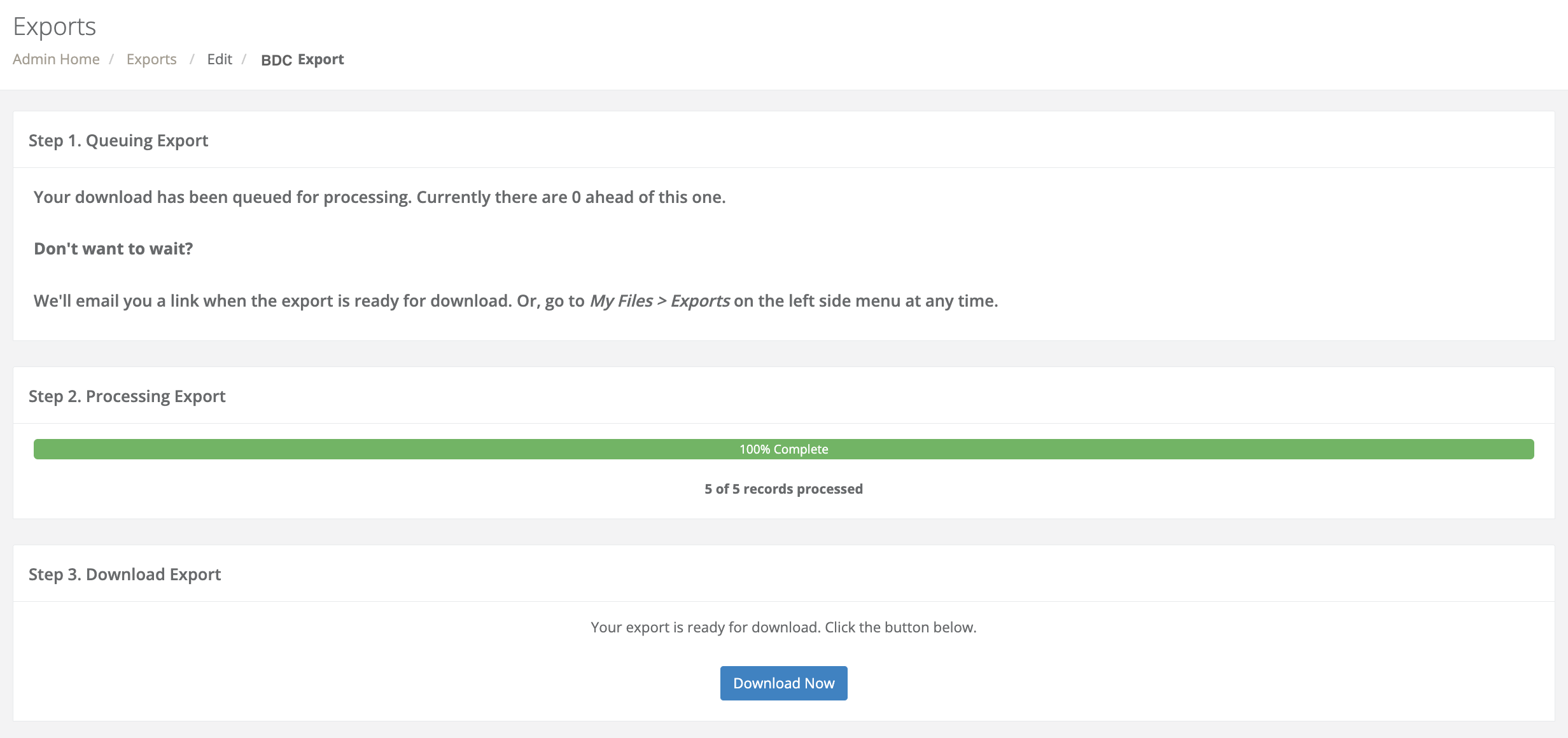
You'll be taken to the Exports index, where you can download your report once all records are processed:
Here is where you can review specifications of each field on the BDC report generated (Pages 24-27).