Two-Factor Authentication
Why Use Two-Factor Authentication?
Two-factor authentication (also commonly referred to as 2FA) is a crucial security measure that adds an extra layer of protection to your CrowdFiber account.
It requires users to provide two separate forms of identification; a password and a unique verification code prior to accessing the Admin Dashboard.
The verification code is a time-based one-time password or TOTP, that's generated by an authenticator app like Google Authenticator and greatly reduces risks associated with compromised passwords.
With 2FA, even if someone manages to obtain your password they would still need the TOTP to gain entry. This additional step will add an extra level of complexity for potential attackers, making it significantly more difficult for them to breach your accounts.
How To Enable 2FA:
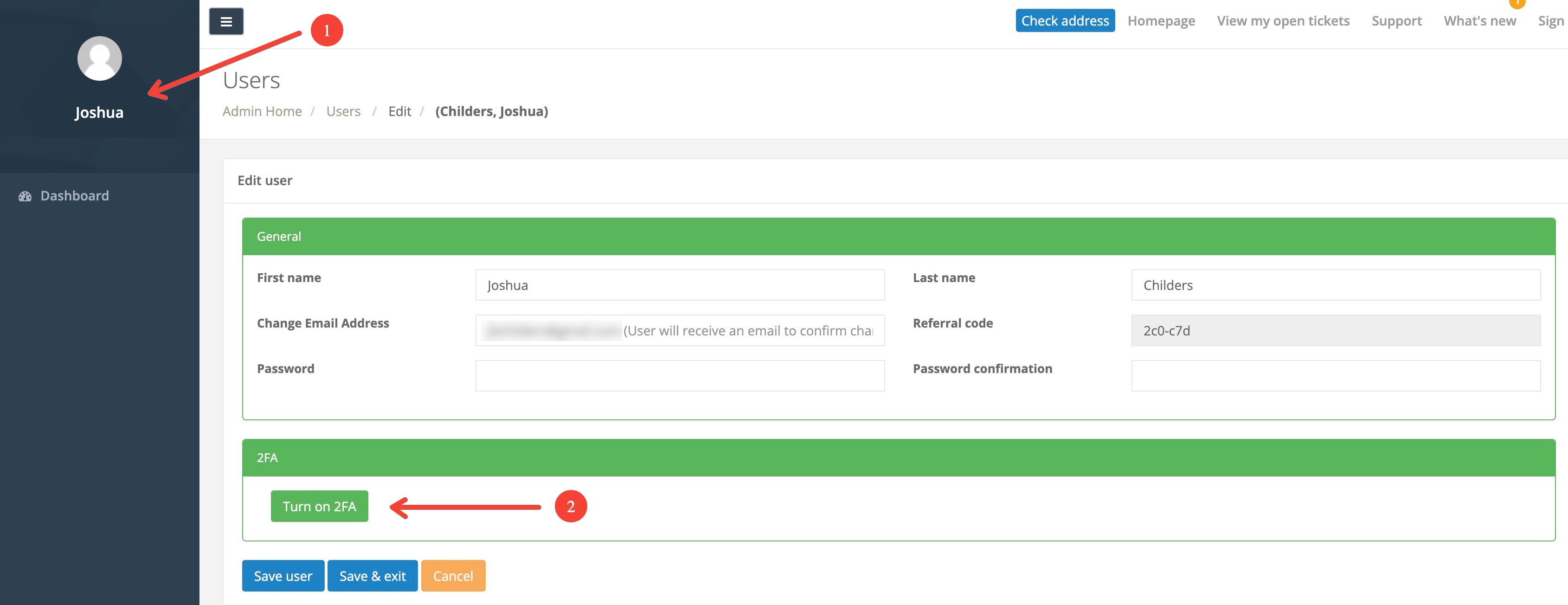
After you have downloaded an Authenticator app such as Google Authenticator, you'll need to navigate to your user profile by clicking on your name in the upper left corner of the Admin Dashboard.
You'll then need to click on the green Turn on 2FA button:
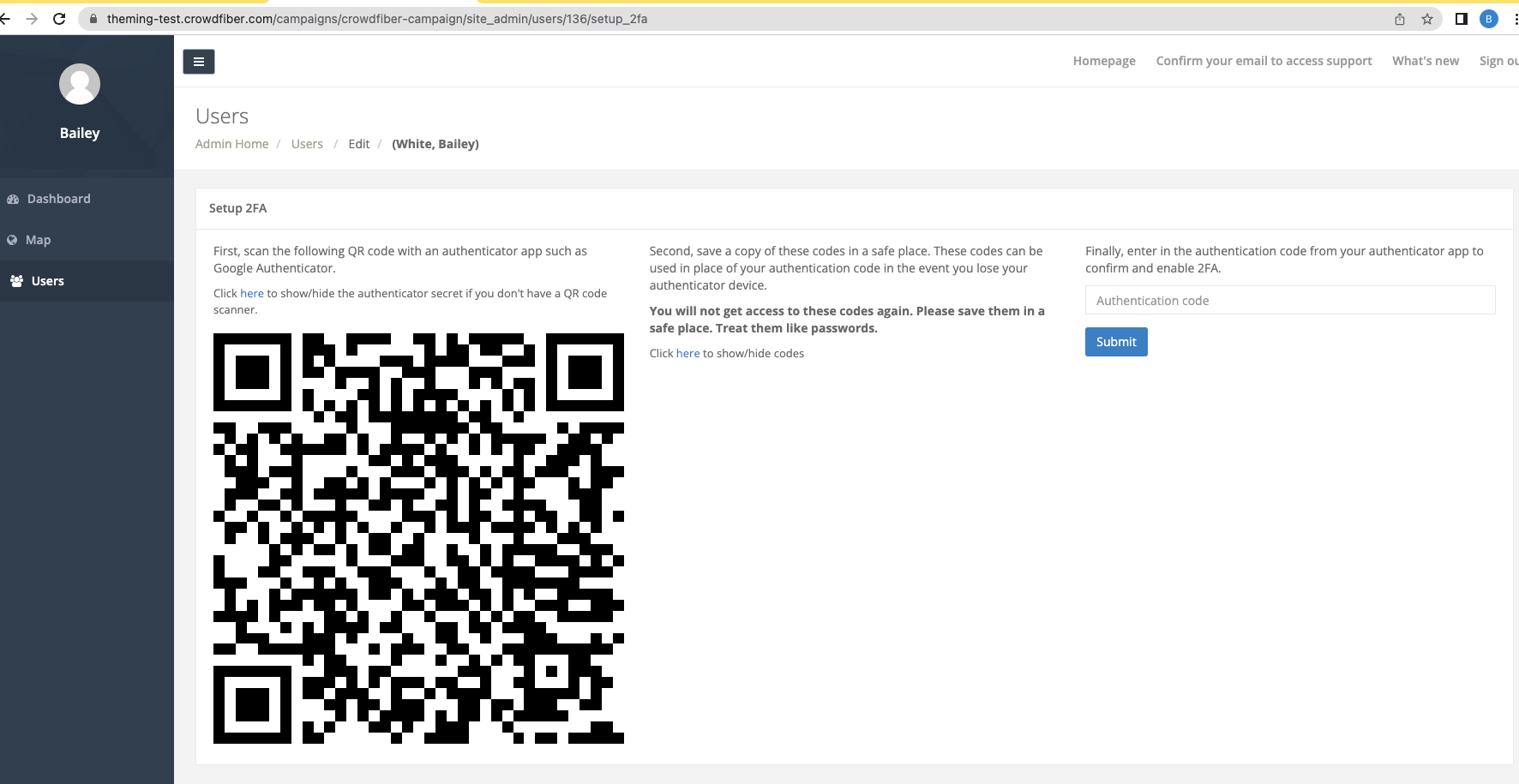
On the following screen, you'll need to perform three actions:
1) Scan the QR code with your authenticator app, or enter the authenticator secret code directly into your app if QR code scanning is not available for that app.
2) Click on the display link to view your backup OTP codes. These can be used in the event that your authenticator device is lost/stolen or malfunctions.
You will not have access to these codes again. Please handle these codes as you would sensitive data.
3) Enter the code generated by your authenticator app in the field on the right side of the screen to confirm your use of 2FA. Submitting the correct code here will enable 2FA immediately.
Once you have completed these steps, your CrowdFiber account will be ready to use Two-Factor Authentication. For future logins, you must use your authenticator app to confirm the OTP or one-time password and provide it prior to accessing your Admin Dashboard.
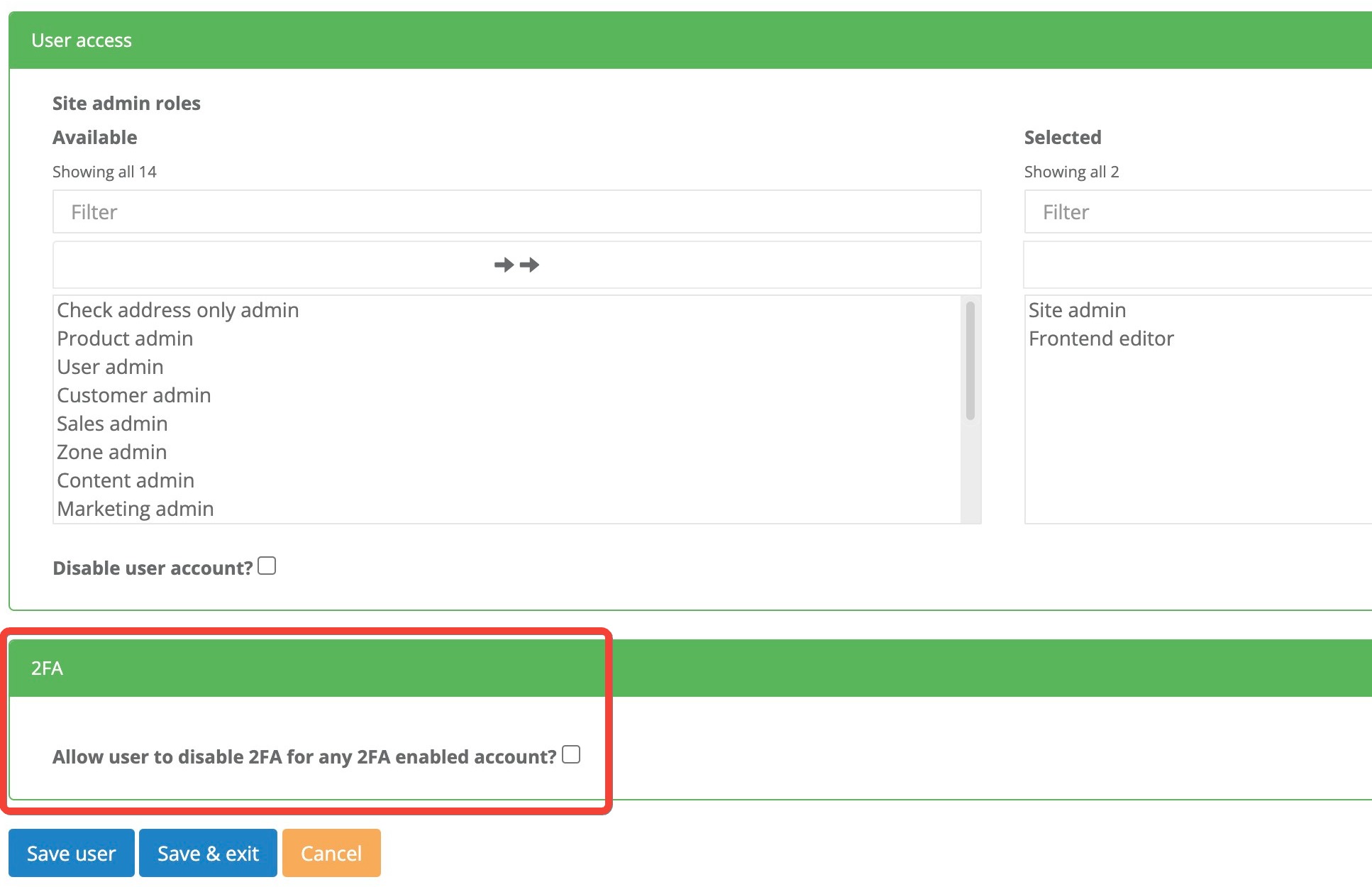
Site Admins have the ability to grant themselves and other Site Admins permission to disable 2FA for any user. At least one Site Admin should be granted this ability as CrowdFiber will not enable/disable 2FA for any user. There is no limit to the number of Site Admins who may be given this ability.
Admin FAQ
- Can I enable 2FA for others? No, each user may only enable 2FA for themselves when logged in.
- Can end users enable 2FA? No, enabling 2FA requires access to the Admin Dashboard, so end users cannot enable 2FA.
- How can I tell who does and does not have 2FA enabled? Any admin with the ability to access the Users index will now see a Has 2FA enabled? column with Yes/No badges for each user. This information is also available in a Users export.
- How can I disable 2FA? Navigate to your user profile by clicking on your name in the upper left corner of the Admin Dashboard, then click the red Disable 2FA button on your profile. If a user is unable to log into CrowdFiber and needs 2FA disabled, a Site Admin with the permission to disable 2FA will need to navigate to that user's profile and disable 2FA. CrowdFiber Support will not enable/disable 2FA for any user.