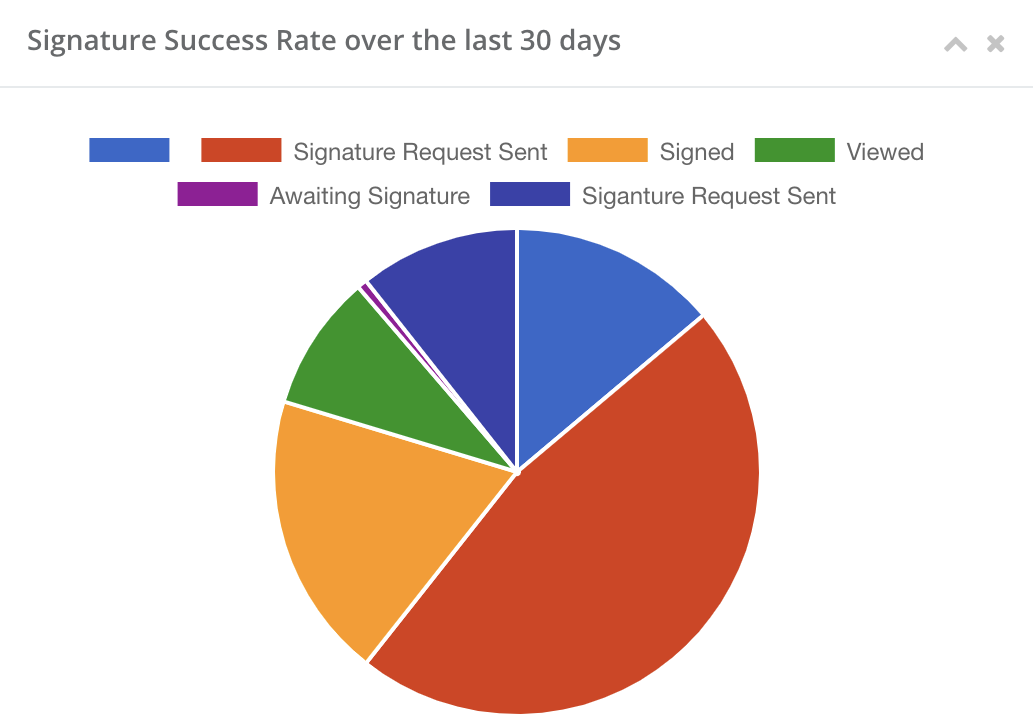
Signature Reporting
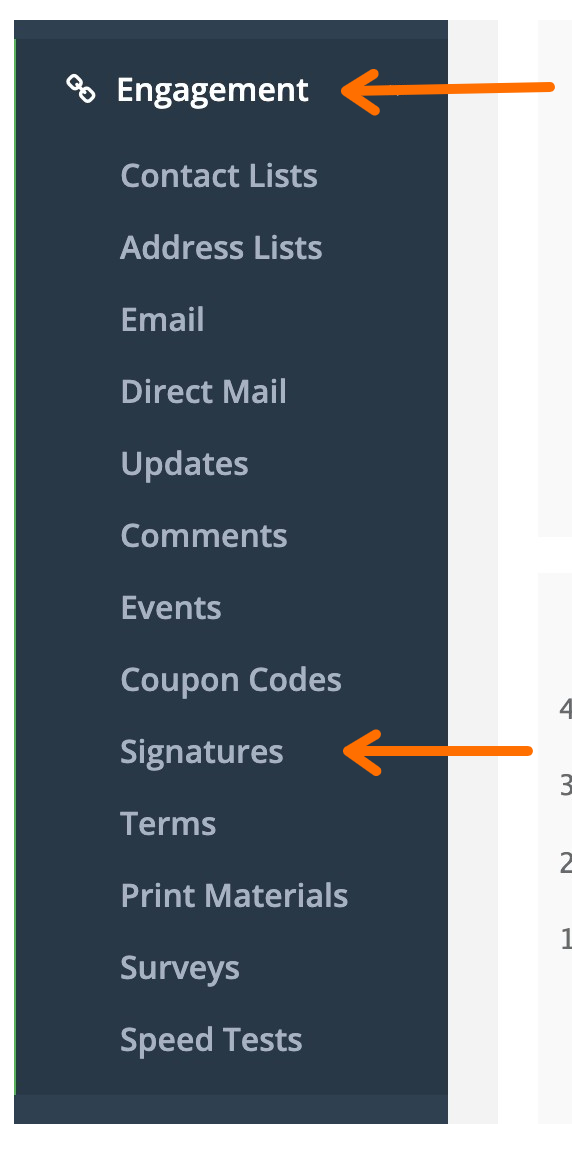
There are filtering options and a few high-level 30-Day reporting metrics that you can utilize to review your signature requests. Start by navigating to your Signatures Page by taking the following steps:
1) Login to your admin panel
2) Select the Engagement link in the left-hand rail
3) Click Signatures from the engagement drop-down Menu
Filters
You can filter your signature requests by using any combination of the following filters:
- Document: View signature requests for a specific document
- Status: View your sent, viewed but not signed, or signed signature requests
- Mode: separate live signature request from your test requests
- Zone: View all of your signature requests in a specific zone
- Zone Type: View all signatures requests that exist in your In-Service, Pre-Registration or Remote zones.
- Source: Sort your signature requests by Online Orders or Custom Quotes sent by your sales team.
- Contracted Order: View signatures requests that have or have not lead to contracted orders
- Created Between: View all signature request created within a range of dates
- Signed Between: View all signature request signed within a range of dates
Reports
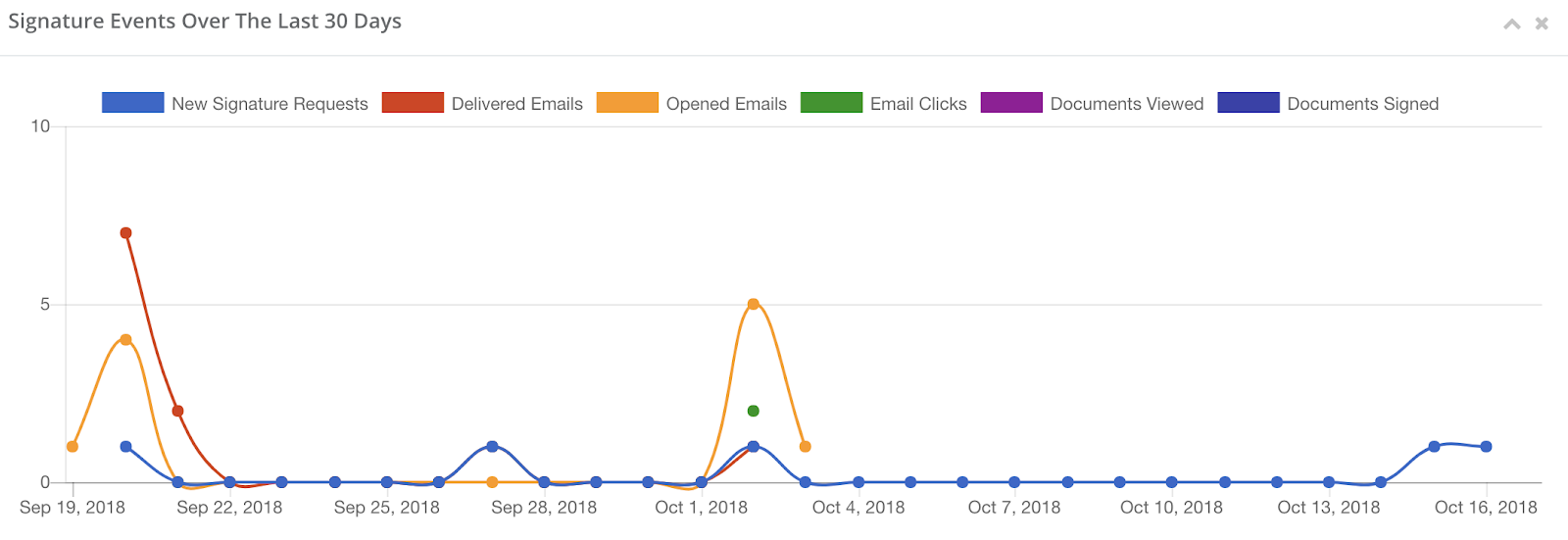
You can also see a report of signatures events and signatures request success rates by clicking the green Report button on the top right corner of your Signature Request Table on your Signatures Page. here you'll be able to see a 30-day report on how your signatures requests are performing from the volume of signature requests sent, delivered, clicked, viewed, and signed.
To a visual display of signature request sent vs. signed, viewed, and awaiting a signature.