Assisted Order Mode
What is Assisted Order Mode?
Assisted Order Mode prevents delays in registration processes and eliminates data processing errors when placing an order on behalf of a registrant.
Assisted Order mode is a critical Admin User Permission for all Admin Users placing orders on behalf of your registrants.
The Benefits of Assisted Order Mode
- Add an Admin User's name to the Assigned to Sales Rep filter
- When an Admin User has Assisted order mode permissions, their name will be available for selection in the Assigned to Sales Rep filter's drop-down menu on your Leads and Orders page. Assisted order mode allows you to establish accountability for a Lead and Order records.
When logged in as an Admin User with Assisted Order Mode permissions, all registration processes completed by the Admin User on behalf of a registrant will automatically display the Admin User's name in the Assigned to Sales Rep field in the applicable Order record.
- Seamlessly complete registrations for a pre-existing contact
- Admin users lacking Assisted Order Mode Permissions will be forced to delay or terminate the registration process due to an email verification process. The registrant will be required to access their personal email inbox to validate the use of their email address by clicking a button in an email sent to the registrant's email address.
- Admin users lacking Assisted Order Mode permissions will have their work email associated with the registrant's account after completing the registration process.
- Receive credit for the registration
- When the Submit button is clicked at the end of a registration process, the registration record is automatically assigned to the Assisted Order Mode User who completed the registration.
The Orders Page in the Admin Dashboard can be filtered by all orders assigned to a specific Assisted Order Mode User(s) by using the Assigned to Filter located in the Filter section of the Orders page.
-
Complete contracts in line with the registration process.
- If you're using CrowdFiber's Electronic Documents feature, there is an additional checkbox on the Submit panel of a registration process (only visible to Assisted Order Mode users). When this checkbox is checked and the Submit button is clicked, the Assisted Order Mode User will be delivered an email to their work email that contains a link to the electronically signable contract documents applicable to the registration.
- Assisted Order Mode gives your teammates the ability to open electronic signature documents on their own device so that they can walk the customer through the document signing process on-site, immediately upon the registration's completion (rather than wait for the registrant to complete their contract documents at a later date).
While the registrant will not receive a link to the original, unsigned documents, the registrant will receive an email that provides a link to their signed electronic documents immediately after their documents are submitted.
How to Grant Assisted Order Mode Permission
- In the left-hand rail of your Admin Dashboard, click Users.
- On the following Users page, use the filters located in the Filter section to locate the applicable User record.
- Click the ID number located in the ID column of the User Index that is associated with the applicable user to access the User record.
-
On the following page, click the Assisted Order Mode checkbox located at the top of the User Record.
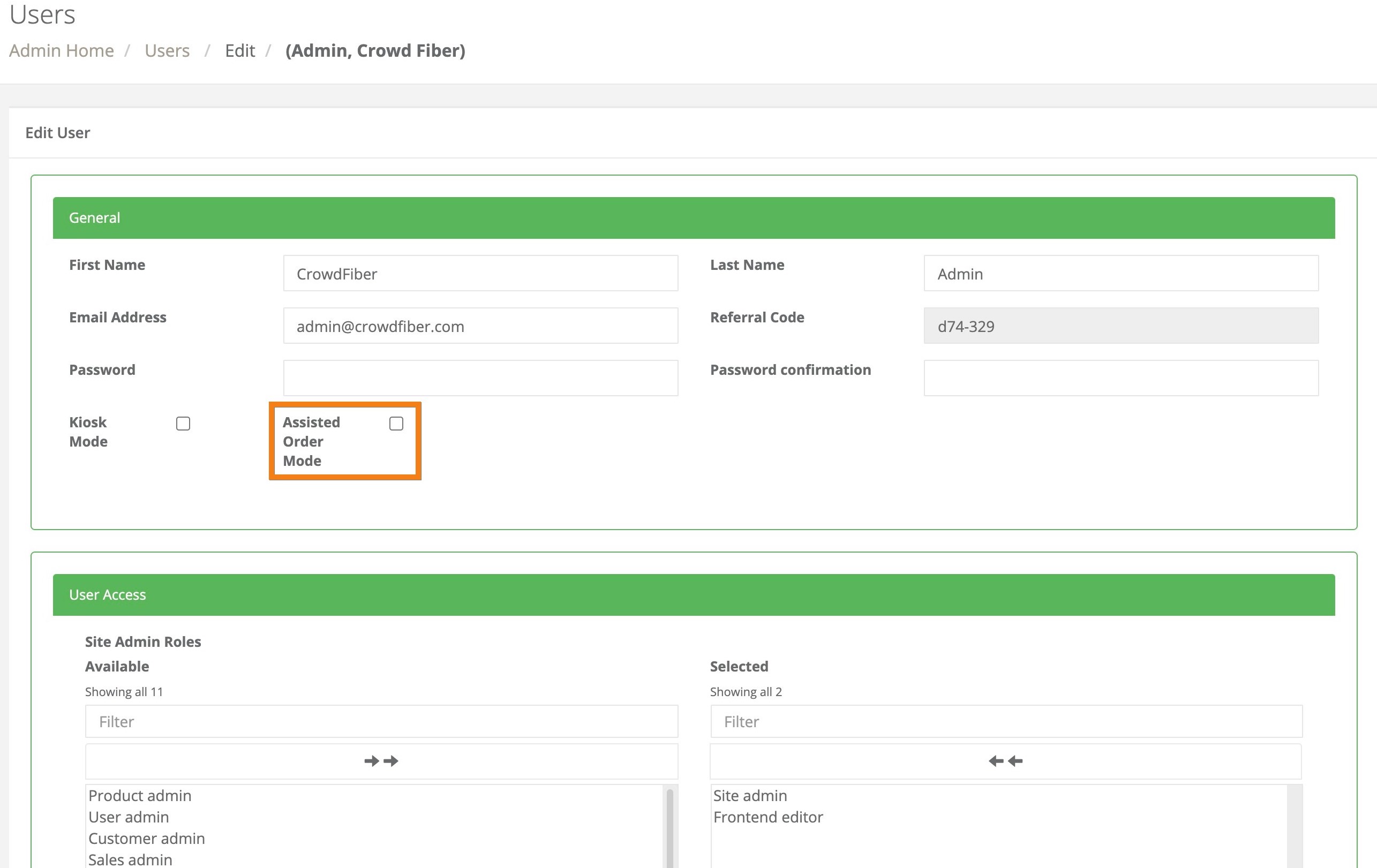
-
Click one of the blue Save buttons located in the bottom left-hand corner of the User Record to save and activate Assisted Order Mode for the user.