Create A New Request New Registration Template
Step 1) Access the Request New Registration Email Template Page
Option 1) Access while sending a Request New Registration campaign
-
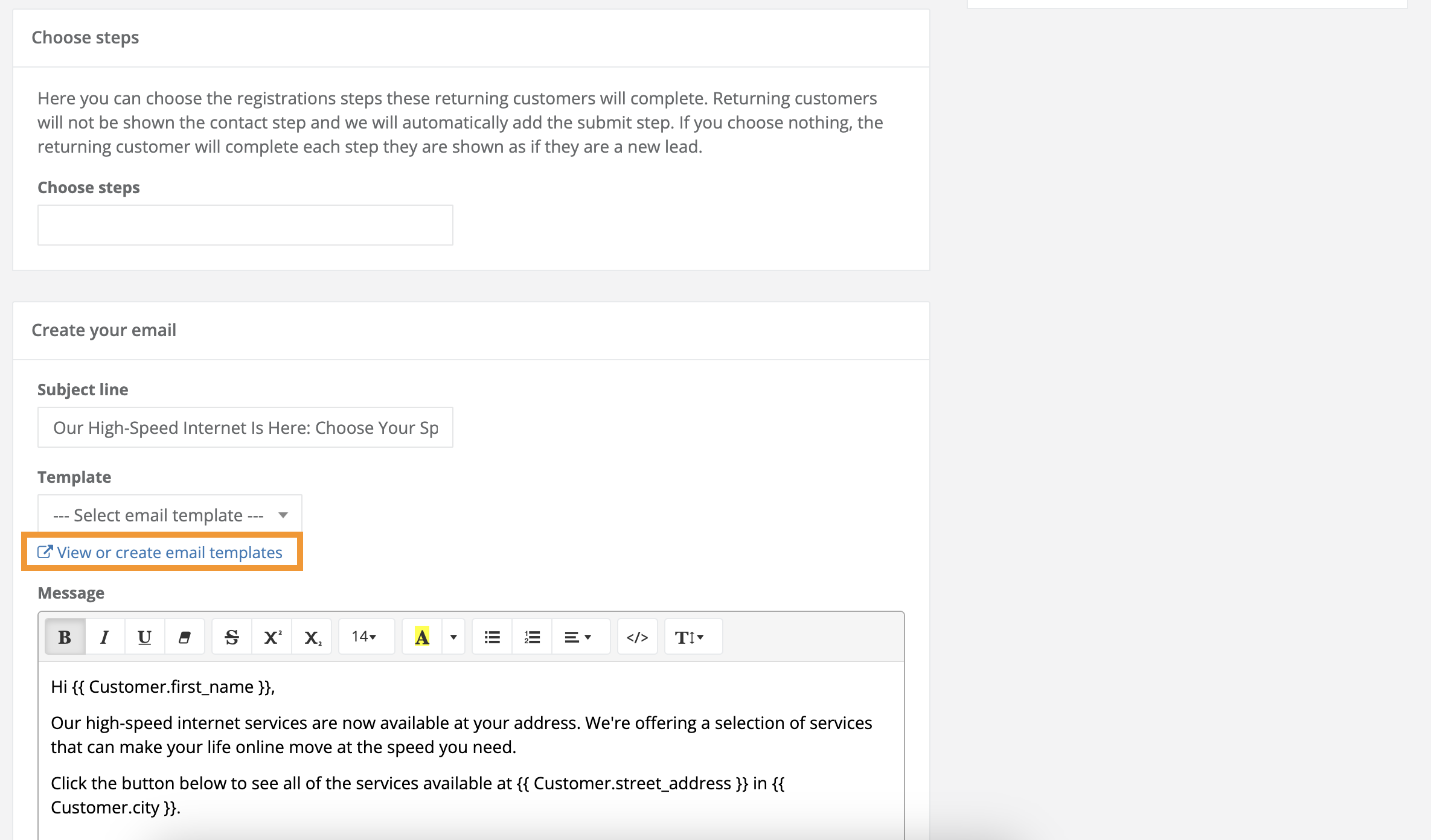
On the Request New Request Registration page, click the "View or create email templates" link seen below the Select the Template drop-down menu.
-
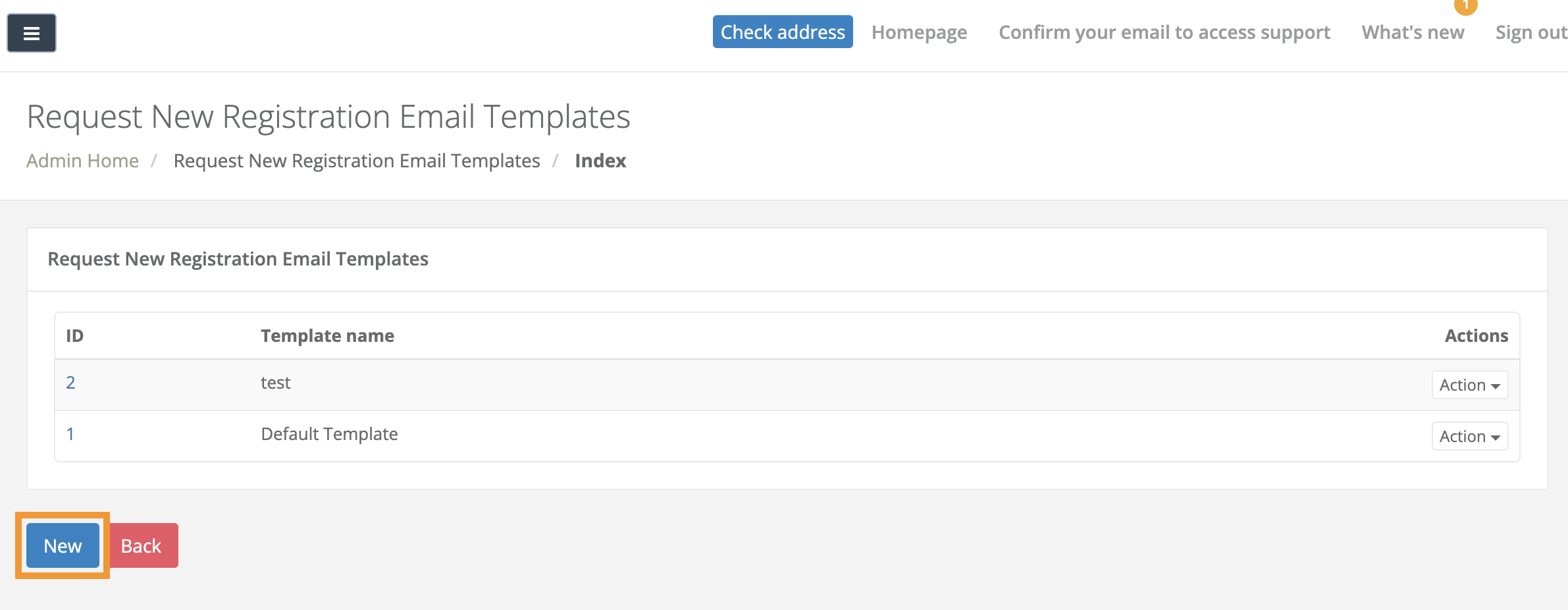
On the following Request New Registration Email Templates page, click the blue "New" button located in the lower left-hand corner of the page.
Option 2) Access when preparing for future Request New Registration campaign
-
Click the Sales link seen in the left-hand rail of your Admin Dashboard.
-
In the Sales drop-down menu, click Orders.
-
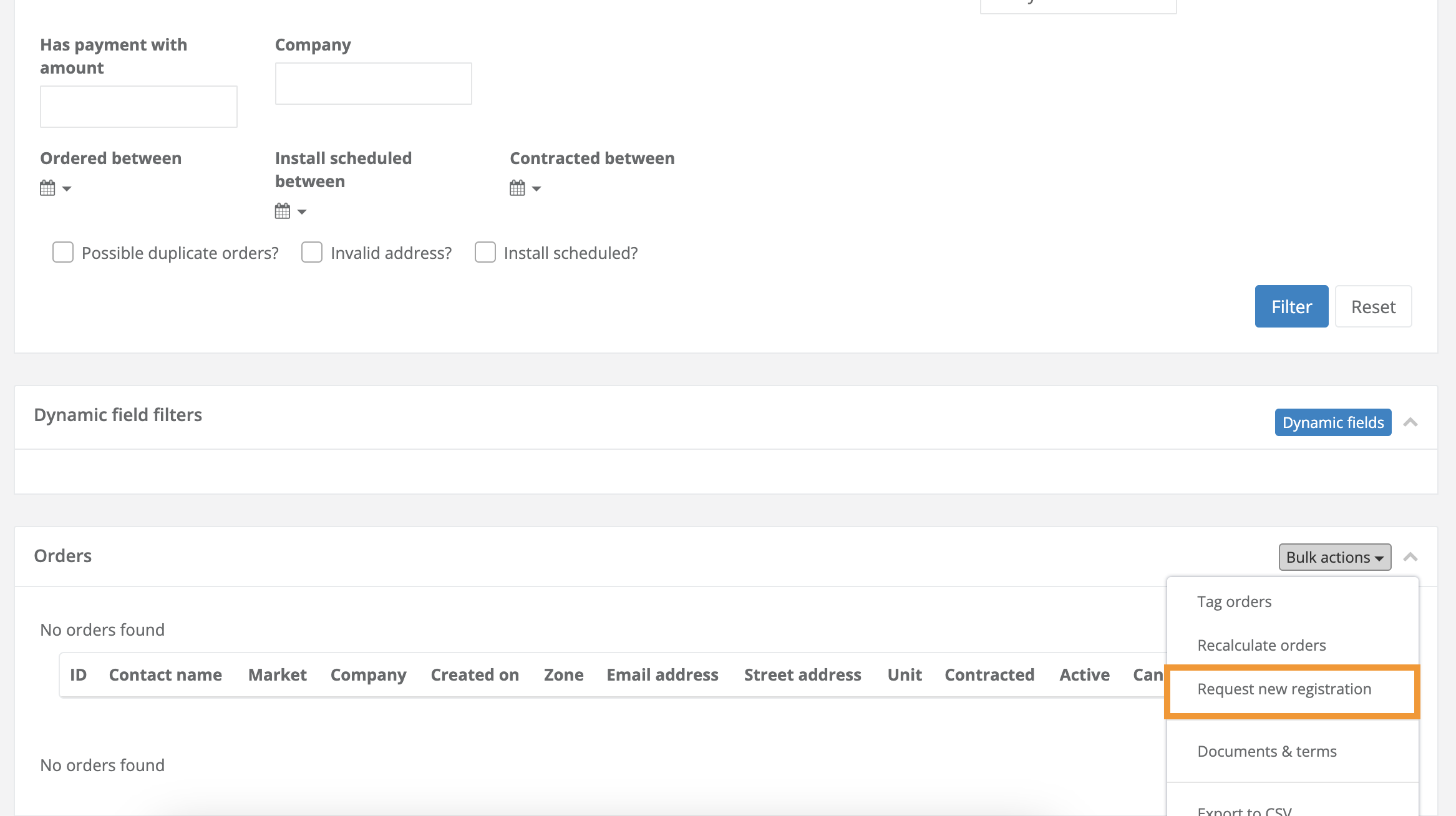
On the following Orders page, scroll down to the Orders index and click the "Bulk actions" button seen in the upper right-hand corner of the Orders index.
-
In the Bulk actions drop-down menu, select "Request new registration."
-
On the following Request New Request Registration page, click the View or create email template link seen below the Select the Template drop-down menu.
-
On the following Request New Registration Email Templates page, click the blue "New" button located in the lower left-hand corner of the page.
Step 2) Create Your Email Template
-
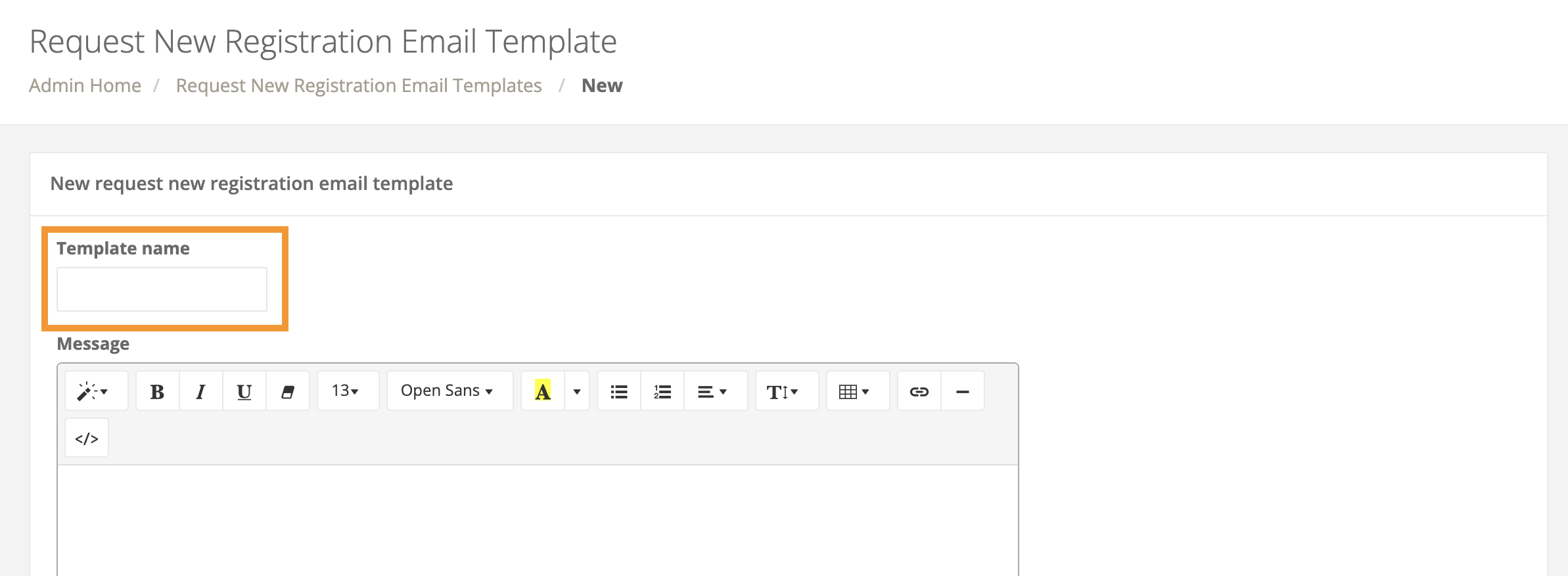
Template name
-
Enter the internal name/description of this template
The Template name is for internal use only. This name will not be visible outside of your Admin Dashboard.
-
-
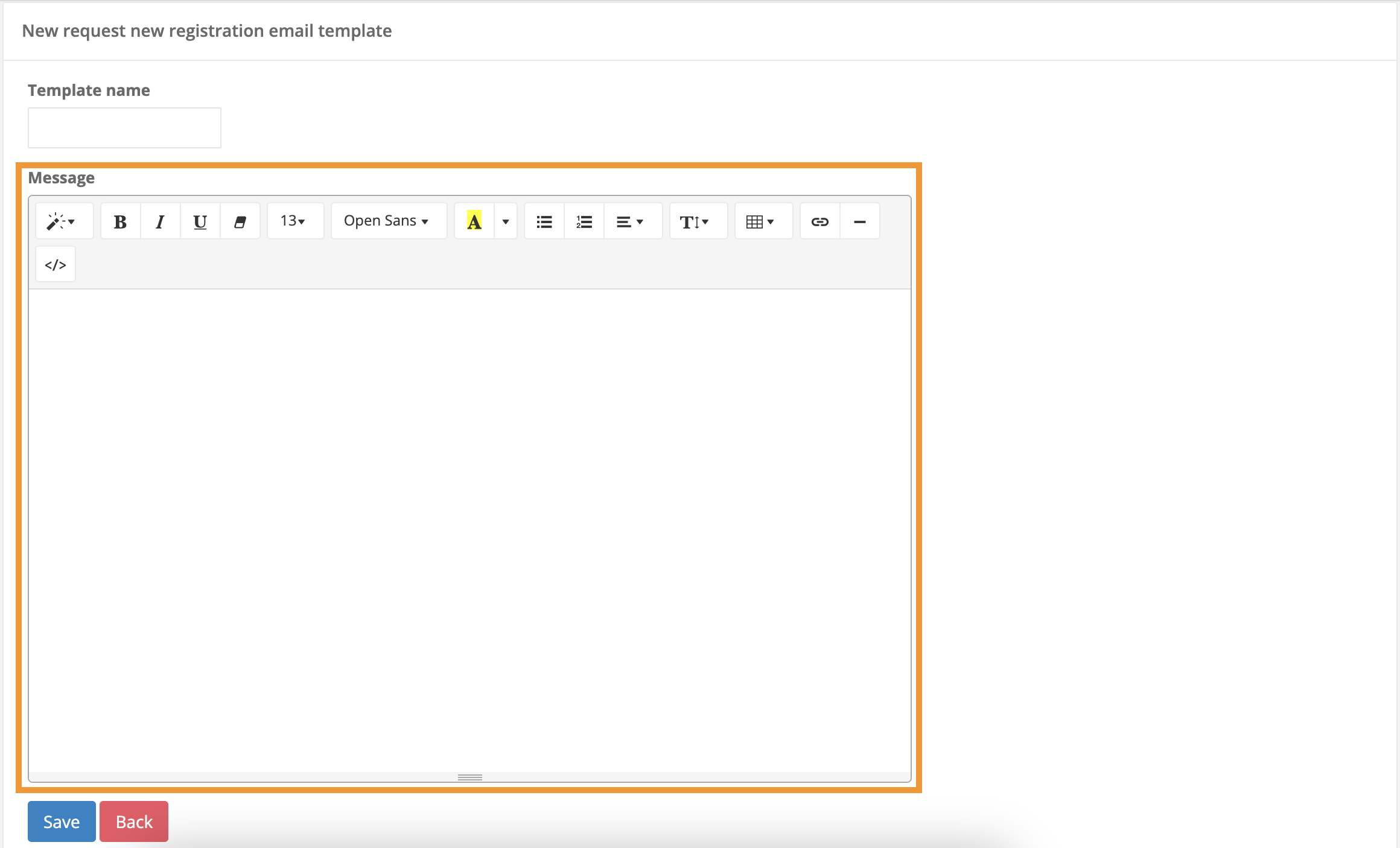
Message
-
Enter the content you want to display in every email associated with a Request New Registration campaign associated with this template.
-
-
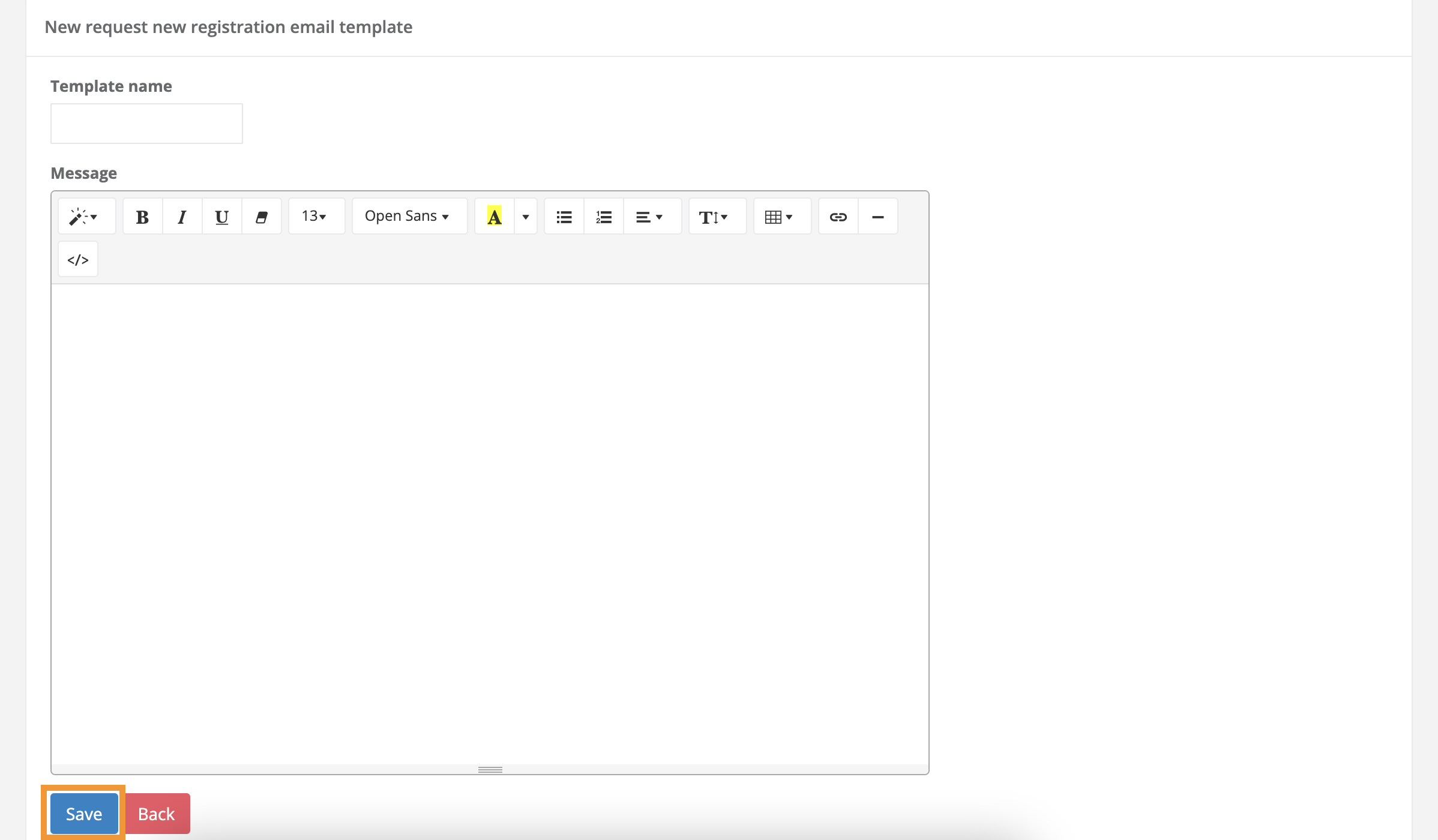
Save
-
Clicking the blue Save button immediately makes this Request New Registration email available.
-
How to Edit a Request New Registration Template.
-
Access Your Request New Registration email templates as described in this article in Step 1) Access the Request New Registration Email Template.
-
On the following Request New Request Registration Template page, in your list of Request New Email Templates, locate the row containing the template name you would like to edit.
-
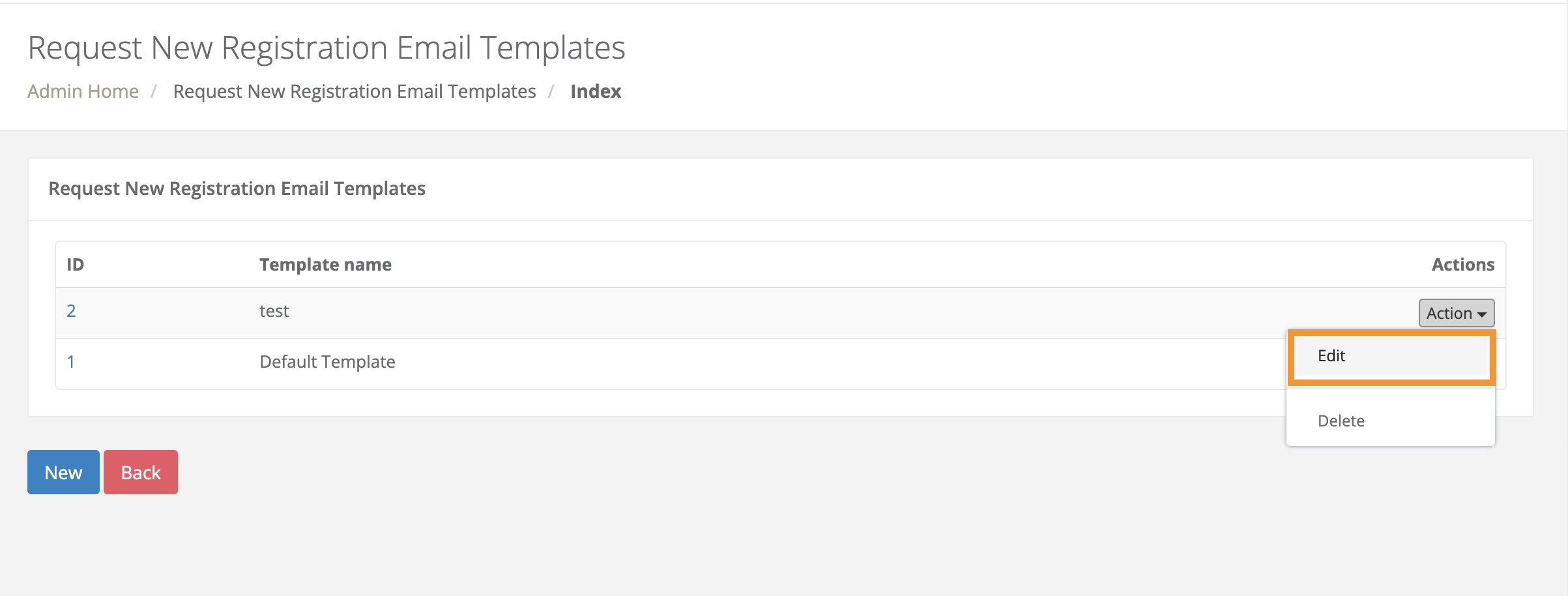
Click the Actions button seen in the right-most column of this row.
-
Select Edit from the Actions drop-down menu.
-
On the following page, edit your template as necessary.
-
Click the blue Save button in the edit's lower left-hand corner to save and apply your changes.
-
Clicking the Save button will immediately make this Request New Registration email available.
-
Apply a template to your Request New Registration campaign
-
Click the Select a template drop-down menu seen in the Template section of your Request New Registration campaign editor.
-
In the following drop-down menu, select the appropriate template to apply to your Request New Registration campaign.