Kiosk Mode: Feature Overview
What is Kiosk Mode?
Kiosk Mode provides the ability for multiple people to register securely, quickly, and efficiently from the same device, one after another, in unsupervised public locations.
Kiosk mode eliminates the risk of exposing a registrant's data while allowing every registrant to experience a targeted registration process that creates a unique order record.
Kiosk Mode is perfect for:
- Laptops and tablets at signup locations in your lobby or at your event tables.
- Any location where your customers are personally completing registrations on one of your company’s devices without assistance.
The Kiosk Mode User Experience
Registration Process
The Kiosk Mode experience provides your users with direct access to your CrowdFiber site with the ability to complete your entire CrowdFiber registration process (including the creation of a unique account and a user-created password).
Key differences during registration:
-
Standard login buttons are not displayed at the top of the screen. The Admin and User Dashboard links, typically seen in the top right corner of their screen, are not available.
Instead, customers will see text in the upper left-hand corner of the screen that indicates the device is in “Kiosk Mode” with a green “Start Over" button that will take the user back to your CrowdFiber site's Home Page.
-
After the user submits their registration, they are taken to a Success page with your custom message that displays a Return to Home button (rather than a "View Dashboard" button), that when clicked takes the user back to your CrowdFiber Home Page. The next address search/registration will automatically create a new account for the next registrant.
A user does not need to sign out of their account after they complete the registration process to create a unique order account.
Post-Registration
After a new user registers via Kiosk Mode, they will have the same post-registration experience as a normal online order:
- Customers will receive the same Order Confirmation and Thank You emails that are sent to all new customers.
- Customers will be able to return to your site in future, log in to their Dashboard, and review their order.
How to Setup Kiosk Mode
- Simply create a new user account on your CrowdFiber site.
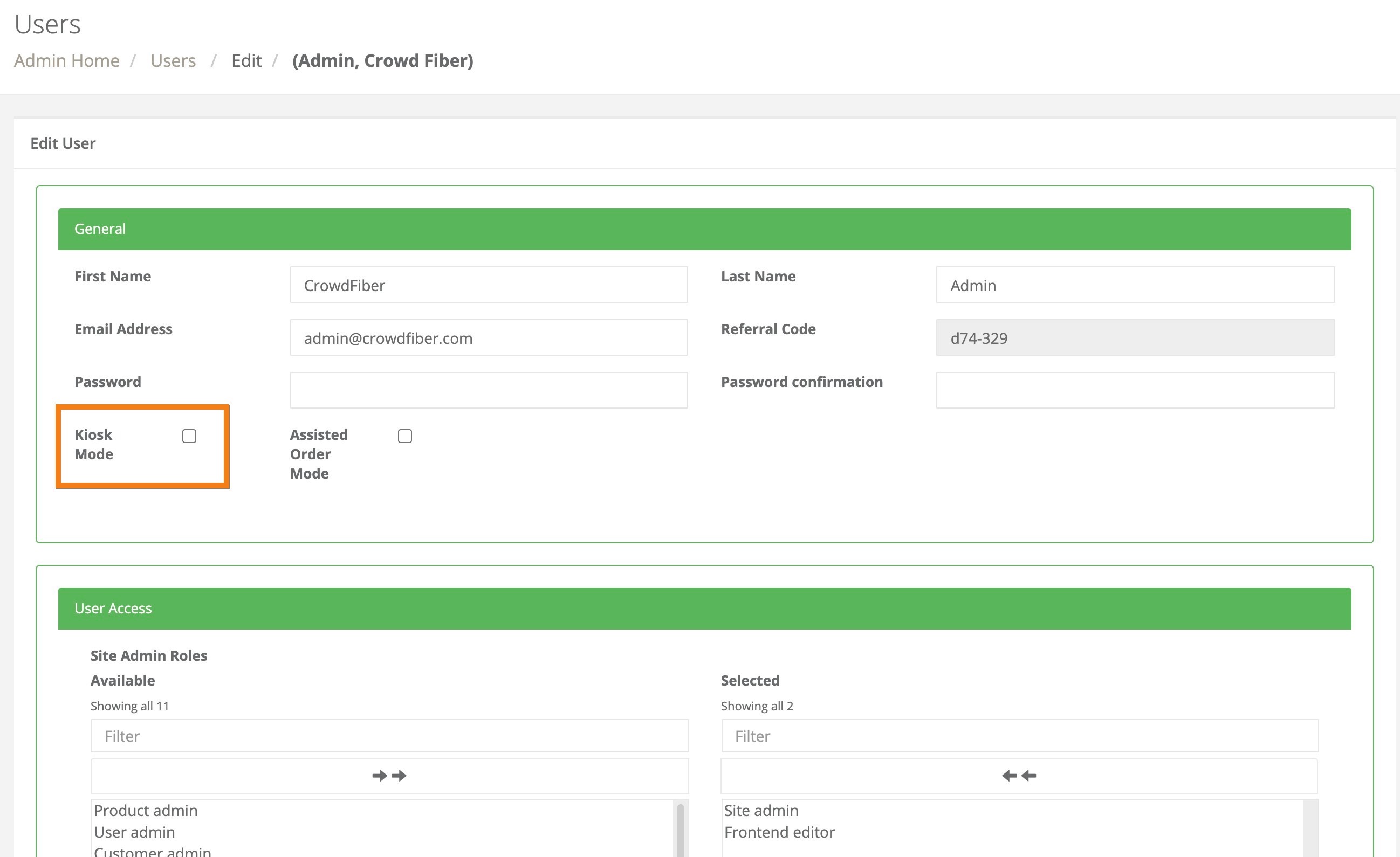
- Assign the Kiosk Mode to that user by clicking the Kiosk Mode checkbox located at the top of the User Record.
- Click the blue Save button located in the bottom left-hand corner of the User Record.
CRITICAL SETTINGS
- Kiosk mode should only be assigned to a unique email adress that is NOT associated with a person nor any other admin user.
- To ensure the creation of a secure environment that prevents all access to the admin dashboard, DO NOT assign any other roles to this user.