Order Recalculation
What Is An Order Recalculation?
An Order Recalculation is a bulk action that allows you to add and subtract orders to and from your In-Service or Pre-Registration Zones as your zone structure evolves.
Order Recalculations allow you to assign all applicable orders into any In-Service or Pre-Registration Zones you desire.
With every Order Recalculation, the following changes take place:
- Orders recalculated into a zone will be associated/filterable with the new zone's zone name.
- Orders recalculated into a zone will be associated/filterable with the new zone's zone type.
- Orders recalculated into a zone will be eligible to purchase the new zone's products.
- Orders recalculated into or out of a zone increase and decrease each zone's order metrics, progress goals, and uptake percentage accordingly.
Order Recalculation will not recalculate orders existing in zones with zone overrides settings established.
Order Recalculations do not affect archived orders.
Why You Should Perform a Recalculation
You should perform an order recalculation in the following situations:
- There has been a change to a zone's boundaries.
- A new zone surrounds a previously remote area.
- Your zone priorities have changed (orders in an area where zones overlap should be removed from their original associated with the overlapping zone).
- You would like to delete a zone that has orders.
Why You Should Not Perform a Recalculation
- A zone's zone type is changed.
- A progress goal is updated.
- Progress or Uptake Criteria is adjusted.
These items refresh every 10-15 minutes in your Zone Index. If you need an immediate change of progress percentage based on your changes to zone goals or new rules for progress criteria, on your Zones page, click Bulk Actions > Refresh Cache.
Types of Order Recalculations
Reassign Orders To The Appropriate Zones In Areas Where Zones Have Overlapping Boundaries.
- An order is associated with an address that exists within the overlapping boundaries of two or more zones. This order is technically "in" multiple zones. However, the order is only "assigned" to one zone (an order and its attributes are only added to one zone's metrics).
- An Order Recalculation will move orders and recalculate their attributes into the zone that has the highest priority in your Zones index (ie the zone that is highest in your Zones index on the Zones page in your Admin Dashboard).
Assign Previously Remote Orders To A zone That Surrounds The Previously Remote Area.
- An order is associated with an address that exists within a remote area. Then, a zone is added to your CrowdFiber database that now encompasses the remote area in which this address exists.
- An Order Recalculation will move orders and recalculate their attributes into the new zone that surrounds the previously remote area.
Delete A Zone That Has Assigned Orders
- You have a zone that you would like to delete from your Zones Index. However, this zone displays orders in the Orders column in the Zones Index.
- An Order Recalculation will move orders out of the zone that you would like to delete and into a zone that will remain a part of your zone structure.
How to Perform an Order Recalculation
-
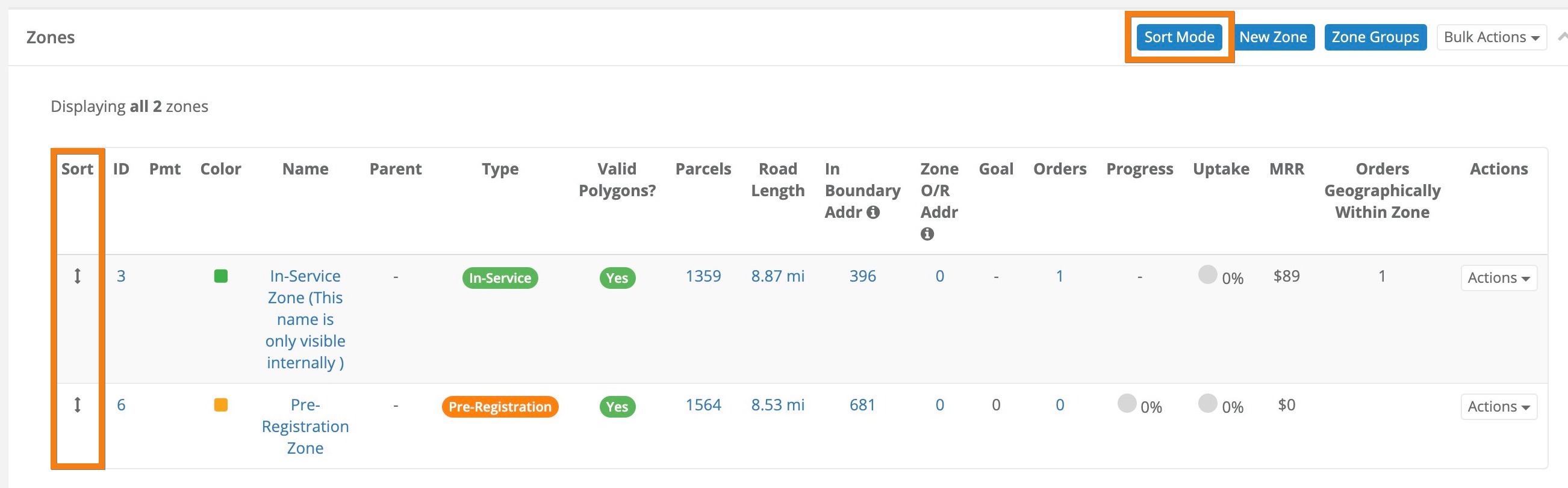
Adjust the "Priority" of your zones.
- Click the Zones link located in the left-hand rail of your Admin Dashboard.
- On your Zones page, click the blue Sort Mode button located in the upper right-hand corner of your Zones index.
- Move the zone(s) you would like to recalulate orders into above the zone(s) you would like to remove orders from.
- Move the zone(s) that you would like to delete below the zone that is replacing the zone to be deleted.
All future orders will automatically be assigned to the zone that is higher in the Zones index in all areas where the zones in question overlap.
-
Click the Orders link located in the left-hand rail of your Admin Dashboard.
-
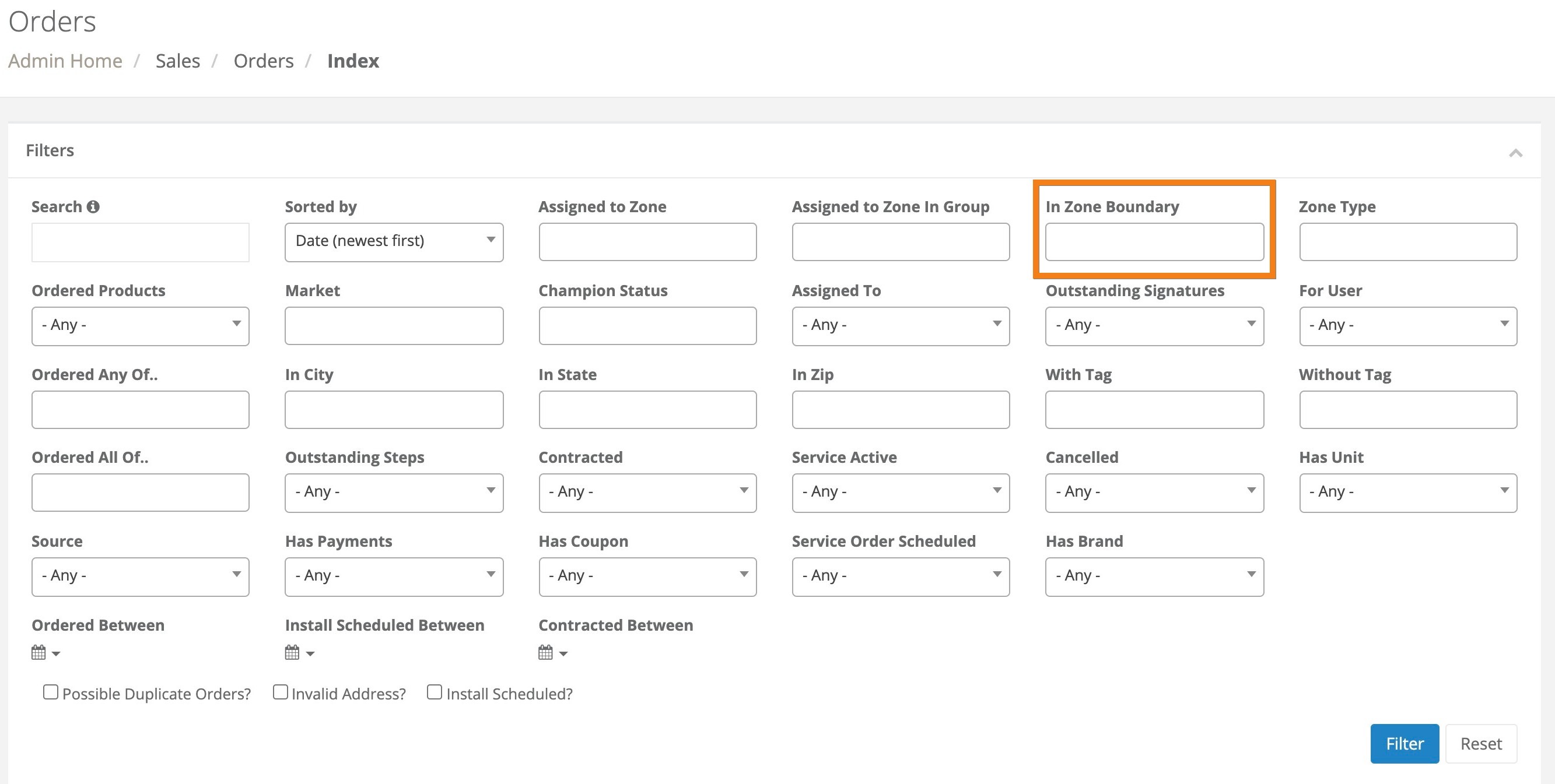
On your Orders page, add the zone(s) that you would like to recalculate orders into to the "In Zone Boundary" filter.
-
Click the blue Filter button located in the bottom right-hand corner of the filter section to create your targeted list of orders to recalculate.
-
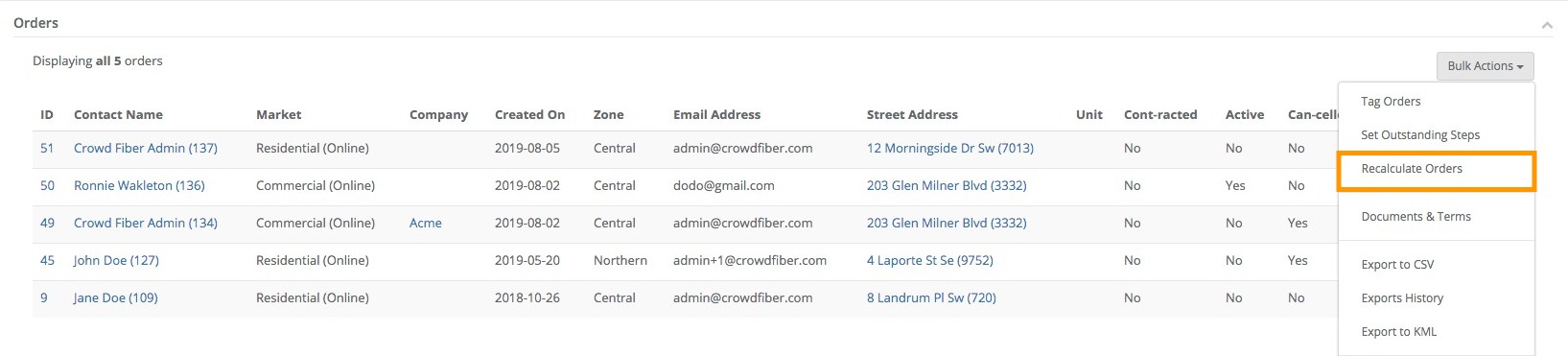
Once your filtered Orders index appears, click the Bulk Actions button located above the upper right-hand corner of your Orders index.
-
Select Recalculate Orders from the Bulk Actions drop-down menu.
-
In the following popup, click the bluc Recalculate Orders button.
The Order Recalculation will begin immediately. The time it takes to complete a recalculation depends on the number of orders being recalculated. The higher the volume of orders, the longer it will take the recalc to complete. You can periodically refresh your Orders page to view the progress of your recalc.