Orders Index: General Overview
What Are Orders?
The Order Index includes all completed registrations. Once a customer selects Submit on their registration, their lead is converted to an order.
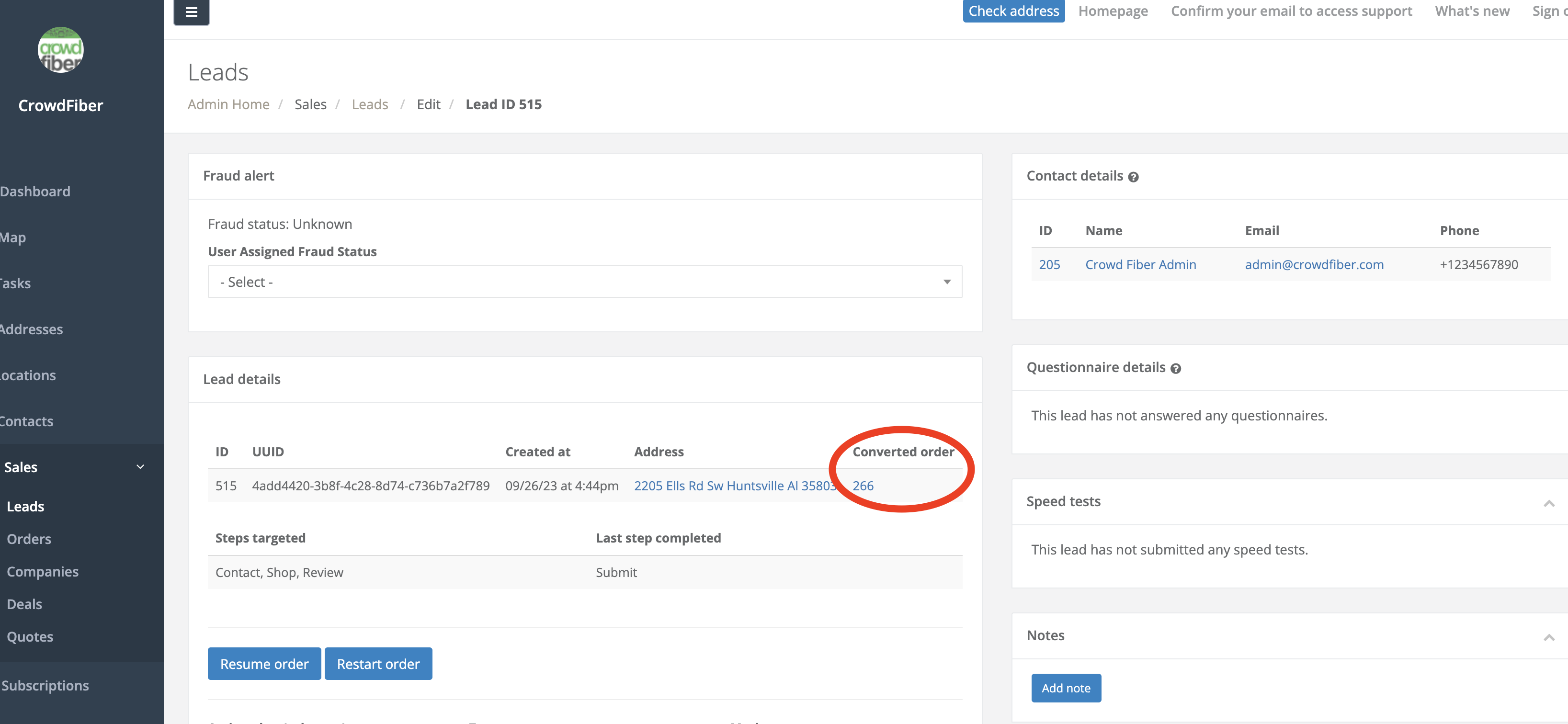
The lead associated with the order can be reviewed in the Leads index with the filter Converted Order set to Yes.
The Order ID for a lead is located within the lead record under Lead Details > Converted Order.
Orders Index Break Down
The Orders Index contains many filters. Here are the available filters:
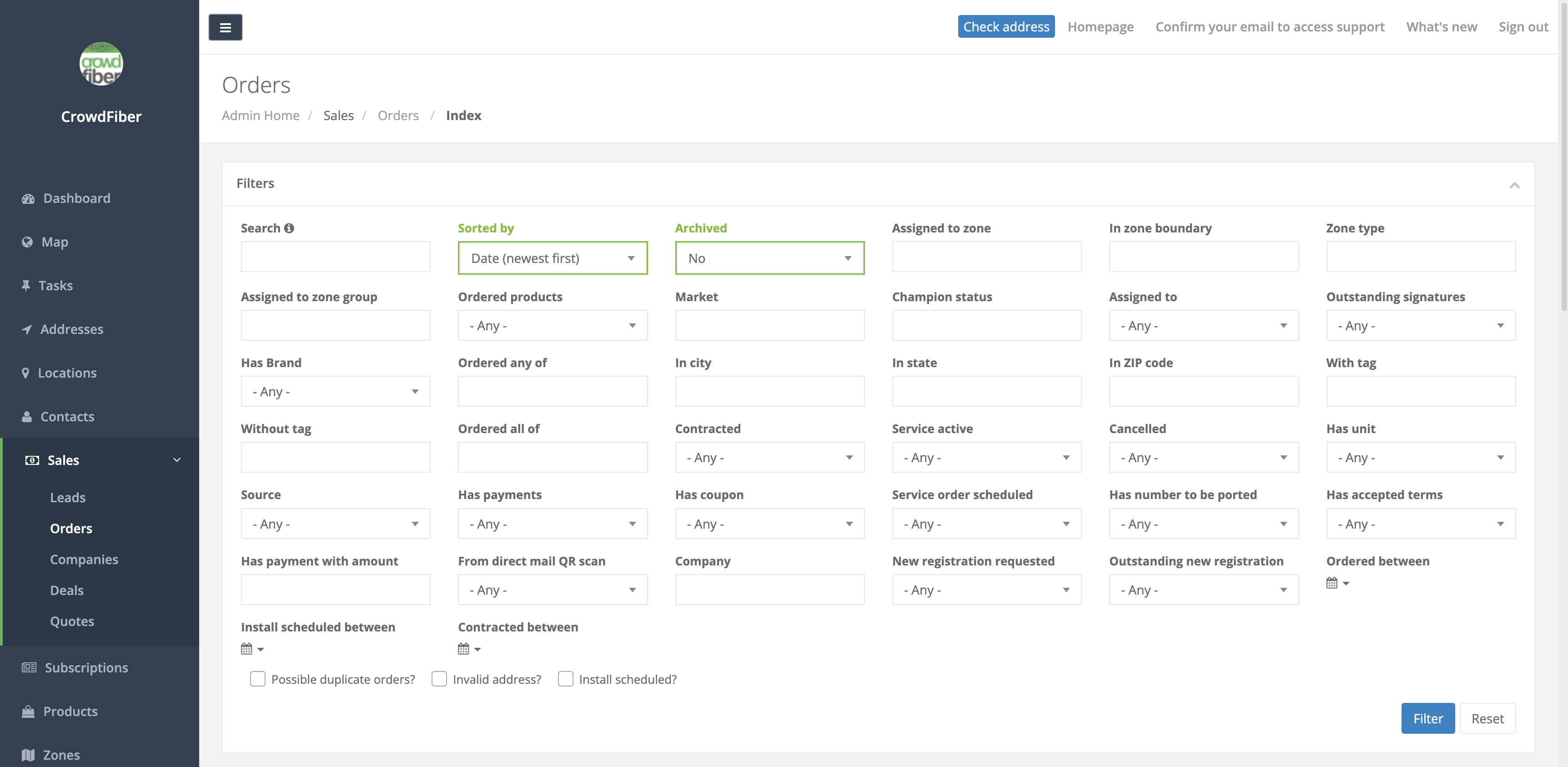
Archived
- This is the only default filter within this index that tailors the results you're viewing.
- You can manually mark an order as archived in an order record under Order details:
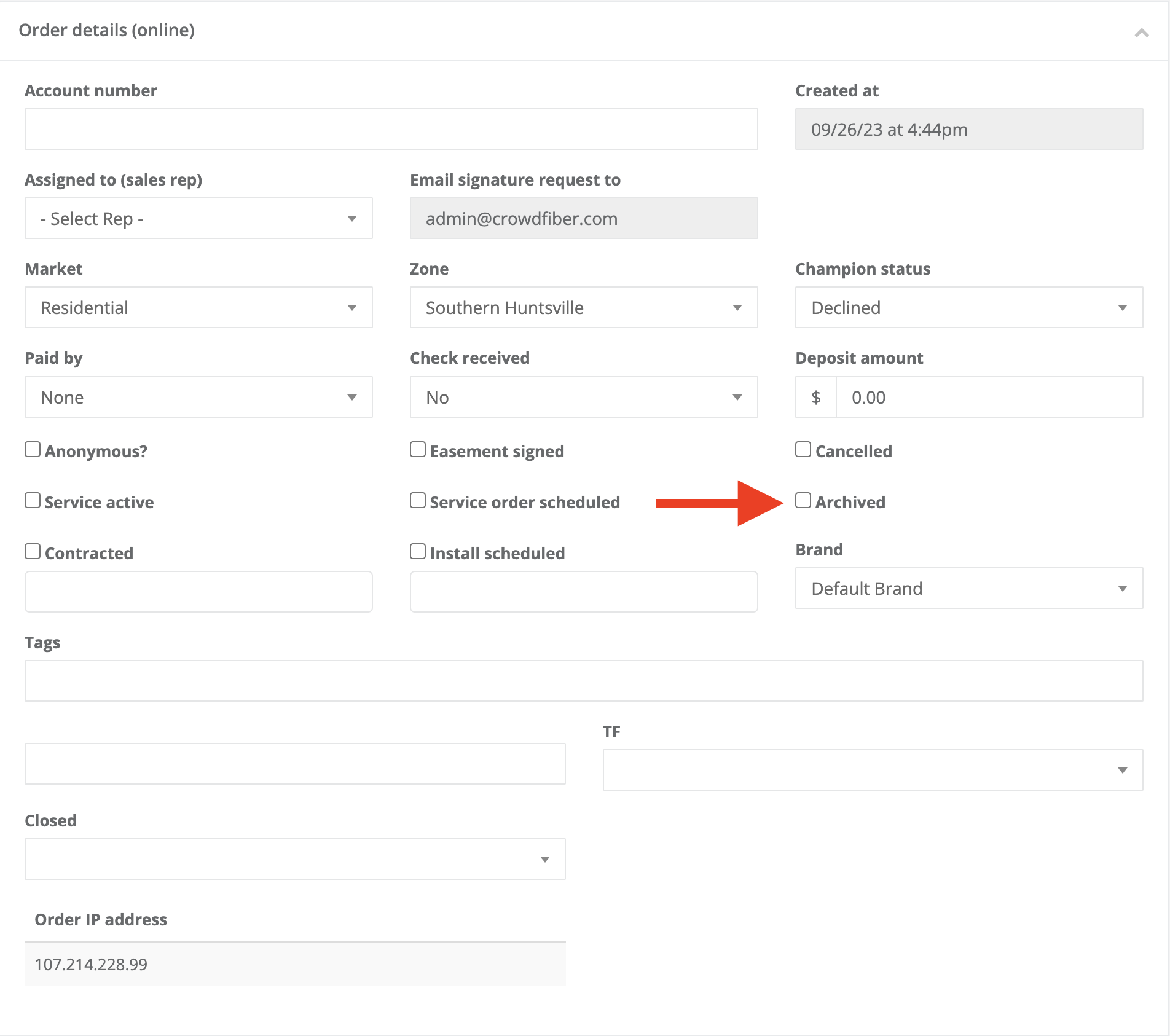
An order is also archived for a customer when a new order is submitted from a Request New Registration campaign.
More Information on Request New Registration.
Assigned to Zone
- All orders resolving to a specific zone. An order can only resolve to one zone at a time.
- You can manually reassign an order to a new zone within the order record under Order Details > Zone:
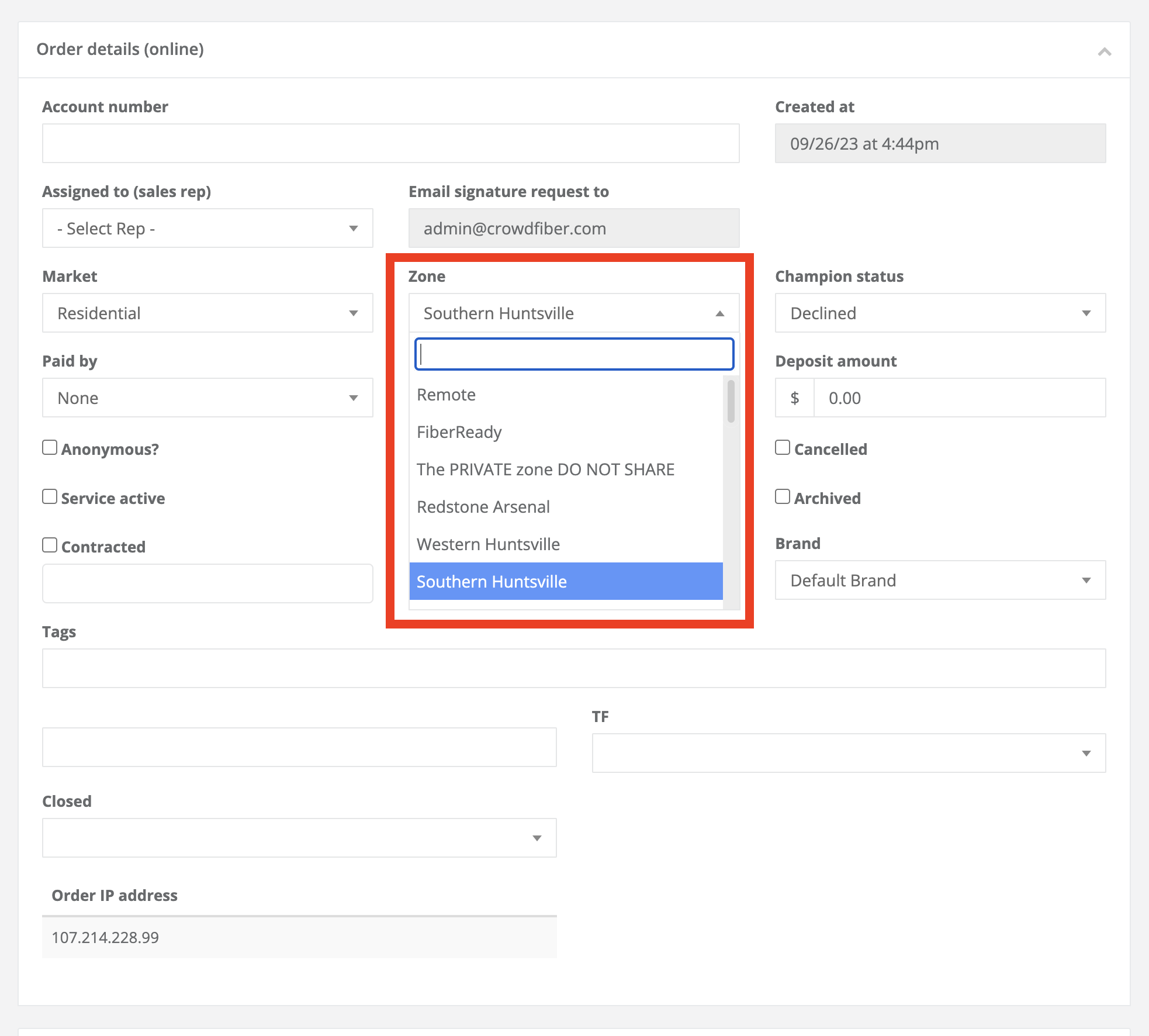
You can also alter zone assignment for an order by conducting an Order Recalculation.
More information on Order Recalculation
In Zone Boundary
-
Orders that fall within the boundaries of a particular zone. An order can fall within multiple zone boundaries when you have overlapping zones. Zone Priority is then utilized to determine where the order should resolve.
Zone Type
-
Since an order can only resolve to one zone, you can filter by zone types and view all orders for In Service and Pre Registration zones. All other orders submitted outside of an in service or pre-registration zones are considered remote orders. Private, Reference, and Remote zone types cannot house orders automatically.
Assigned to Zone Group
-
All orders assigned to zones belonging to a particular zone group.
Ordered Products
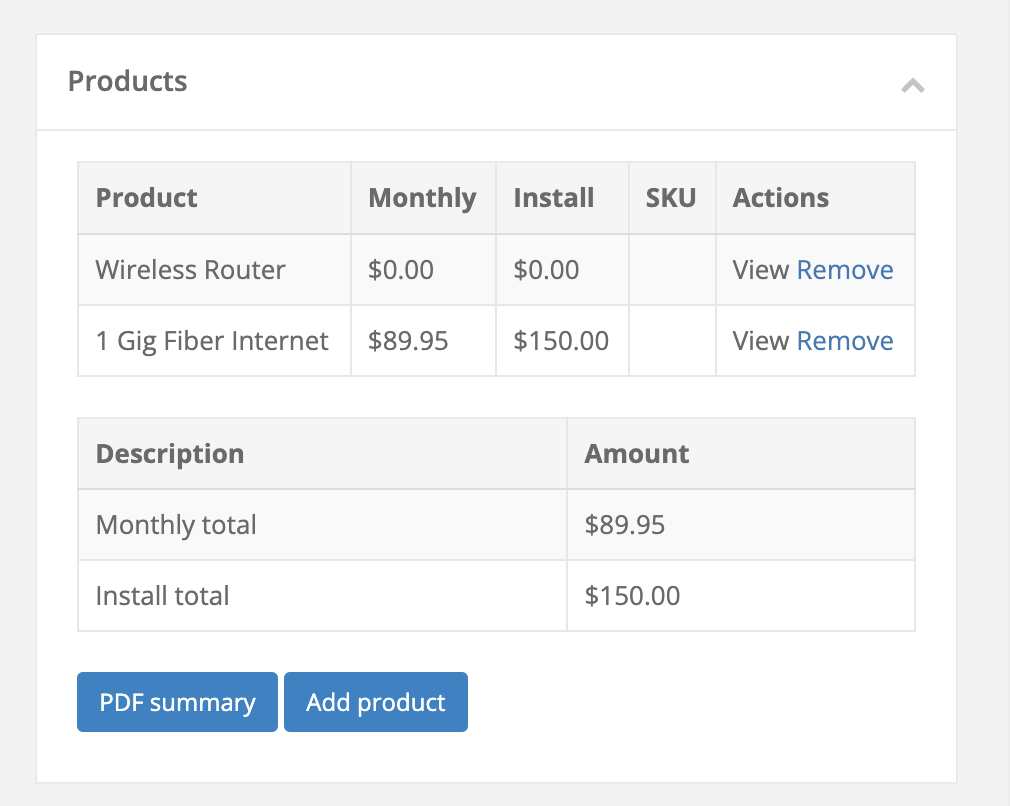
- View all orders that have or have not ordered products. You can also alter the products associated with an order in the order record:
Market
-
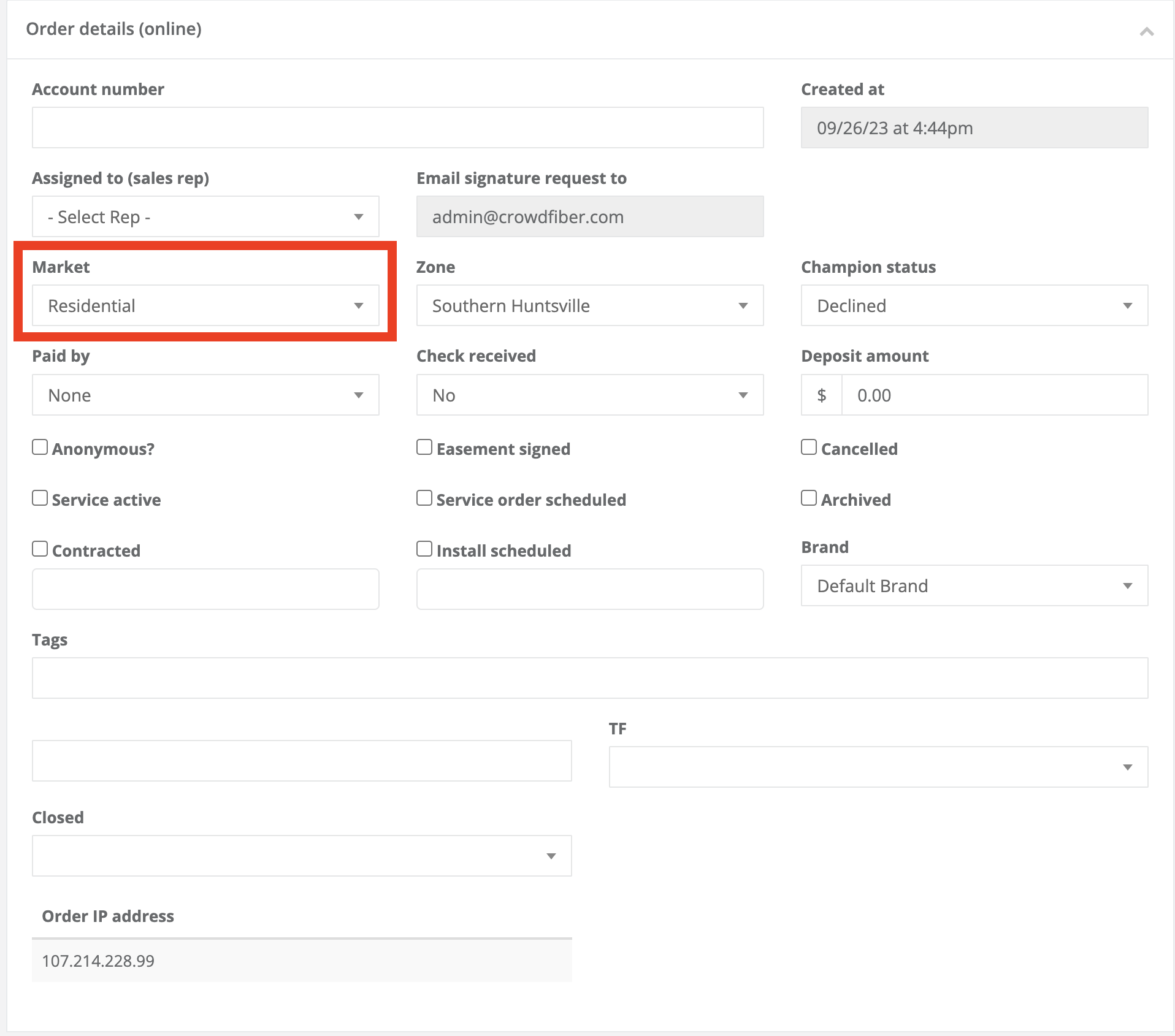
Narrows the focus down to one market at a time. The market associated with an order can be updated within the order record as well:
Champion Status
-
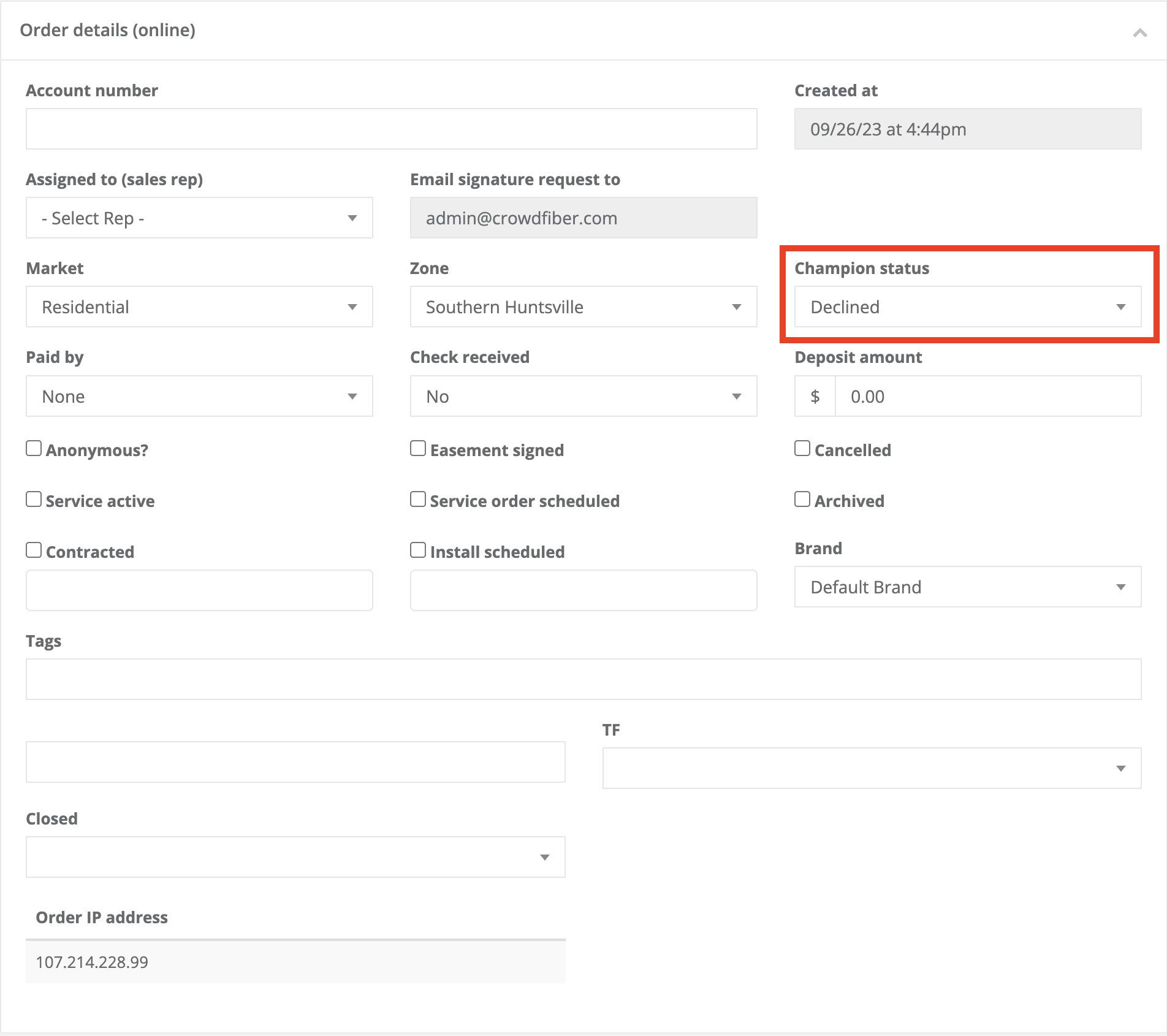
Orders for customers that are/are not interested in helping you spread the word about your organization.
More information on Champion Statuses
Assigned to
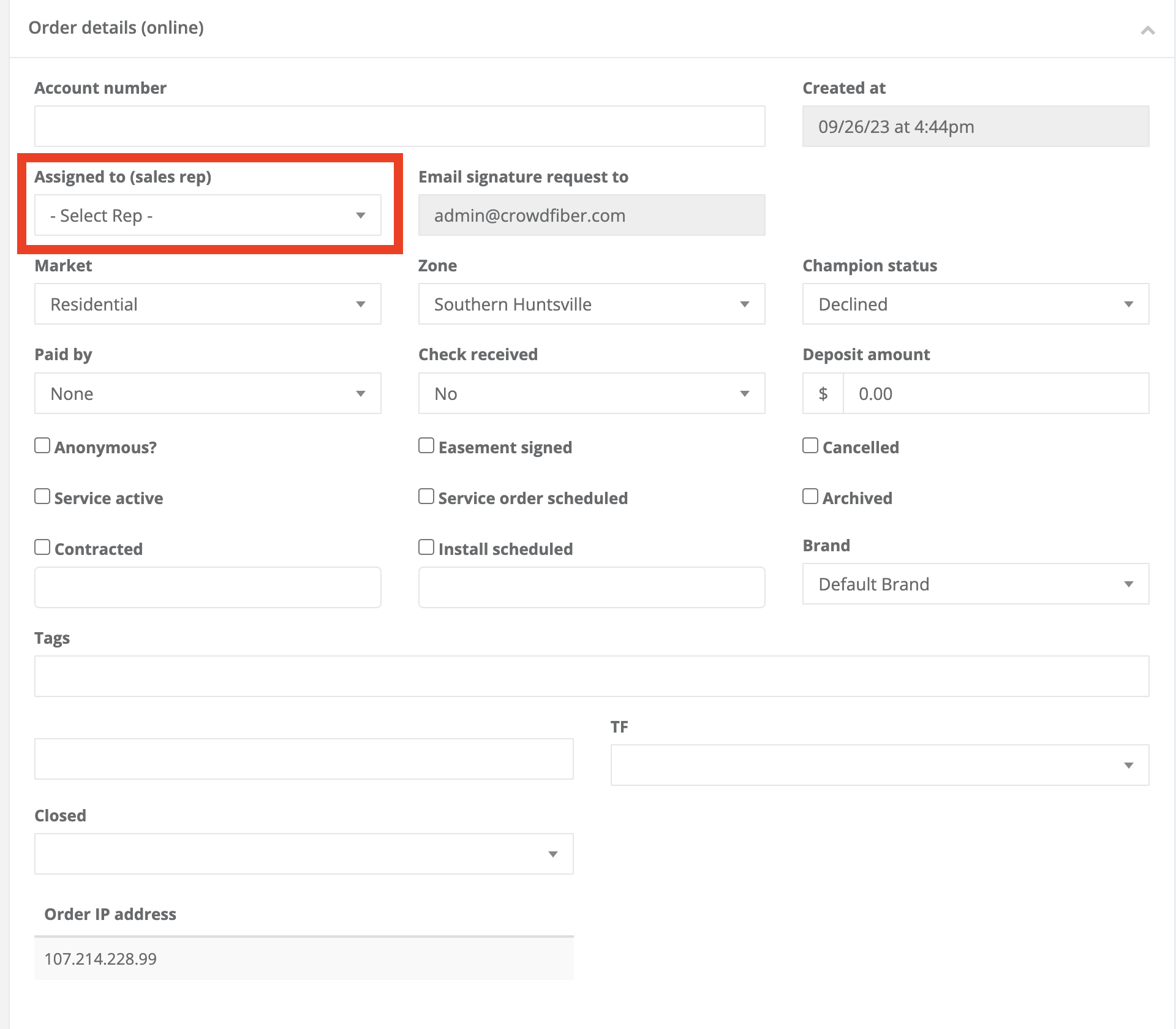
- User Accounts with Assisted Order Mode enabled can be assigned orders. This is often used to determine orders eligible for commission for Customer Service Representatives/ Agents.
-
Manually assign an order to a user in the order record here:
Outstanding Signatures
-
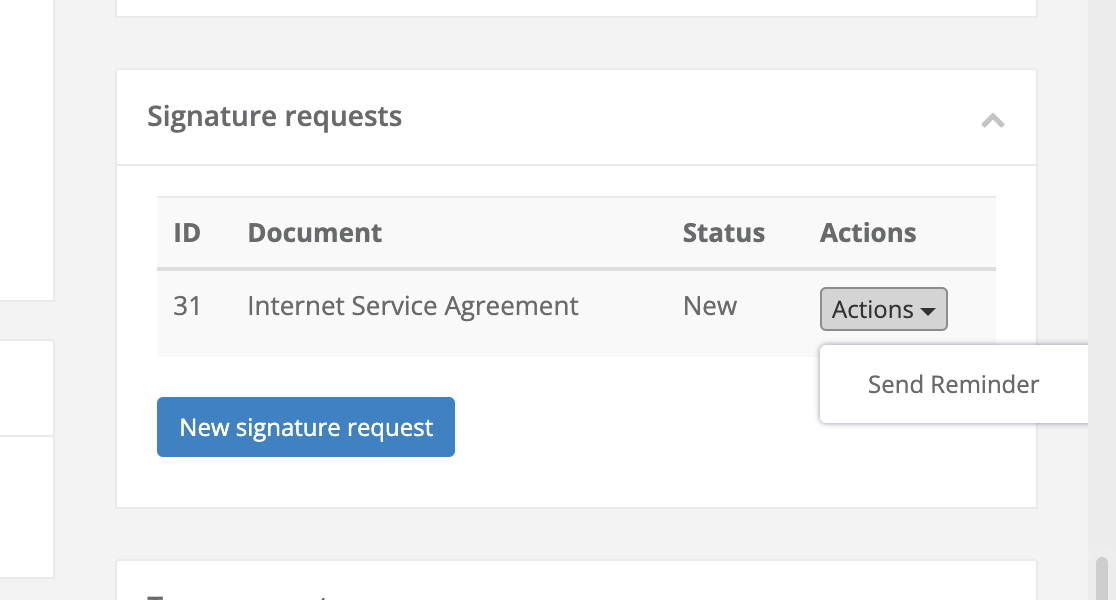
Signatures are associated with documents. A signature is considered outstanding when the customer has not signed documents associated with their order.
More information on creating documents to capture legally binding signatures
-
Send New Signature Requests and Reminders within the Order Record here:
Has Brand
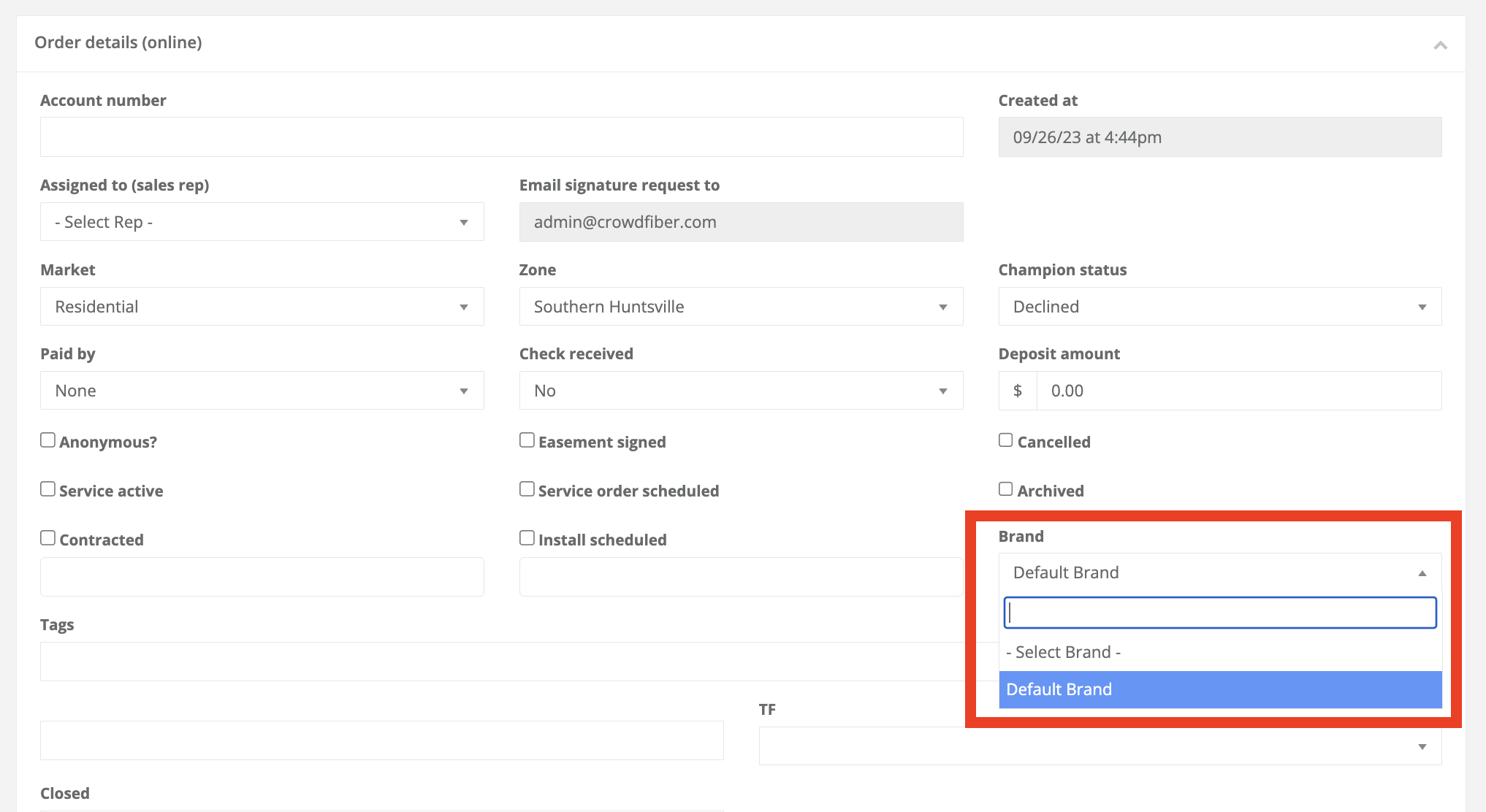
- Only useful when using multi-brand in your CrowdFiber deployment. If you are not using multi-brands on your CrowdFiber instance, you do not need to utilize this filter.
-
The brand can be changed within the order record as well:
Ordered Any of
- Allows for a multi-selection of products using "or" logic i.e.: Orders containing product A or product B.
In City
- View all orders that were placed within a specific city.
In State
- View all orders that were placed within a specific state.
In ZIP code
- View all orders that were placed within a specific zip code.
With Tag
- View all orders with specific tags; multiple tags can be applied to one order.
-
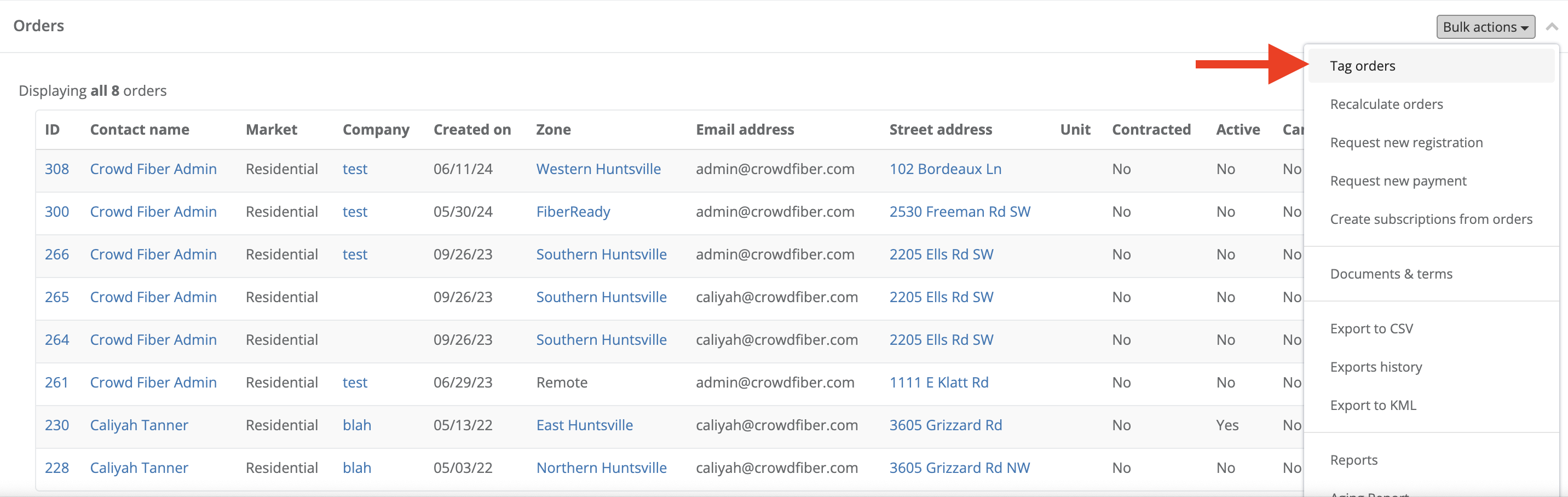
To tag multiple orders at once, navigate to the Bulk Actions menu and select Tag Orders:
-
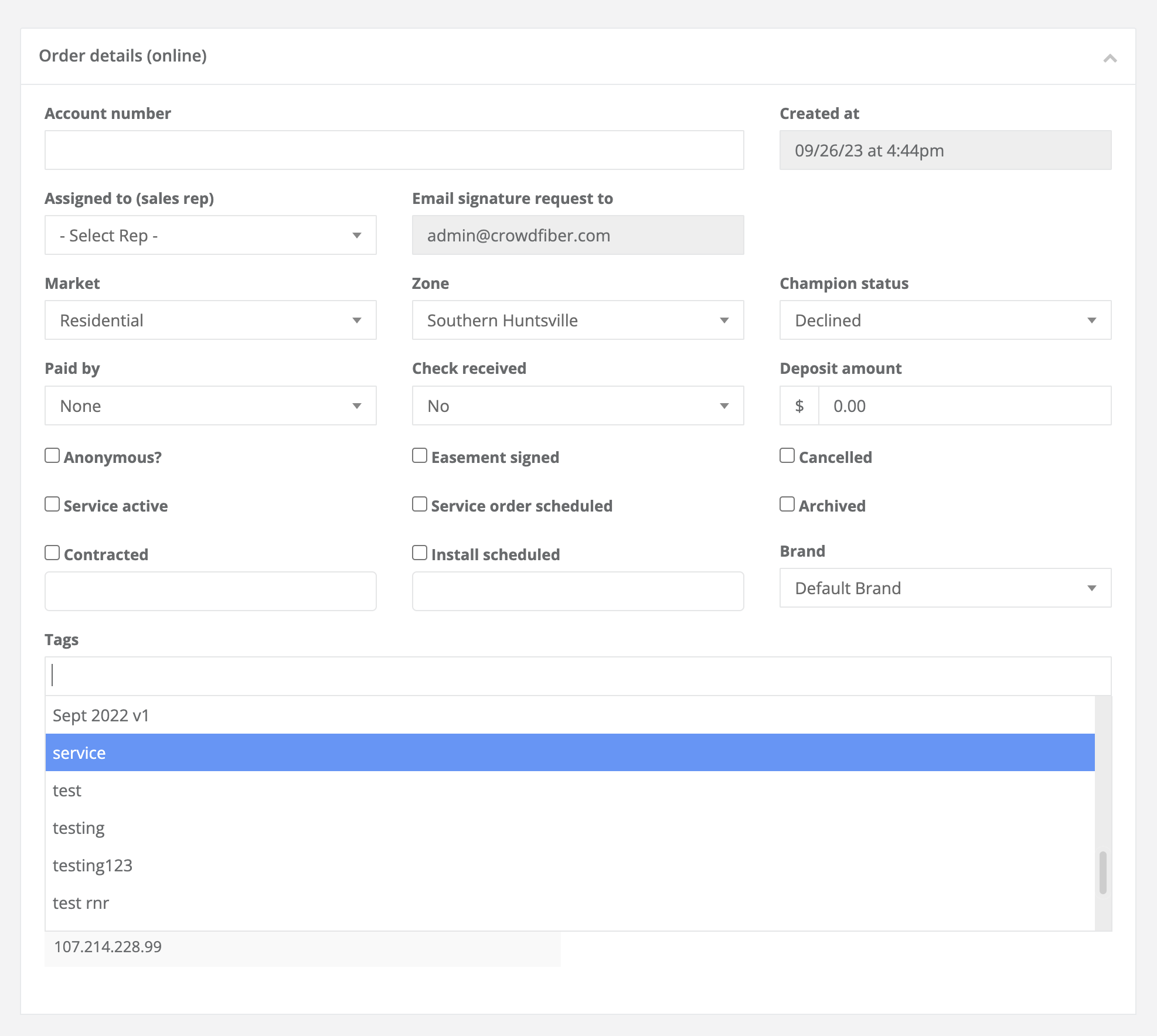
To manually tag orders, navigate to Order Details in the order record:
Without Tag
- All orders excluding the selected tag(s)
Ordered all of
- Allows for a multi-selection of products using "and" logic i.e.: Orders containing product A and product B.
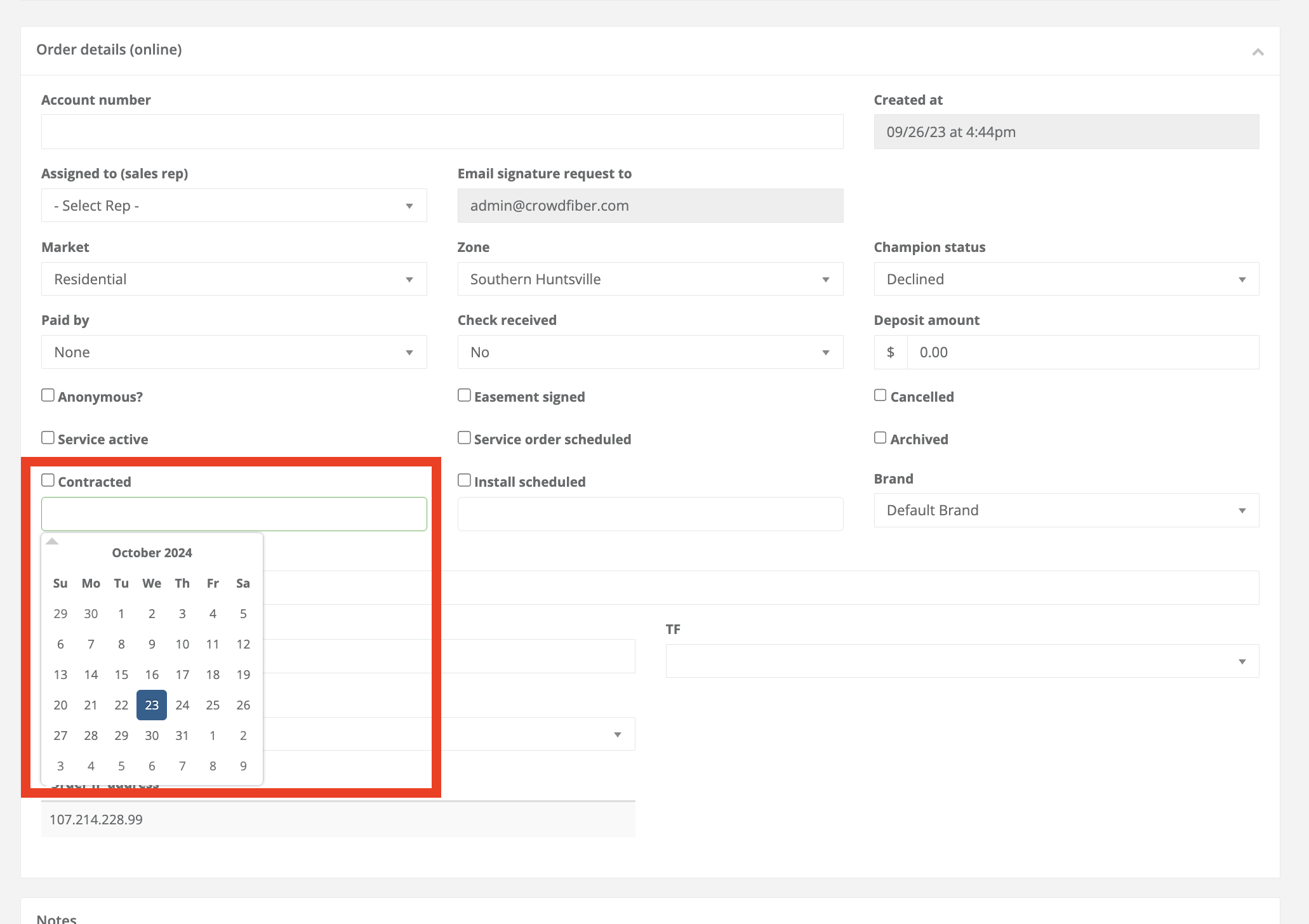
Contracted
-
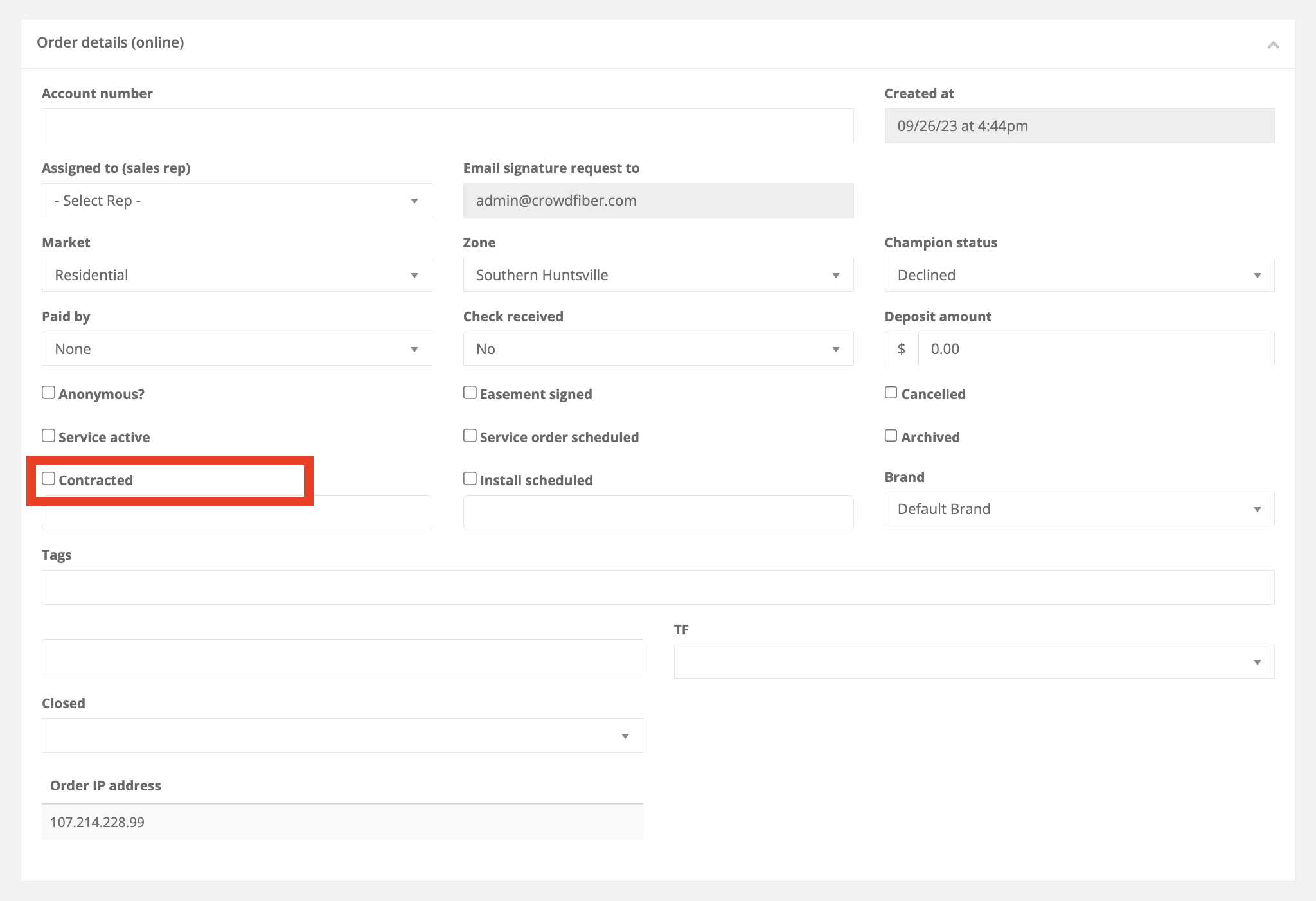
Orders can be marked as contracted upon providing a signature for documents, accepting terms, or manually in the order record by an admin user.
Service Active
-
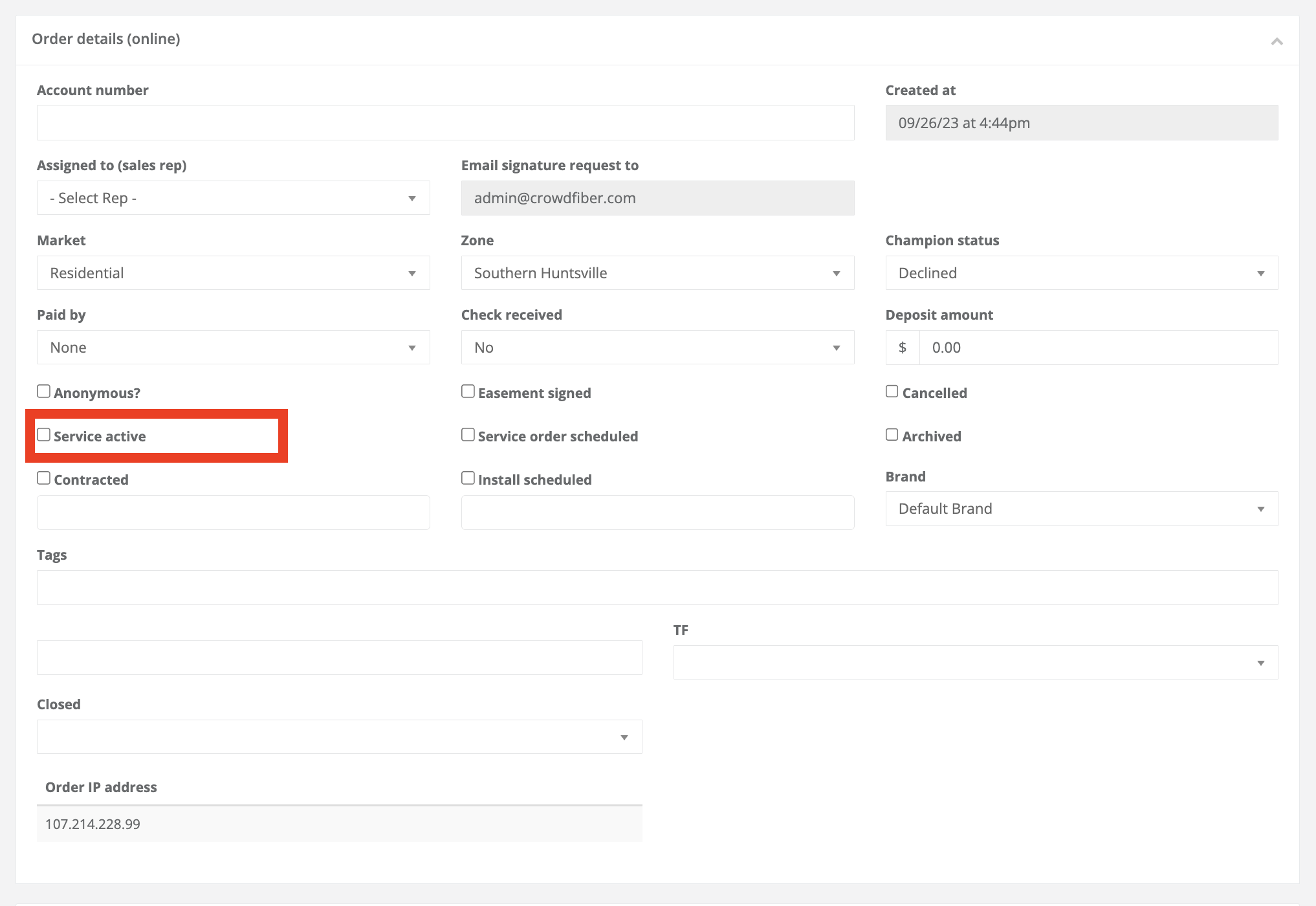
Multiple orders can be submitted for an address, so it's important to specify which order is active because customers move, and product prices typically change overtime. Marking orders as active and cancelled can also assist with BDC active subscribers submissions by exporting active orders and importing those orders into the Subscriptions index.
Cancelled
-
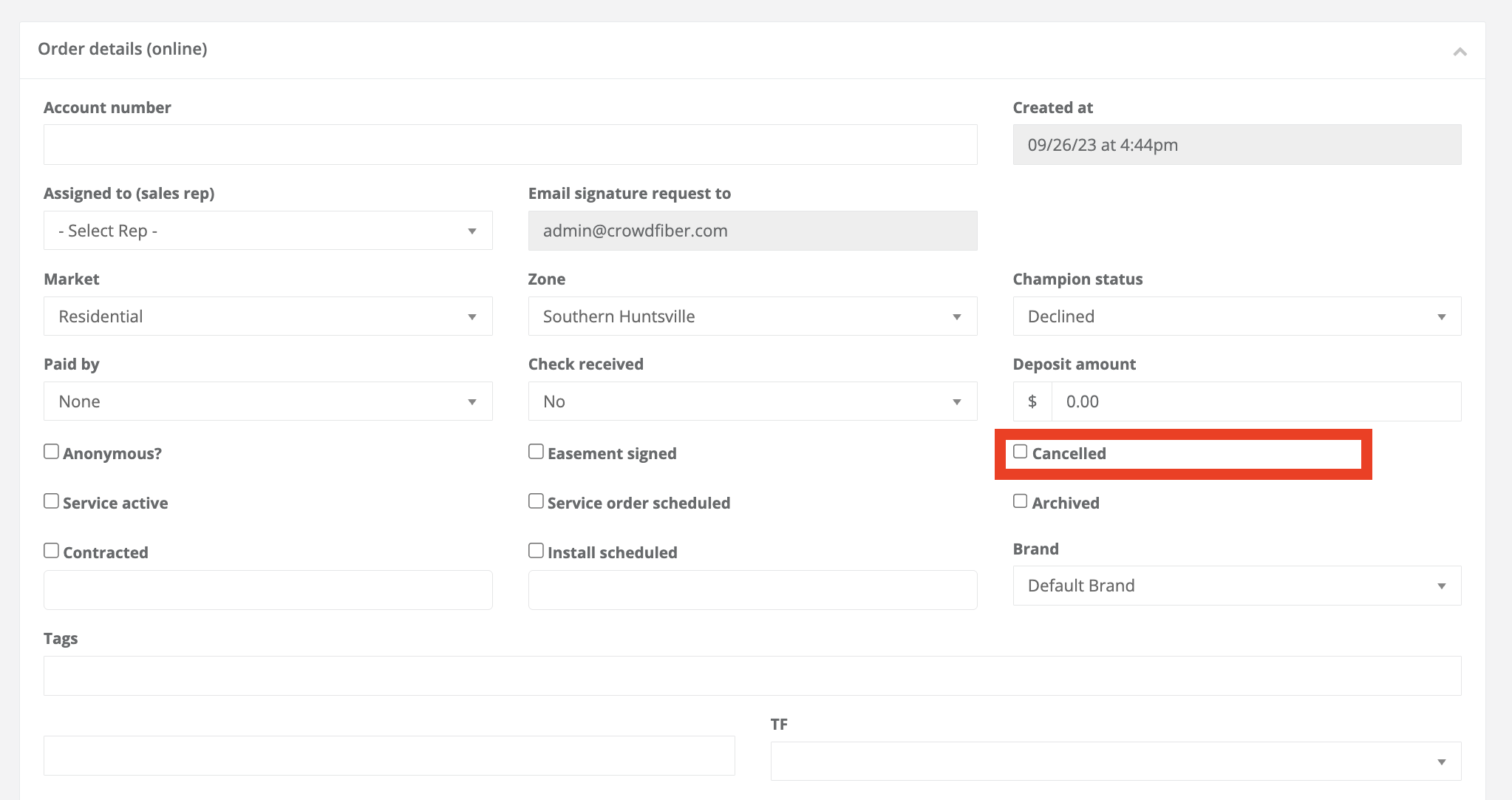
Orders can be cancelled on the customer's end by accessing the user dashboard. They can also be cancelled by an admin user within the order record. A cancelled order can mean the customer placed a new order or they are no longer interested in services.
Has Unit
- All orders for addresses that have a unit present.
Source
-
Online or quote generated orders. When a quote is accepted, it will generate an order.
Has Payments
-
Orders that were/were not submitted with a payment.
Has Coupon
-
Displays orders that do or do not utilize a coupon.
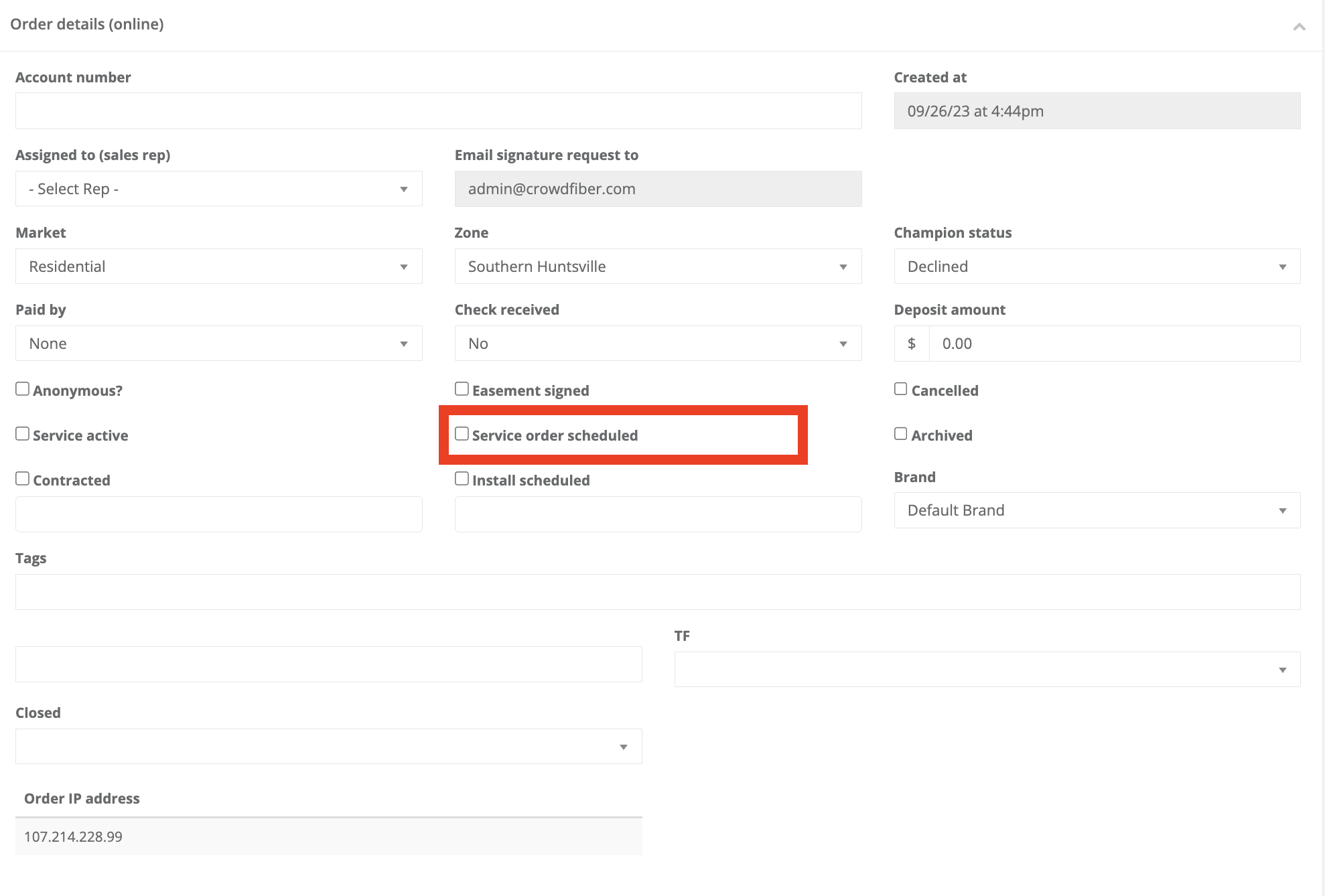
Service Order Scheduled
- A request for services is or is not scheduled.
-
This can be modified in the order record here:
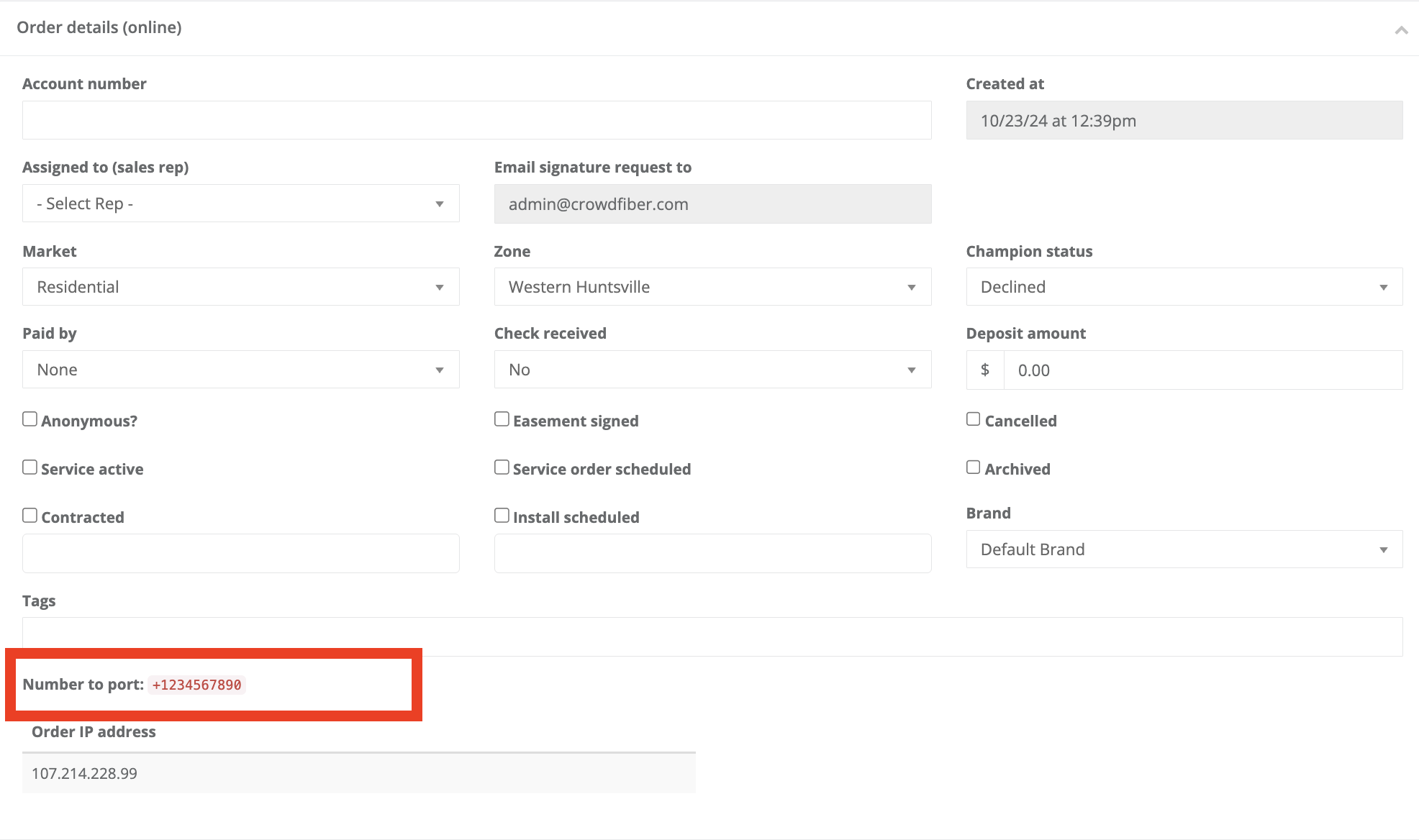
Has Number to be Ported
-
In a product record, you can enable number portability. Once the customer provides their current phone number, you'll be able to view it in the order record.
More information on Product Settings and Number Portability here.
Has Accepted Terms
-
All orders that have or have not accepted terms.
Has Payment with Amount
- Payments containing certain amounts
From Direct Mail QR Scan
-
Orders created from a scanning a QR code on a direct mail piece.
Company
- View only the orders submitted from a specific company
New Registration Requested
- All orders that received a request for a new registration.
Outstanding New Registration
- New Registration was requested but has not been fulfilled by the customer.
Ordered Between
- Orders that were submitted between certain dates
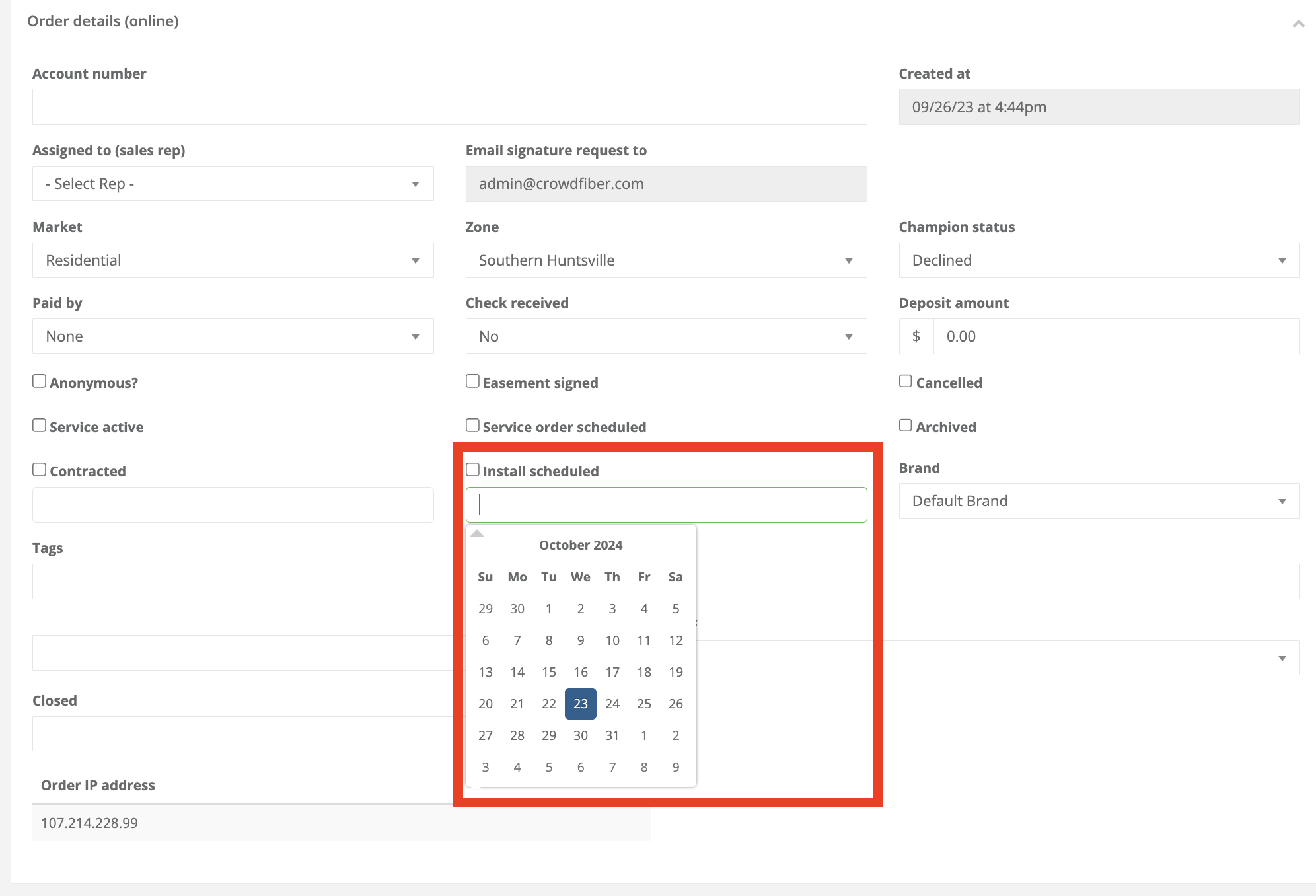
Install Scheduled Between
- Date range for installations scheduled.
-
Installation dates for a customer can be adjusted within the order record here:
Contracted Between
- All orders that were contracted between certain dates.
-
You can establish the contract dates in the order record here: