Products: Hide or Delete Products
In order to prevent errors and confusion in account management and reporting, the platform prevents products from being deleted when those products are contained in existing orders.
If you no longer wish to offer certain products to customers, there are two options:
- Edit your current products (hide them from user view)
- Migrate orders with your current products to your new products and delete your current products
The best option for your situation depends on how your products will be handled moving forward.
If existing customers will be able to keep their current products, you can simply edit the products to no longer display for customers. This will hide the products from all current customers and leads and prevent future orders of these products.
Edit and Hide
You'll need to adjust the following settings for each of the products you no longer wish to display.
- To access your Products index, click Products in the left-hand rail of your Admin Dashboard.
- On the following page, you can edit the details of each product by locating its respective row, then clicking Actions > Edit in the drop-down menu on the right-hand side of the page.
Adjust the following settings:
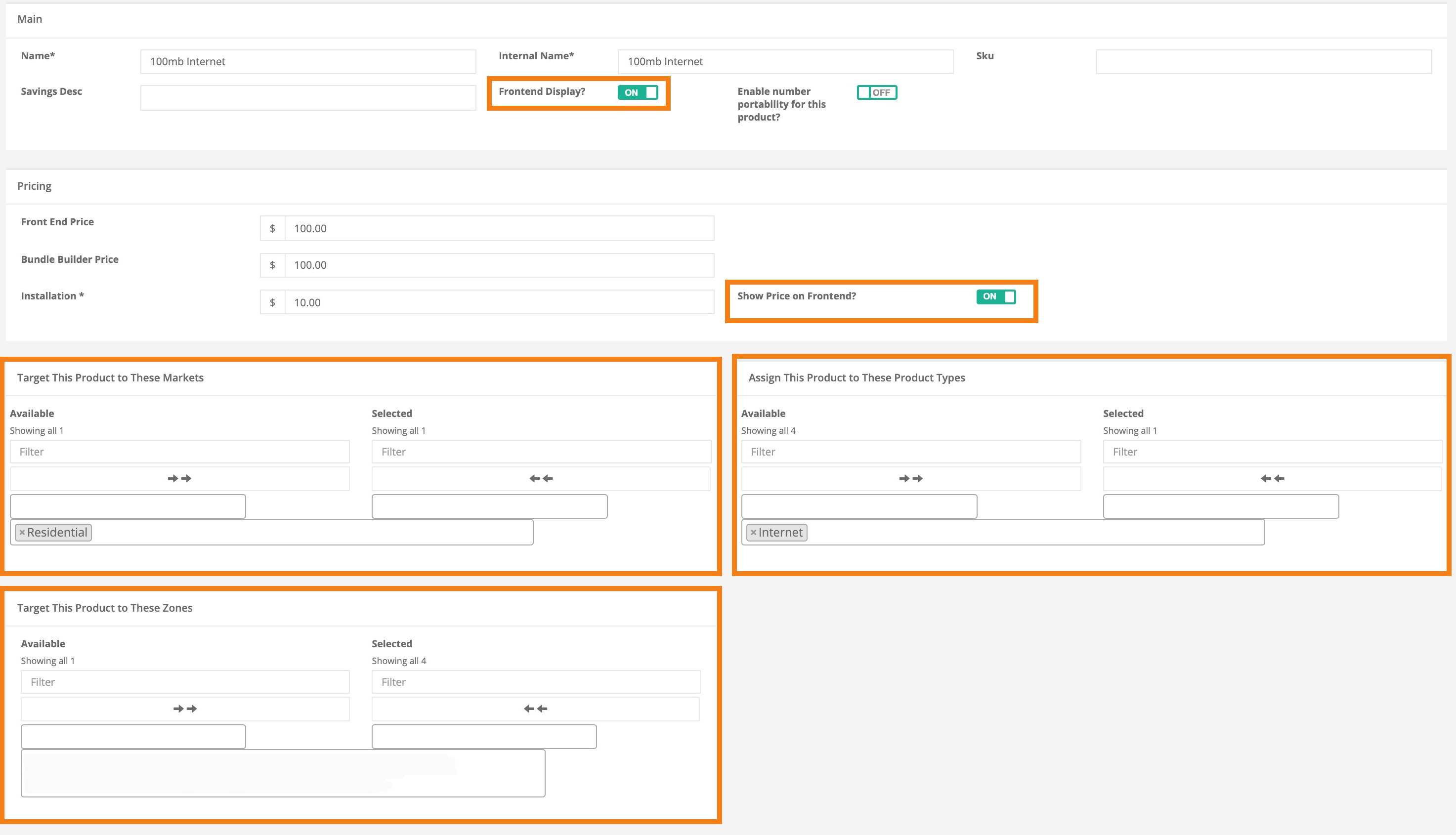
- Set the Frontend Display? slider to OFF.
- Set the Show Price on Frontend? slider to OFF.
- Remove all markets in the Selected column of the Target This Product to These Markets section (just click the leftward facing arrows seen in this column).
- Remove all product types in the Selected column of the Assign This Product to These Product Types section (just click the leftward facing arrows seen in this column).
- Remove all zones in the Selected column of the Assign This Product to These Zones section (just click the leftward facing arrows seen in this column).
- Click the blue Save Product button located in the lower left-hand corner of the page.
Please see the screenshot of a product page below. The sections highlighted in orange are mentioned in the instructions above.
However, if you intend to take existing products away from your current customers and not offer them to future customers as well, you can delete the products after migrating your current customers to other products. Only after a product is no longer contained in any orders will it be eligible for deletion.
When a product is associated with any orders, its drop-down menu will have an option to Migrate. If a product is not associated with any orders, its drop-down menu will instead have an option to Delete.
Migrate and Delete Products
You'll need to perform the following steps for each of the products you intend to migrate and/or delete. To access your Products index, click Products in the left-hand rail of your Admin Dashboard.
Migrate:
- Locate the row of the relevant product, and click Actions > Migrate in the drop-down menu on the right-hand side of the page.
- On the following page, select the product(s) that will take the place of the current product for all orders in which it is contained. You will also see the number of impacted customers who currently have this product in an order.
- Click the blue Migrate Customers to Selected Product button to save this change.
All customer orders with the old product will now display the new product(s), and will show the new product(s)' pricing.
Delete (optional):
- Return to your Products index.
- Locate the row of the relevant product and click Actions > Delete in the drop-down menu on the right-hand side of the page.
- Confirm your deletion by selecting the green Yes button when it appears.
The product will be deleted from your Products index permanently.