Delete a Zone
In order to delete a zone, you need to make sure that there are no orders associated with the zone you'd like to delete.
If orders exist within the zone you're deleting, you will need to "recalc" the orders to another zone or manually delete the orders from your CrowdFiber Database.
Delete a Zone Without Orders
-
Click the Zones link located in the left-hand rail of your Admin Dashboard.
-
On the following Zones page. use the filters located at the top of the page to locate zone you would like to delete.
-
From the Zones Index located below the Filter section of this page, locate in the row containing the zone that you would like to delete.
-
Click the "Actions" button located in the far right-hand column of the row containing the zone you would like to delete.
-
Select Delete from the Actions button drop-down menu.
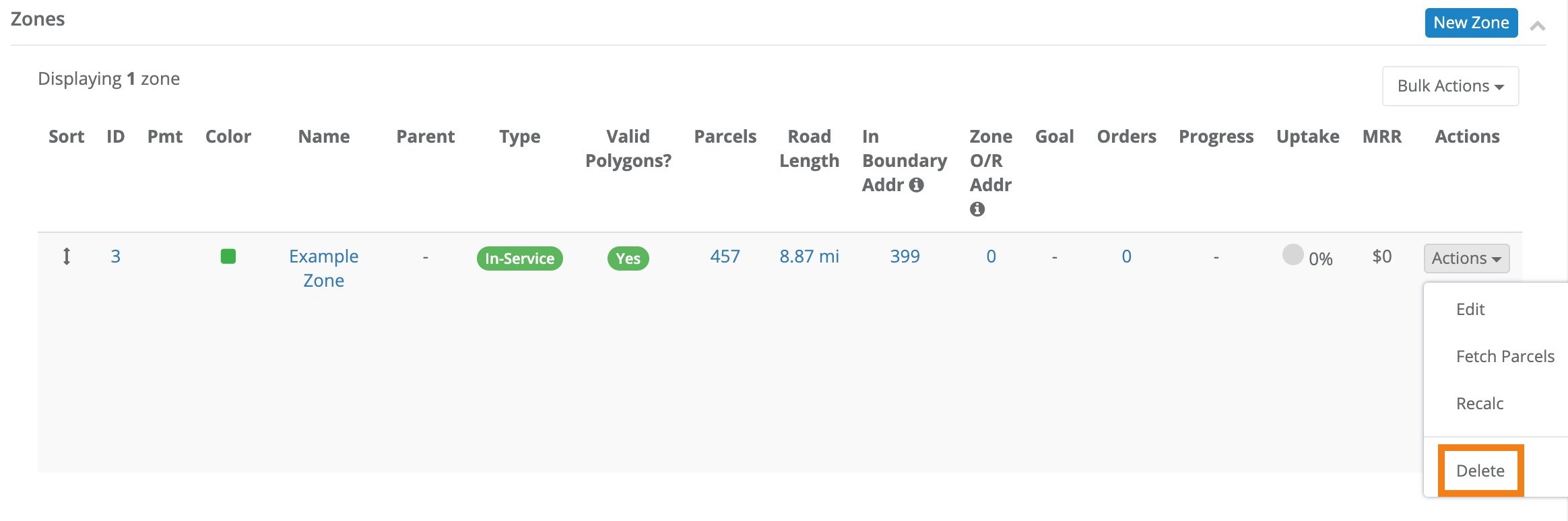
If orders are assigned to a zone the Delete option will not appear in the drop-down menu. You will need to follow the steps in the "Deleting a Zone with Orders" section located below.
Delete a Zone with Orders
If you want to delete zones that have already collected orders, you will have to perform an "Order Recalc" to reassign those orders to other zones in bulk, manually reassign the order to other zones, or manually delete the orders assigned to the zone you would like to delete.
Here's how to perform each of these actions:
Bulk Reassignment:
If you already have the new zones defined, and you want to reassign the pre-existing orders to a new zone you can perform an Order Recalc on the desired zone.
Manual Reassignment:
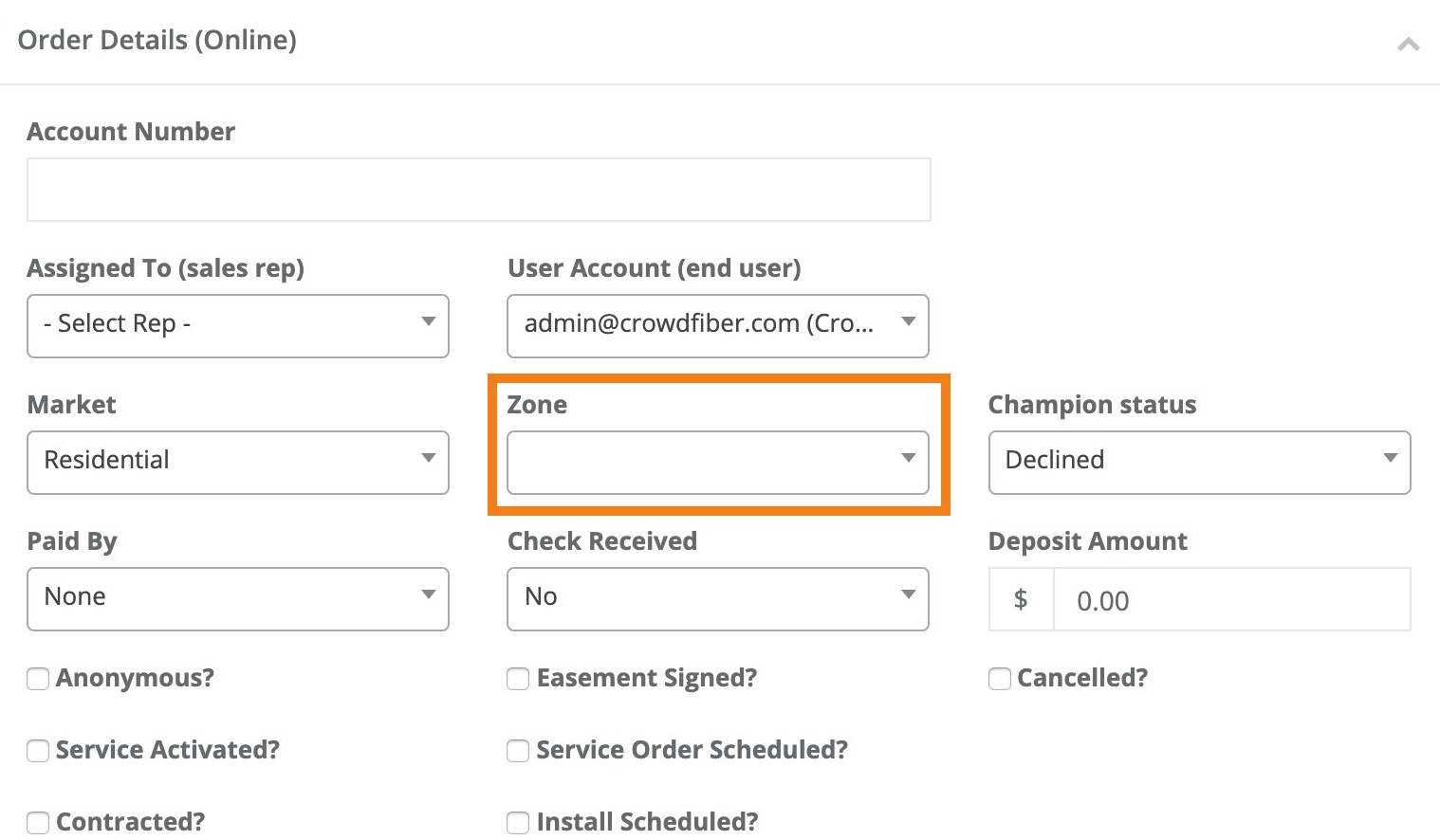
Edit each order by selecting the drop-down box for Zone. Select a different zone, and save the order. Once there are zero orders associated with any zone, you will get the option to delete the zone form your Zones page, as detailed above.
-
Click the Orders link located in the left-hand rail of your Admin Dashboard.
-
On the following Orders page. use the filters located at the top of the page to locate orders that you would like to delete.
-
From the Order Index located below the Filter section of this page, locate the row containing the order that you would like to delete.
-
Click the "Actions" button located in the far right-hand column of the row containing the order you would like to delete.
-
Select Edit from the Actions button drop-down menu.
-
In the following page, in the order record, scroll down to the Order Details section of the page.
-
In the Order Details section of the page, click the Zone drop-down menu and select the zone that you would like to reassign this order to from the Zone drop-down menu.
-
Click the blue Save button located in the bottom left-hand corner of the Order Details section of this page.
-
Repeat steps 3 through 8 until all orders have been reassigned away from the zone you would like to delete.
-
After you have reassigned all orders from the zone you would like to delete follow the instructions in the Delete a Zone Without Orders section that is located at the top of this page.
Manual Deletion
-
Click the Orders link located in the left-hand rail of your Admin Dashboard.
-
On the following Orders page. use the filters located at the top of the page to locate orders that you would like to delete.
-
From the Order Index located below the Filter section of this page, locate the row containing the order that you would like to delete.
-
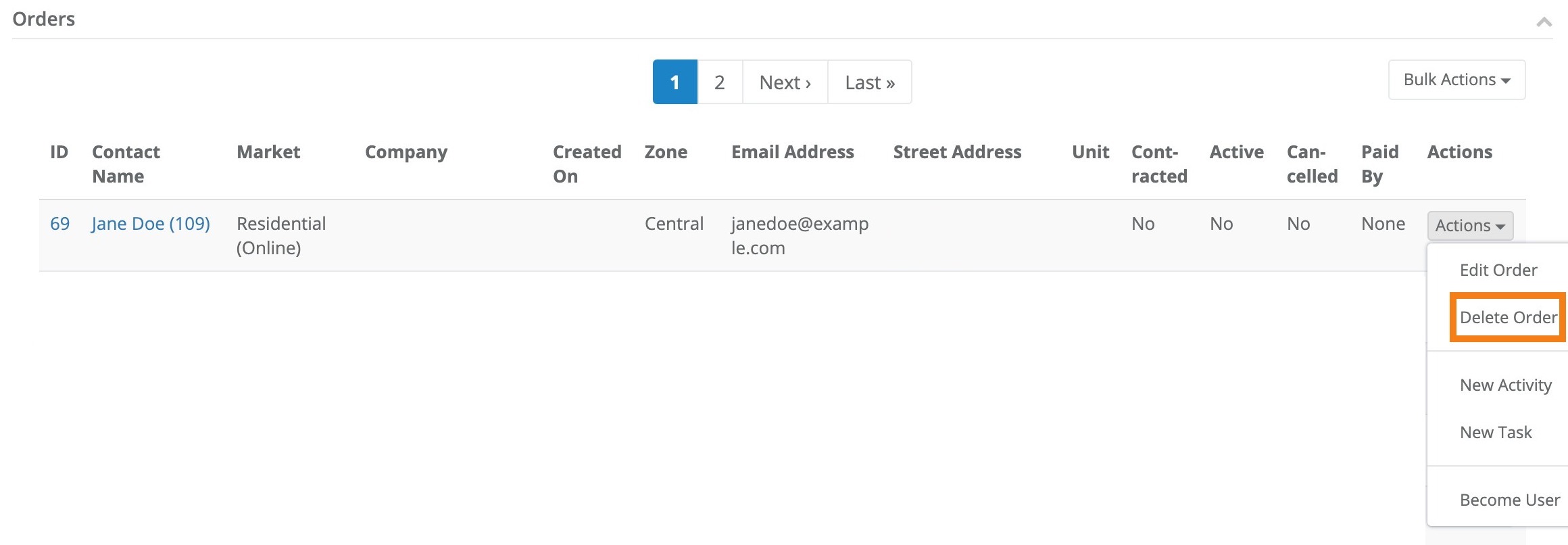
Click the "Actions" button located in the far right-hand column of the row containing the order you would like to delete.
-
Select Delete from the Actions button drop-down menu.
-
Repeat steps 3 through 6 until all orders have been deleted from the zone you would like to delete.
-
After you have deleted all orders from the zone you would like to delete follow the instructions in the Delete a Zone Without Orders section that is located at the top of this page.