Subzones: Feature Overview
The Basics
Subzones Are Simply Polygons That Exist Within or Coincide With Another Polygon.
- The polygon in which the subzone exists is known as a Parent Zone.
Subzones Can Be an In-Service or a Pre-registration Zone.
- If a subzone is a pre-registration zone, its progress and uptake will contribute to the overall metrics of its Parent Zone’s goals.
- If a subzone partly or entirely falls outside of the Parent Zone this is acceptable and does not change the subzone's functionality. All metrics for all orders placed in subzone areas that partly or entirely exist outside of the Parent Zone will still aggregate into the Parent Zone's metrics.
Subzones Have Independent Metrics.
- While subzones accrue their own metrics in regard to addresses, contacts, leads, and orders, a subzone's metrics are also added to the total metrics of the Parent Zone.
Use Cases
Sometimes there is a need for a zone to be subdivided. Subzones have two common use cases:
Targeting
- You can assign and target specific goals, products, documents, and registration processes to a subzone.
Minimize Competitive Threats
- Subzones can actively take registrations while keeping the zone’s geography, progress, and percent-to-goal hidden from public view.
Visibility
Subzone polygons, names, and progress bars are invisible to almost every one of your website visitors. Only two types of users will know a subzone exists:
-
Users that have registered an address located inside a subzone’s boundary
After a user has signed into their account, they will see the name and status of their subzone when they return to their private dashboard.
-
Admin Users with access to your zones
These users will see the subzones in your Zones index of your Admin Dashboard.
Note: subzones are NEVER visible on the Zones page of the front end of your site. Only public zones are displayed on this map, even for Admin users or users registered in a subzone.
How to Create a Subzone
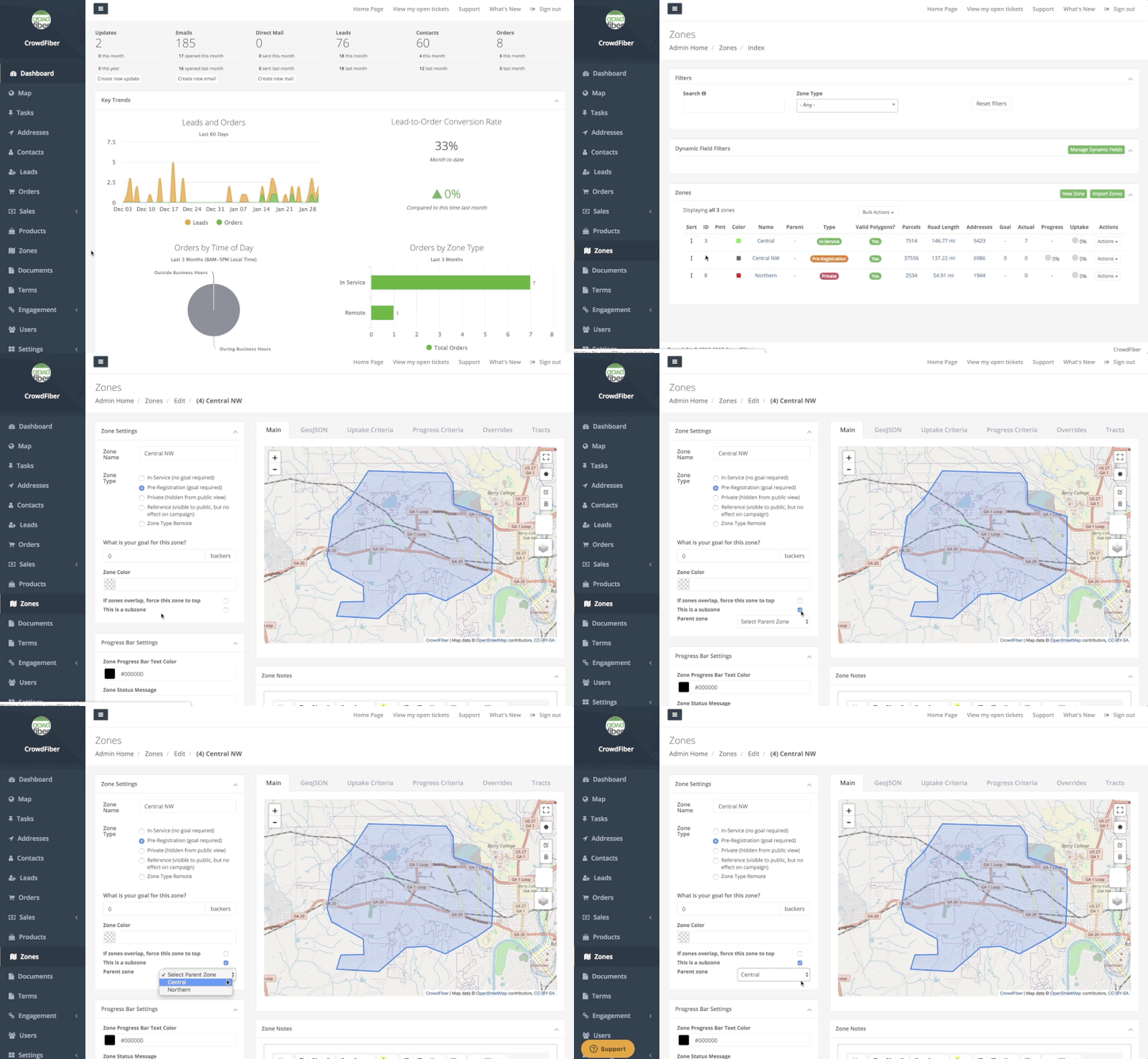
- Click Zones in the left-hand rail of your Admin Dashboard.
- On the following page find the row with the zone you'd like to make a subzone and click the Zone ID located in the left-most column of the row.
- On the following page click the This is a subzone checkbox.
- Select the Parent Zone from the Parent Zone drop-down menu.
-
Click the blue Save Zone Settings button located in the bottom left-hand corner of the page.
Managing Subzones
Subzones Priority Settings
Subzones & Parent Zones
- Subzones will always take priority over their parent zones regardless of where your sub-zones are positioned in the list of zones on your Zones page in your Admin Dashboard. This means, even if a subzone is placed below the parent zone the address (and all registrations) will always be assigned to the subzone.
Subzones & Non-Parent Zones
- If subzones exist outside their parent zone and overlap with other zones, subzones will follow your priority settings. This means, when a registration is placed for an address that exists in the area where zones overlap, the registrant will go through the registration process for (and the order will be assigned to) whichever zone is highest in the list of zones on the Zones page in your Admin Dashboard.
Identifying Subzones in Your Zones Index
- You can locate all subzones in your Zones index by reviewing the Parent Zone column. All subzones will have a Parent Zone. Parent Zones will never be associated with a normal/non-subzone.

Existing Orders & Subzones
- If you created a subzone in a geographic area that has pre-existing orders and would like your pre-existing orders to be reassigned to your new subzone, you’ll need to recalc your subzone. Learn more in this article, what, why, & how to perform an Order Recalculation .