Update Polygon(s) For An Existing Zone
When the boundaries of a zone in CrowdFiber need to be adjusted, there are 4 different ways to edit the shape of your polygons:
- Replace or add additional polygons
- Edit the vertices of a polygon in an existing zone record
- Swap out GeoJSON coordinates directly
- Edit polygon through the API
How to Replace or Add Additional Polygon(s)
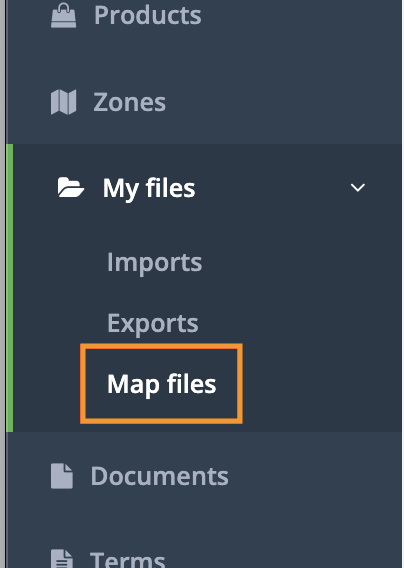
1. Select the My Files in the left-hand rail of your Admin Dashboard.
2. In the My File drop-down menu, select Map Files.
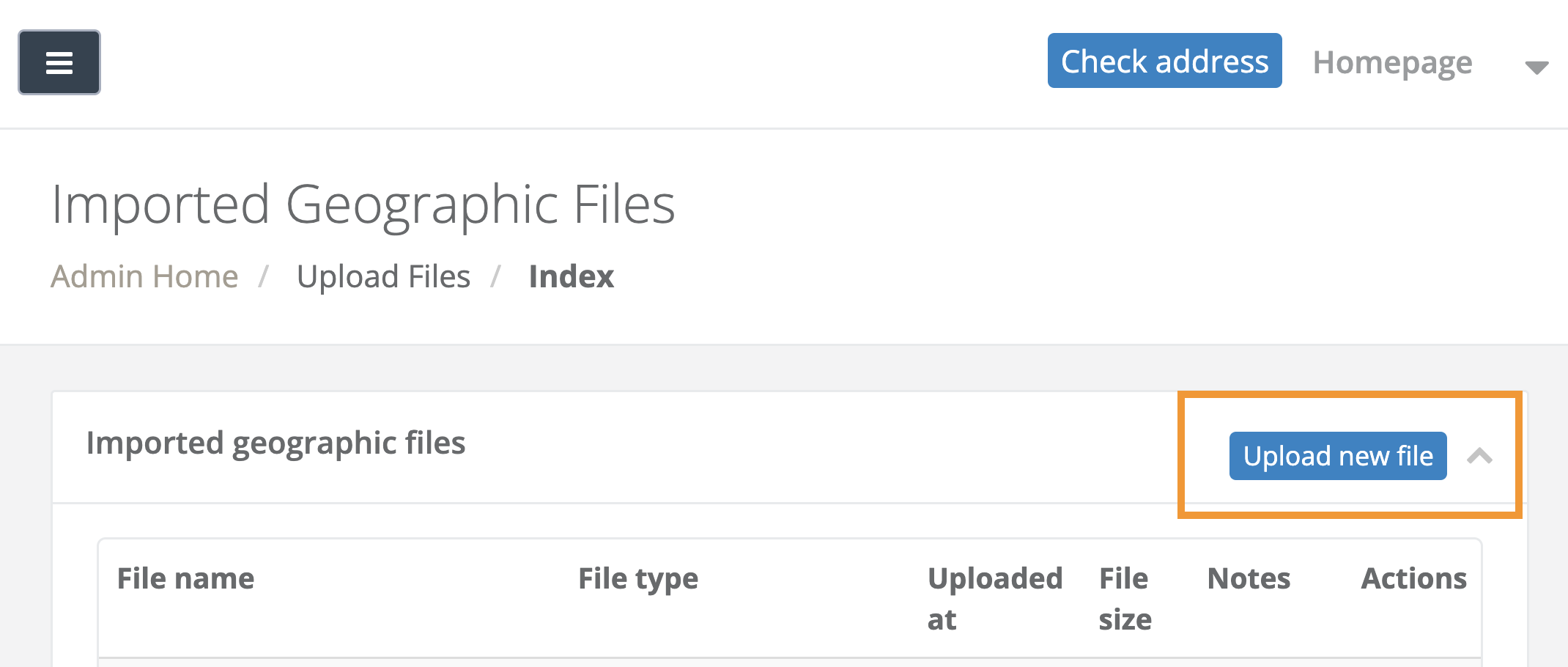
3. On the following Imported Geographic Files page, click the Upload new file button located in the upper right-hand corner:
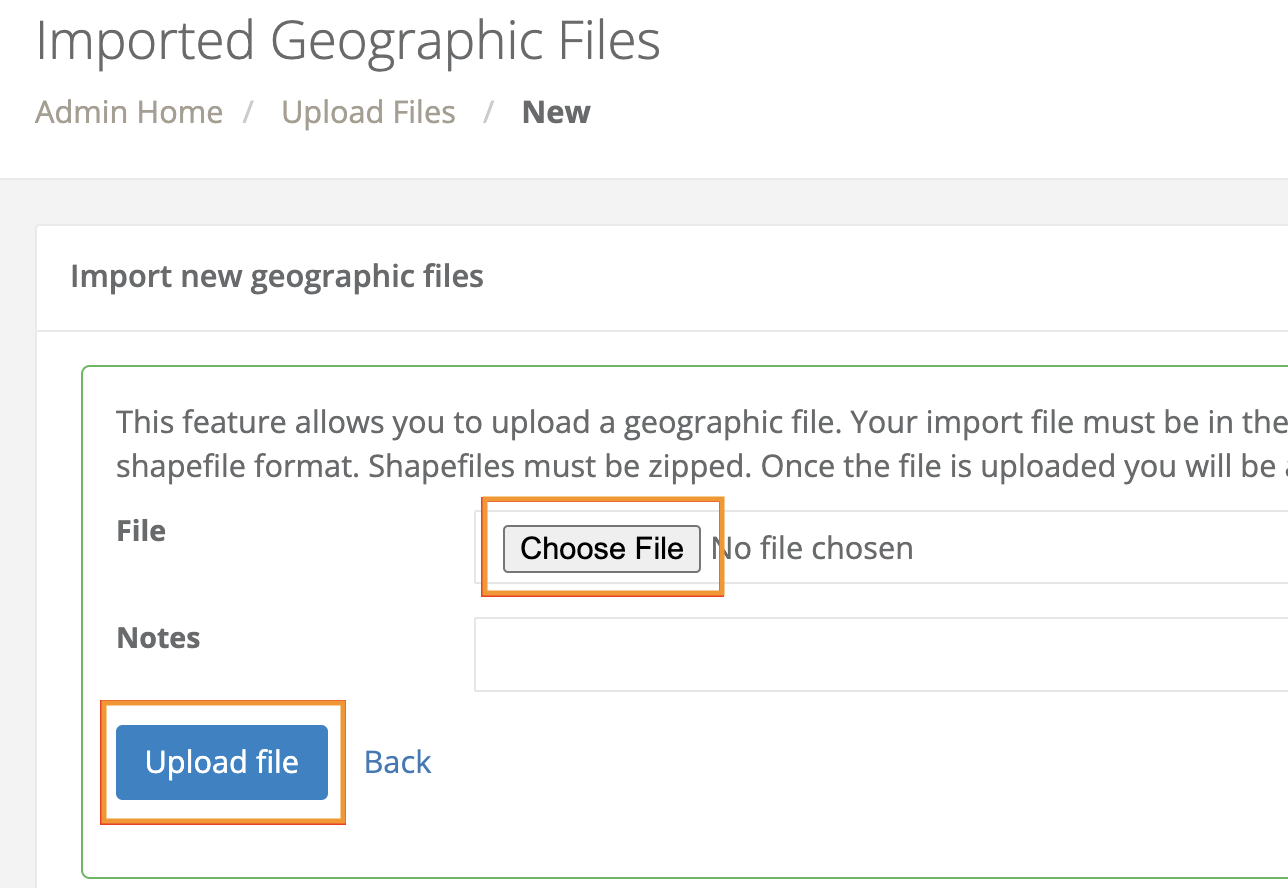
4. On the following page, select the gray Choose file button.
5. Once you have selected the applicable file to upload from your computer, click the blue Upload file button.
6. On the following page containing the Import Zone table, you will see each layer in your uploaded GIS file as a unique row in the table:
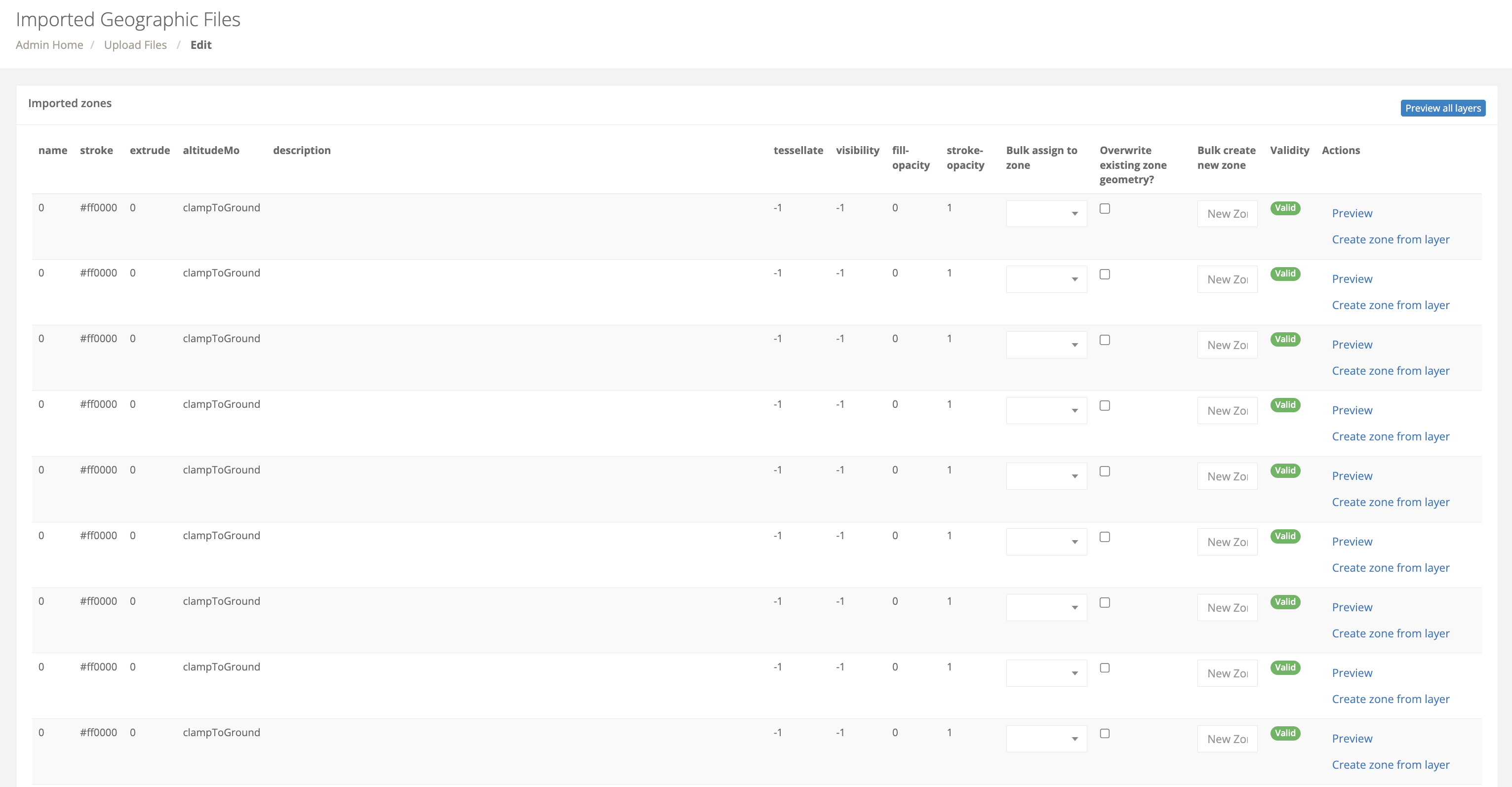
7. Assign your new polygons to your existing zones.
- Click the Bulk assign to zone drop-down menu associated with a row/layer that you would like to have replace your existing polygon(s).
- In the Bulk assign to zone drop-down menu select the name of the zone the new polygon(s) should replace.
- Repeat steps 1 and 2 until all applicable polygons/layers in your imported GIS file have been assigned to existing zones.
Best Practice
-
To save time, if you are uploading multiple polygons to a single zone, import a file that contains all of your polygons in a single layer containing collected geometries.
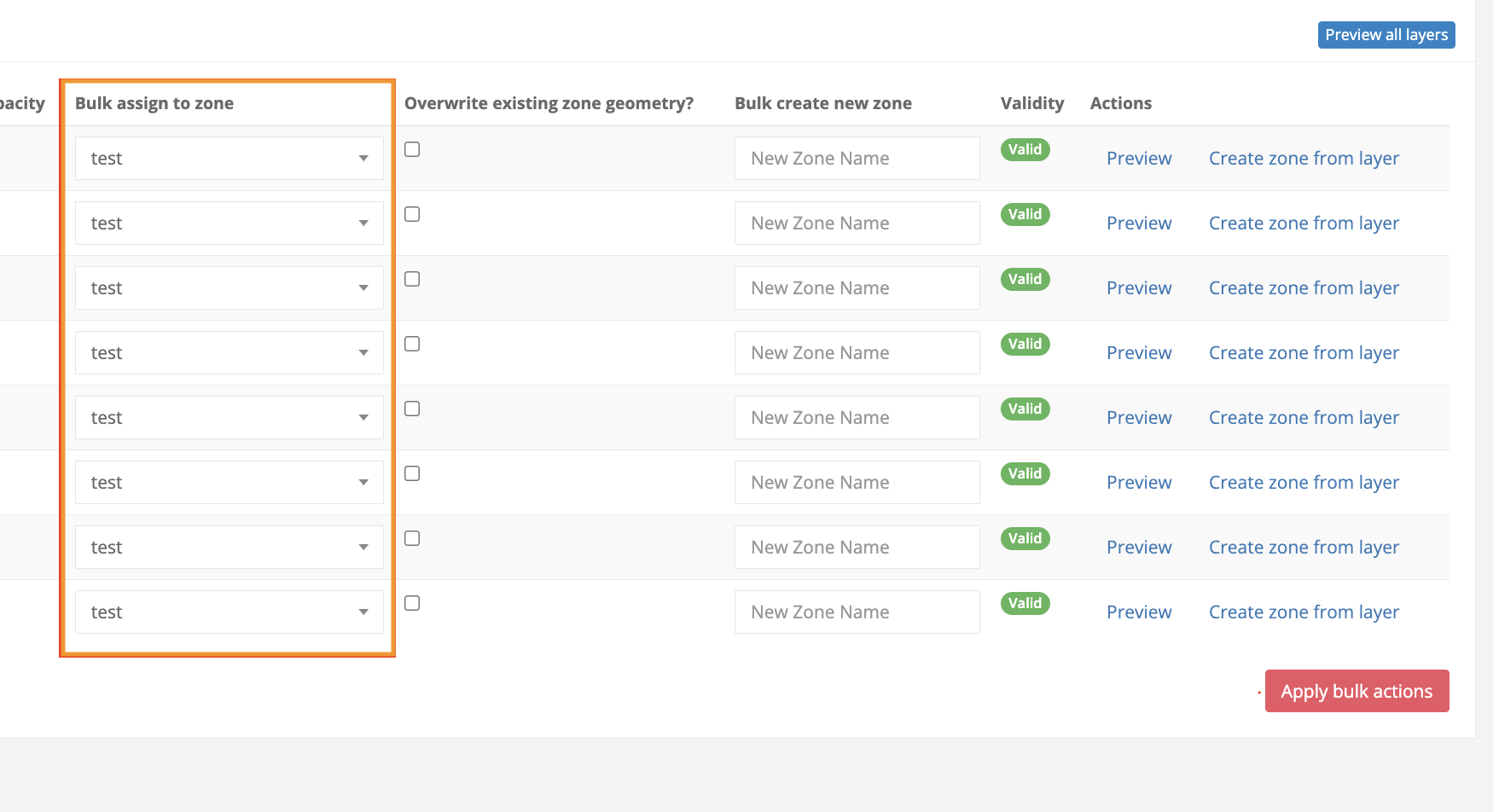
Add Additional Polygons to Existing Zone Records or Overwrite Existing Geometry in Existing Zone Records
- Replace Existing Polygon(s)
- Check The Overwrite existing zone geometry? box for each row/polygon that you would like to replace your existing polygon(s).
- Add Additional Polygon(s)
-
Do not check the Overwrite existing zone geometry? checkbox
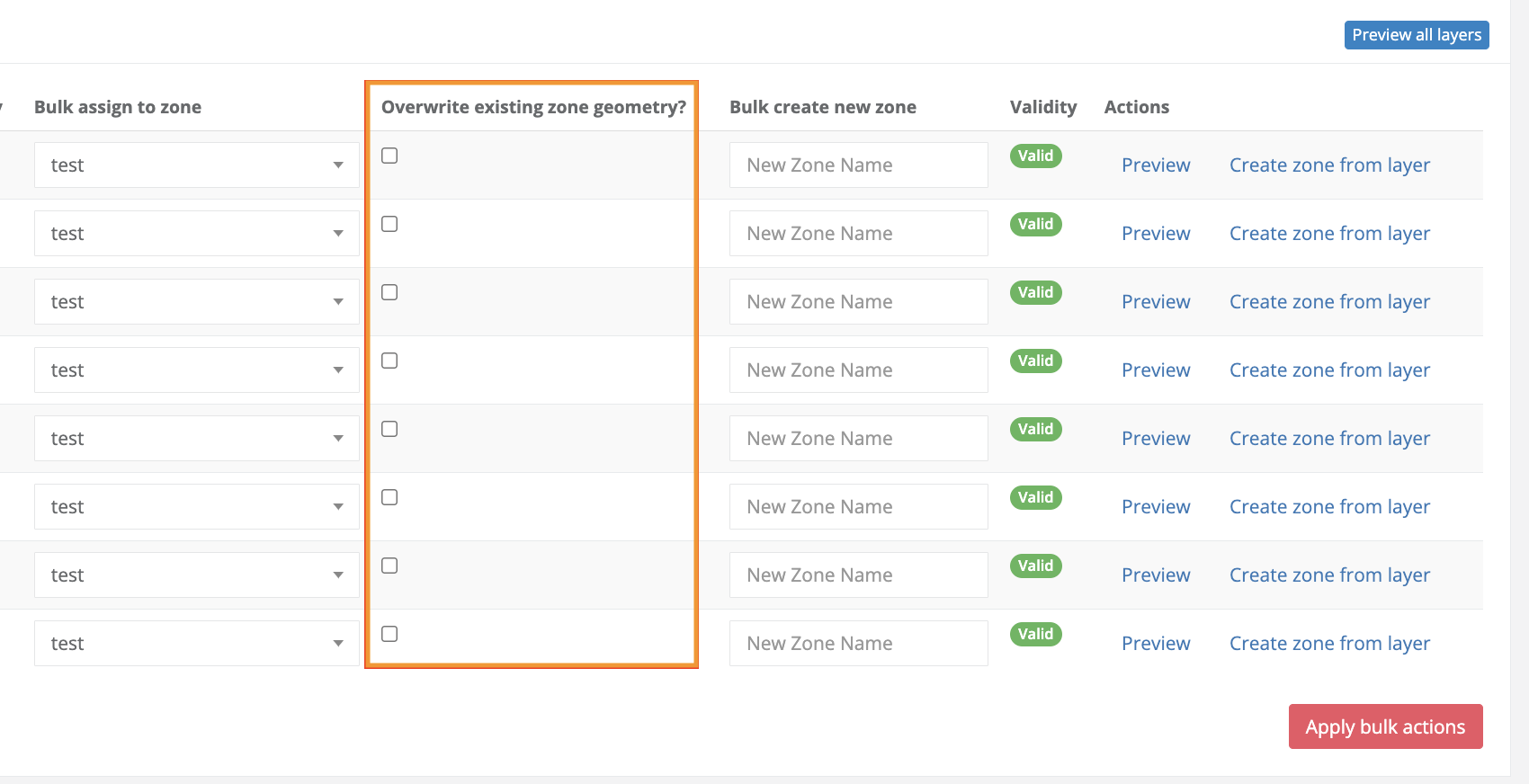
-
How to Edit Vertices in an Existing Zone Record
1. Navigate to your Zones index in the left handrail:
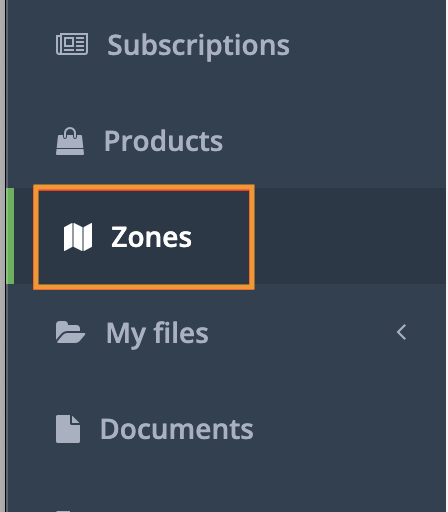
2. Open the zone record you'd like to update. Within the Zone record, you'll need to navigate to the right-hand side of the map and select the pen and paper icon:
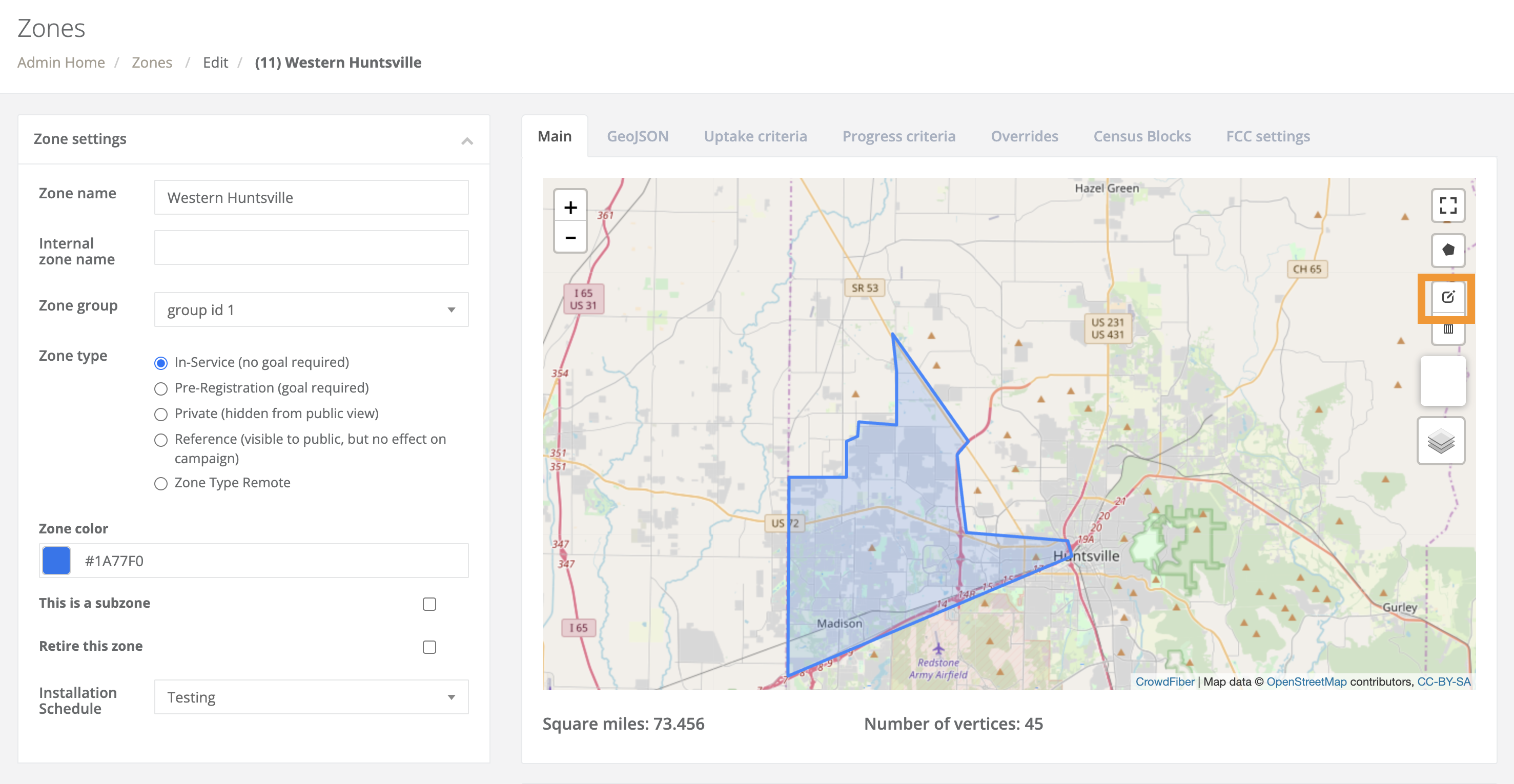
3. Next, you'll select the vertices you wish to remove or click and drag vertices to modify the boundaries of the shape:
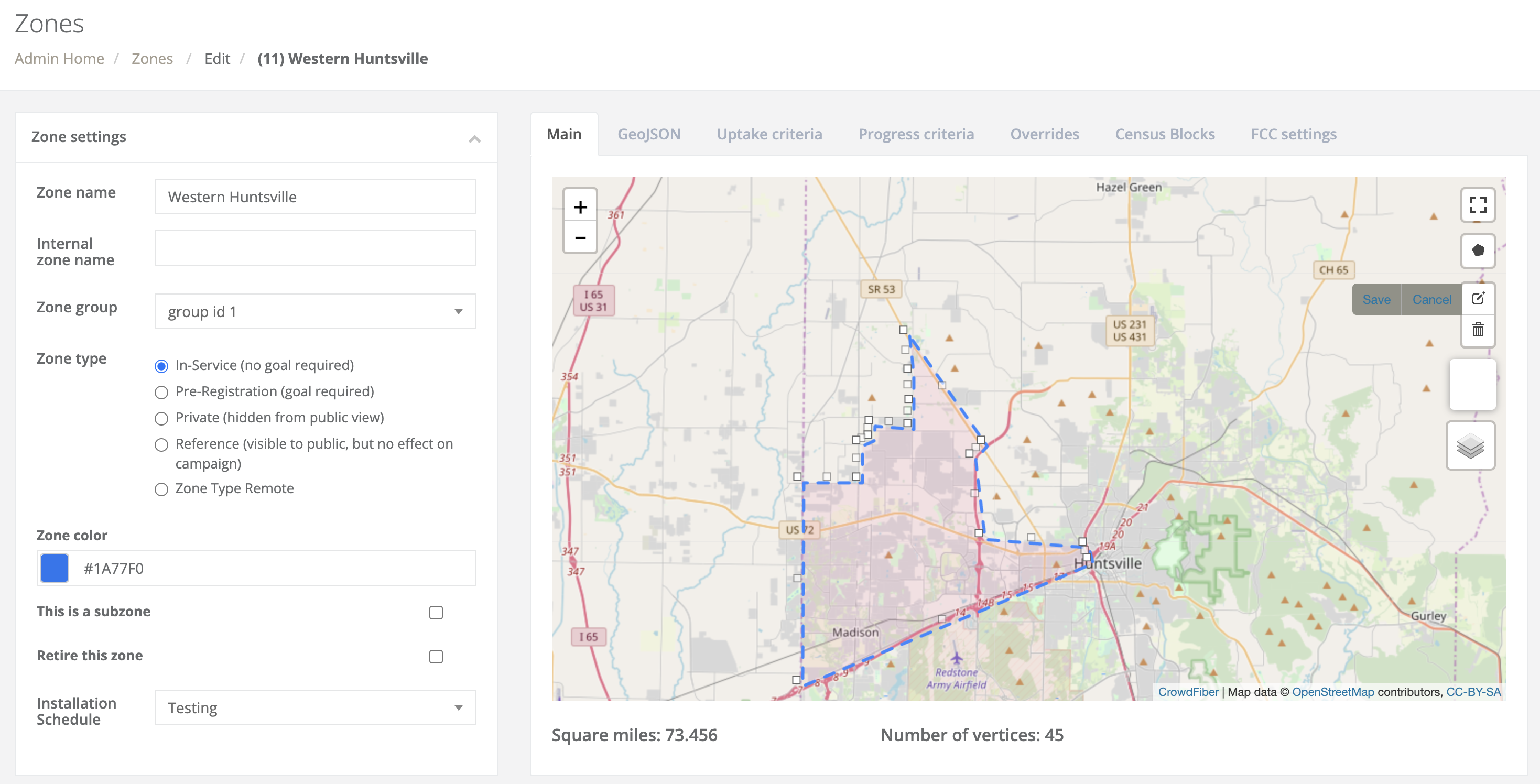
Be sure to click save on the map prior to saving the zone record!
Edit the GeoJSON Coordinates in the Zone Record
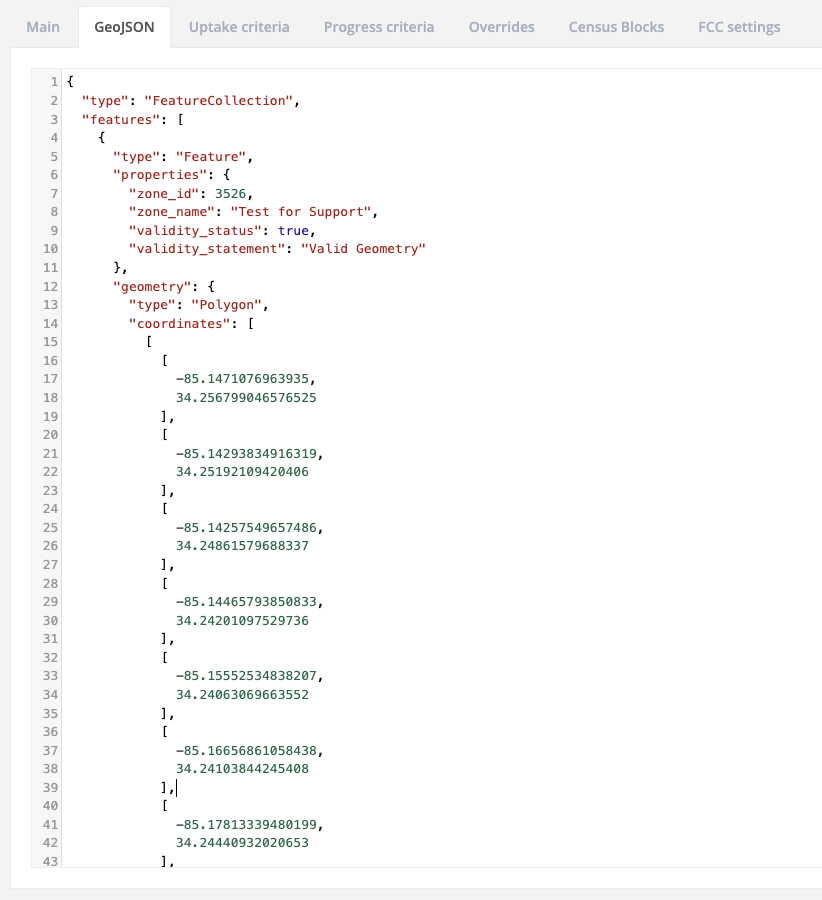
You can directly update coordinates by pasting them into the record under GeoJSON tab of the zone record
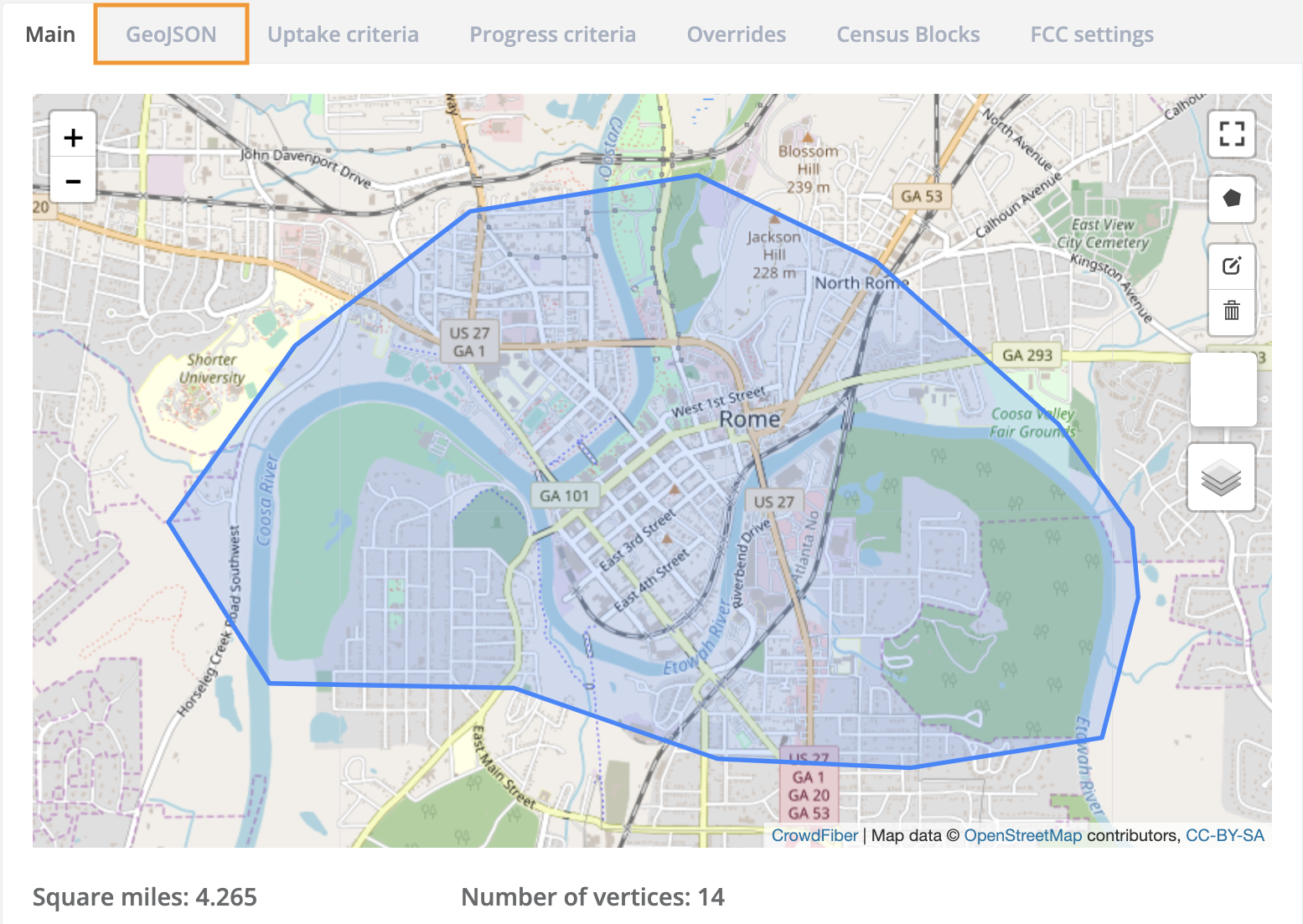
1. In the zone record, navigate to the GeoJSON tab above the map
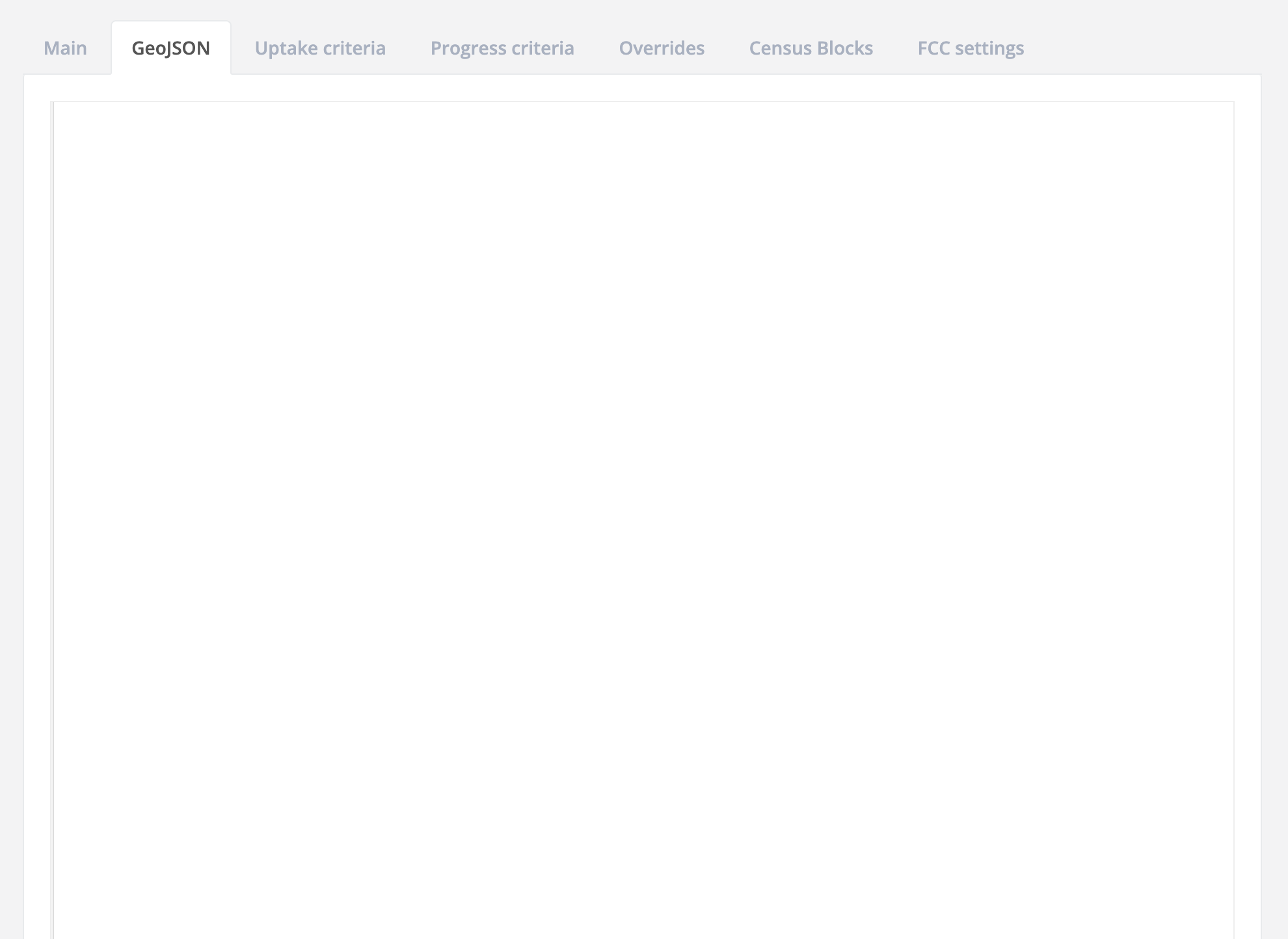
2. Initially, the GeoJSON code box will display all white. You'll need to click within the white box in order to display the GeoJSON code block:
Update the Shape Through the API
PUT/zones/{id} allows you to update a zone.
Example Value:
{
"name": "string",
"zone_type": "in_service",
"zone_group_id": 0,
"zone_color": "string",
"geom":
"
{
"type": "FeatureCollection",
"features": [
{
"type": "Feature",
"properties": {
"zone_id": 9,
"zone_name": "Southern Huntsville ",
"validity_status": true,
"validity_statement": "Valid Geometry"
},
"geometry": {
"type": "Polygon",
"coordinates": [
[
[
-86.62690088152885,
34.71965501400038
],
[
-86.59678906202318,
34.733599277017134
],
[
-86.59224808216096,
34.72029545892427
],
[
-86.57833144068718,
34.72015105611296
],
[
-86.57016813755035,
34.718831207209355
],
[
-86.55804275069387,
34.716498643830015
],
[
-86.54695269651714,
34.71452613442473
],
[
-86.5195119380951,
34.70372791451965
],
[
-86.49548651184888,
34.68440930959393
],
[
-86.47664126940073,
34.64609691746015
],
[
-86.4567267894745,
34.6250624176781
],
[
-86.45304323639722,
34.59995001443816
],
[
-86.58829090185466,
34.59827205039981
],
[
-86.58688500523569,
34.61807795367862
],
[
-86.58836558461189,
34.63209670931374
],
[
-86.60299971699715,
34.633178117675314
],
[
-86.60120531916618,
34.661005186796864
],
[
-86.60912722349168,
34.663102154176585
],
[
-86.6098500788212,
34.68317453880157
],
[
-86.62673860788347,
34.68468647096726
],
[
-86.62690088152885,
34.71965501400038
]
]
]
}
}
]
}",
"dynamic_fields": {},
"resolve_order_position": "string",
"is_subzone": true,
"parent_zone_id": 0,
"contact_panel_override": "string",
"submit_panel_override": "string",
"thank_you_email_override": "string"
}
Where geom can be updated using AS_WKT geometry in CRS ESPG: 4326 - WGS 84 using GeoJSON.