Zone Overrides: An In-Depth Look
Zone Overrides are a feature that allows you to cater to a single zone differently than you would others. With zone overrides, you can alter the registration form steps, edit the language of the contact, success page, and the thank you email, change the survey for that zone, and a few more specific case settings. We'll go over all of the changes you can make in this article.
Step 1: Navigating to Your Zone Override Page
- First, navigate to your Zone index
- Find the zone you're wanting to apply an override to
- After selecting that zone, look for the Overrides tab above the map displaying the geographical boundaries of your zone towards the left-hand side of your screen
Step 2: Setting Up Your Zone Overrides
As I mentioned previously, a wide variety of overrides can be set. Multiple overrides can be used together or any of the overrides listed can be used on their own. Let's go through all of the types of overrides.
-
Zone Language Overrides
1. Contact Information Panel
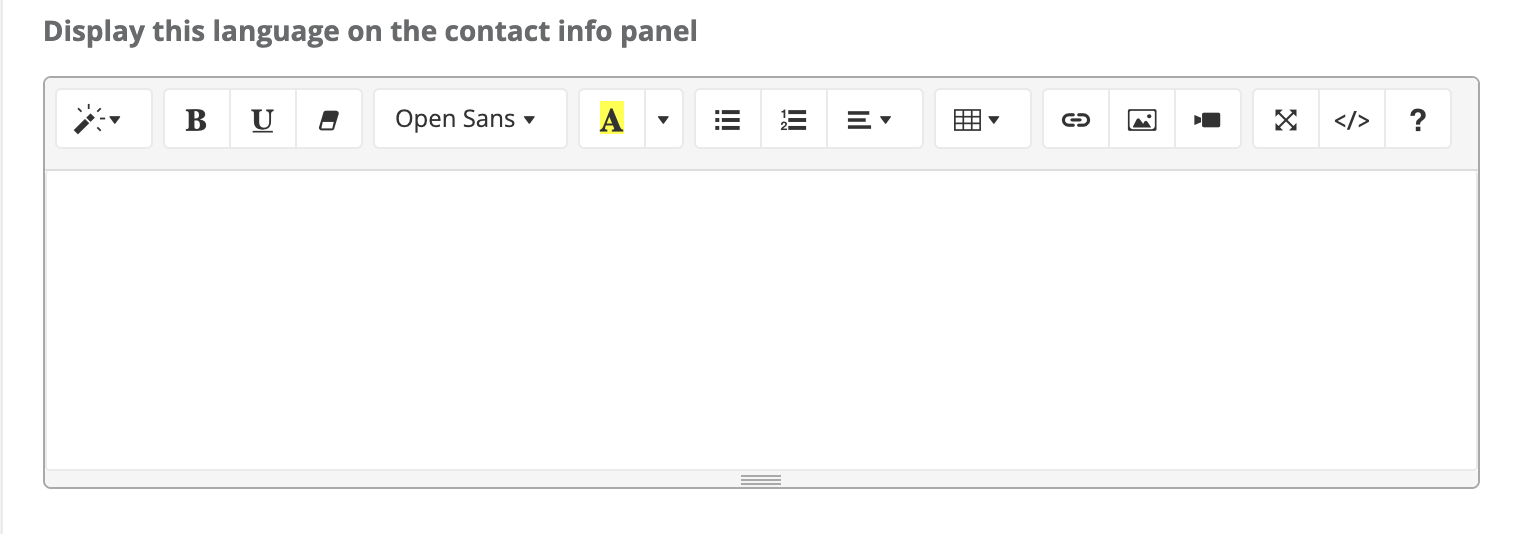
- This section will alter the contact information language that can be found on the Contact Page
2. Success Page Panel
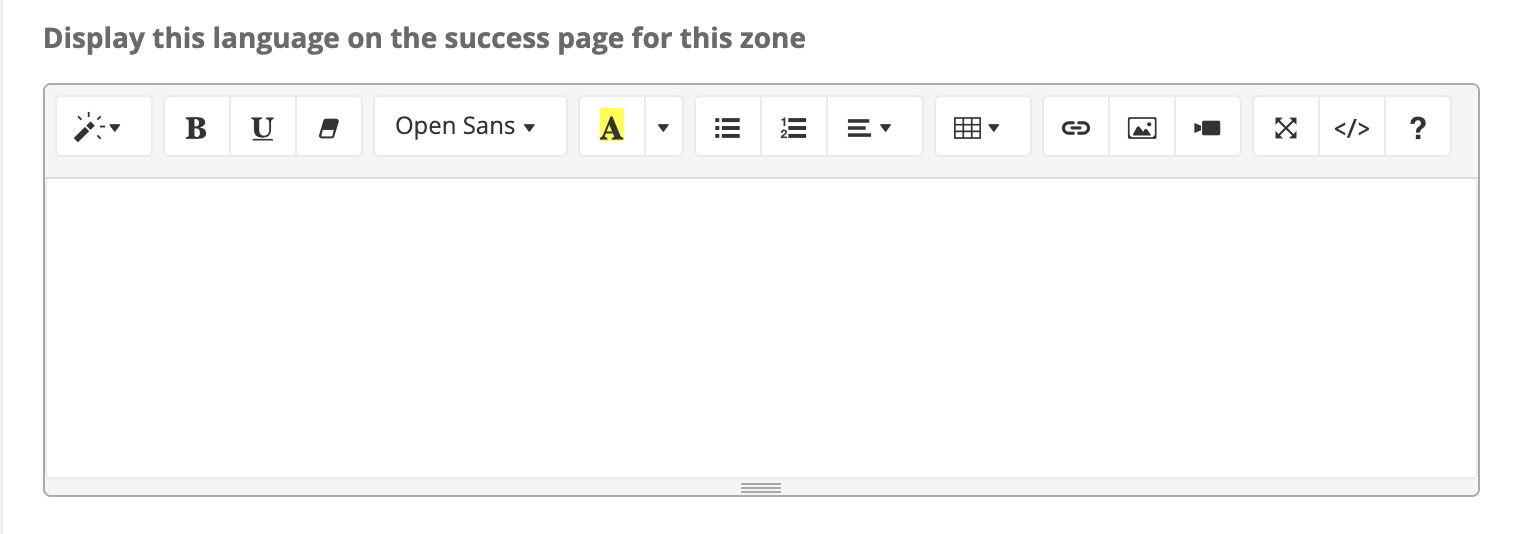
- This section will alter the success information language that can be found on the Success Page
3. Thank You Email Panel
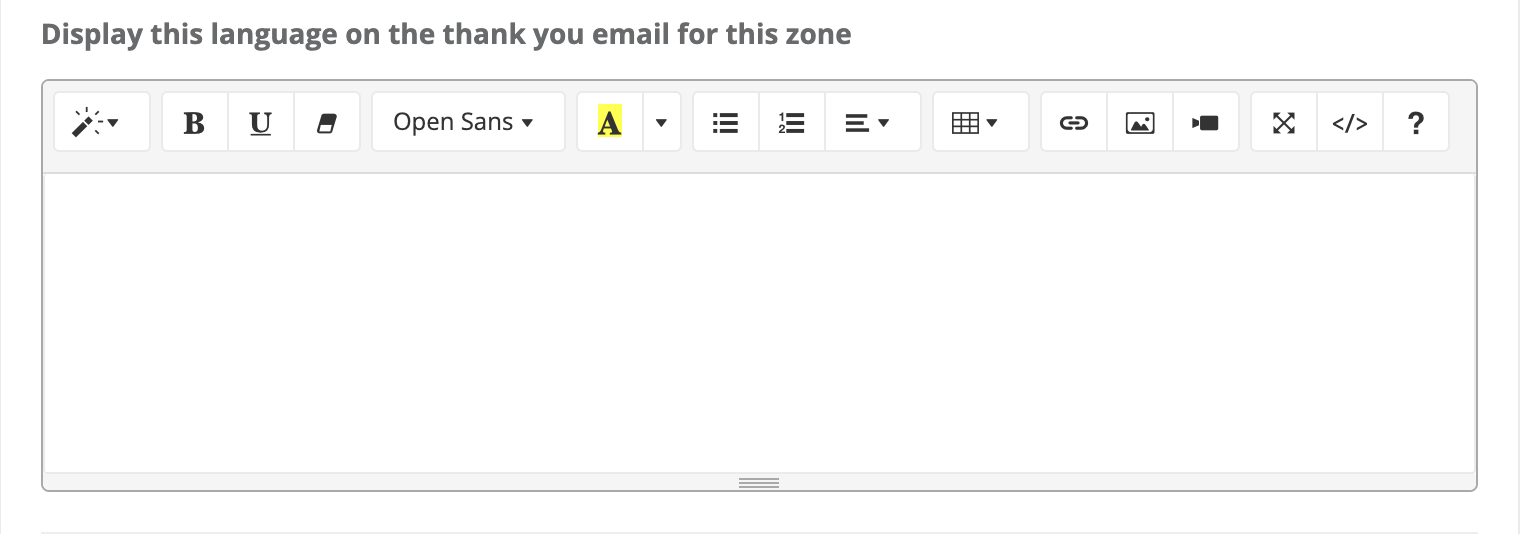
- This section will alter the Thank You Email that is sent out to the registrant after they've completed their registration
-
Zone Address Overrides

- This section will affect what checkboxes will display to the registrants on the submit page
-
Registration Form Overrides
1. Registration Panels
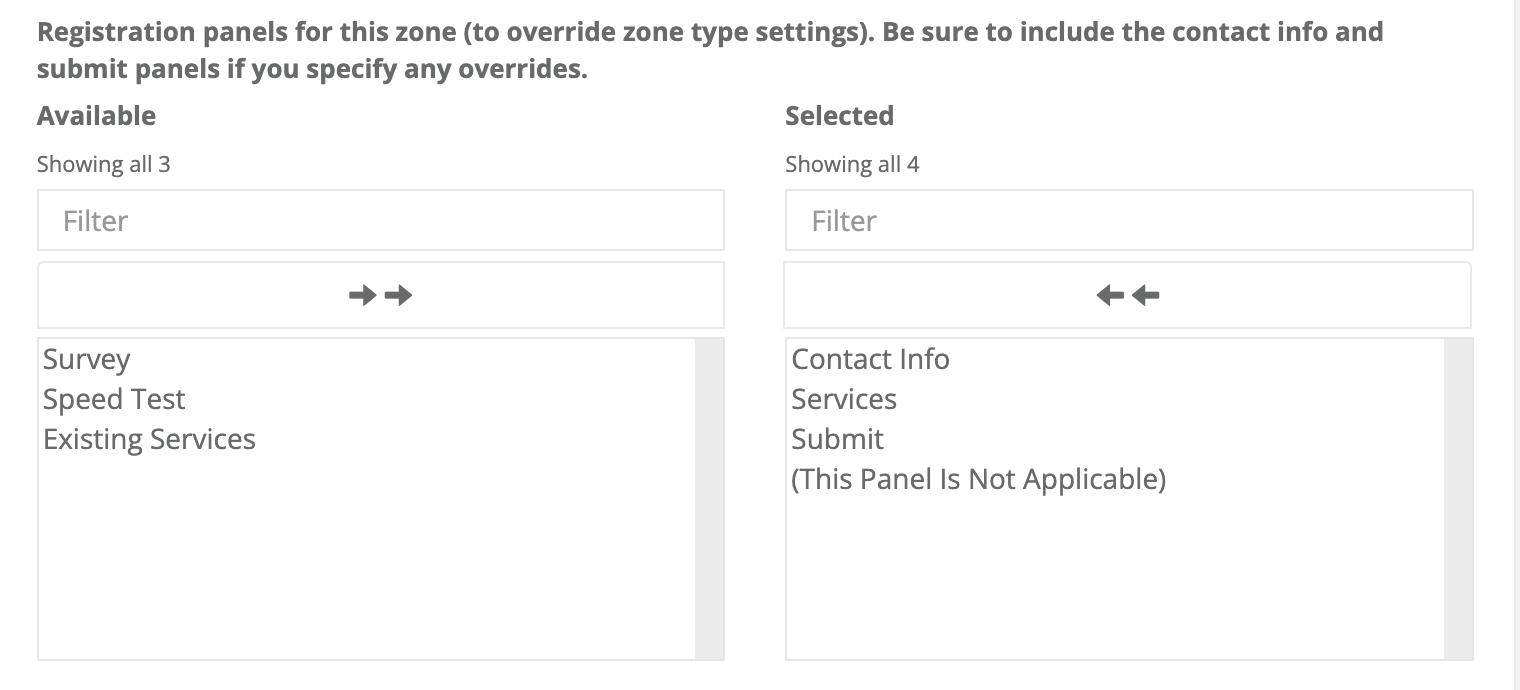
- This section allows you to set specific registration panels
- NOTE: The Contact Info and the Submit panels are required
2. Survey Form

- This section allows you to override the survey that will be displayed to the registrants within that zone
Step 3: Saving your Zone Overrides
Once you set your zone overrides, saving them is as easy as saving the zone record. Overrides typically display instantly on the front end, but on occasion, it can take a few minutes for them to update.
Step 4: Deleting your Zone Overrides
Overrides are very sensitive, and even something as simple as a space bar in the Contact Information panel will prompt an override to be displayed and a space bar to be displayed rather than the language you have previously set in your settings (though on the front end, that space bar will look like a blank box).
It's important to remember that sensitivity when deleting overrides. One of my preferred methods to deleting overrides (and ensuring no pesky space bars persist) is to open the code view that can be found at the top right of the text panel.
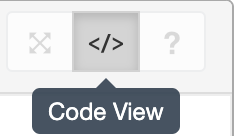
Once you've opened the Code View, delete everything in it (you can either highlight everything in the box or use a CTL+A / CMD+A and delete). Once that's finished, click the Code View button again to exit the Code View.
NOTE: Saving the record without clicking the Code View button will result in your Code View changes not being changed.
Once you've closed the Code View (and the text panel box is empty), then you'll want to scroll down and save the zone record.