How can I import an Email Opt-Out list?
If you are migrating from another email marketing provider, you may already have a list of those who have opted out of marketing emails from your company.
It's important to respect these preferences, not just because it's the law (See CAN-SPAM Act), but also because it's just good marketing. Sending emails to someone who has already expressed a desire not to receive unsolicited emails is a sure-fire way to create a new enemy. The good news is that CrowdFiber manages all opt-outs for contacts and messages going forward.
To import prior email opt-outs, do the following:
- Export your opt-out list from your current email marketing program or database.
- Review your spreadsheet and be sure that you have formatted it for proper import. This means that there should be only one header row and at least a column with email addresses.
-
Add a column called "Tag," and add "OptOut" (or whatever you prefer) to each row. In Google Sheets, this can be done by simply copying the first cell, then highlighting the entire column and pressing paste.

-
Save the file as a CSV.
-
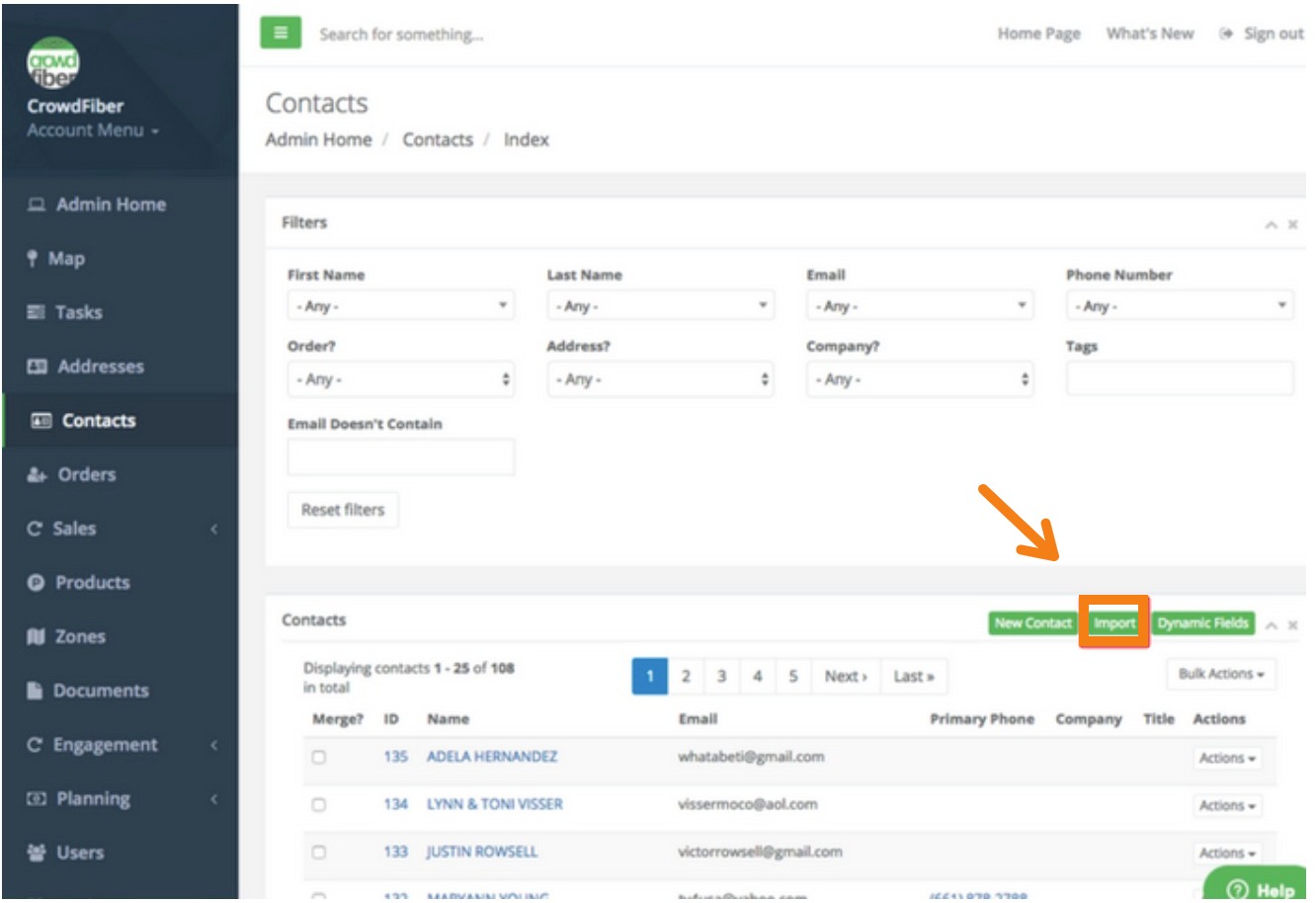
Next, import the file in Contacts.
Now when you create a contact list , simply add the rule Without Tag = OptOut in addition to the other filters you may be using. This will exclude all email addresses from your opt-out import and allow you to send your marketing emails while honoring prior opt-outs.