Why Are My Signed Orders Not Showing as Contracted?
There are many flags available for orders, included Contracted. Orders, email lists, and signatures can all be filtered by the status of this flag.
You can either manually mark an order as contracted as a part of a workflow with your CSRs or sales reps, or this status can be set automatically after a document is signed.
Option 1: Manually Mark Order Contracted
- Navigate to Orders tab.
- Click on the order ID, or choose Edit from the dropdown menu.
- Check Contracted? checkbox.

Option 2: When Document Signed, Mark Order as Contracted
- Select Edit for the document(s) that should trigger the flag and flip the setting for Mark as Contracted.
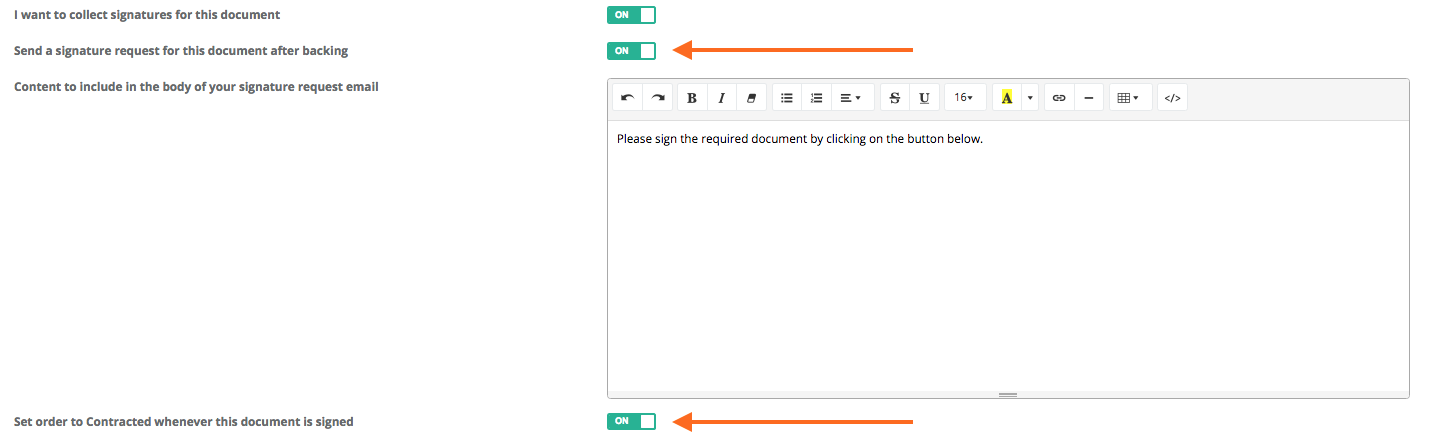
- If you have collected signatures prior to changing this setting, you may need to review past orders to be sure they are marked correctly.
Identify Signed Orders Not Flagged Contracted
Here's how you can find all signatures collected prior to the document setting being changed:
- Go to Engagement>Signatures
- Add the filters: Contracted=No; Signed Status=Signed

- Then, you can export (if you need a checklist to be sure you got them all updated) by clicking on Bulk Actions>Export.
You will need to manually update each of these orders.