Title & Intro Text
What Are Title & Intro Text?
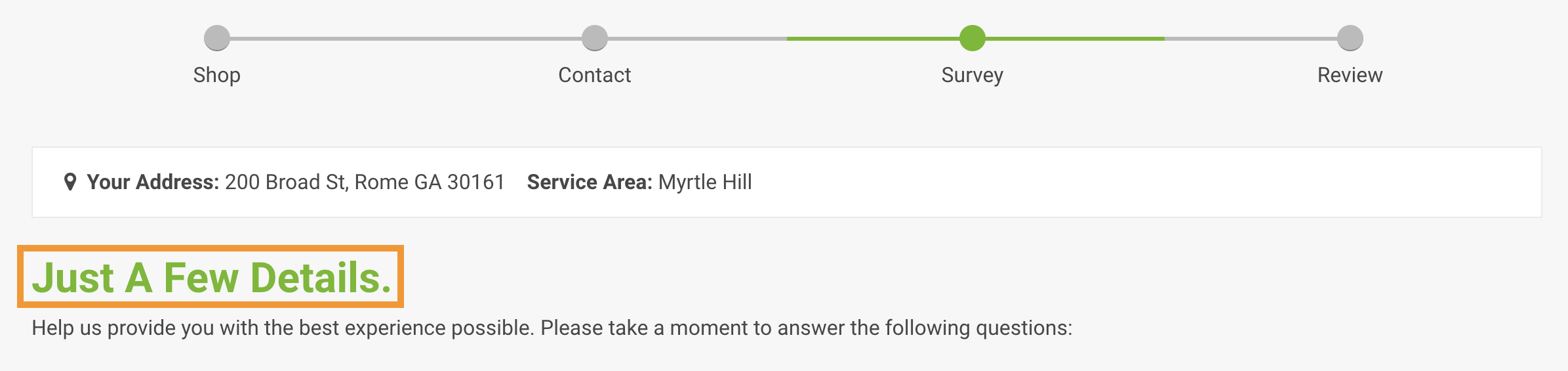
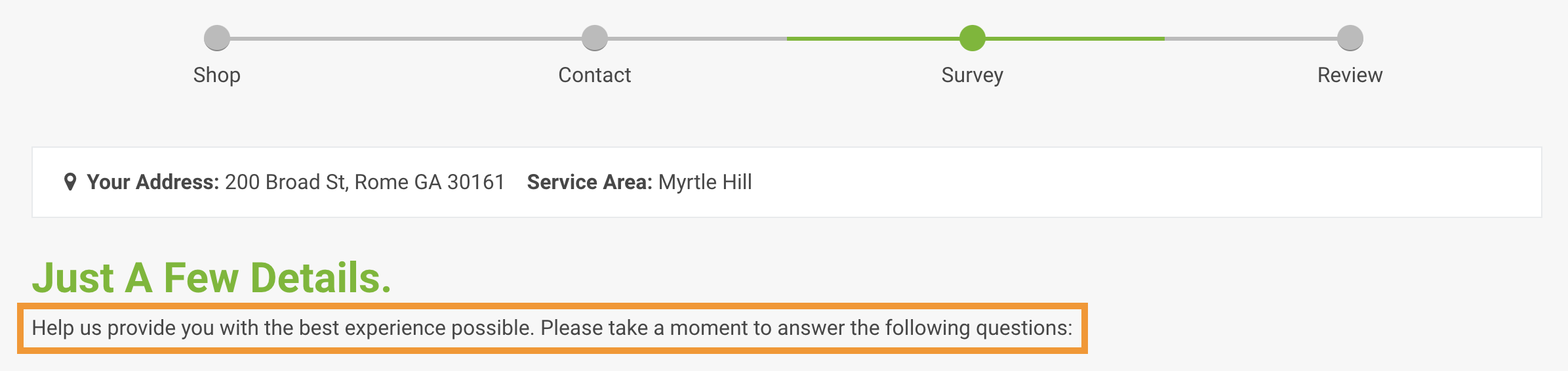
Title Text and Intro Text are seen at the top of every panel in a registration process. These two sets of text are meant to provide the registrant with instruction for completing a step in your registration process and to communicate what a registrant has to gain by submitting their personal information in each step of your registration processes.
Title Text
Intro Text
Location of Title & Intro Text
- Location Confirmation panel
- Shop panel
- Survey panel
- Speedtest panel
- Services panel
- Review Panel
Content Targeting
Zone Type Plus Market Targeting
- Content exclusive to Residential Registrants in In-Service zones.
- Content exclusive to Commercial Registrants in In-Service zones.
- Content exclusive to Residential Registrants in Pre-Registration zones.
- Content exclusive to Commercial Registrants in Pre-Registration zones.
- Content exclusive to Residential Registrants in Remote areas.
- Content exclusive to Commercial Registrants in Remote areas.
Goals For Title & Intro Text
- Inspire your registrants to complete the actions required on a registration panelin as few words as possible.
-
Make it quick and easy for a registrant to complete a step while minimizing their apprehension or objection toward taking action(s) required to complete a step in your registration process. Title Text
- Create succinct communication of value in the step.
Intro Text
- Present a quick description of the action required to complete the step.
Best Practices
- To avoid formatting issues and errors when copying and pasting text from other software, you must paste unformatted/plain text into CrowdFiber textboxes.
Click here to learn how to copy and paste text into CrowdFiber.
Less is More. Keep Title & Intro Text brief. Succinct content avoids registrant confusion and reduces abandoned registration processes.
Keep your communication consistent.
- Write in your organization's tone of voice.
- Use your brand vocabulary: nouns, adjectives, verbs, and terminology displayed across your primary website and marketing materials.
How to Edit Title & Intro Text
- Begin a test of your In-Service registration process.
- Enter the In-Service test addresses seen above the address search bar on your CrowdFiber Home Page into the address search bar.
- Identify yourself as a Residential registrant in the Service Type drop-down menu.
- Click the Go button in the address search bar.
- On the following page, click the Title Text.
- Edit the Title Text within the click-to-edit text editor.
- Click the Intro Text.
- Edit the Intro Text within the click-to-edit text editor.
- Click the blue Save link located inside the green ribbon that is displayed at the top of the registration process.
- Click the Next button to proceed to the next panel in your registration process.
- Repeat Step 4 through Step 9 for the following panel in your registration process:
- Shop panel
- Survey panel
- Speedtest panel
- Services panel
-
Review Panel
Skip these steps on the Contact Information and Success Panels.
The following content will be edited in a later step:
- The content seen at the top of the Contact Information panel.
- Product categories/product types, product images & product descriptions that are seen in your e-commerce experience.
- Survey questions
- The content seen at the top of the Success panel (panel seen after clicking the Submit button in your registration process).