Automate Product Discounts
What Are Automated Product Discounts?
Through the creation of Discount Rules, you can automatically display a discounted price in a shopping cart (in real-time) when a registrant adds a specific combination of products to their shopping cart.
Discounts can be exclusive to a zone/service area if necessary.
How to Establish Automated Product Discounts
- Click the Products link located in the left-hand rail of your Admin Dashboard.
- Access an existing product record on your Products page.
- Click the ID number in the ID column (the second column from the left).
- Click the Actions button located in the right-most column of the row containing the product record you would like to edit.
- Then, click the Edit option in the Actions drop-down menu.
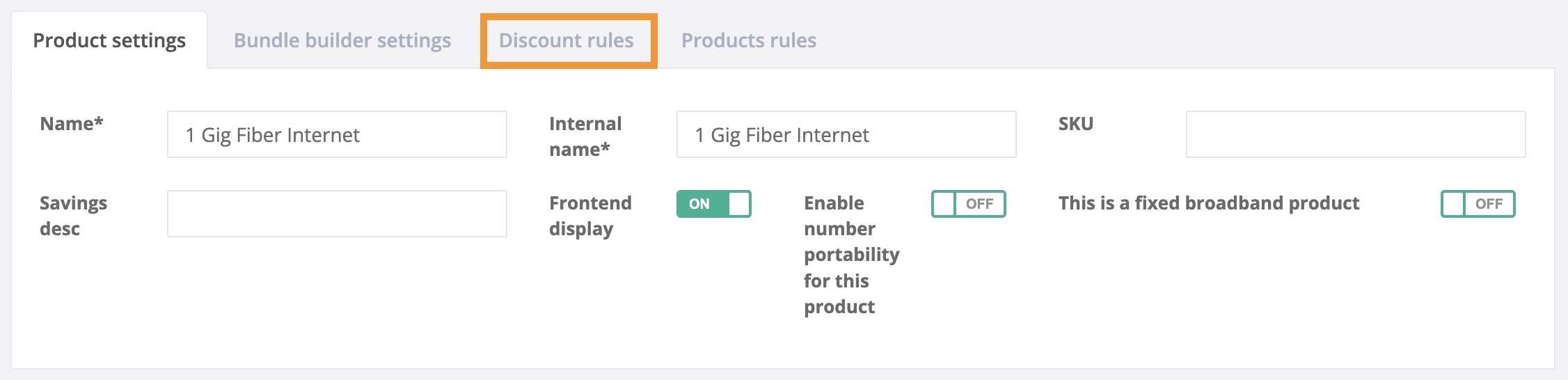
- On the following page, click the Discount Rules tab at the top of the product record. 4. Then, click the blue + add discount rule button.
Part 1) Shopping Cart Settings
Define the basic requirements for a discount to be automated and applied, as well as the discount amount and what price the discount reduces (monthly price or installation price).
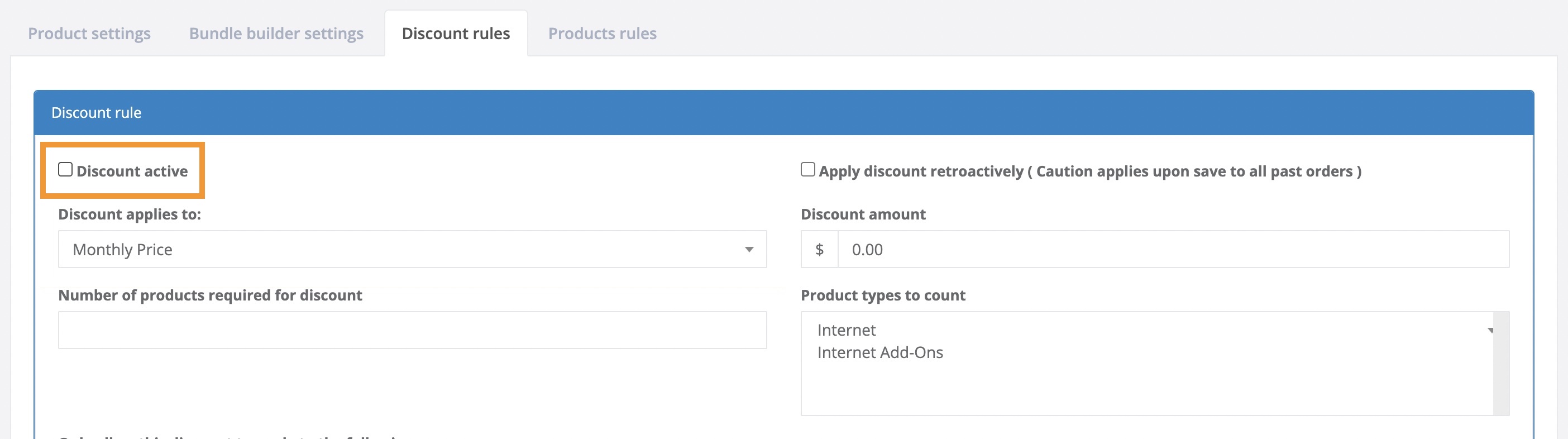
1. Discount Active Checkbox
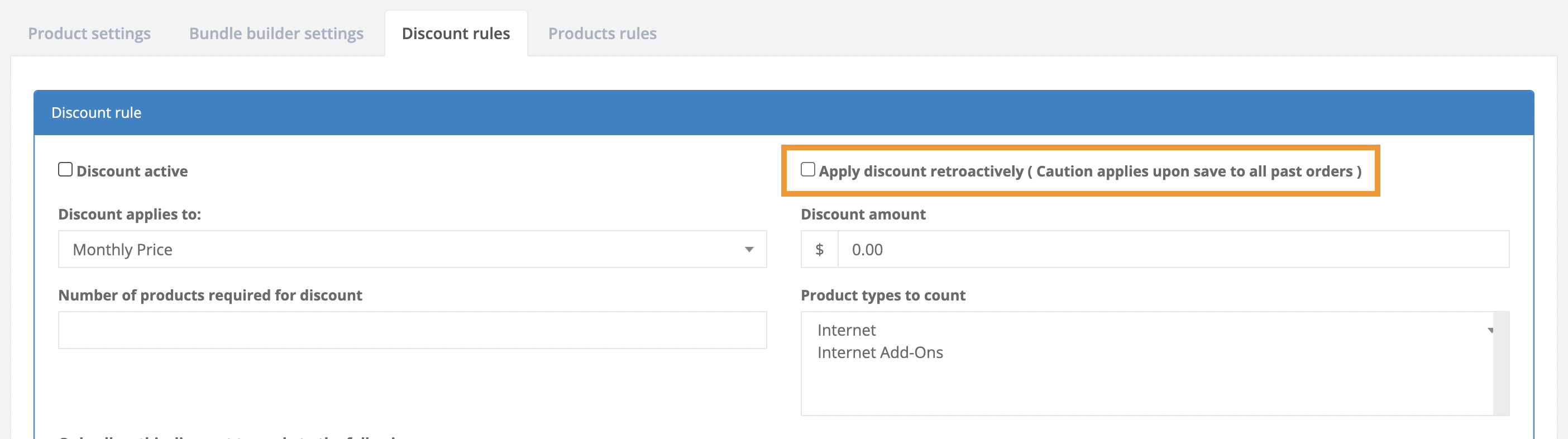
2. Apply Discount Retroactively ( Caution applies upon saving to all past orders ) Checkbox
Automatically apply the discount and reduce the price of all pre-existing registrations/orders that qualify for the discount.
- Checked
After the product record is saved, all current orders in your CrowdFiber database that are eligible for this discount will have their order record updated to include the discount.
- Unchecked
Only future orders will be eligible for the discount.
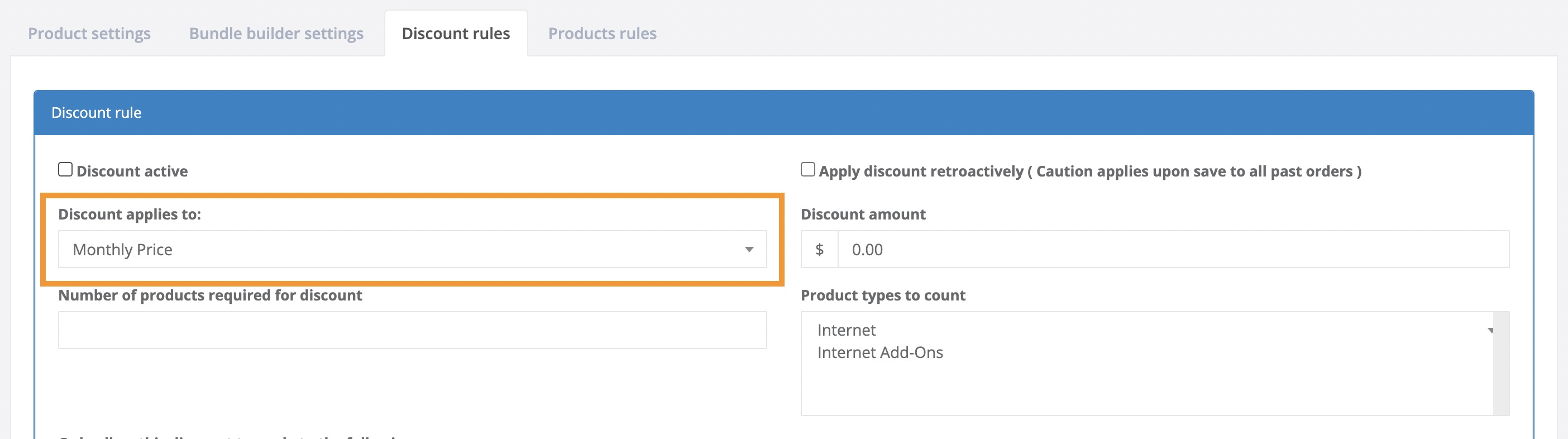
3. Discount applies to Drop-Down Menu
Establish the discount in an ongoing discount applied to the price of the service or a one-time discount applied to the installation price.
- Monthly Price
The discount is applied as an ongoing discount on the price of the product.
- Installation Price
A one-time discount on the Installation Price of a product.
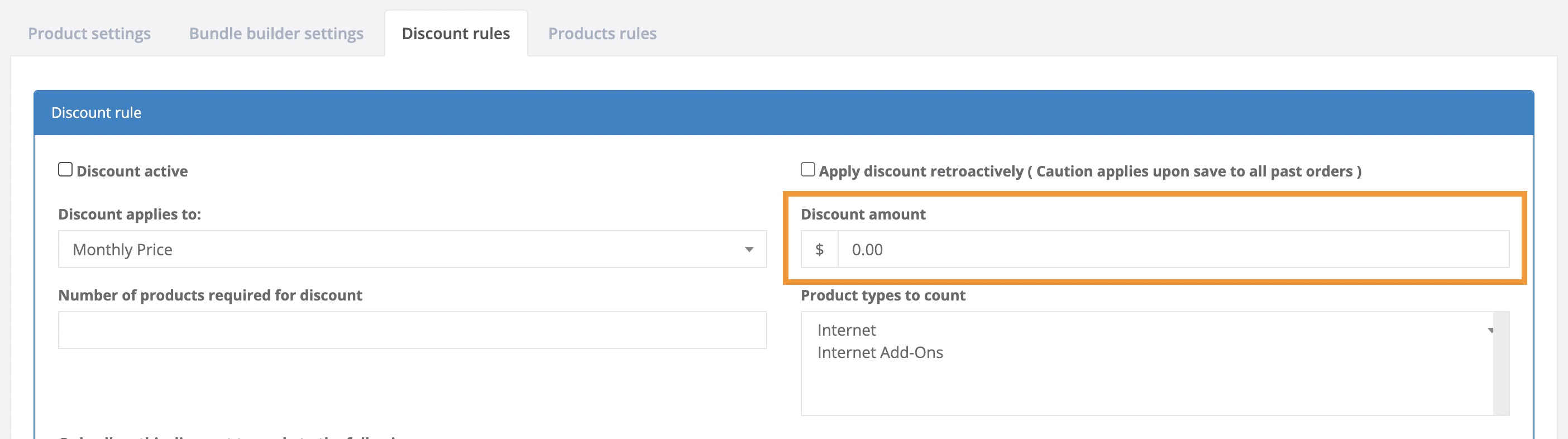
4. Discount Amount
- The monetary amount of the discount.
The amount entered into this text box must be a positive number.
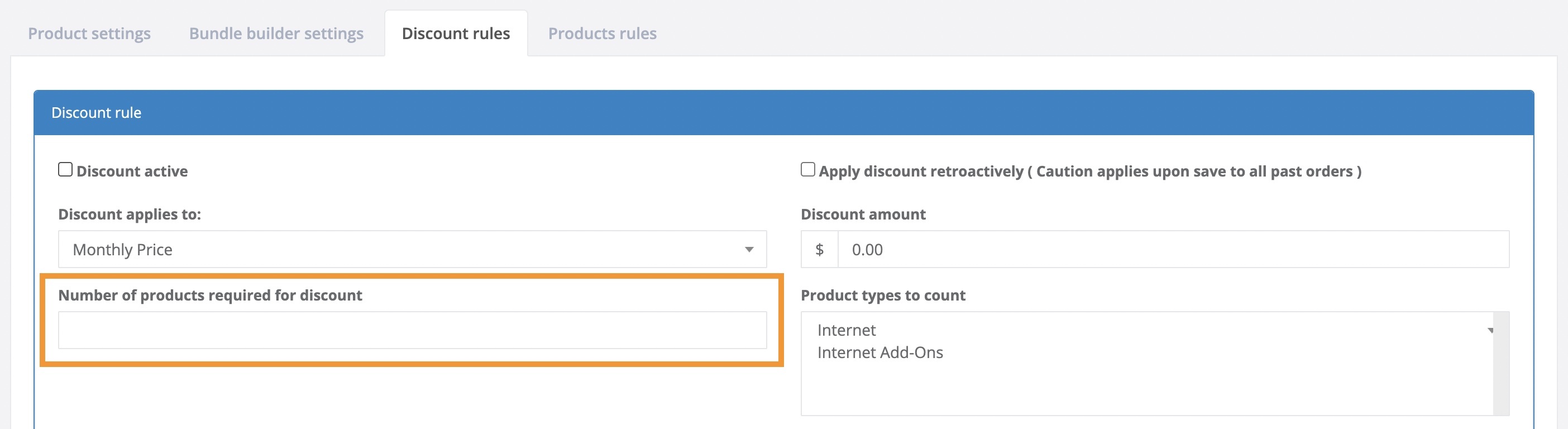
5. Number of products required for discount
- The minimum number of products that must be in the shopping cart for the discount to be applied to the shopping cart.
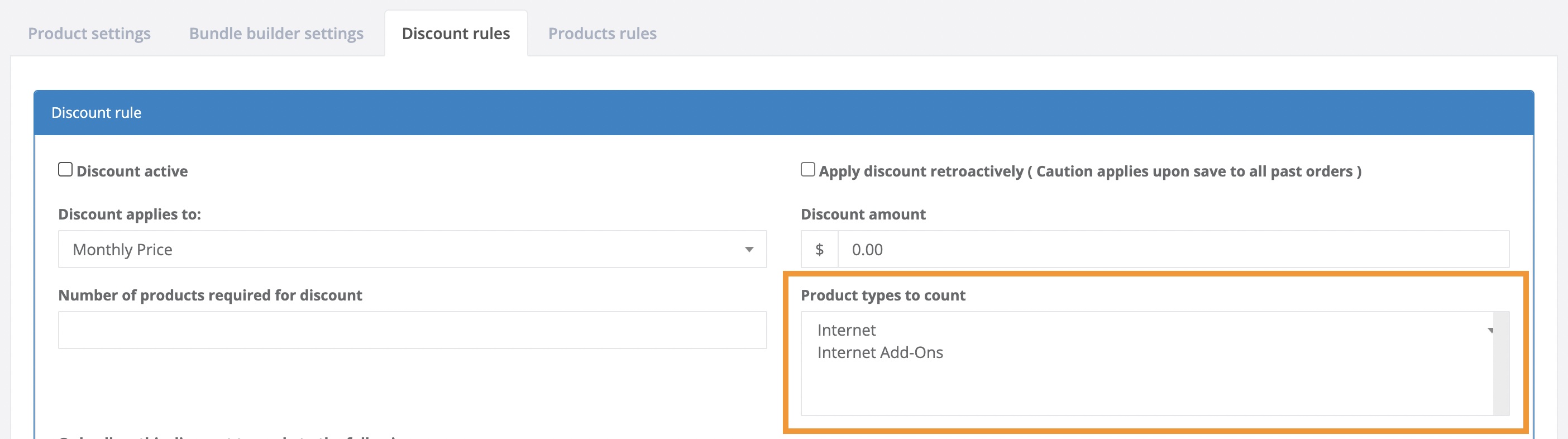
6. Product types to count
- Restrict the previous "Number of products required for discount" setting to count only products from a specific product type(s).
Products added to the shopping cart other than the product types targeted in this setting will not count toward the minimum number of products that must be in the shopping cart for the discount to be applied to the shopping cart.
Click on the product type names to target the product types.
Part 2) Target Your Discount
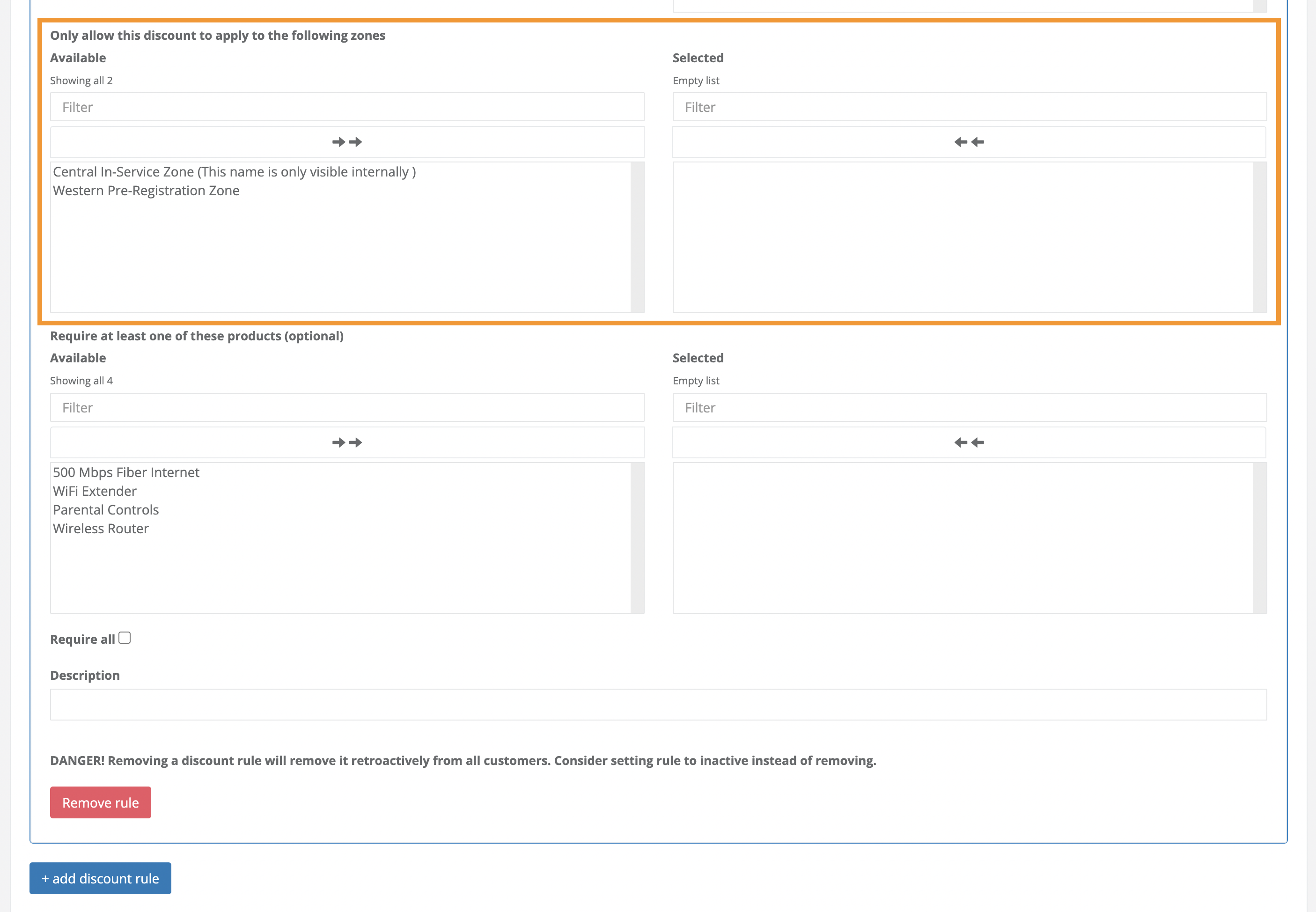
- Only allow this discount to apply to the following zones
- Discounts can be exclusive to a zone or available for purchase in multiple zones. This setting defines the addresses that must be searched for this product to display in an eCommerce experience:
- One zone
- Multiple zones
- Discounts can be exclusive to a zone or available for purchase in multiple zones. This setting defines the addresses that must be searched for this product to display in an eCommerce experience:
The zones where this discount will be activated are seen in the Selected Column. Click a zone to add or subtract a zone from the Available or Selected column.
- Require at least one of these products (optional)
- Define a specific product that must be in the shopping cart before the discount is automatically applied to the shopping cart.
The products that will trigger the discount to be applied to the shopping cart are seen in the Selected Column. Click a product to add or subtract a market from the Available or Selected column.
3. Require all checkbox (optional)
Define the specific combination of products that must be in the shopping cart before the discount is automatically applied to the shopping cart.
-
Checked
All products in the Selected column of the "Require at least one of these products (optional)" setting above the checkbox must be in the shopping cart for the discount to be applied to the shopping cart.
-
Unchecked
Only one of the products seen in the Selected column of the “Require at least one of these products” setting must be in the shopping cart for the discount to be applied to the shopping cart.

Part 3) Remove or Continue Your Discount Automation (optional)
Remove rule button
- Delete the Discount Rule containing this button.
- In addition to the Remove Rule button, you must click one of the blue Save buttons located in the lower left-hand corner of the product record for the discount to be deleted from your eCommerce experience.
Saving your product record after removing a discount rule will:
- Delete the discount from the product record.
- Prevent the discount from being applied in all future eCommerce experiences.
- Remove the discount from all pre-existing order records.

Add discount rule button
- Add multiple discounts to a product. Create a selection of independent discounts for a product.
Clicking the + add discount rule button displays an additional/independent set of discount rule settings that are identical to the current discount rule settings. Follow the steps in Part 1 and Part 2 above to create your next discount rule.

Part 4) Save Your Discount Rule
- Click one of the blue Save buttons seen in the lower left-hand corner of your screen to save and apply your discount rule settings.
