Product Types
What Are Product Types?
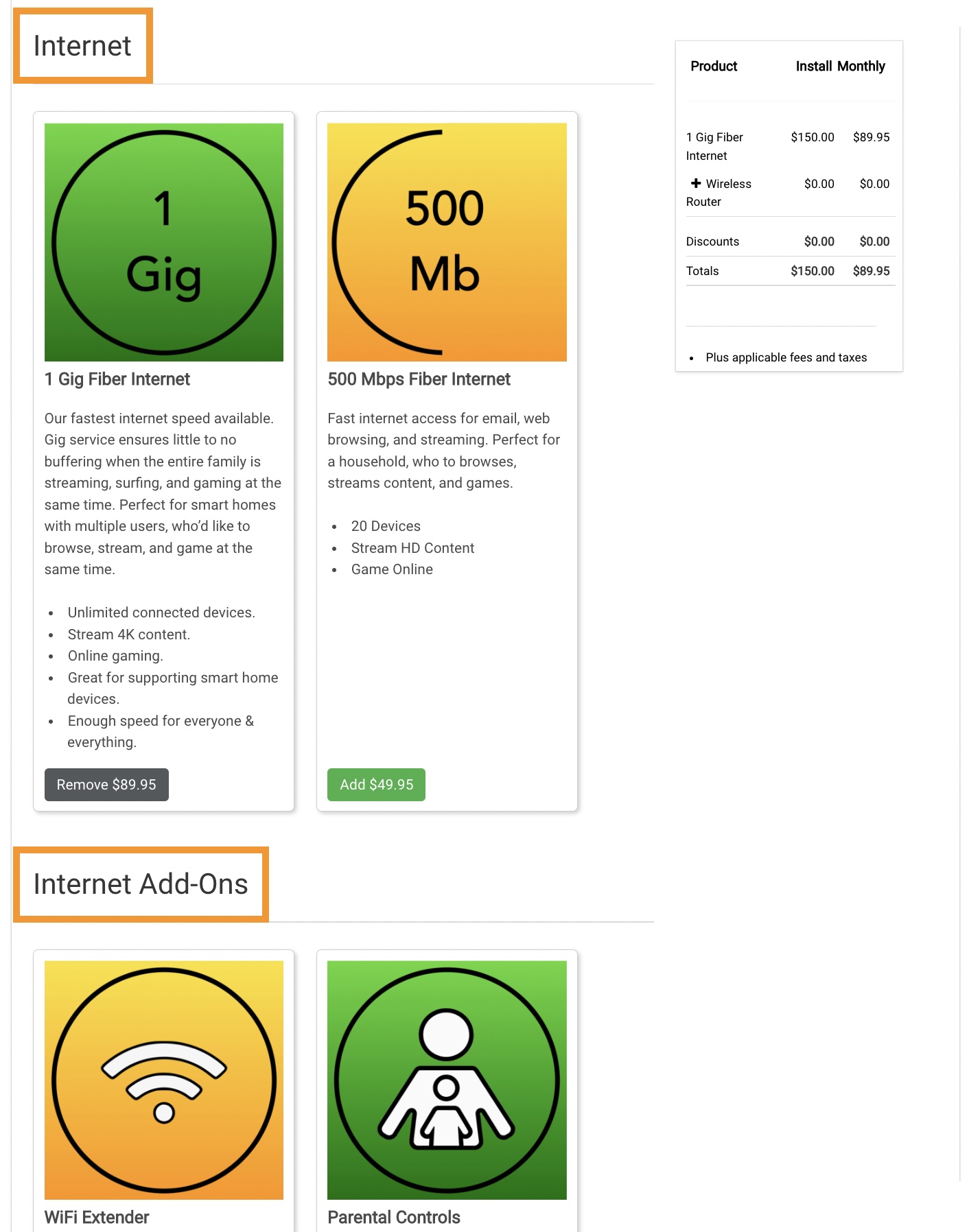
- Product Types created are unique sections in your CrowdFiber eCommerce experience. Product types allow you to group products together in separate areas of your shopping experience to present an organized selection of products that keep your eCommerce experience clean and simple for your registrants.
- Product types are commonly divided into two categories:
- Core products such as:
- Internet
- Telephone
- Streaming Services
- Complementary products
- Internet Add-ons
- Calling Features
- Premium packages
- Core products such as:
- Product types are commonly divided into two categories:
How to Create Your Product Types
- Click the Products link located in the left-hand rail of your Admin Dashboard.
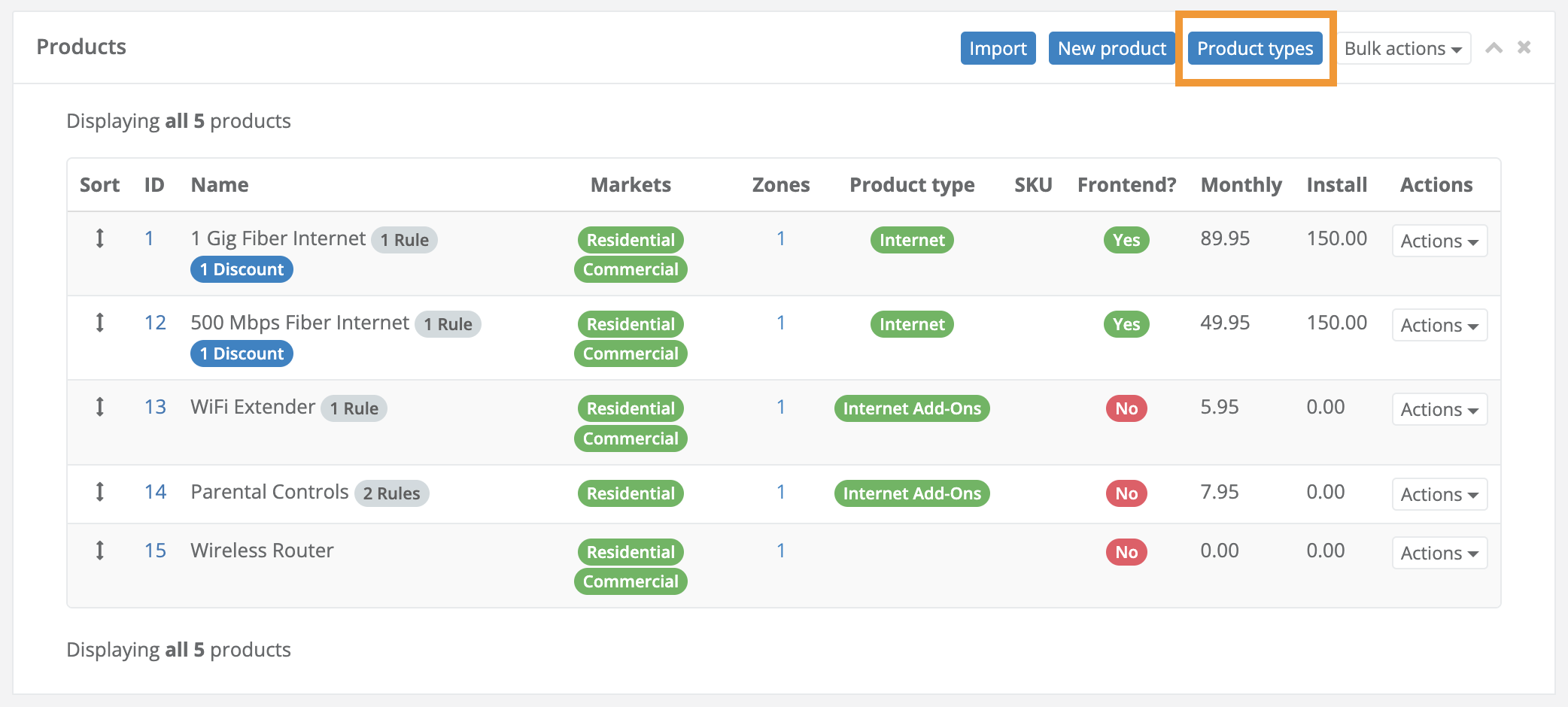
- On the following page, Products page click the blue Product Types button located in the upper-right-hand corner of the Products Index.
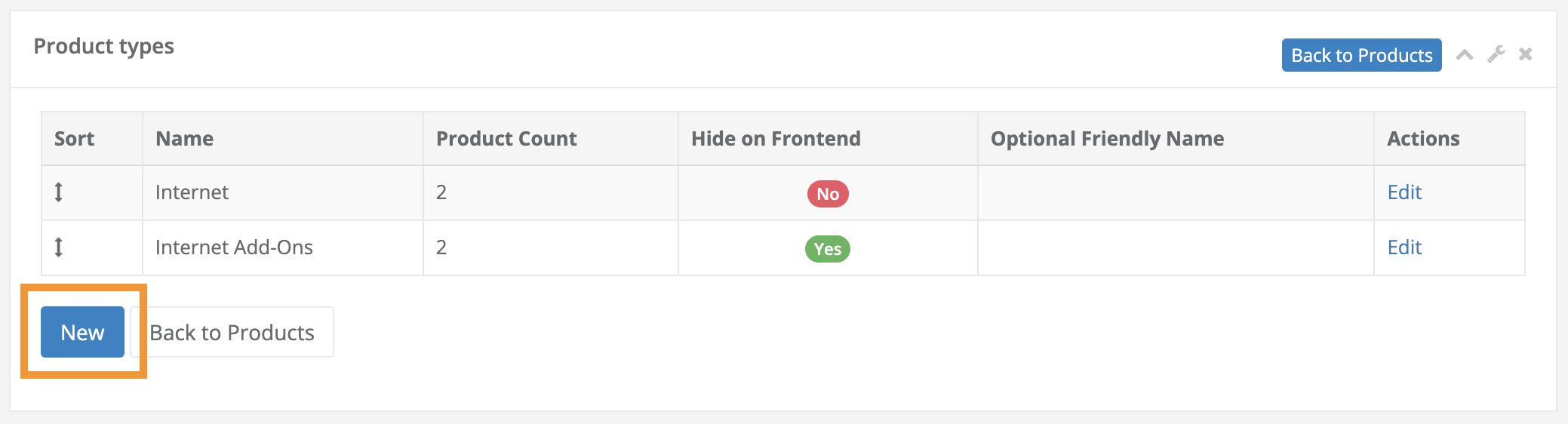
- On the following Product Types page, click the blue New button located in the bottom left-hand corner of the screen.
Part 1) Name Your Product Type
-
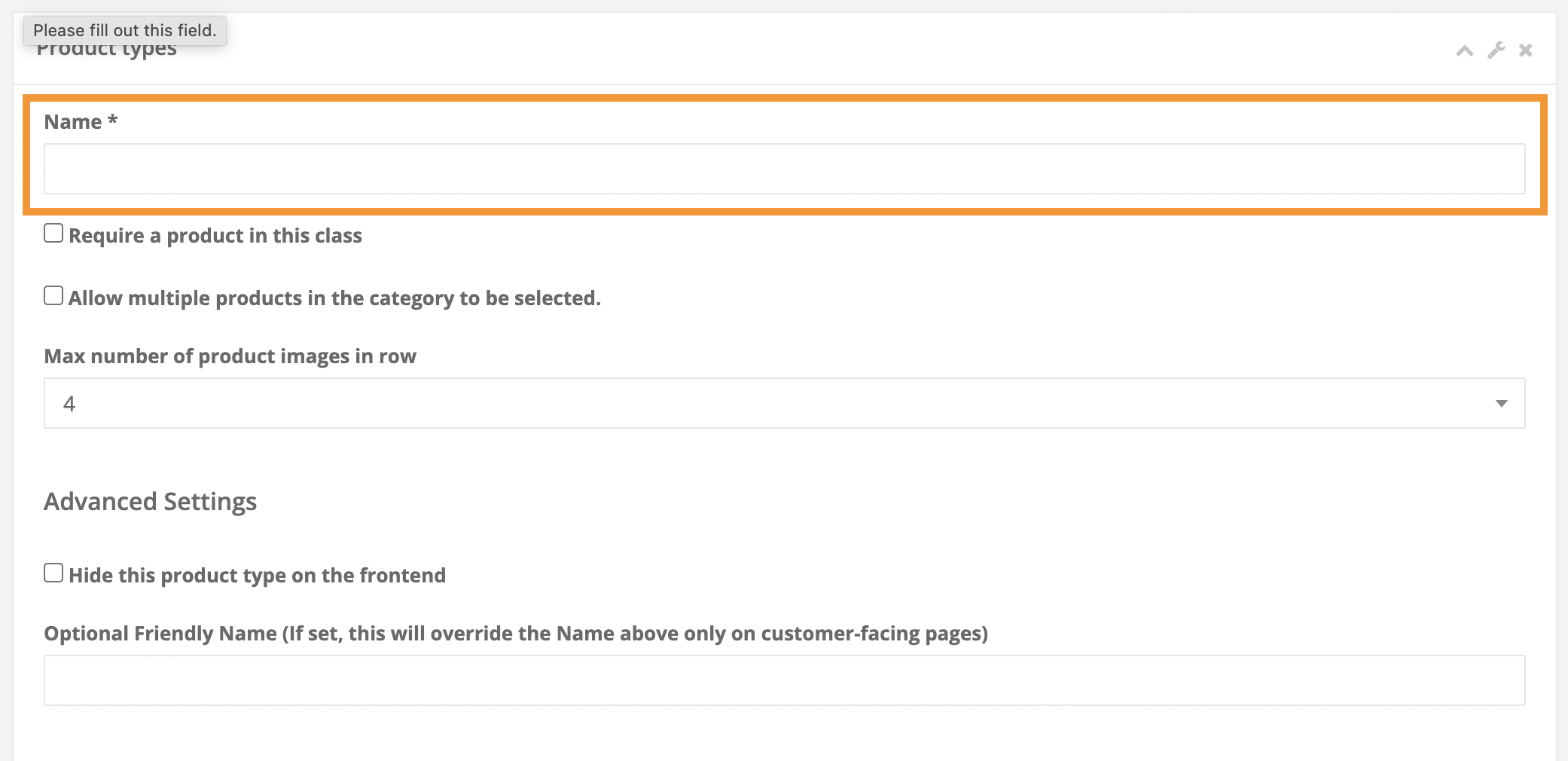
This is a required setting. Enter the desired name of your Product Type/the title to display in this section of your eCommerce experience.
Part 2) Define Optional Settings
-
While the following settings are not required, they can enhance the functionality and appearance of your eCommerce panel to help you ensure products are purchased properly.
-
Require a product in this class checkbox
-
Checked
Make it mandatory for a product in this product type to be added to the shopping cart before a registrant can proceed to the next step in your registration process.
Best use case: a core product type that must be selected before a registrant can become your customer.
-
Unchecked
A product in this product type does not have to be purchased before a registrant can proceed to the next step in your registration process.
Best use case: complementary/add-on product types that are not required in a customer's services
-
-
Allow multiple products in the category to be selected checkbox
-
Checked
Enable the purchase of multiple products in a product type.
Best use case: complimentary/add-on product types that can be purchased together.
-
Unchecked
Only one product in this product type can be added to the shopping cart.
When an additional product is selected in this product type, the product currently in the shopping cart will be removed in real time while the other product is added.
Best use case: a core product type, such as your internet products, where only one option can be purchased for a service address.
-
- Max number of product images in row drop-down menu
-
The number selected in this drop-down menu will define how many products are seen in a single, horizontal row of products in a product type in your eCommerce experience.
Best Practice: the number established in this setting should be identical for each of your product types to keep all of your product objects displaying in the same exact dimensions throughout your eCommerce experience.
The most popular setting is 3.
-
-
Hide this product type on the frontend checkbox
-
Checked
No products in this product type will be displayed on the Services page seen on the frontend of your CrowdFiber website (regardless of other settings).
-
Unchecked
Products in this product type can be displayed on the Services page seen on the frontend of your CrowdFiber website.
This checkbox must also be unchecked in the individual product record for a product to display on your Services page.
-
- Optional Friendly Name (If set, this will override the Name above only on customer-facing pages)
-
This textbox allows you to create a unique internal name for a product type (seen only in your Admin Dashboard for easy internal reference) and a separate public name for your product type seen by all website visitors on your Service page and by registrants in your eCommerce experience.
-
Textbox contains text
The text in this textbox will be the name of your product type seen on your Services Page and throughout your eCommerce experiences.
-
Textbox does not contain text.
The Name created in Part 1 will be the only name for your product type across your Admin Dashboard, Services page, and eCommerce experience.
-
-
-
Part 3) Save Your Product Type Settings
-
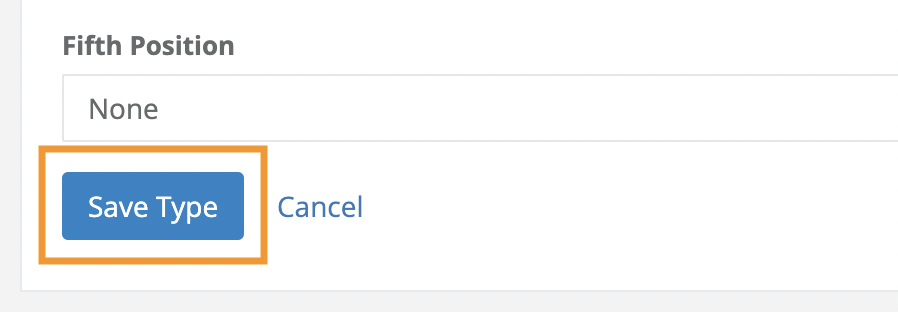
Click the blue Save type button seen in the lower left-hand corner of your screen.
New Product types may not show in your eCommerce experience for up to 6 hours.
Repeat the steps in Part 1 through Part 3 until all of your product types are created.