How to Review an Automated Address Import
- Addresses will automatically import into your CrowdFiber database the first time an In-Service, Pre-Registration Zone, or Private Zone record has been saved.
- This imported data will include, when available:
- Street Addresses
- USPS Data
- Census Block Data
- FCC Data
- Road length data
Part 1) Trigger Your Address Import
-
Establish your zone as one of the following three zone types:
- In-Service
- Pre-Registration
- Private
-
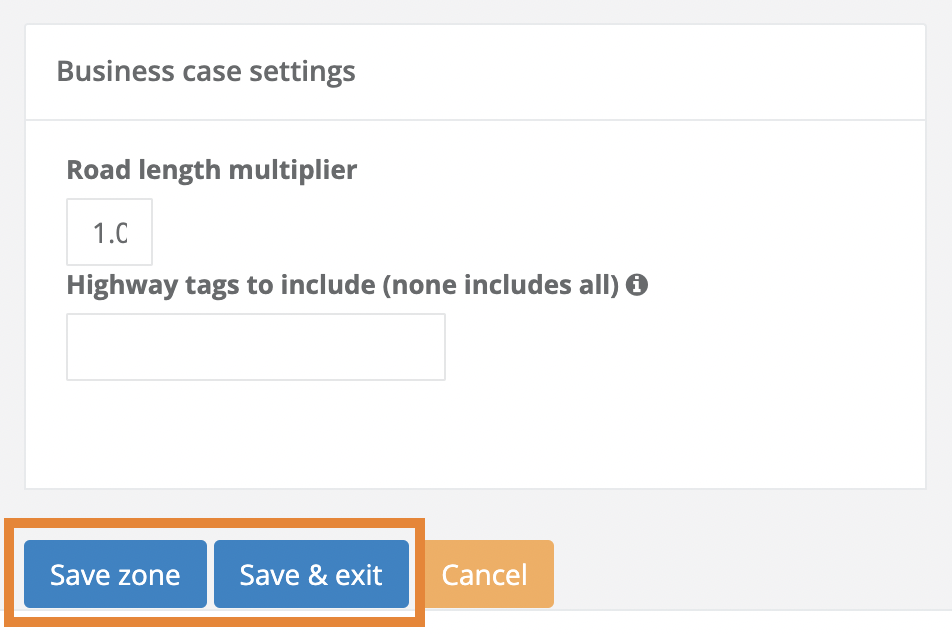
Click one of the blue Save Zone Settings buttons located in the bottom left-hand corner of the zone record.
Part 2) Perform a Real-Time Review of Imported Address Data
-
An address count will not immediately appear in the Zones Index on your Zones Page.
While addresses will start being imported into your platform within 30 minutes after saving your zone record, it can take up to 24 hours for the address count to display on your Zones Page.
- In your Zones Index, locate the row that contains the zone whose addresses you’d like to review.
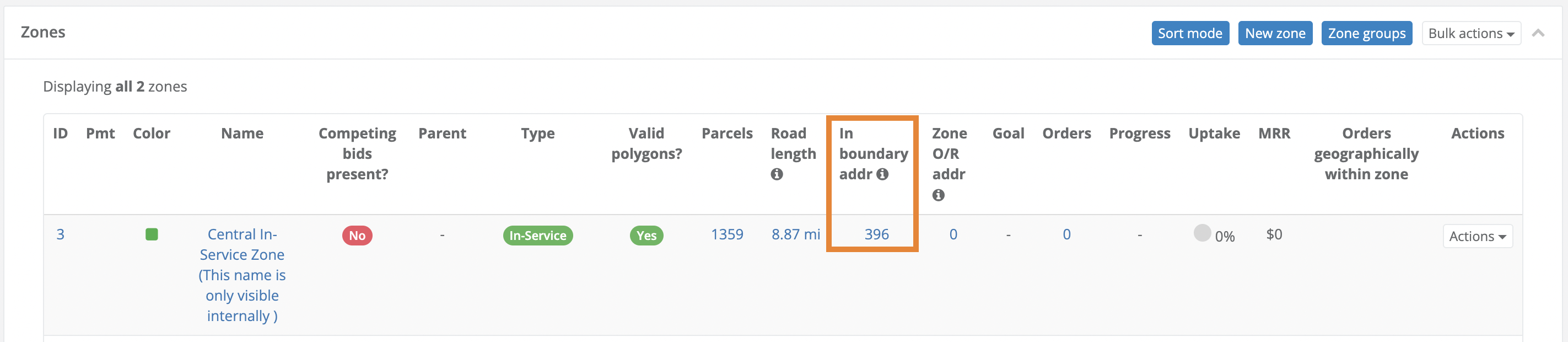
- In this row, click the number located in the In Boundary Address Column (see the screenshot below). An Address Analysis window will immediately open.
- In the Address Analysis window, you can review the current total count of addresses that have been imported into a zone and view the list of currently imported addresses by clicking the View Detailed Address List button located inside the Address Analysis window.
While an import is in progress, you can repeat Steps One through Three to view an updated count of imported addresses.