Import a CSV of Zones (Bulk Creation & Update)
Fields
Required Fields
Files for the new zone importer must have the following attributes:
- Name: The unique name of the zone.
- If the zone name exactly matches an existing zone name, the import will update/overwrite all existing geometry in a zone record
- If the zone name does not exactly match another zone name a new zone record will be created.
- Type: The type of zone you want. The following types are valid:
- in_service: In-Service
- extended: Pre-Registration
- nonpublic: Private
- reference: Reference
- remote: Remote
Optional Fields
- Internal zone name: The internal name for the zone.
- Common examples are feeder numbers or a timeline of when you plan to build out this zone.
- Zone group ID: The integer ID associated with a zone group.
- Zone goal: The number of registrants in a Pre-Registration zone needs to be ready for In-Service. Only applicable to Pre-Registration zones.
- Zone color: The hex color code of the desired color. e.g, #FF0000 for red
- Parent zone ID: For the creation of only. The integer ID associated with the parent zone
- Zone status message: The message on the frontend zone page and contact page for Pre-Registration and In-Service zones. Not applicable to any other zone type.
- Product ID(s): The integer ID associated with the products that will be targeted to the zone.
- Road Length Multiplier: The factor by which you can change the calculated road length for this zone.
- Notes: Text to display in the Notes textbox below the map in a zone record.
- Geometry (CSV Only):
- Each individual zone must be one a separate layer in your GIS platform.
- The WKT representation of the zone.
-
epsg 4326
Uploading geometry to an existing zone record will remove all existing geometry and add the geometry included in the CSV. All existing zone geometry will be overwritten with the imported geometry.
File Formats
The new zone importer is different from the existing importer in several ways. The most noticeable difference is the file formats it will accept:
- GeoJSON
- CSV
GeoJSON is a very common and convenient format. However, it can be difficult to edit for folks who only need to edit or analyze a zone's attributes but not the geometry.
The geometry must be in WGS 84/EPSG 4326.
How to Create a CSV
The process for turning your file into a CSV isn't quite straightforward. QGIS does this well and the following instructions use QGIS to perform the conversion.
If you not have QGIS, you can download it here: https://www.qgis.org/en/site/forusers/download.html.
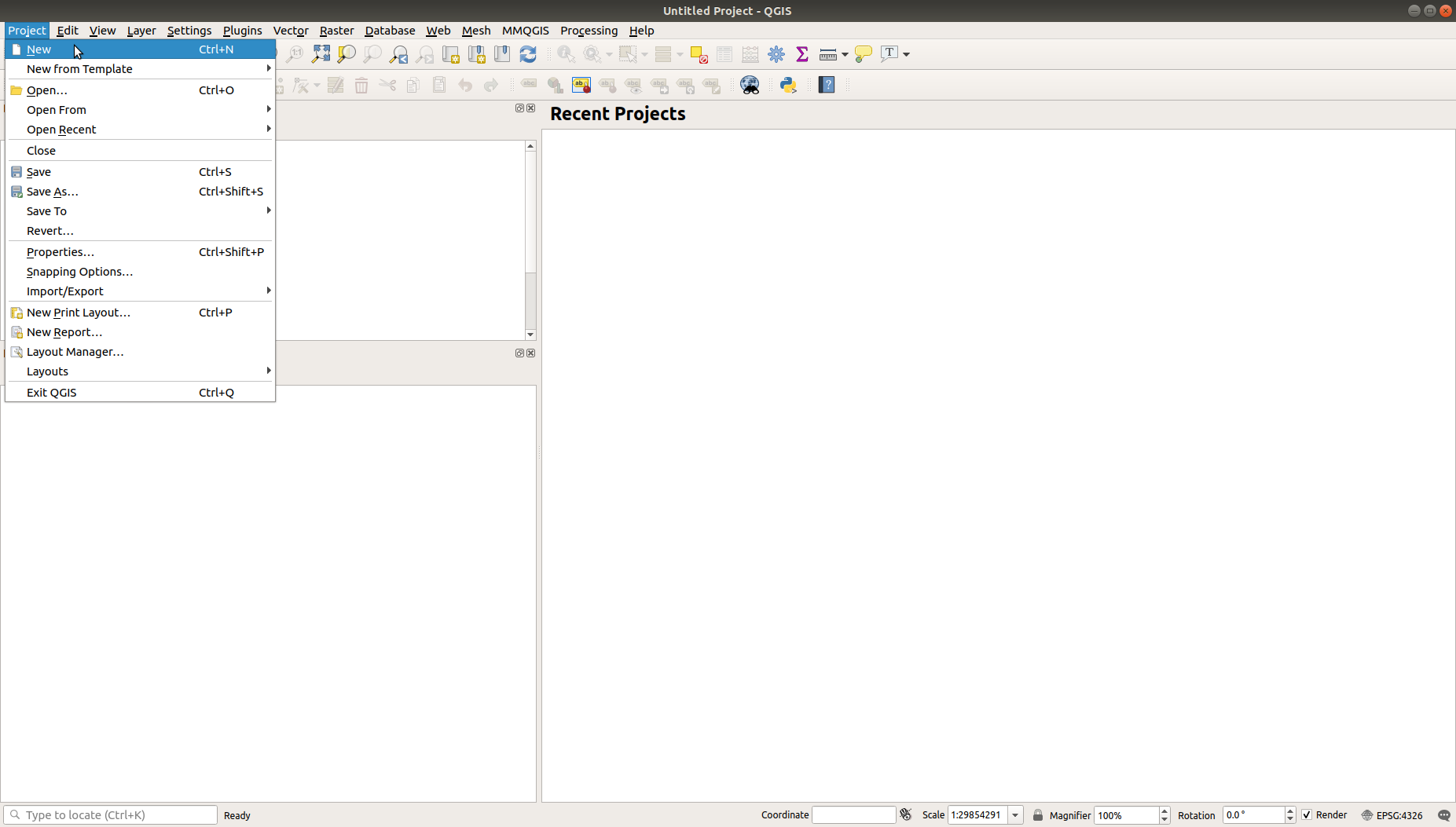
1. Open QGIS and create a new project by going to Project→ New:
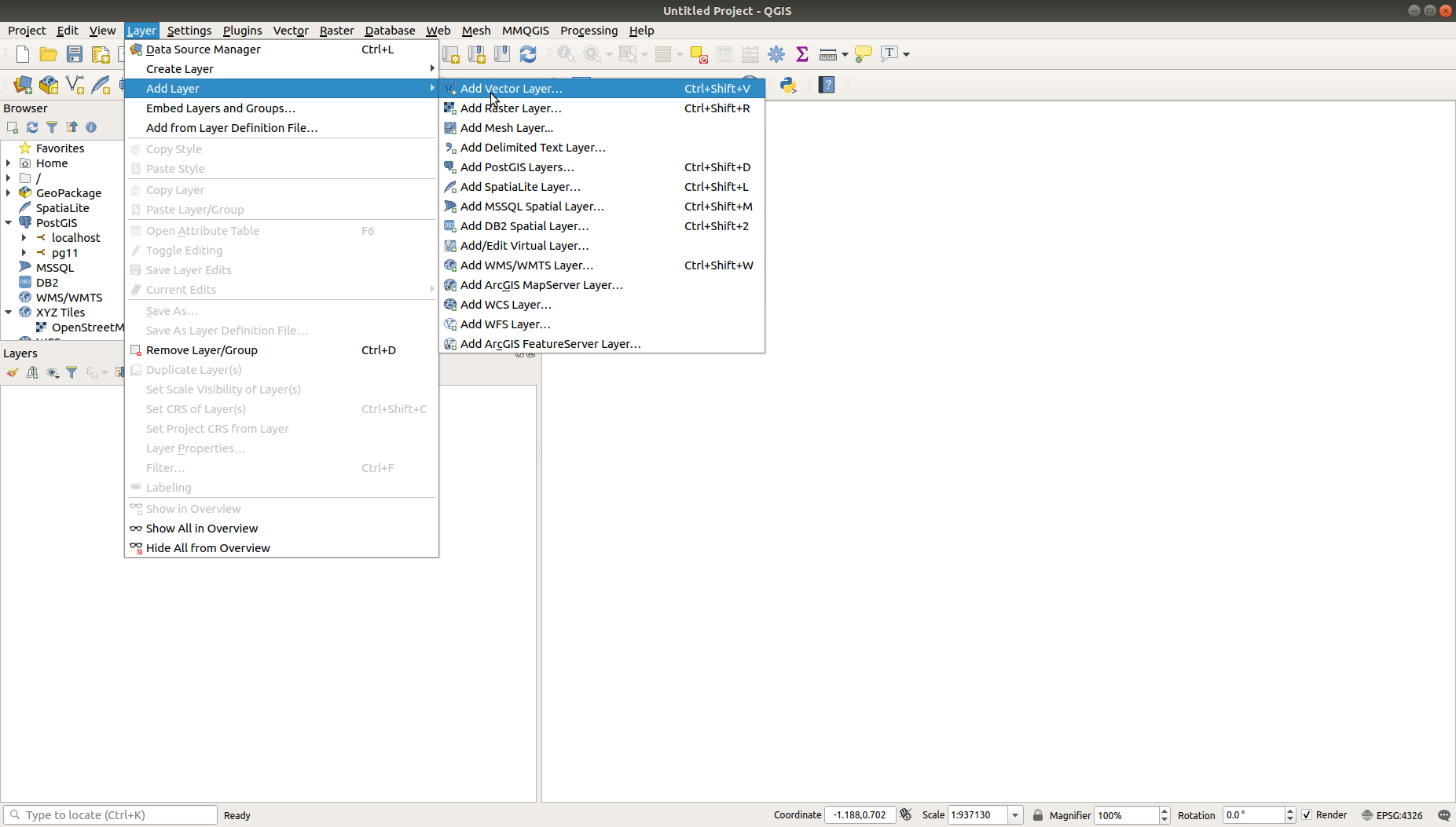
2. Add the file to your project by going to Layer→ Add Layer→ Add Vector Layer:
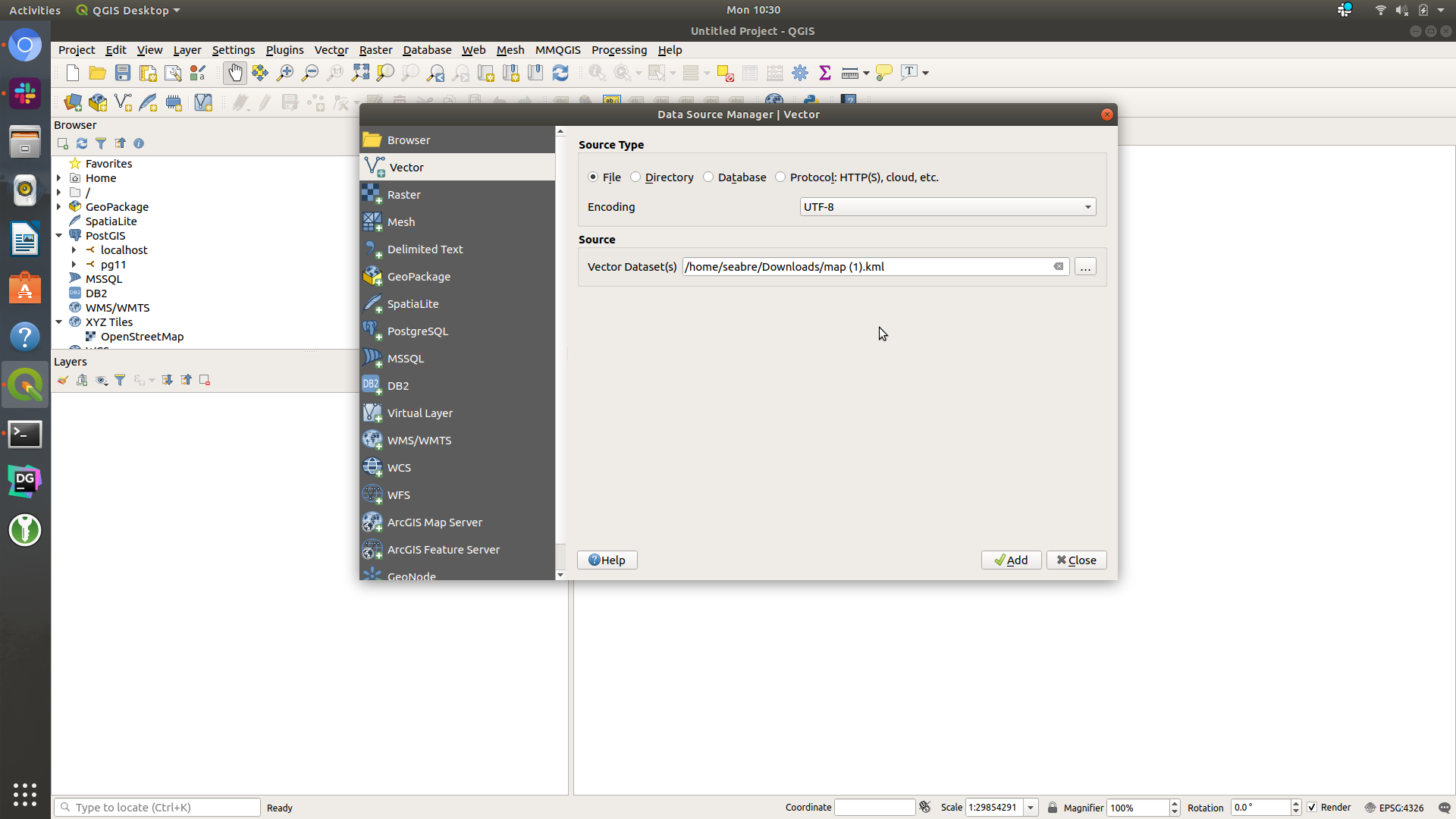
3. Select your file. It can be most any vector geospatial format such as GeoJSON, Shapefile, KML, etc then click Add:
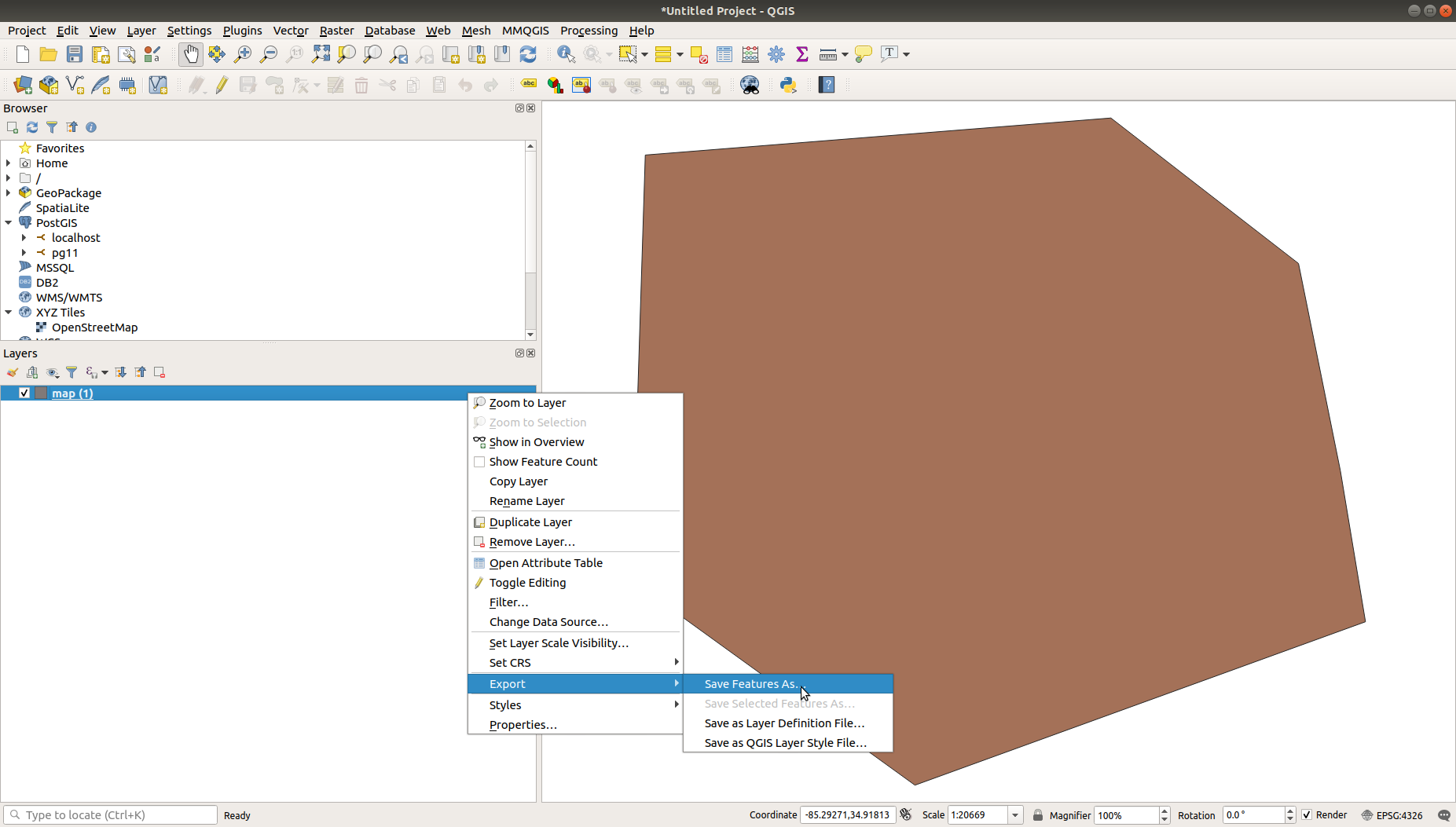
4. The layer should appear in Layers. Now, let's export the file to CSV by right clicking your layer, then moving your mouse cursor to Export → click Save Features As:
5. Set the Format to "Comma Separated Value". Then set File name to whatever file you want it to save to.
- Look for Geometry Type and set that to Polygon.
- Next, look for Geometry under Layer Options and set that to AS_WKT, then click OK.
- Finally, ensure that Include z-dimension is not checked and that CRS is set to EPSG:4326 - WGS 84:
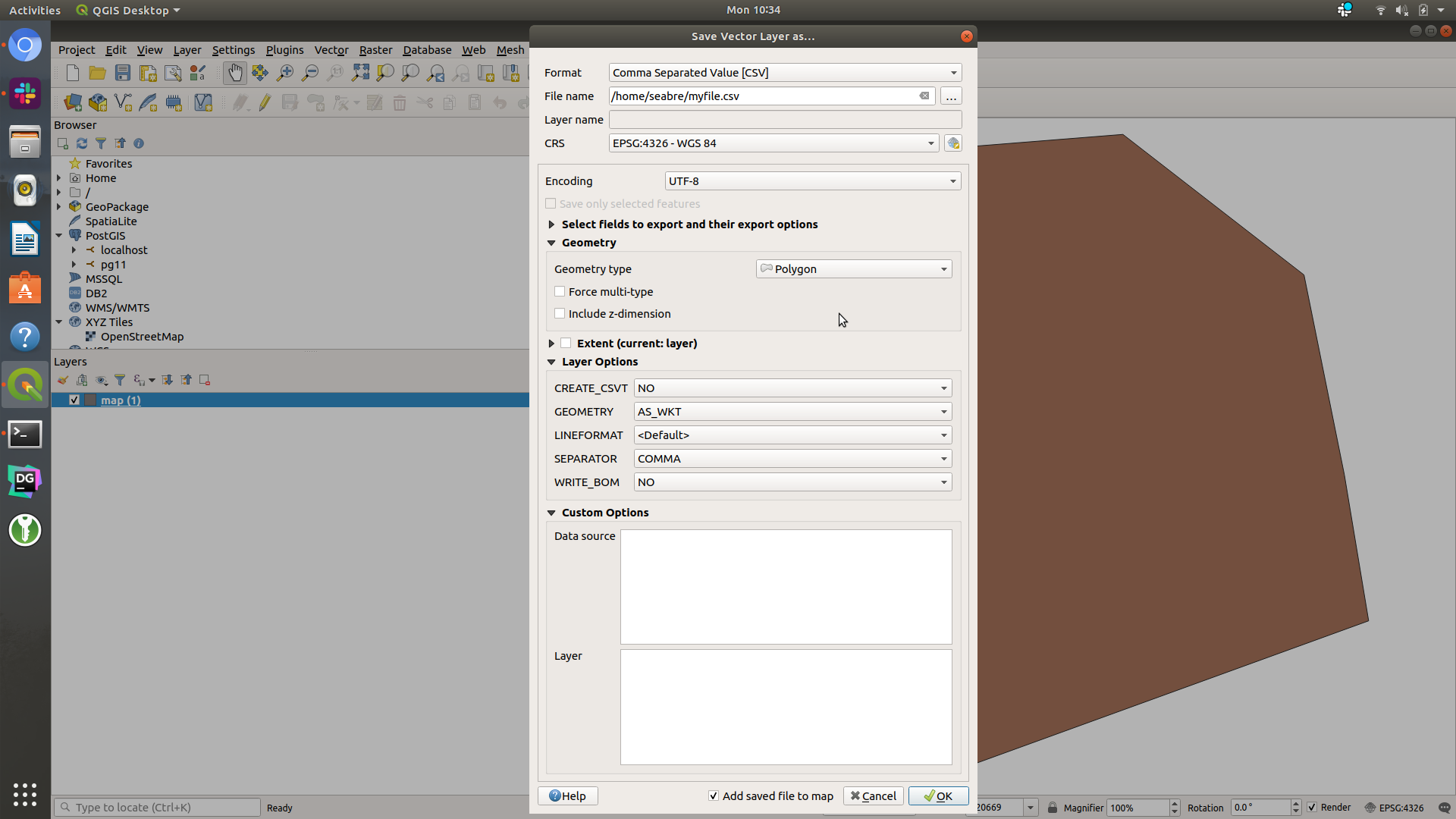
Now, your file should be saved as a CSV and you should be able to verify by opening it up in Excel or some other program that can open CSV files.
Add the Zone Attributes
Now you are ready to add new columns to the CSV or verify they are already in there to do your import into CrowdFiber. Remember, you need the following columns at a minimum:
- zone_name: The unique name of the zone.
- zone_type: The type of the zone you want. The following types are valid:
- in_service: In-Service
- extended: Pre-Registration
- nonpublic: Private
- reference: Reference
- remote: Remote
Optional Fields
- geometry (CSV Only): The WKT representation of the zone.
- zone_color: The hex color code of the desired color. e.g. #FF0000 for red
- road_length_multiplier: The factor by which you can change the calculated road length for this zone.
- zone_group_id: The integer ID associated with a zone group.
- zone_status: The message on the front end zone page and contact page for Pre-Registration and In-Service zones. Not applicable to any other zone type.
- people_goal: The number of registrants a Pre-Registration zone needs to be ready for In-Service. Only applicable to Pre-Registration zones.
- internal_name: The internal name for the zone. Common examples are feeder numbers or timeline of when you plan to build out this zone.
Once those are all added with the values you want, follow the import process to assign the attributes to CrowdFiber fields.
After you start the import, give the system a few minutes to read and process the data.