Set Demand Goals (optional)
What is a Demand Goal?
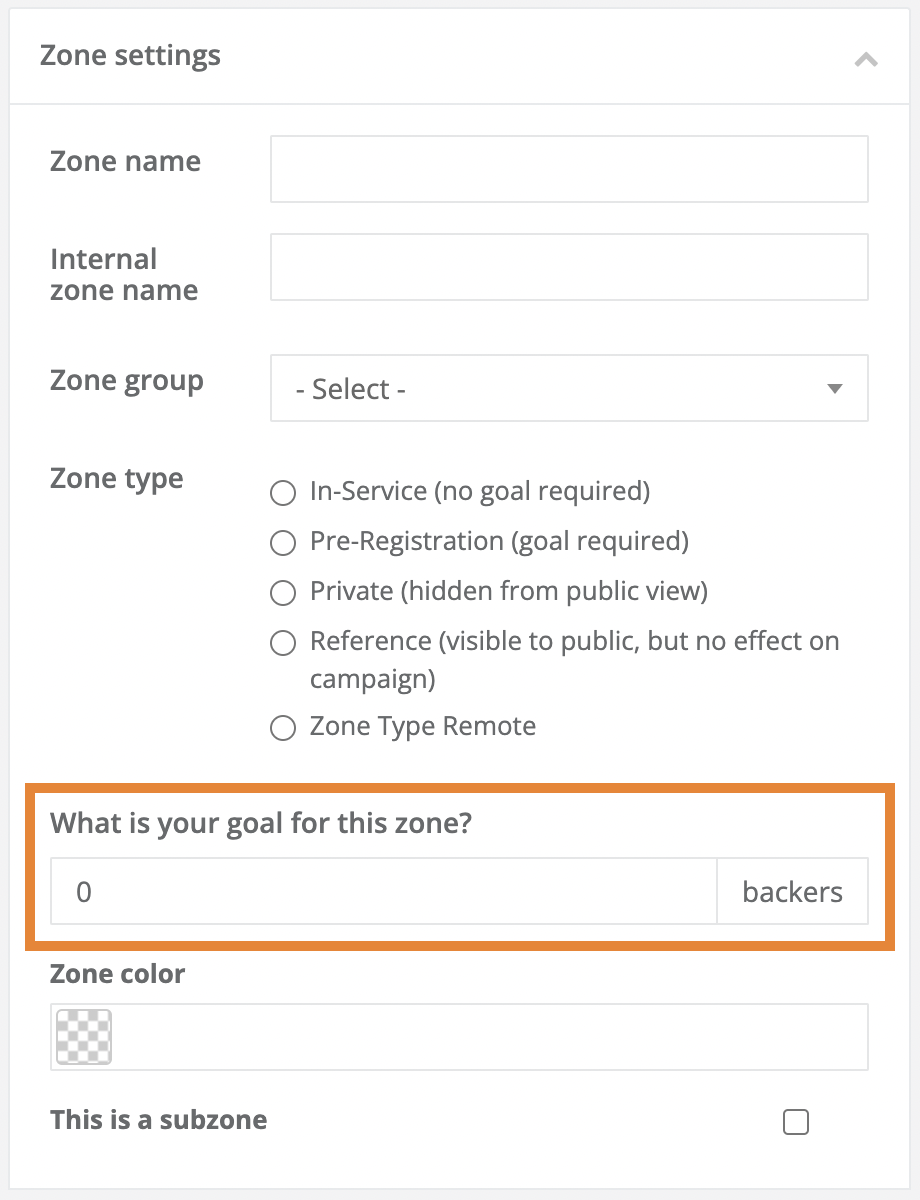
- Demand goals are established as a target for a specific number of completed registrations in a zone. Often when a demand goal is achieved plans for providing service to a Pre-Registration Zone move forward. Your progress toward a demand goal is displayed as a percent to goal in the Progress column in the Zones Index located on your Zones page.
By default, every registration in any market at any address in a zone will count as progress toward your demand goal. If you would like to customize which specific registrations count toward a demand goal, you can customize this setting by visiting the Progress Criteria tab located in the upper right-hand corner of a zone record (as described below).
How to Establish a Demand Goal
- In the left-hand rail of your Admin Dashboard, click Zones.
- On the following Zones page, use the filters located at the top of the page, and/or scroll down to your Zones Index located below the Filters section on this page, and locate the row containing the zone that you would like to edit.
- Click the zone's unique ID located in the ID column of the Zones Index to access the zone record.
- Enter the number of registrations you require to achieve your demand goal for an area into the What is your goal for this zone? textbox.
- Click one of the blue Save Zone Settings buttons located in the bottom left-hand corner of the zone record.
Create a Custom Demand Goal (optional)
Custom Progress Criteria
- The Progress Criteria tab allows you to establish rules that define which registrations count as progress toward your demand goal. Any registration that does not meet all of your zone’s Progress Criteria rules will not be calculated as progress toward your demand goal.
- Progress Criteria settings do not have any effect on your user experience. People will be able to register any addresses that exist within a zone and go through the expected user experience.
Example of Progress Criteria:
If your demand goal is 100 registrations for a zone, and there are 50 completed registrations in this zone, but only 10 registrations in this zone meet your progress criteria, you have a Progress metric of 10%.
How to Establish Custom Progress Criteria
- Click the Progress Criteria tab located above the map in your zone record.
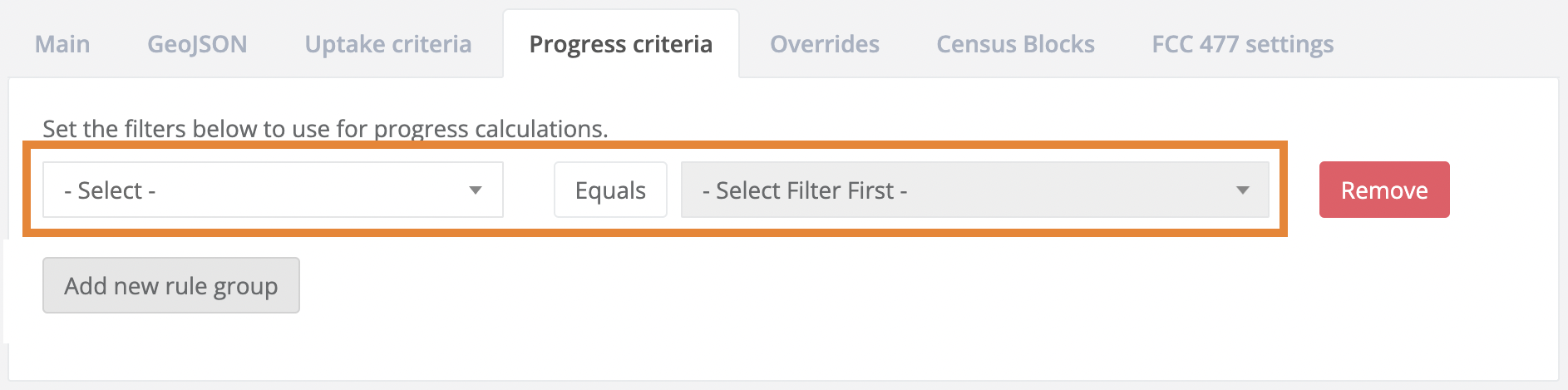
2. Within the Progress Criteria tab, click the Add New Rule Group button located on the left-hand side of the Progress Criteria window.

3. Click the Select drop-down menu and choose the specific registration attribute that counts toward your demand goal.
4. Click the Select Filter First drop-down menu (the drop-down menu to the right of the Select drop-down menu) and set the value that registration attribute must have to count toward your demand goal.
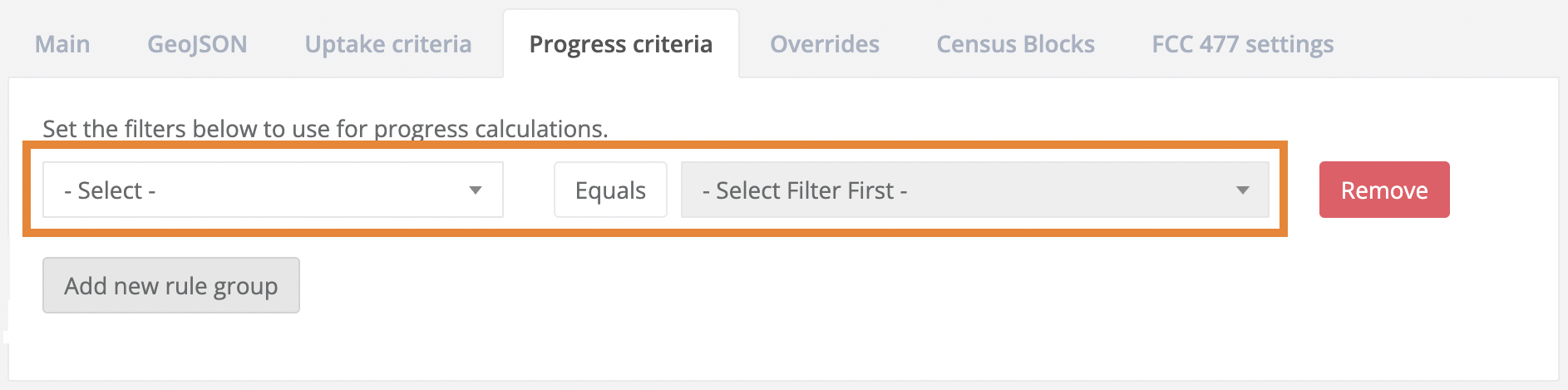
5. To add more specifications to your registration requirements, click the Add New Rule Group button located below the Select drop-down menu.
6. Click one of the blue Save Zone Settings buttons located in the lower left-hand corner of the page.