Set Zone Priorities (Sort Mode)
What is Zone Priority?
- Zone Priority Defines What Zone an Address Will Exist Within.
- When you look at your list of zones on your Zones page (also known as your “Zones Index”), you can think of this list of zones as a hierarchy.
- The first zone that an address fits into has “zone priority” and will be the zone where an address is assigned. Once an address is assigned to a zone, that zone defines the registration process and product offerings for an address; that zone will also accrue and display all activity on this address within its zone metrics.
-
Zone Priorities Define What Zone Provides the Registration Process When Zone Boundaries Overlap.
- If your polygons overlap, you can make the platform respect which zone the overlapping addresses should be assigned to (i.e. what zone should provide the registration process). This can be done by giving the zone that you would like to assign the overlapping address to a higher priority (by placing the zone higher in your Zones Index).
Recommended Priority Order
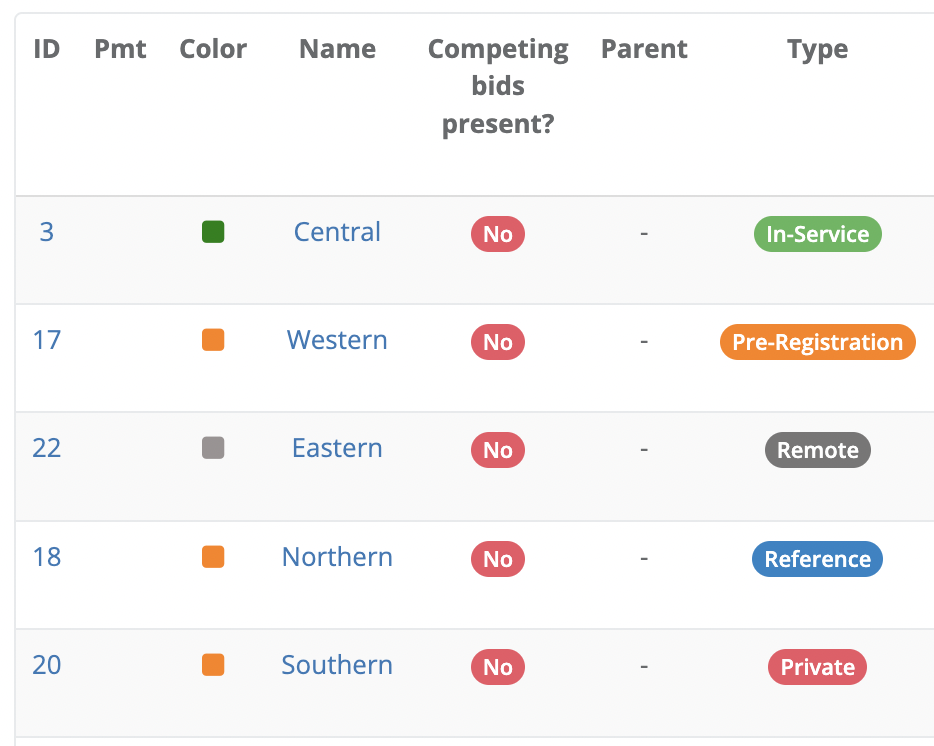
- In-Service
- Pre-Registration
- Remote
- Reference
- Private
- While there are extenuating circumstances, this priority order typically ensures that all registrants go through the correct registration experience:
- All registrants who can subscribe to your services today can subscribe to your services.
- All registrants who are in areas where your services may be available in the future can pre-register.
-
Lastly, all registrants who exist outside of your In-Service and Pre-Registration areas are made aware that services will not be available in the near future.
How to Adjust Zone Priority
- Click the Zones link located in the left-hand rail of your Admin Dashboard.
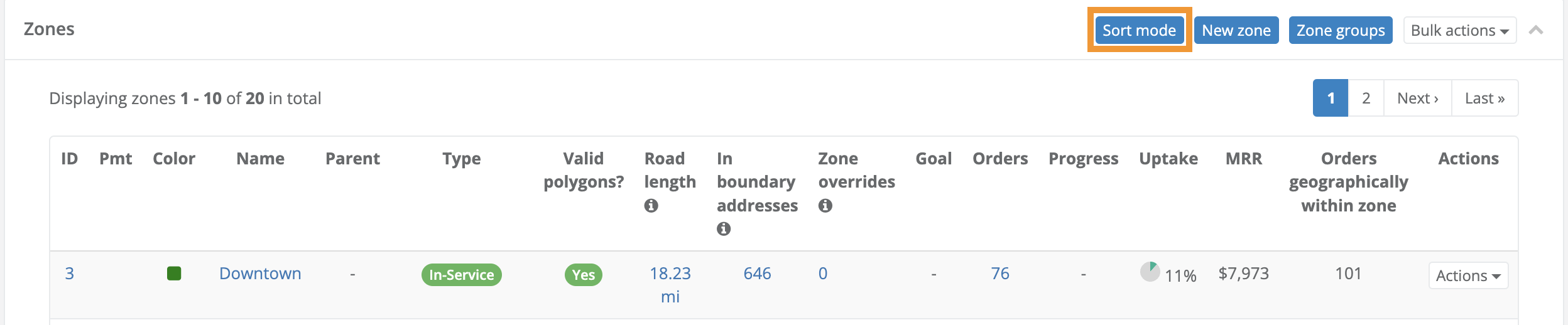
- On the following Zones page, click the blue Sort button in the upper right-hand corner of the list of zones on your zones page.
- On the following page, use the following options to set your Priority order:
Reposition Zones
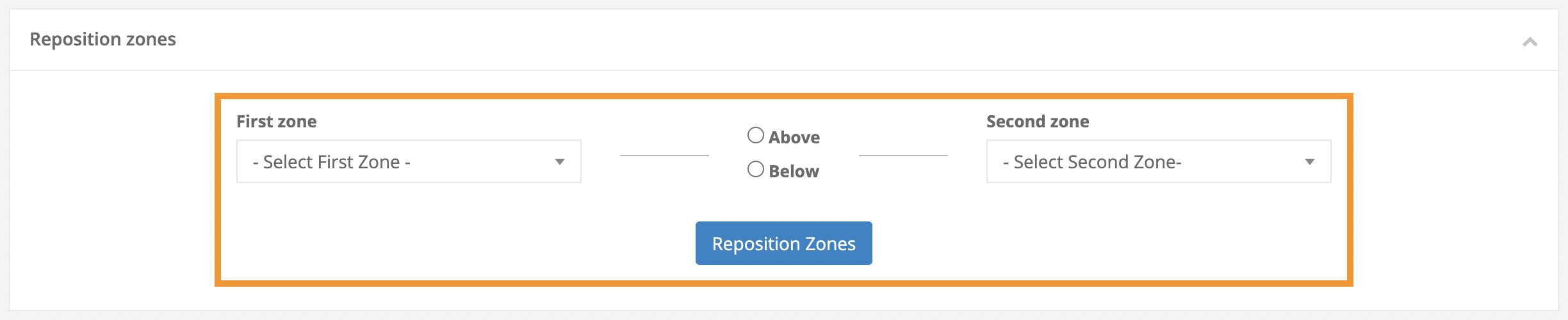
Place a single zone immediately above or below a specific zone.
- Select the zone you would like to move from the First Zone drop-down menu.
-
Define if The First Zone should be placed above or below a specific zone.
i. Click the Above button to move The First Zone immediately above a specific zone.
ii. Click the Below button to move The First Zone immediately below a specific zone.
-
Select the zone you would like the First Zone to be placed immediately above/below from the Second Zone drop-down menu.
- Click the blue Reposition Zones button below the Above/Below radio buttons to move your zone.
Sort Column
Drag and drop your zones into their correct priority.
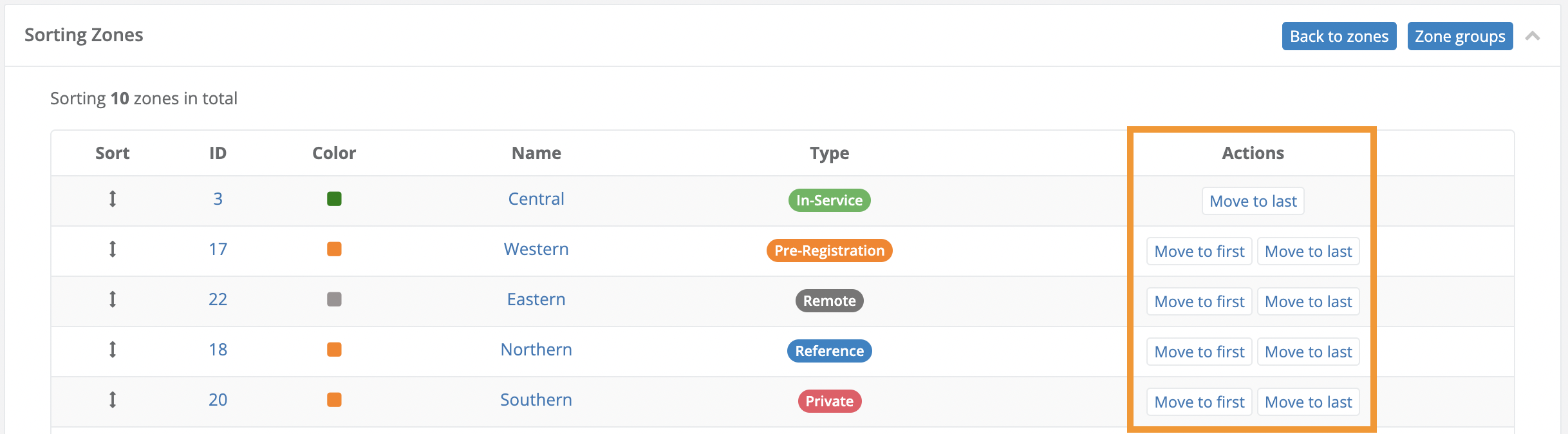
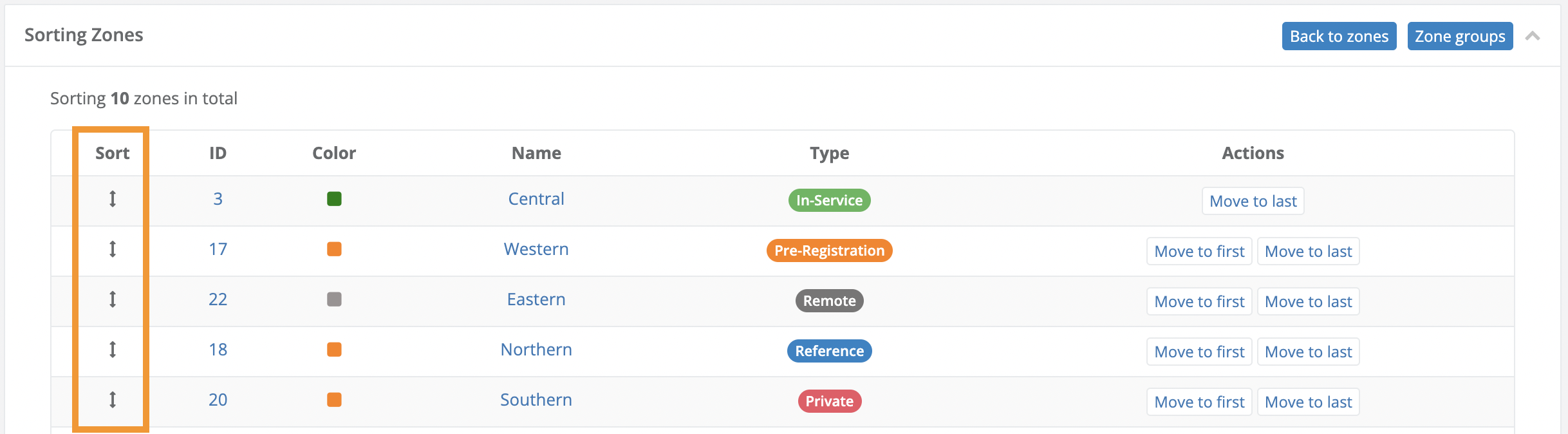
- Click and hold a vertical double arrow seen in the Sort column of your Sorting Zones Index to drag and drop a zone into its correct priority.
Actions Column
Move a single zone to the top or bottom of your zone index.
- Click the Move to First button to move a zone to the first row of your Zones Index
- Click the Move to Last button to move a zone to the last row of your Zones Index.