The Anatomy of a Zone Record
Zone Settings
Zone Name
- A customer-facing name for your service area. The text in this text box will be seen on the Service Areas page on the front end of your website, as well as throughout the steps in your registration process. Make this name a pleasant, easy-to-understand name for your registrants and website visitors.
Internal Zone Name
- A name for your zone that is only visible to Admin Users on your Zones page in your Admin Dashboard. This name is perfect for any string of letters, numbers, and characters that will make it easy for your teammates to identify a zone in CrowdFiber.
Zone Type
- A zone must be set to an In-Service or Pre-Registration Zone Type to be visible to the public and provide a user experience that communicates the person registering an address is in one of your current or future service areas.
- Zone Type defines the unique steps and content that a registrant sees during their registration process; there are unique user experiences for each zone type. The Zone type also defines exclusive metrics your team can track within a zone (the following page will define each zone type you see in a zone record).
-
In-Service (no goal required)
- Service areas where your organization is actively offering services. People can sign-up, select services, and have those services installed in a reasonable amount of time. In-Service Zones are visible to the public on the Service Areas page located on the front end of your CrowdFiber website.
- These service areas offer a unique registration experience to all users who register an address that exists within an In-Service Zone’s boundaries. In-Service Zones also track and display an exclusive set of zone metrics for all activity within the zone’s boundaries.
- Metrics Displayed in Your Admin Dashboard
- Addresses (physical locations)
- Monthly Recurring Revenue (only calculated if using CrowdFiber’s Bundle Builder e-commerce solution)
- Parcels (taxable pieces of land)
- Orders (completed registrations)
- Road length (miles of physical road that exist within a zone boundary)
- Uptake (percent of addresses that exist within a zone’s boundaries that have placed a registration via your CrowdFiber site)
- Use Cases
- Service areas where you are currently offering service
-
Pre-Registration (goal required)
- Service Areas where you are assessing demand and considering a future buildout of your services. These zones are geographic areas where your services are not available, but maybe in the future.
- Pre-registration Zones allow you to set a goal for your interest/demand in your services and easily monitor your progress toward that demand goal. Pre-Registration Zones are visible to the public on the Service Areas page located on the front end of your CrowdFiber website.
- These service areas offer a unique registration experience to all users who register an address that exists within a Pre-Registration Zone’s boundaries. Pre-Registration Zones also track and display an exclusive set of zone metrics for all activity within the zone’s boundaries.
- Metrics Displayed in Your Admin Dashboard
- Addresses (physical locations)
- Monthly Recurring Revenue (only calculated if using CrowdFiber’s Bundle Builder e-commerce solution)
- Parcels (taxable pieces of land)
- Orders (completed registrations)
- Road length (miles of physical road)
- Uptake (percent of addresses with orders)
- Progress (the percentage of demand goal achieved via orders completed through your CrowdFiber site)
- Use Cases
- Areas where you are assessing demand or generating interest
- Service areas that are currently in construction
-
Private (hidden from public view)
- Service areas only visible to Admin Users on the Map page and Zones page of your Admin Dashboard. Private Zones do not process orders, and Private Zones are invisible to the public.
- This zone type does not offer a unique registration experience to any user who registers an address that exists within a Private Zone’s boundaries. However, Private Zones track and display an exclusive set of zone metrics for all activity within the zone’s boundaries.
- Registrants who register an address that exists inside a Private zone’s boundary and outside all of your In-Service and Pre-registration Zone boundaries will receive a Remote user experience.
- Metrics Displayed in Your Admin Dashboard
- Addresses (physical locations)
- Parcels (taxable pieces of land)
- Orders (completed registrations)
- Road length (miles of physical road that exist within a zone’s boundary)
- Uptake (percent of addresses that exist within a zone’s boundaries that have placed a registration via your CrowdFiber site)
- Use Cases Include
- Geographically targeted marketing areas (that do not fit within the boundaries of your service areas)
- Gathering/calculating address, contact, and previous order data that exist in geographic areas (other than those defined by your In-Service and Pre-Registration Zones)
-
Reference (visible to the public, but has no effect on the campaign)
- Service areas that are visible to the public on the Service Areas page seen on the front end of your CrowdFiber website and internally on the Map page of your Admin Dashboard. These zones are perfect for displaying county lines, grant boundaries, and fiber routes.
- This zone type does not offer a unique registration experience to any user who registers an address that exists within a Reference Zone’s boundaries. However, Reference Zones track and display an exclusive set of zone metrics for all activity within the zone’s boundaries.
- Registrants who register an address that exists inside a Reference zone’s boundary and outside all of your In-Service and Pre-registration Zone boundaries will receive a Remote user experience.
- Metrics Displayed in Your Admin Dashboard
- Addresses (physical locations)
- Parcels (taxable pieces of land)
- Orders (completed registrations)
- Road length (miles of physical road that exist within a zone’s boundary)
- Uptake (percent of addresses that exist within a zone’s boundaries that have placed an order via your CrowdFiber site)
- Use Cases
- Display county lines
- Display grant areas
-
Zone Type Remote
- Geographic areas where you do not intend to provide services in the near future.
- These service areas offer a different registration experience than In-Service and Pre-Registration Zones. Remote Zones also track and display an exclusive set of zone metrics for all activity within the zone’s boundaries.
- There is no need to draw a Remote Zone outside the boundaries of your In-service and Pre-Registration Zones. All registrants who search an address that exists outside all of your In-service and Pre-Registration Zones will receive a Remote user experience.
- Metrics Displayed in Your Admin Dashboard
- Addresses (physical locations)
- Parcels (taxable pieces of land)
- Orders (completed registrations)
- Road length (miles of physical road that exist within a zone’s boundary)
- Uptake (percent of addresses that exist within a zone’s boundaries that have placed an order via your CrowdFiber site)
What Is Your Goal for This Zone? (Pre-Registration Zone Type Only)
- The total number of completed registrations needed to justify the next steps in your plans to provide service to this specific geographic area.
- By default, every completed registration in a zone counts toward your demand goal. However, you can customize what specific types of registrations count toward your demand goal (for example, only residential address registrations count as progress to your goal, or only commercial address registrations count as progress to your goal) - See the Progress Criteria below section for more info.
Zone Color
- The hex code (including the ‘#’ character) entered into this textbox defines the color in which your zone will display on your customer-facing Service Areas page and internally on the Map page of your Admin Dashboard.
This Is a Subzone
- An advanced, optional feature that allows you to define a zone as a part of another zone while also tracking an exclusive set of metrics for this zone (click here to learn more about Subzones).
Progress Bar Settings
Zone Status Message
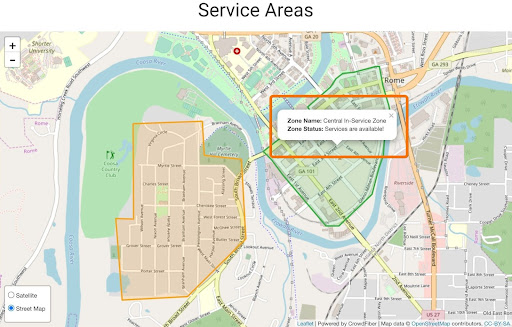
- A field that allows you to display a custom message inside your Service Areas Map. This message will pop up when you place your mouse over a zone on your Service Areas Map.
Payment Settings
- Payments is an optional setting. That requires secure integration with the Stripe payment platform
- Once your integration is complete, placing a checkmark in this box will display a payment interface on the Success panel of your CrowdFiber registration process (the registration panel seen after the registrant clicks the Complete Process button that submits their registration).
- Payments allow your registrants to make a one-time deposit payment on your CrowdFiber site that is deposited directly into your organization’s bank account via Stripe’s secure payment platform.
Products Targeted to this Zone
- An optional setting that is only necessary if you’re selling products within your CrowdFiber registration process via CrowdFiber’s Bundle Builder eCommerce solution.
-
Moving the products from the Available box to the Selected box by clicking on the product name allows you to quickly target specific products to display in the Bundle Builder during all registration processes for addresses within a zone.
-
Available Column
Products not displaying the Bundle Builder.
-
Selected column
Products currently displaying in the Bundle Builder.
-
Zone Notes
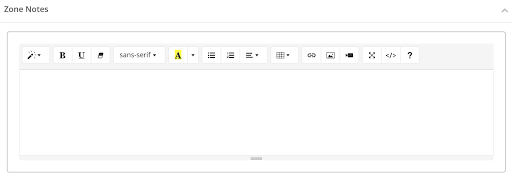
- An optional field that allows you to keep internal notes on a zone right within a zone record (the information in this text box does not display anywhere else on your CrowdFiber website).
Zone Record Map Tabs
-
Main
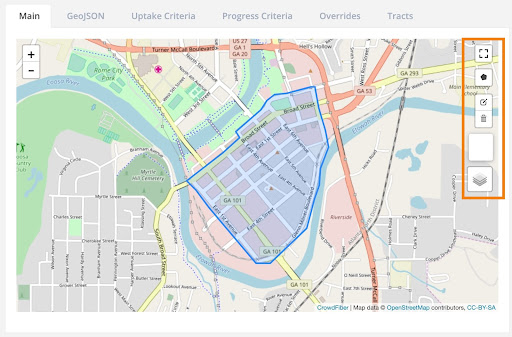
- This tab provides you with the ability to view and edit your polygons inside CrowdFiber.
-

Expand the map to full screen
-

Draw new polygons within your existing zone
After clicking this icon, your first click within your map will create your new polygon’s first point. Every subsequent click of the mouse will start creating a new line/vertice in your polygon.
Clicking the Finish button will automatically connect the end of the last line you created to the first point in your polygon.
-

Edit your existing polygon
This button will open up all of the vertices in your existing polygon for adjustment. This option allows you to drag and drop all of the vertices in your polygon, so you can easily update your service area’s shape in real-time.
Upon clicking this button, you’ll see squares appear at the ends of every vertice in your polygon. You can drag and drop any of these squares as you see fit to change your polygon’s shape.
Make sure to click the gray Save button located on the right-hand side of the map that you’re editing to complete your edits and turn off the edit feature.
-

Delete a polygon
After clicking this icon, you’ll be able to delete an entire polygon with a single click. Simply click in the center of the polygon that you would like to delete, and it will be removed from your map.
If you have multiple polygons in a zone record, only the polygons you click will be deleted.
To complete your edits and turn off the delete feature, make sure to click the gray Save button located on the right-hand side of the map.
-

View Layers
This button allows you to change the way your map displays as well as view additional pins and polygons on the map inside any zone record:
- Toggle between Open Street, Bing, and Satellite map views.
- View pins of existing addresses and orders/registrations in your CrowdFiber database.
- See CAF Auction Winners land.
- View pins of Healthcare and Educational Facilities.
- View additional zones within your CrowdFiber database (you can only edit the zone record you are currently editing).
GeoJSON
- This tab provides you with full access to the GeoJSON code that creates your polygon.
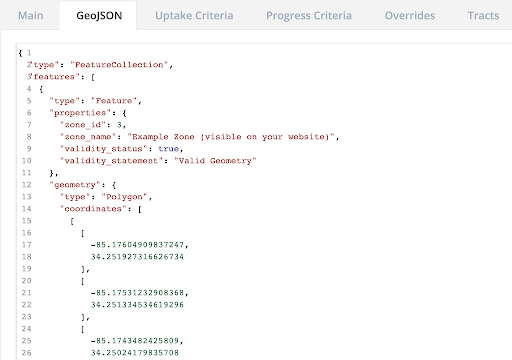
- To view a polygon’s GeoJSON, click this tab, then click the white space that initially displays within the text box below this tab.
- Feel free to copy and paste your GeoJSON as you see fit.
Uptake Criteria
- An optional setting. Uptake is defined as the total percentage of addresses within a zone that has completed a registration via your CrowdFiber site.
- The Uptake Criteria tab allows you to establish rules that define what address in your zone count toward your organization's uptake. Uptake Criteria enables you to define a custom universe of addresses for a zone’s uptake calculation.
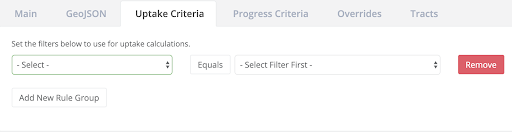
- Any address that does not meet all of your zone’s Uptake Criteria rules will not be included in your universe of addresses. If you choose not to add rules to your Uptake Criteria, every registration (at any address in this zone) placed via your website will increase your total uptake in a zone.
- Uptake Criteria settings do not have any effect on your user experience. People will be able to register any addresses that exist within a zone and go through the expected user experience, as created by your team. Uptake Criteria settings simply affect how the Uptake percentage is calculated on your Zones page in your Admin Dashboard.
- Uptake Example Suppose you have 1,500 addresses within a zone, but only a total of 1000 addresses meet your uptake criteria for this zone. If there are 100 registrations for addresses within this zone (that also meet your uptake criteria), you will have an Uptake metric of 10%.
Progress Criteria
- An optional setting that is exclusive to Pre-Registration Zones. Progress lets you know how close you are (as a percentage) to achieving the demand goal that you established in the “What is your goal for this zone? (Pre-Registration Zone type only)” text box in a zone’s Zone Settings.
- When your progress metric equals 100% for a zone, you have achieved your goal for demand.
- The Progress Criteria tab allows you to establish rules that define which registrations count as progress toward your demand goal.
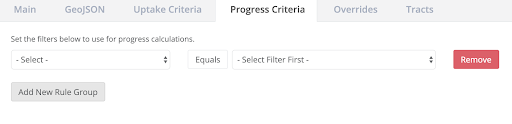
- Any registration that does not meet all of your zone’s Progress Criteria rules will not be counted as progress toward your demand goal. If you choose not to add rules to your Progress Criteria, every order (at any address in this zone) placed via your CrowdFiber website will count as progress toward your demand goal.
- Progress Criteria settings do not have any effect on your user experience. People will be able to register any addresses that exist within a zone and go through the expected user experience created by your team.
Progress Criteria settings affect how your percentage to goal metric is displayed in three places:
- The Zones page in your Admin Dashboard
- The status bars that are seen below the map on your Service Areas page on the front end of your CrowdFiber site (displaying your percent to goal on your Service Areas page is optional)
- The status bars seen on the Contact Info panel in your registration process (publicly displaying your percent to goal in your registration process is optional)
-
Progress Criteria Example
Suppose you establish a demand goal of 100 registrations for a zone, and there 50 completed registrations in this zone. If only ten registrations in this zone meet your progress criteria, you will have a Progress metric of 10%.
Overrides
- An optional setting. The Overrides tab facilitates creating a custom registration process exclusive to the zone you are editing.
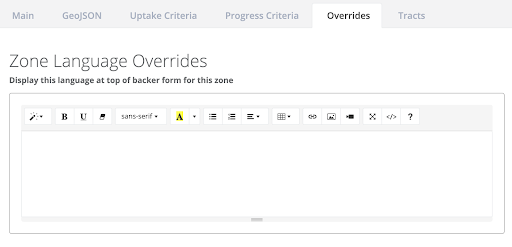
- Registration Process Customizations Include:
- Language is seen on the Contact Info Panel
- Language is seen on the Success Panel
- Welcome Email language (a custom, automated email delivered to the registrant after they complete their registration)
- Registrations steps: a custom flow of steps in this zone’s registration process
- Surveys: display a custom survey to all registrants registering an address in this zone.
Tracts
- This tab displays all census tract data that are available for this zone.

FCC 477 Settings
- An optional setting that configures what data will appear in your 477 reporting provided by CrowdFiber.